
Help center
Create your TBit in a conversation: your WhatsApp assistant, step by step
Create your WhatsApp assistant by chatting: you tell it about your business, review the card, confirm it, and it's born with an 8-day trial. Then, catalog, line, and test.
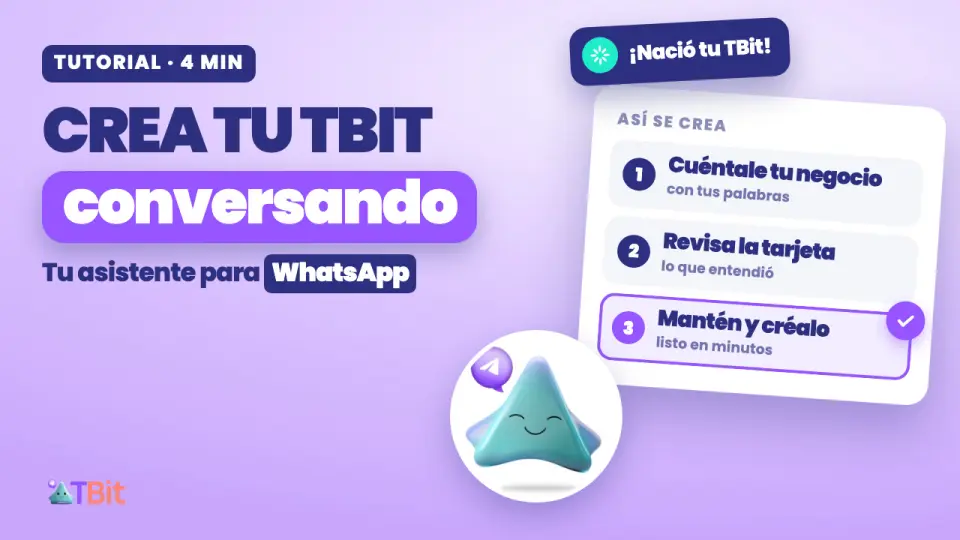
Creating it is a conversation
Your customers write to you at all hours: how much does it cost, do you deliver, what time do you open. And you almost always answer the same thing, between one sale and the next. TBit is your assistant: it handles things for you on WhatsApp, with what it knows about your business.
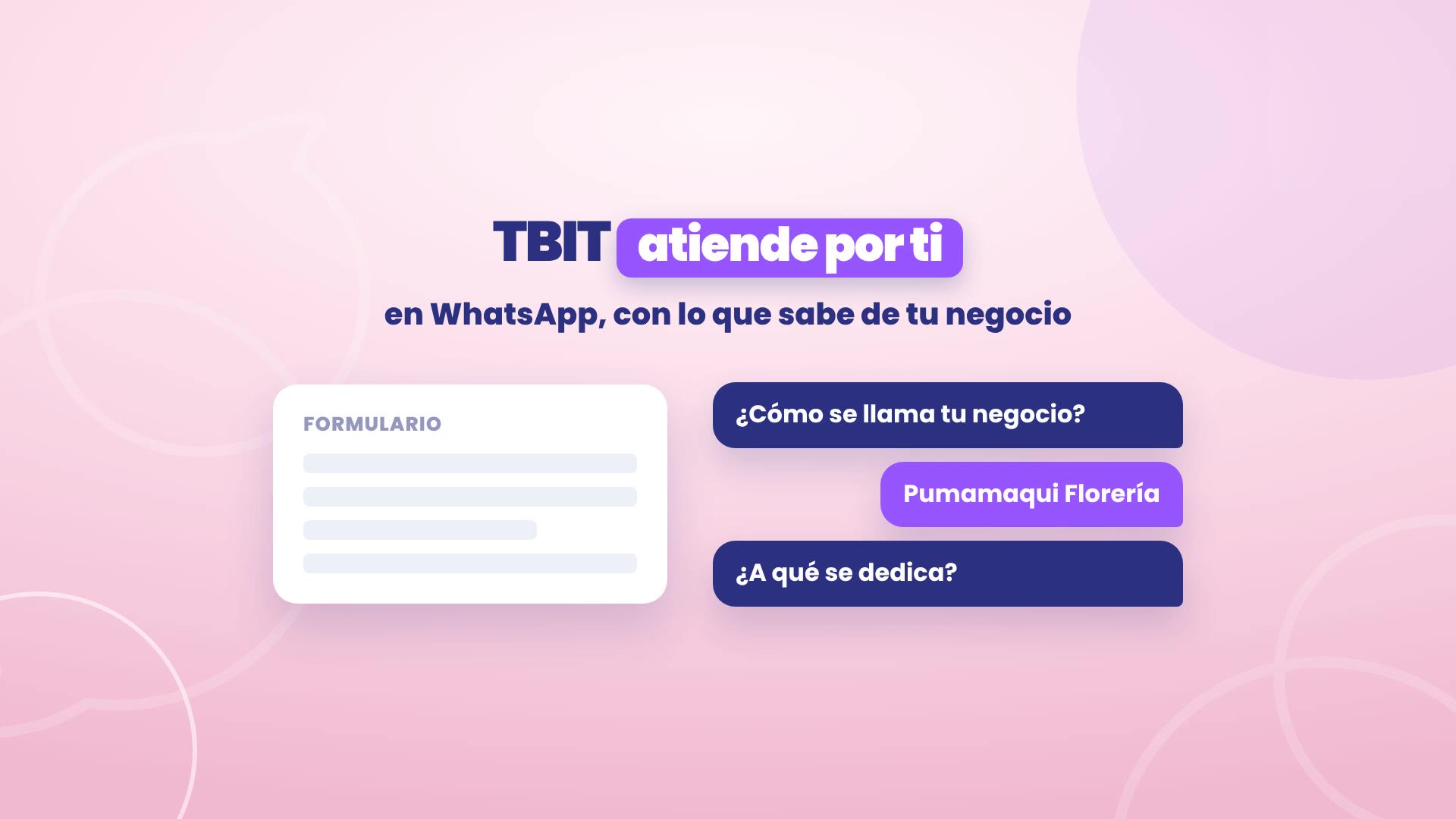
Creating it isn't filling out a form. You tell it about your business in the chat, in your own words, and TBit puts together the rest. In this guide you see each step, from "I want to create my TBit" to the list of what's next.
See it in under four minutes
The full walkthrough, with TBit's real screens. Below you have every step in writing.
The example: a flower shop in Quito
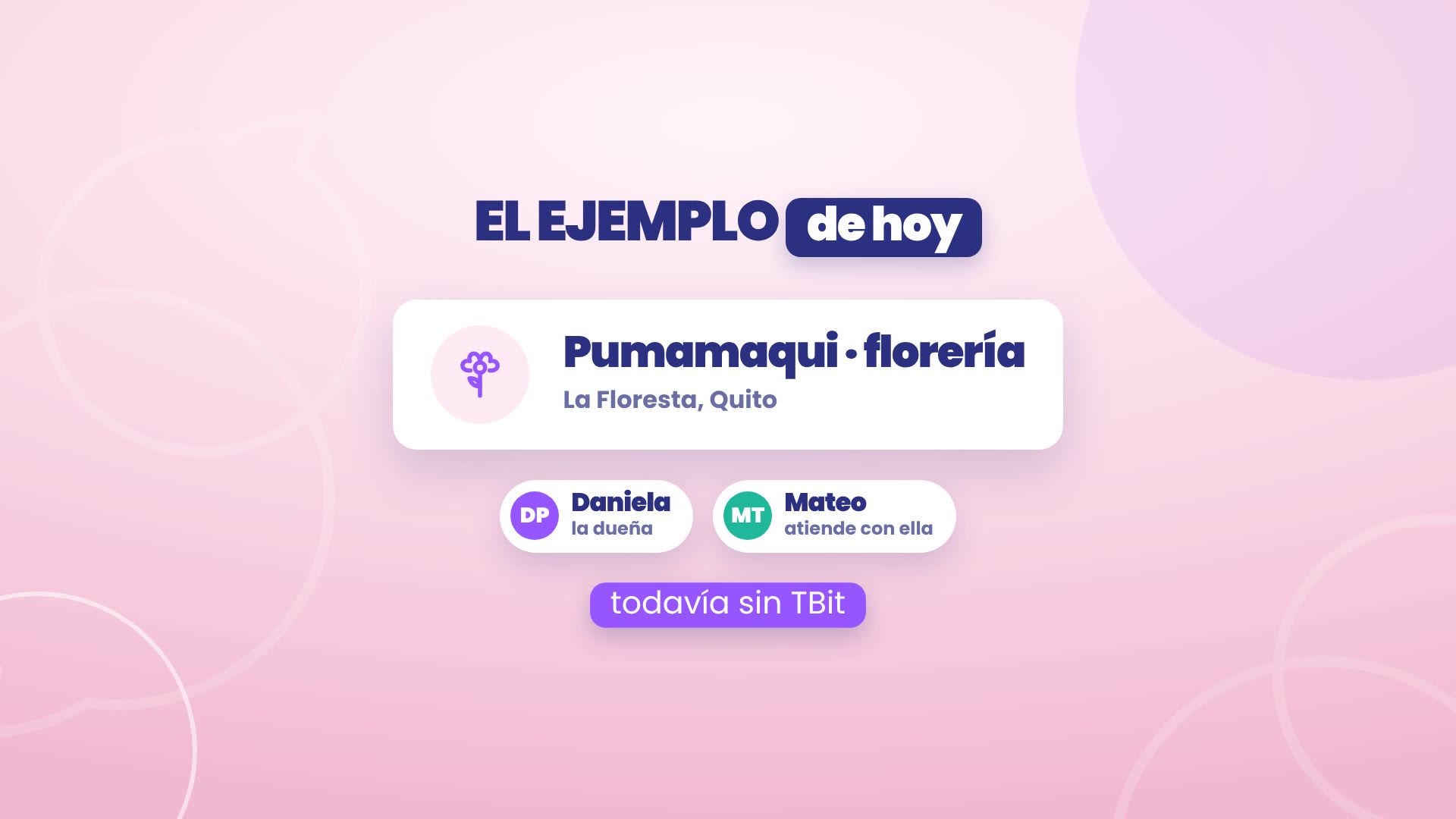
We follow Pumamaqui Florería, in La Floresta, Quito: rose bouquets, birthday arrangements and wedding flowers, with home delivery. Daniela is the owner and Mateo helps her serve customers. They don't have a TBit yet. Pumamaqui is a demo account with sample data.
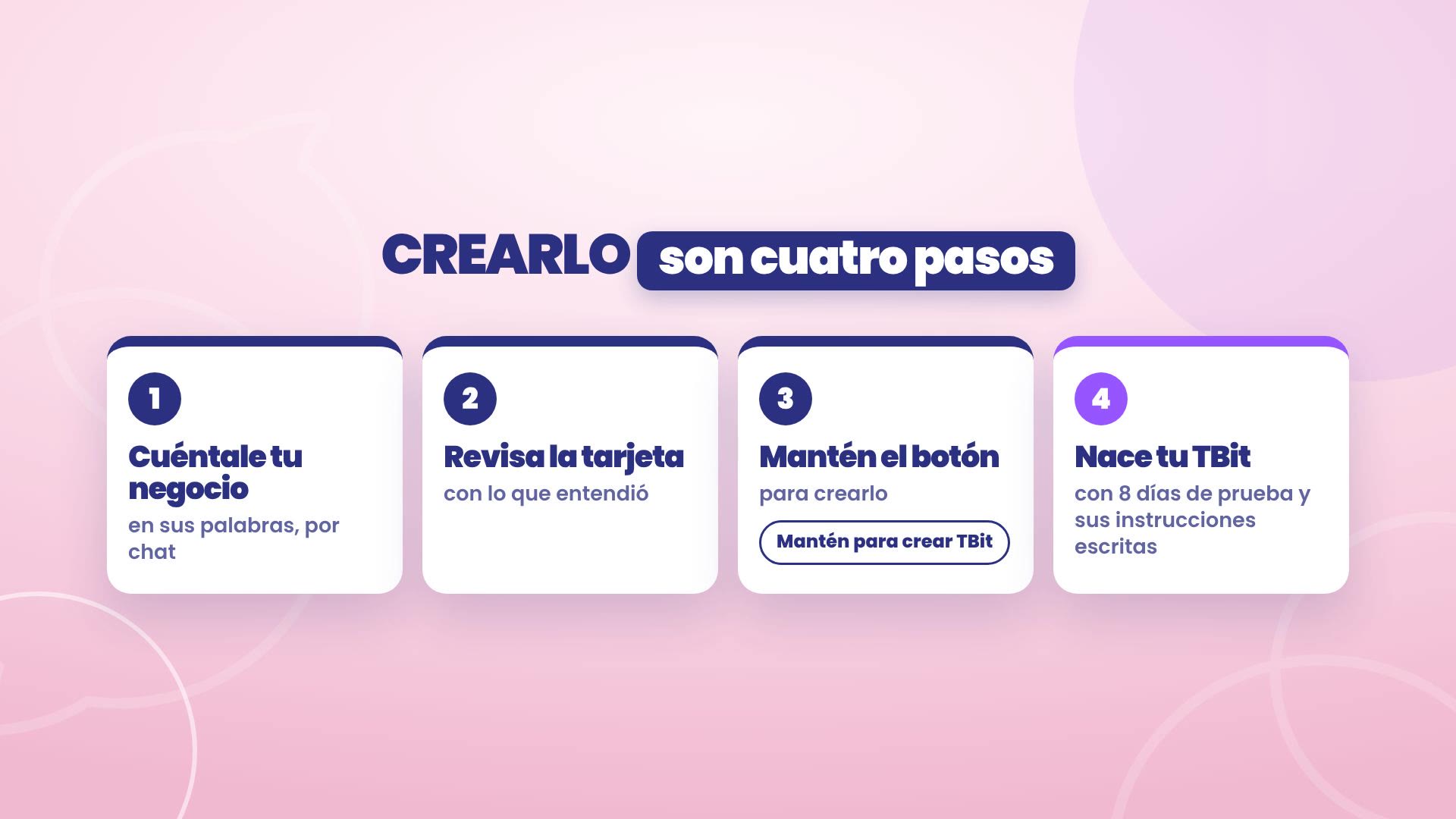
It's four steps
You tell it about your business, in the chat and in your own words.
You review the card with what it understood.
You confirm it by holding the button.
Your assistant is born, with an 8-day trial and its instructions already written.
Until you connect your WhatsApp, your customers don't get anything. So you can create it calmly, test it and connect your line later.
1. Tell it about your business
Go to platform.tbit.app. If you don't have an account yet, you create one right there.
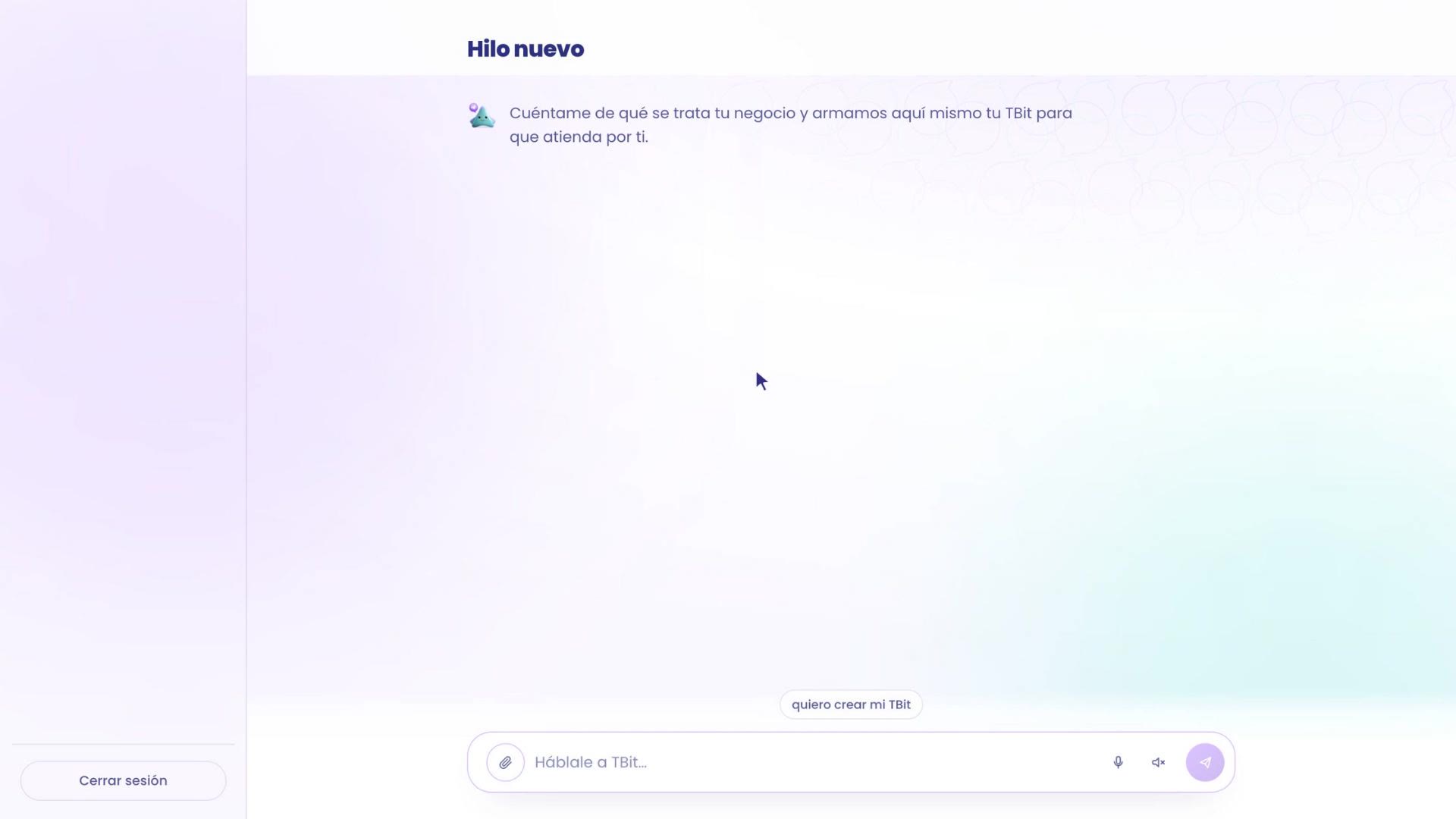
Since you don't have a TBit yet, the first screen offers to start there: "Tell me what your business is about and we'll build your TBit right here so it can answer for you." Tap I want to create my TBit, or type it.
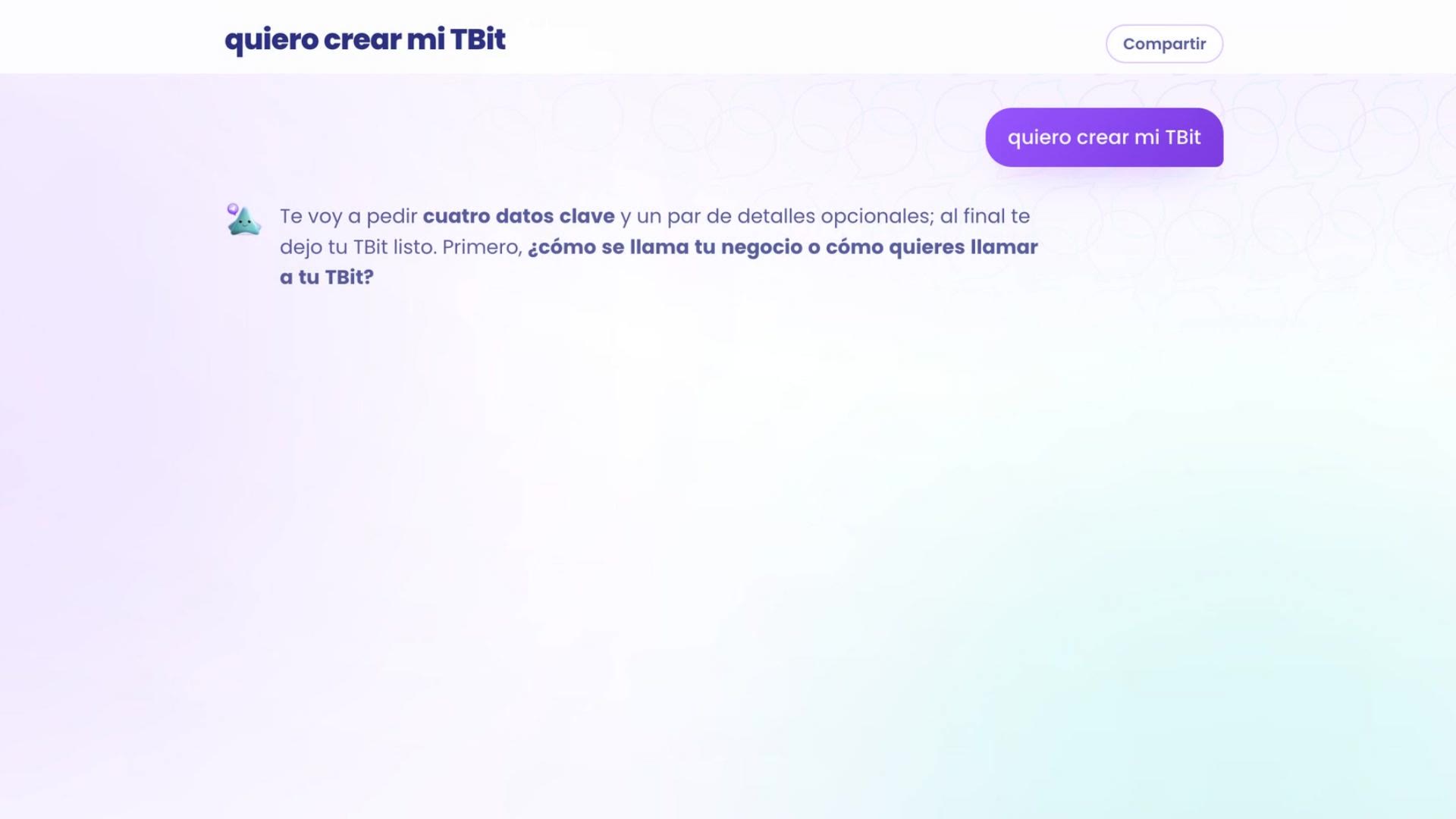
TBit lets you know it's going to ask you for a few details, and asks one at a time:
The name of your business, or whatever you want to call your TBit. Daniela types Pumamaqui Florería.
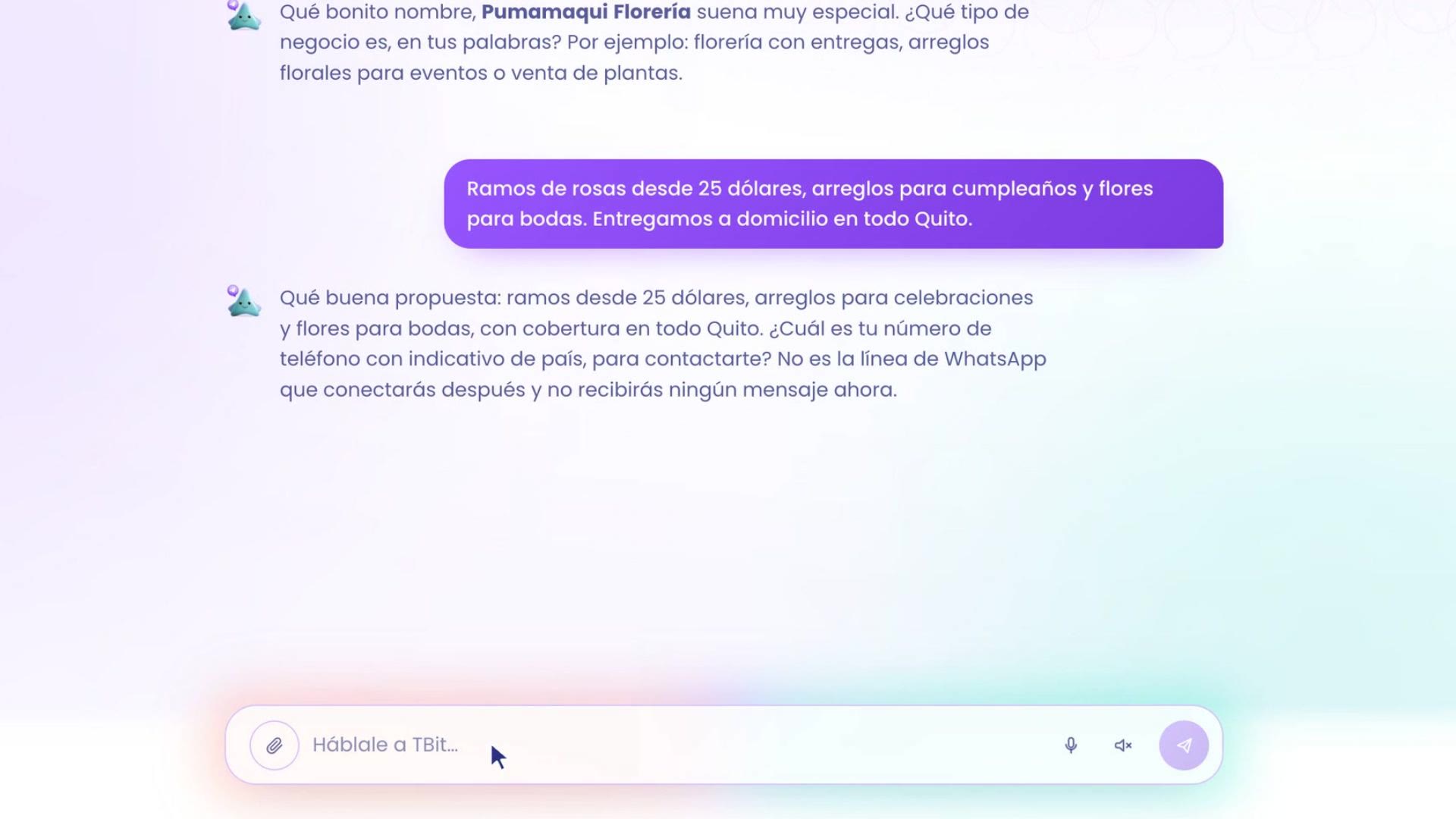
What type of business it is, in your own words. Answer the way you'd tell someone new: what you sell, the prices, the deliveries. Daniela: "Rose bouquets from 25 dollars, birthday arrangements and wedding flowers. We deliver to homes all over Quito." With that, TBit understands it's a flower shop.
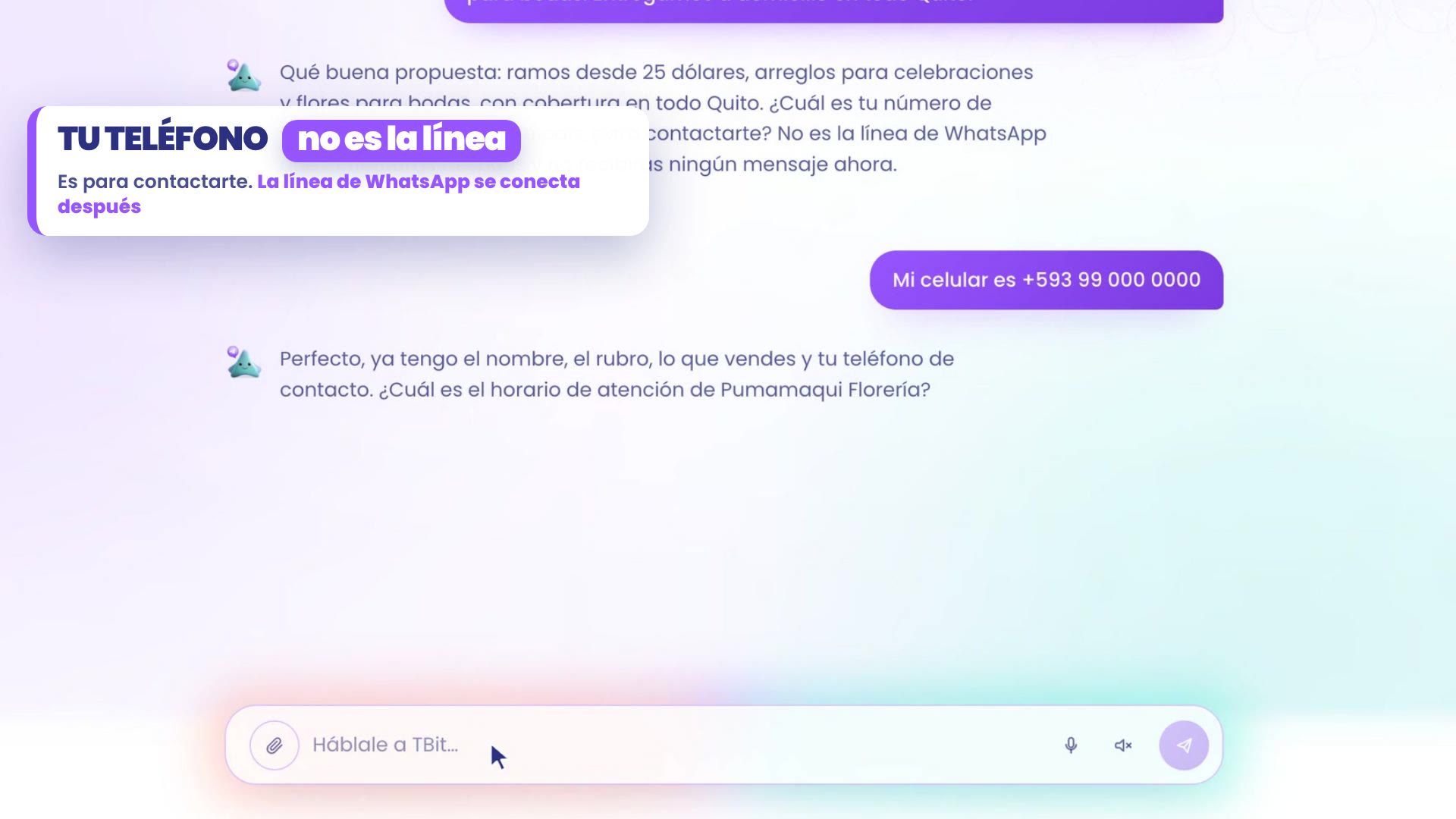
Your phone, with the country code. It's to contact you: it's not the line that will answer your customers, and you don't get any messages now.
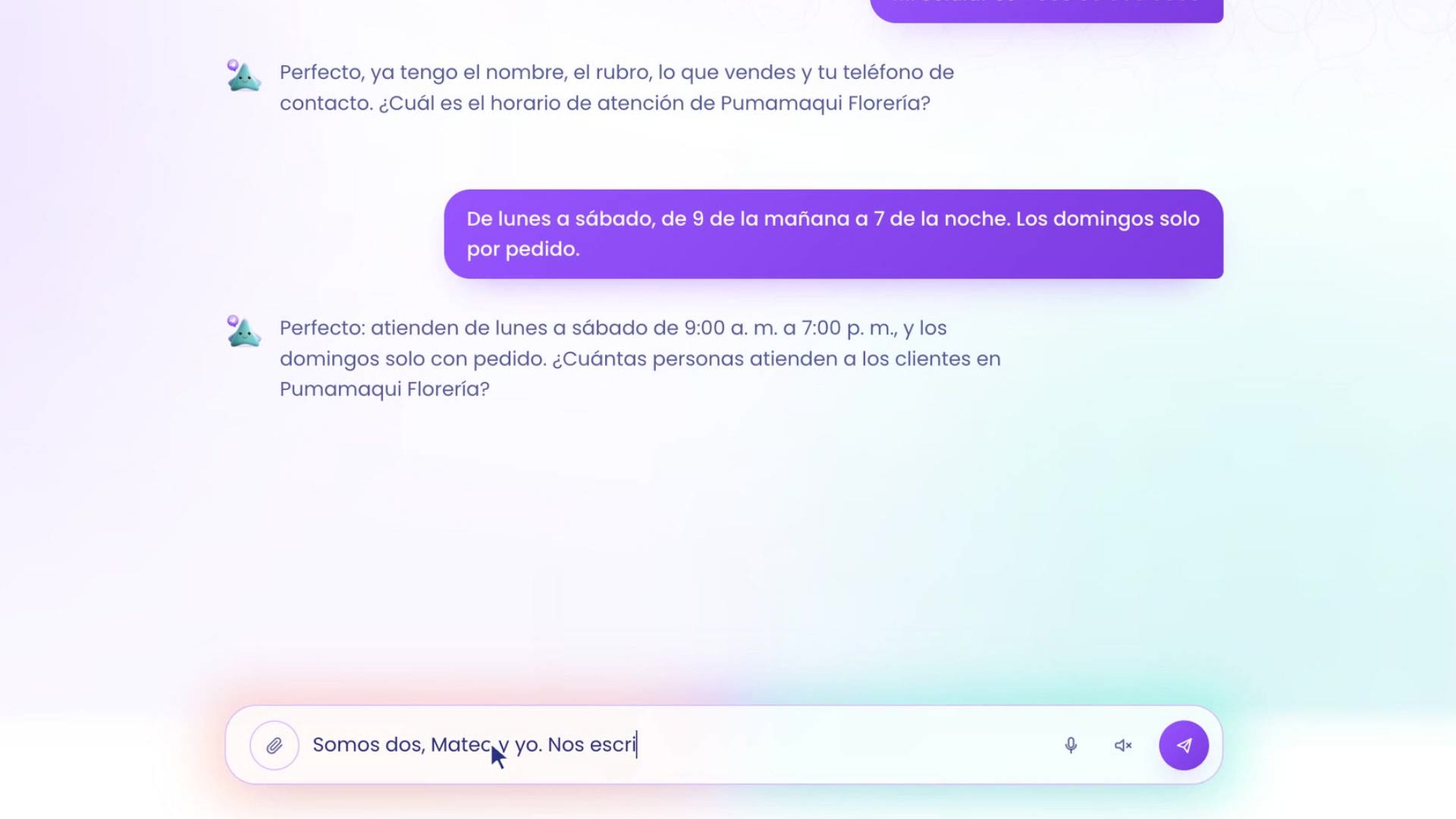
Opening hours. Daniela: Monday to Saturday, 9 in the morning to 7 at night; Sundays, only by order.
How many people serve customers. Daniela: there are two of us, Mateo and me, and she adds that about three hundred people message them each month.
2. Review the card and create it
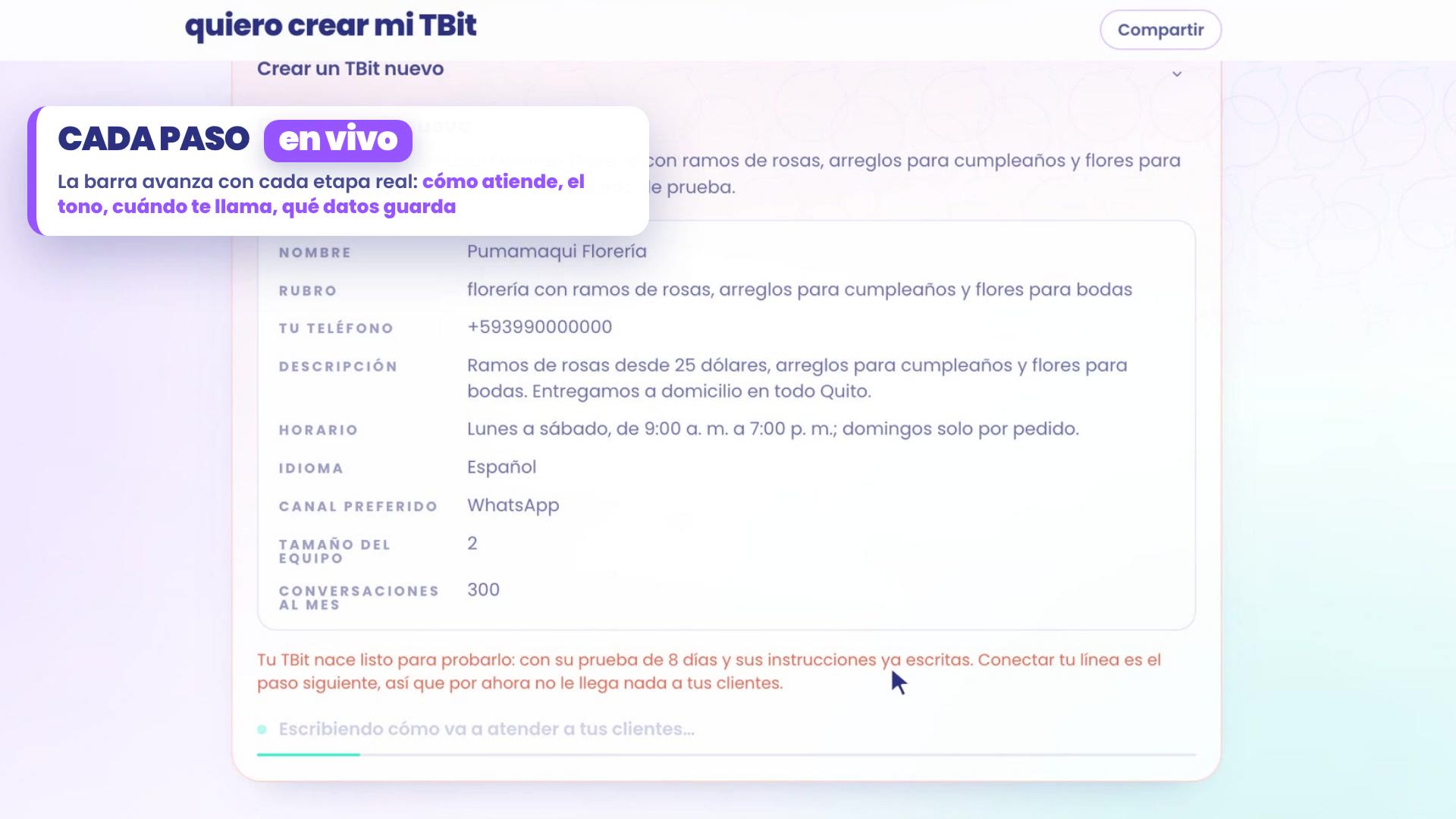
With that, TBit shows you the Create a new TBit card with everything it understood: name, industry, your phone, description, hours, language, preferred channel, team size and conversations per month.
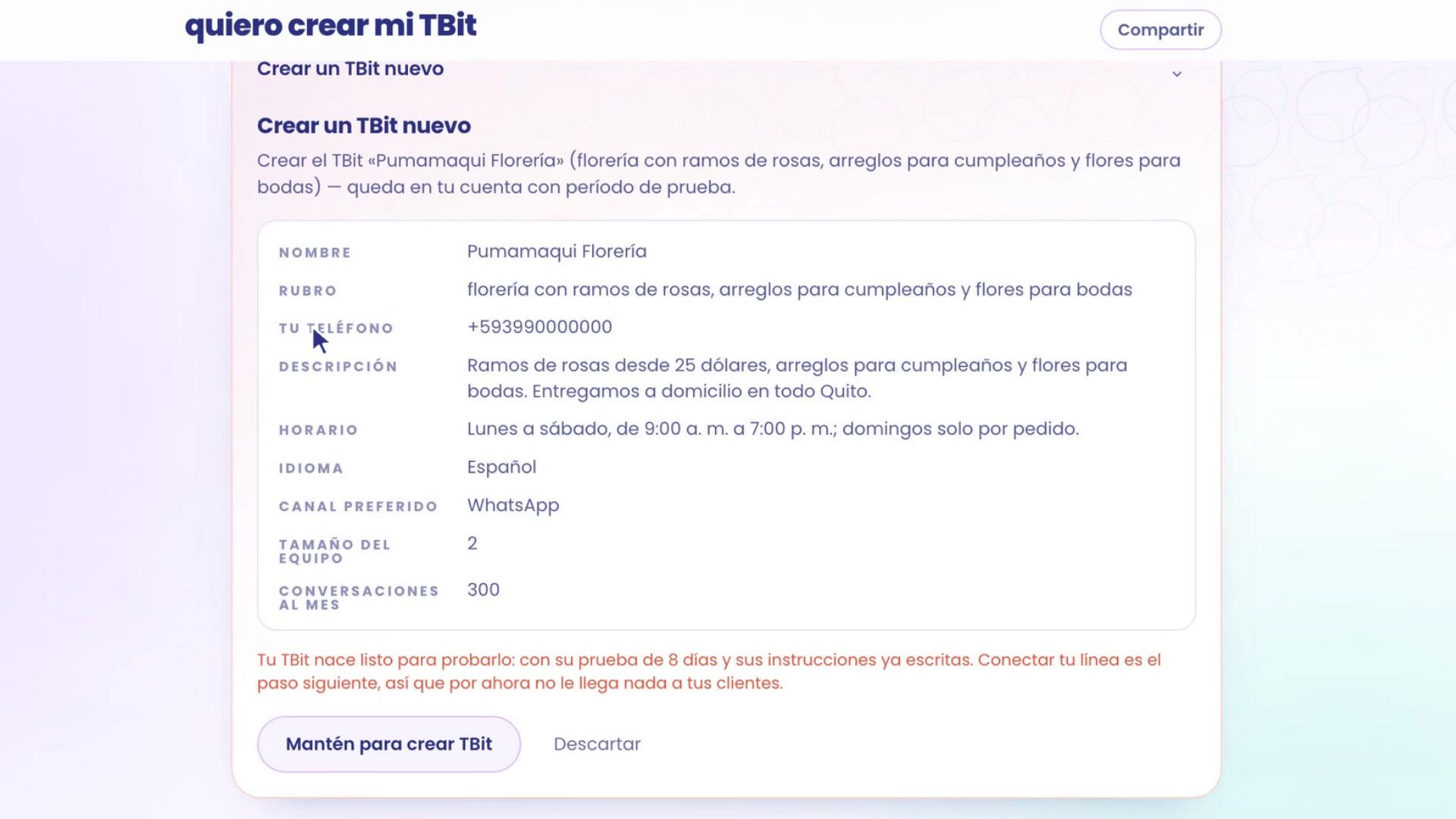
Review it calmly. If something doesn't add up, tell it in the chat and it puts it together again.
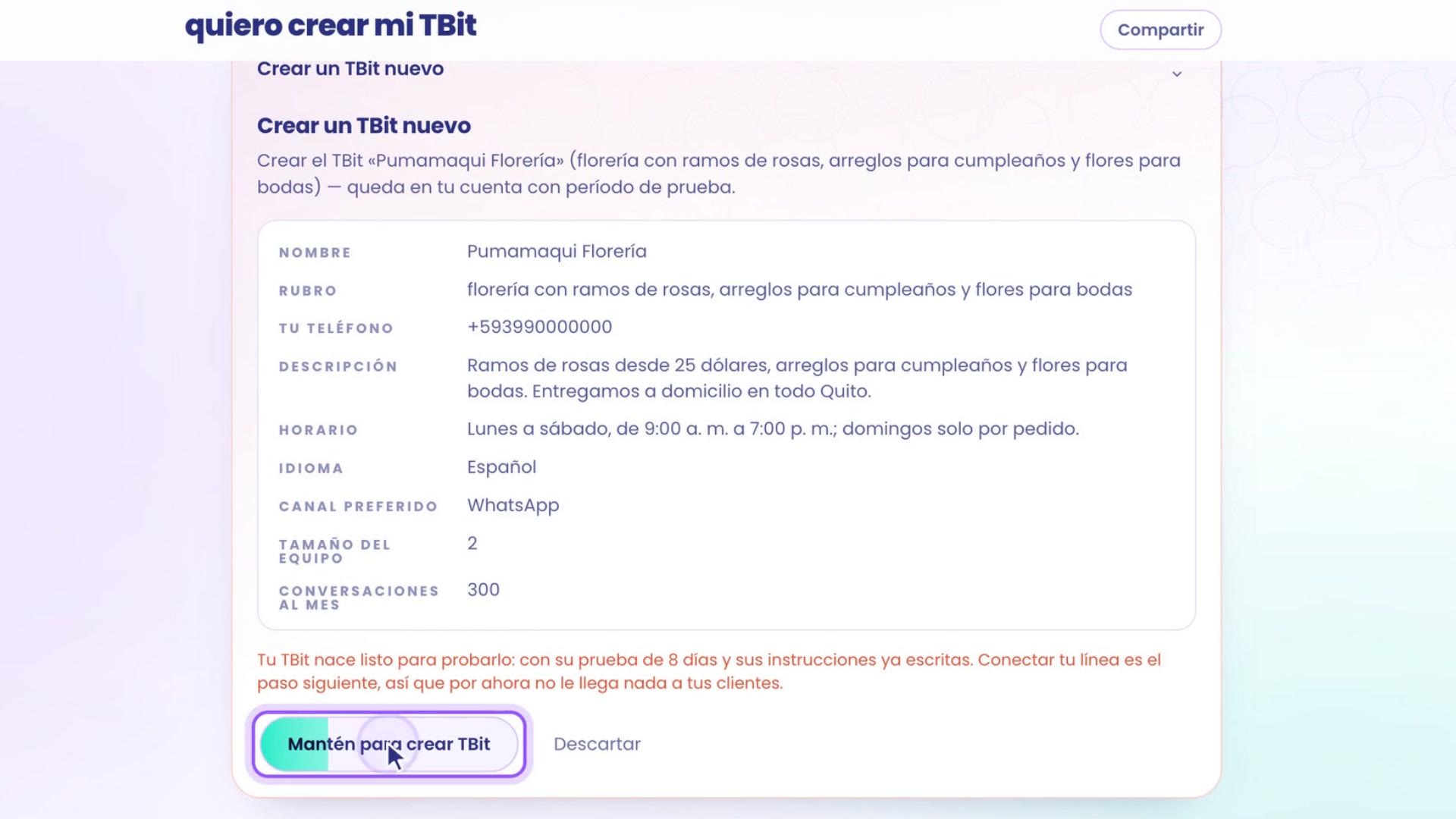
To create it, press and hold the Hold to create TBit button. That way nobody creates an assistant by accident with a single tap. If you'd rather not continue, tap Discard.
Every step, live
While it's being created, the bar advances with each real stage. Your TBit:
Writes how it will serve your customers.
Learns to read the tone of each message.
Sets what it handles on its own and when it calls you.
Chooses what data to capture from each customer.
Start your 8-day trial and get everything ready to connect your line.
3. Your TBit was born
When it finishes, the celebration appears: Your TBit was born!, with its name and the next step: "The next thing is to connect its WhatsApp so it starts serving your customers". Tap to continue.

Your TBit is born with 8 trial days and 350 energy, no card needed. Every reply your TBit gives a customer uses 1 energy. Plans are on pricing.
4. Where do I go next?
The page opens in a new thread, already with your assistant's menu on the left (Operate, Grow, Your AI and Business) and its dashboard on the right.
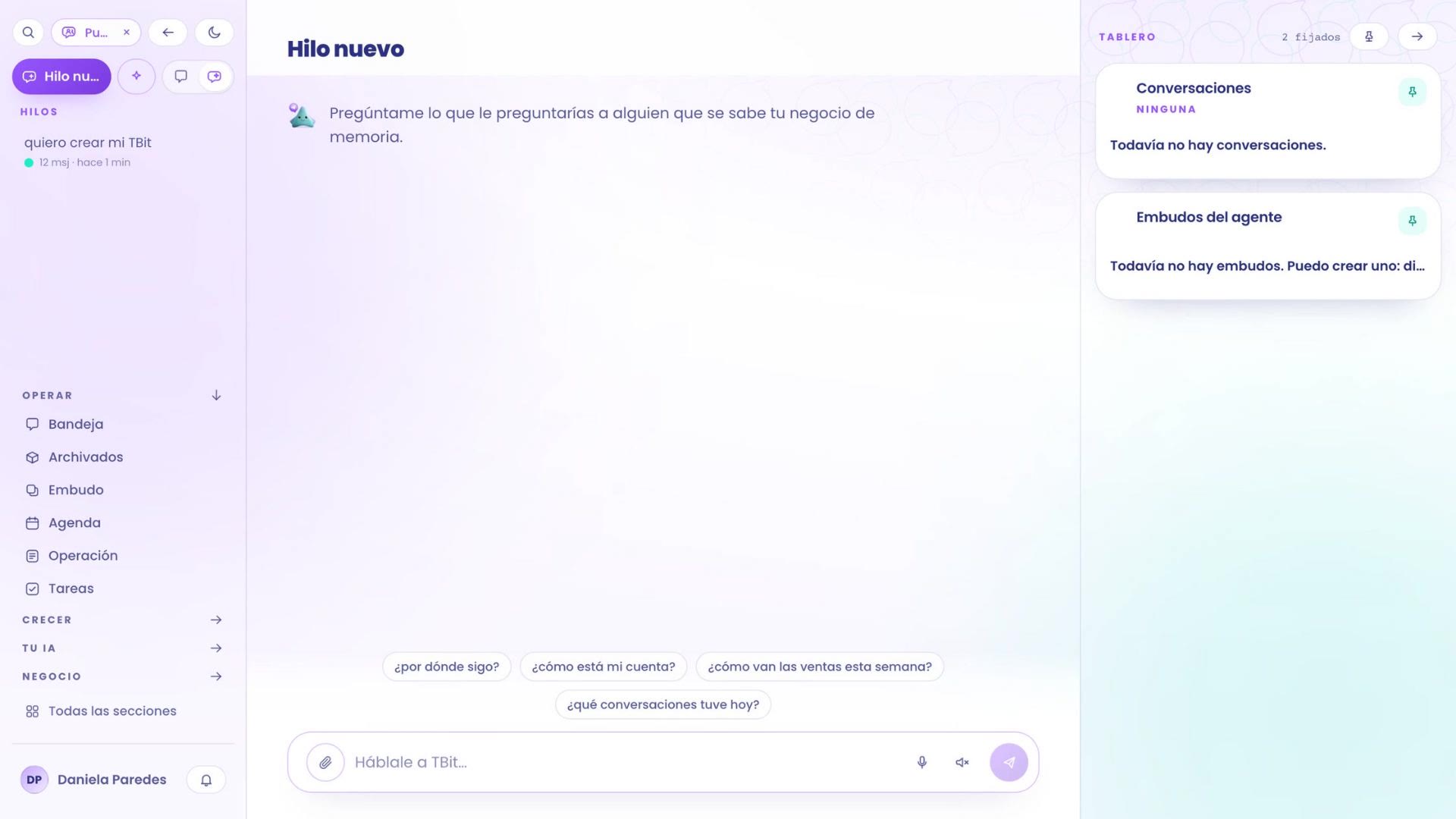
If you don't know where to go next, ask it: tap where do I go next?. TBit checks how your account is doing and puts together the Where to go next list:
Your catalog: upload your products and services, with their prices, so your assistant shows real options. See how to sell your catalog.
Your line: tap Connect WhatsApp. First, check that your line has a card on Meta and follow how to connect your WhatsApp to TBit.
Talk to it like a customer: tap Test and write to it like a customer would. See how to test it and fix it.
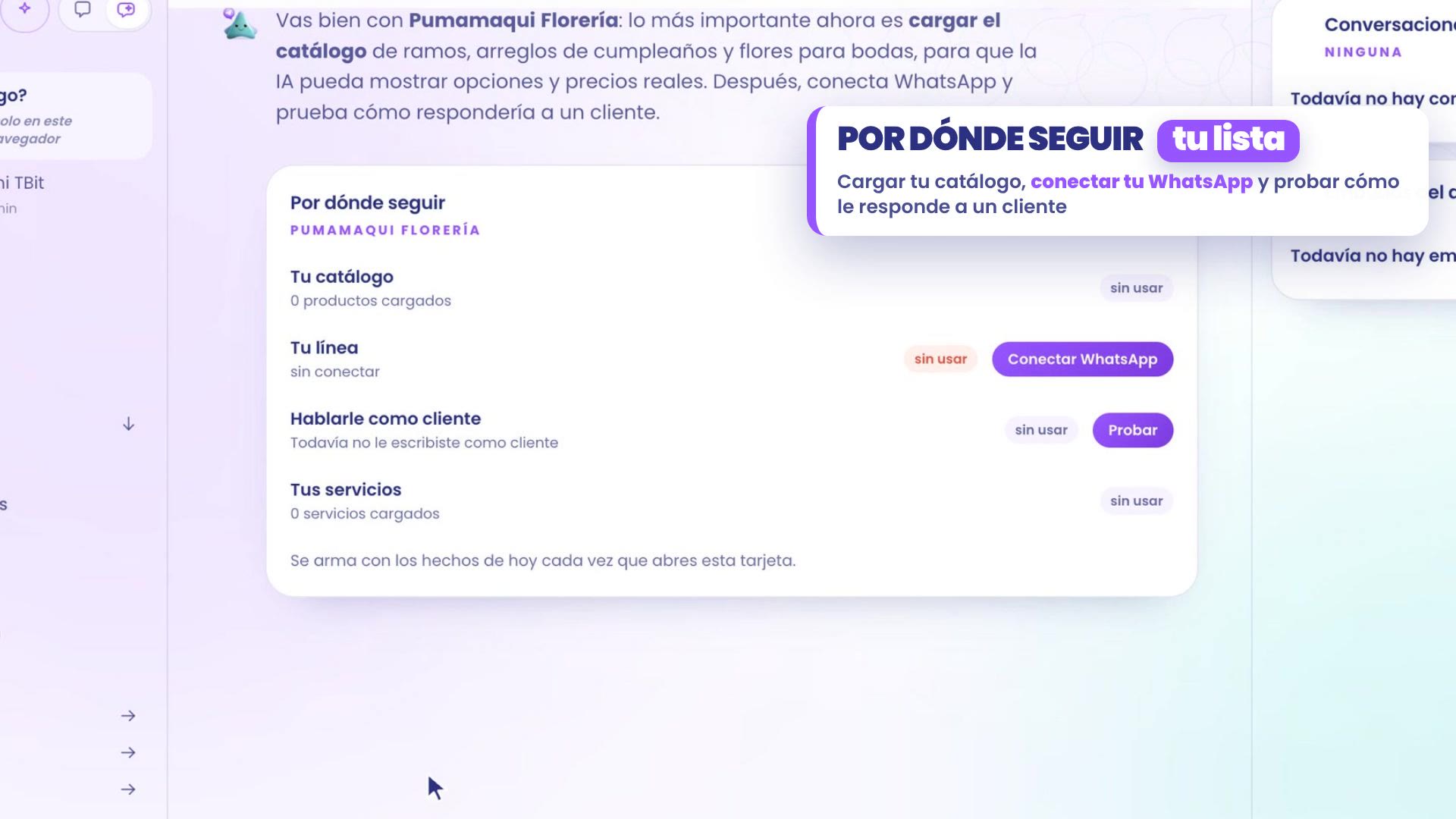
The list is put together with what happened today in your account every time you open it, so you can ask again whenever you want.
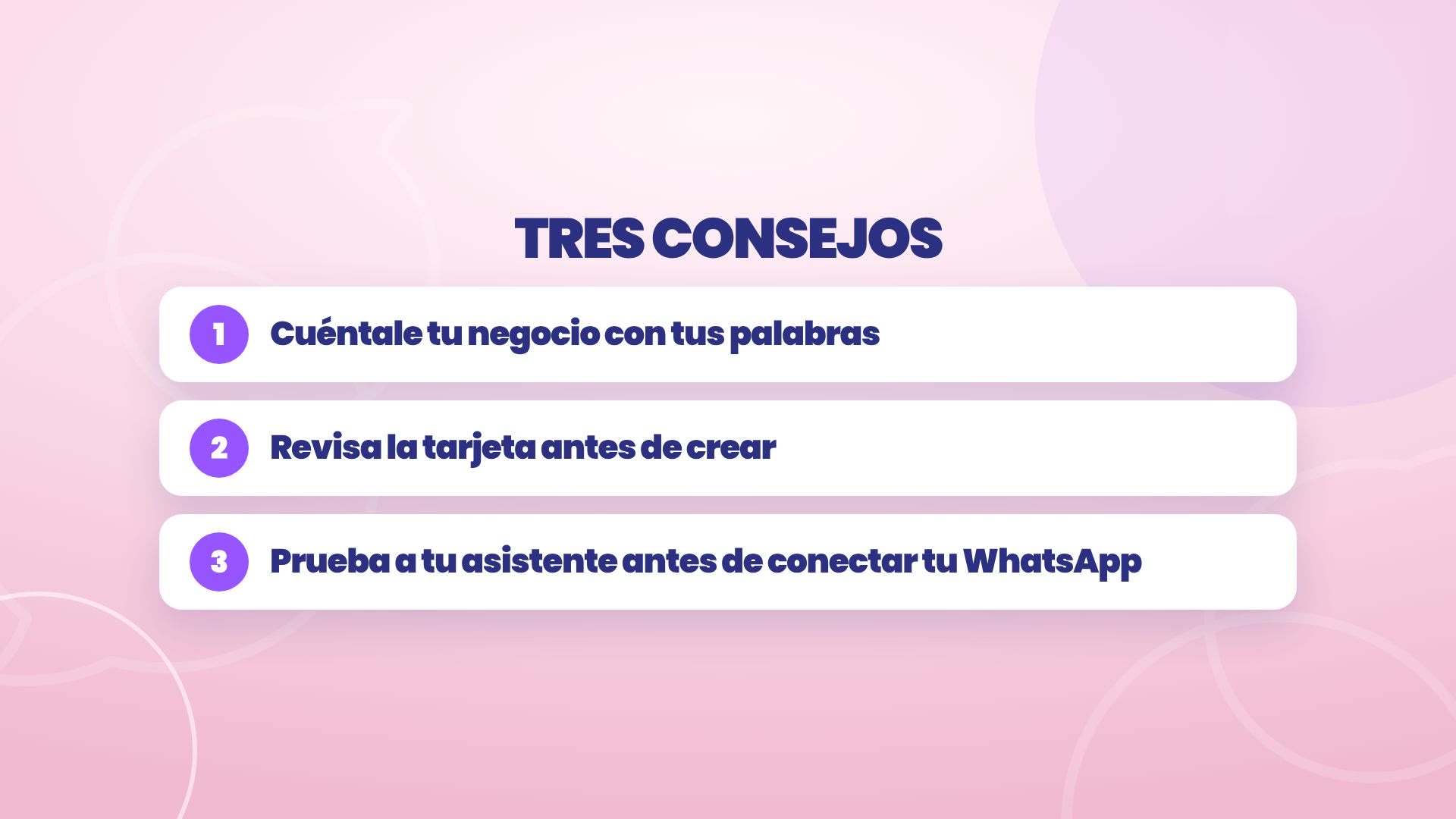
Three tips
Tell it about your business in your own words, like you would tell someone new.
Check the card before creating.
Test your assistant before connecting your WhatsApp.
Where everything is
Create your TBit: at platform.tbit.app, type "I want to create my TBit".
What's next: in a new thread, ask "where do I go from here?".
Test as a customer: the Test button in the list, or Test my AI, top left, next to New thread.
Connect your WhatsApp: the Connect WhatsApp button in the Where to go next list.
Your business, told once. Your assistant, ready to help.