
Help center
Make sure the alert reaches whoever is on shift: team alerts and after-hours support
Set who gets the alert when a customer needs a person: your team's shifts, WhatsApp for alerts, a backup, and night support with the business closed.
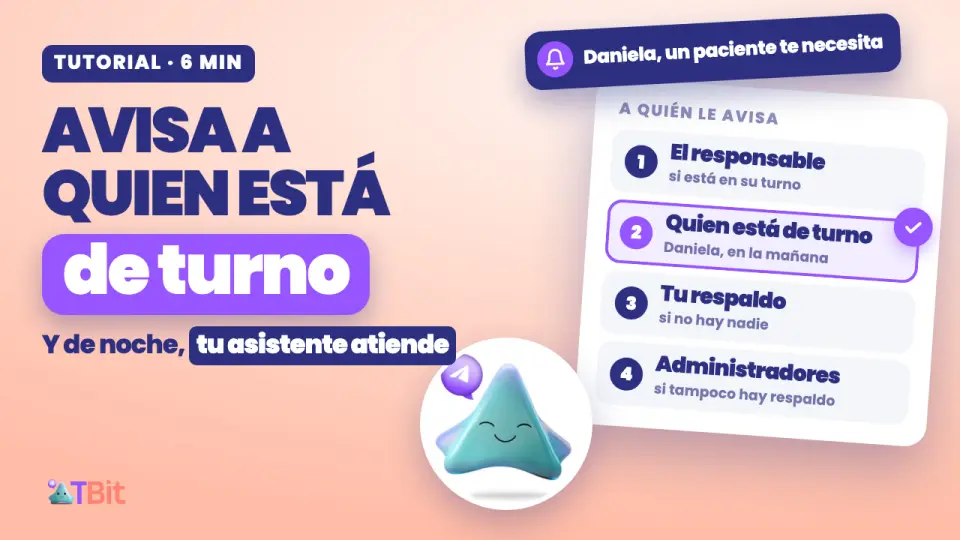
An alert for everyone is an alert for no one
When your assistant hands you a conversation, someone on your team needs to know. If the notice reaches the whole team, no one feels responsible. And if it reaches someone who isn't working today, the customer is left waiting.
In this guide you'll see how TBit decides who to notify based on your team's shifts, how the notice reaches them, what happens at night, when the business is closed, and how to set it up and test it in four steps.
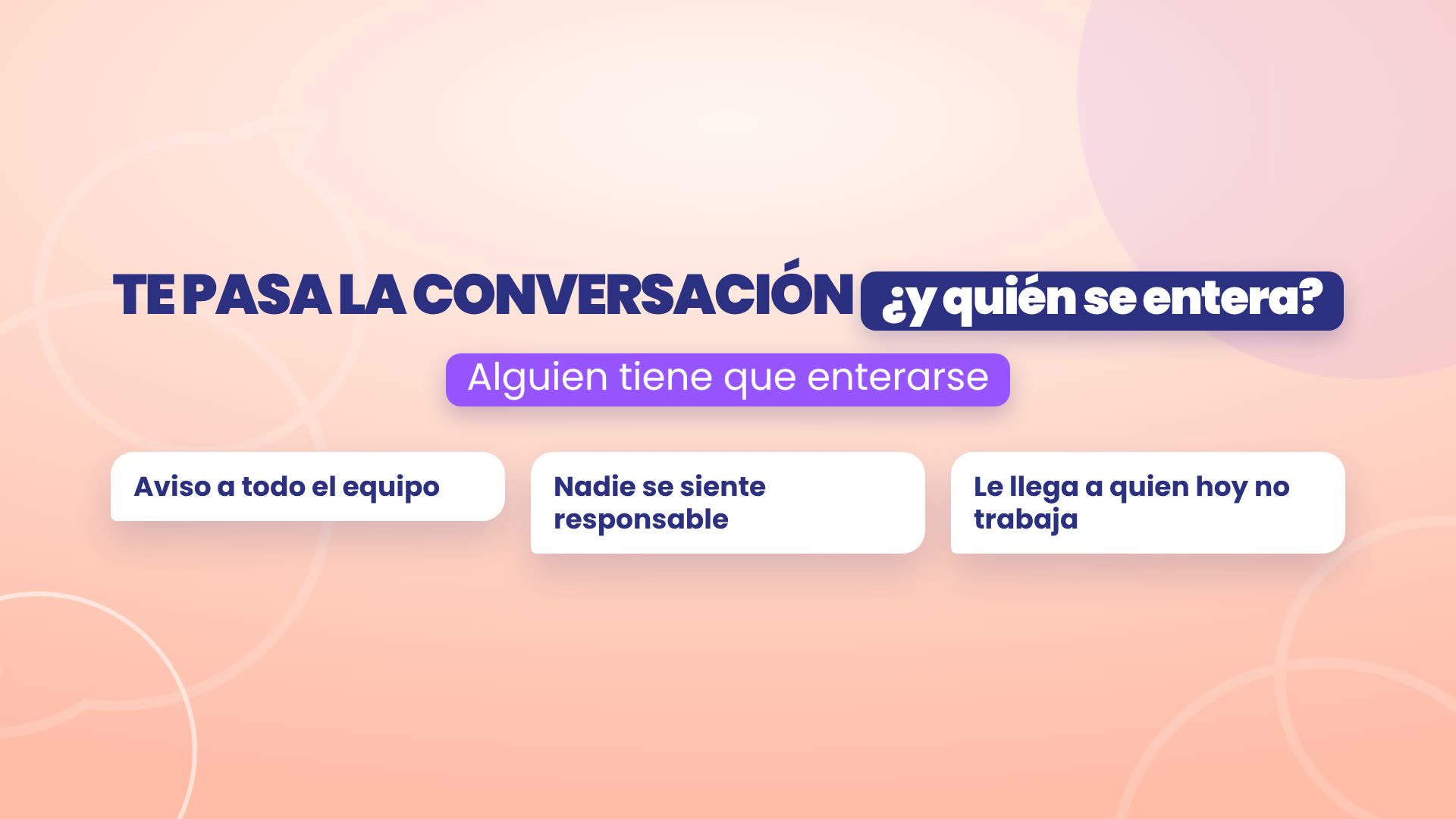
Watch it in five minutes
The full walkthrough, with real TBit screens. Below you have each step in writing.
The example: a dental clinic in San José
We follow Alba Clínica Dental, in Barrio Escalante, San José, Costa Rica. Valeria is the owner and dentist. Daniela handles reception in the morning, Andrés in the afternoon, and Mauricio coordinates the clinic. Alba is a demo account with sample data.

The ladder: who gets notified
TBit looks for who to notify in order, and stops at the first step where it finds someone:
The assignee: whoever has the conversation assigned, if they're on their shift.
Whoever is on shift: the people who handle chats and are within their schedule at that moment.
Your backup: if no one is on shift, the people you chose as backup.
The admins: if there's no backup either. The conversation never ends up with no one to notify.
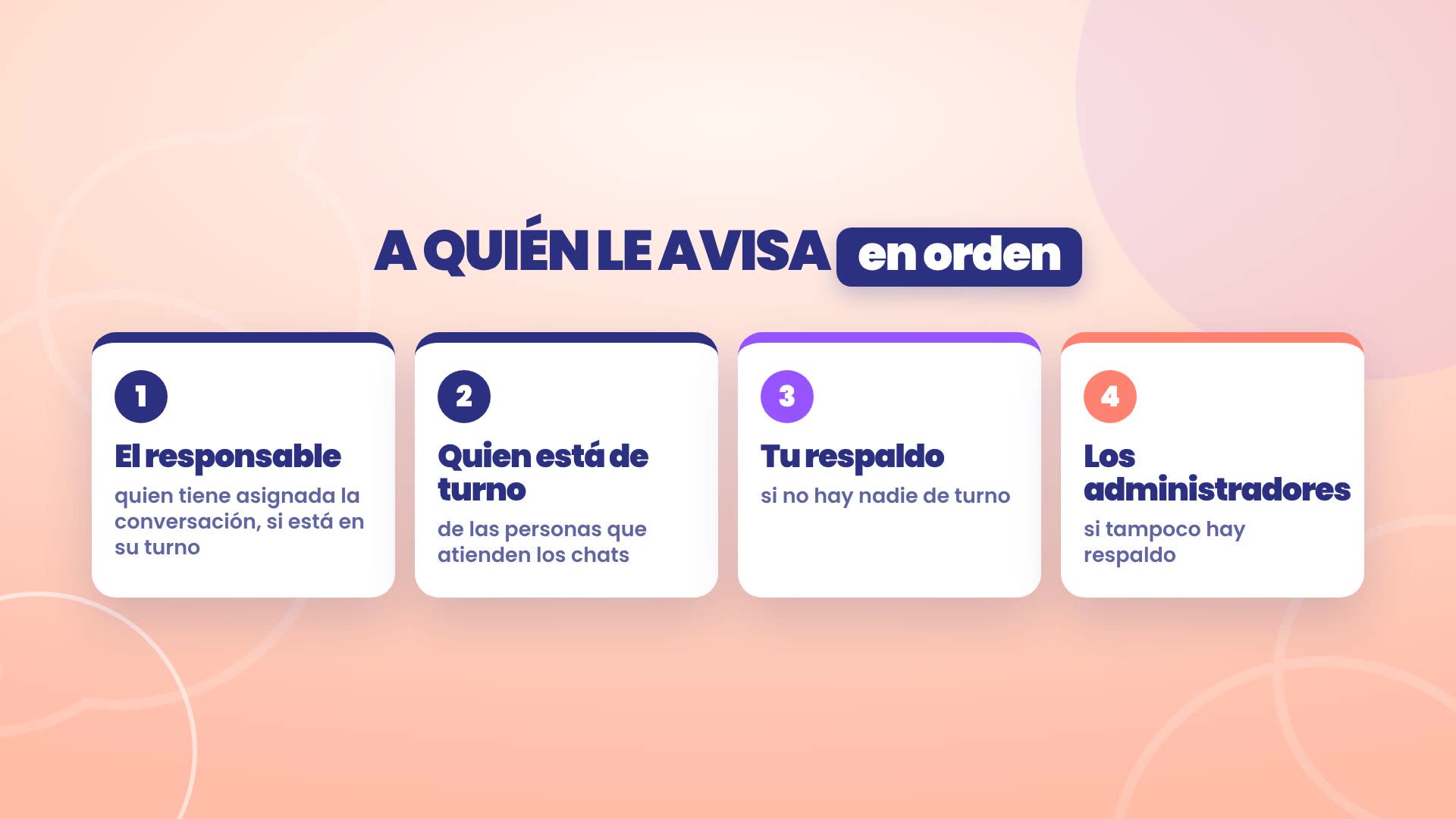
At Alba, if a patient writes at 9 in the morning, the notice reaches Daniela. At 3 in the afternoon, Andrés. And between 12 and 1, when the clinic is open but no one is at reception, Mauricio, the backup.
How the notice reaches them
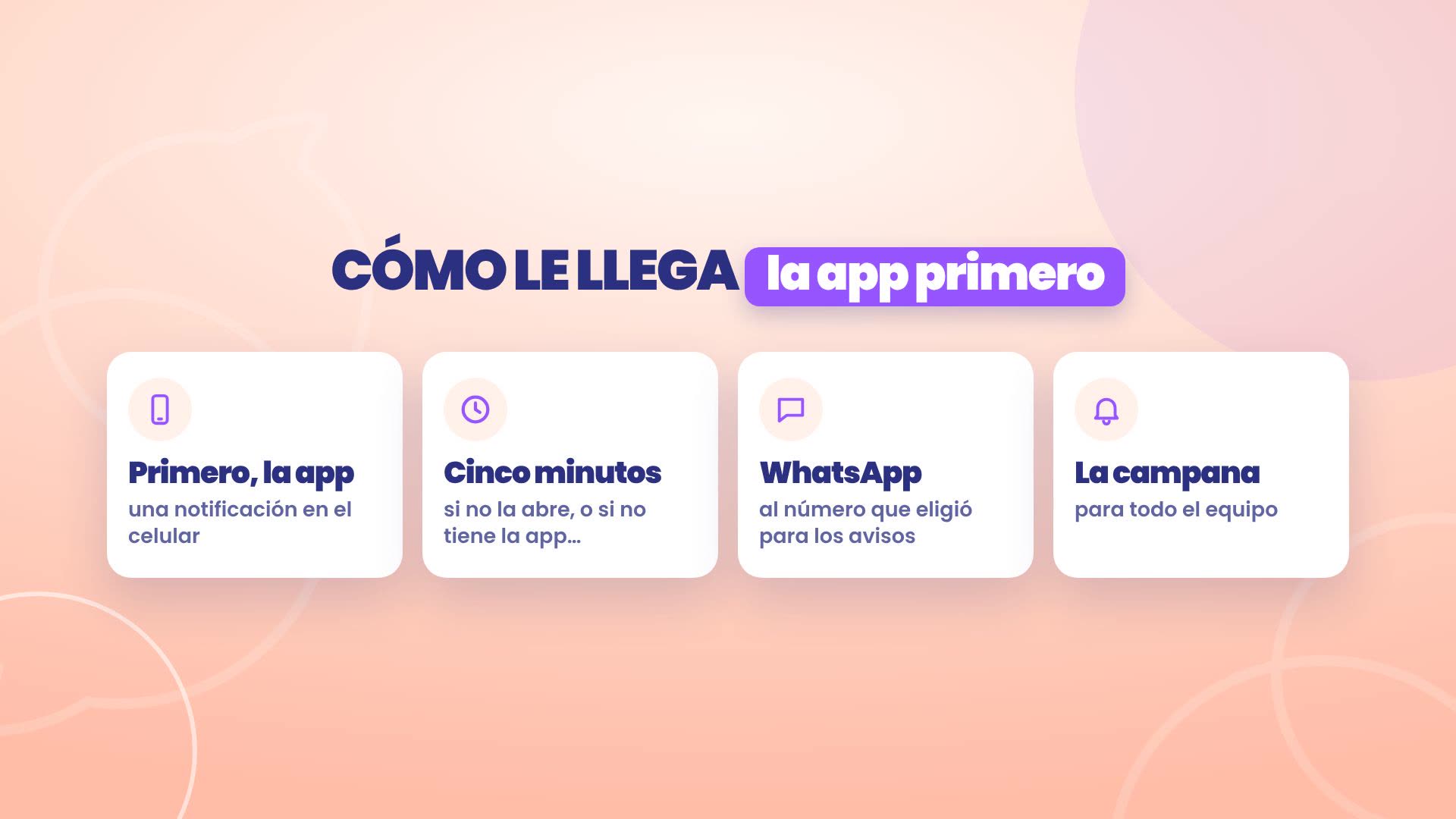
First, to the TBit app, as a notification on the phone.
If they don't open it within five minutes, or if that person doesn't have the app, it reaches them via WhatsApp, at the number they chose for notices.
And it also stays in the bell, for the whole team.
At night, your assistant takes over
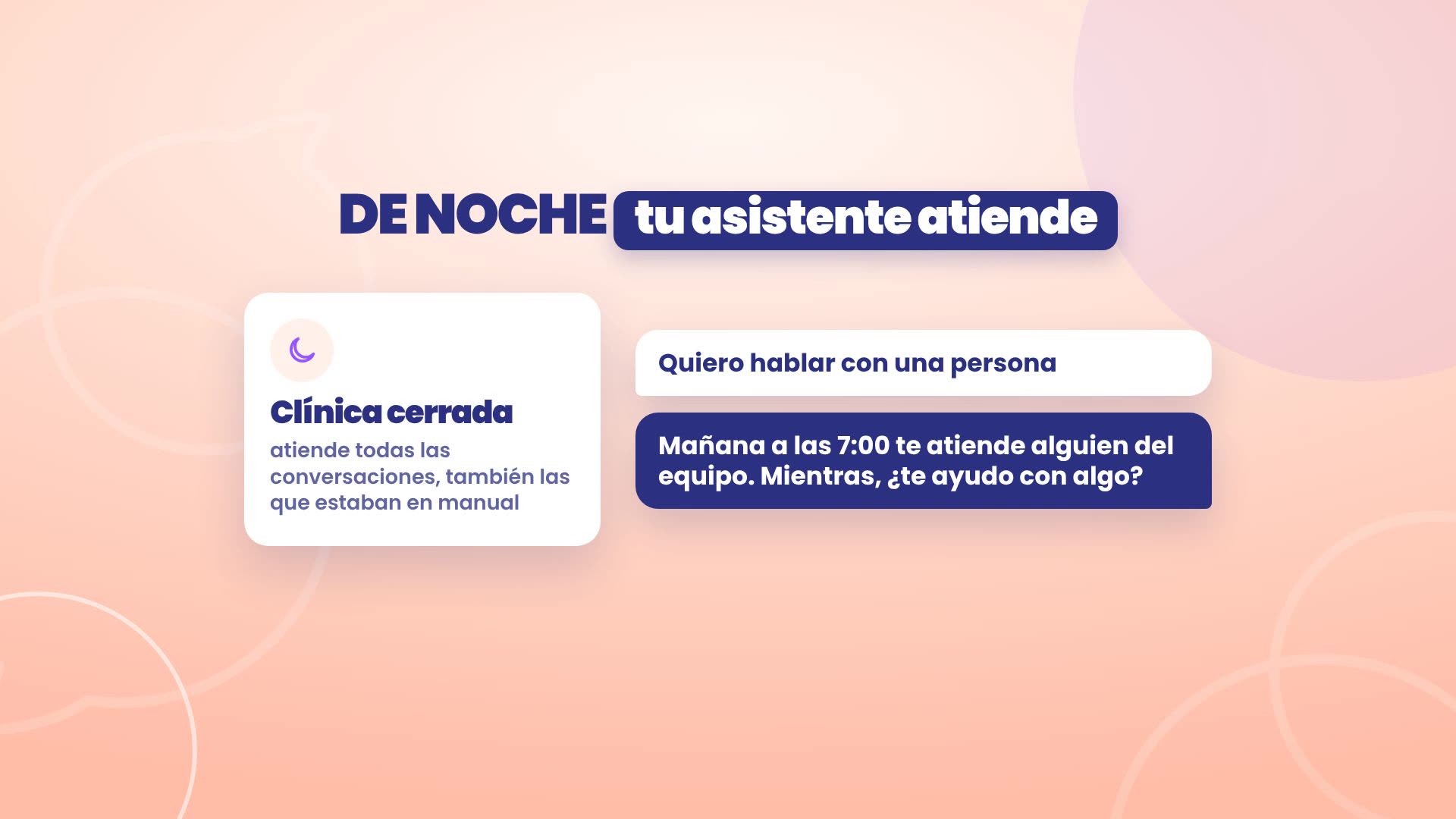
When the business is closed, your assistant can handle all conversations, including the ones your team left on manual. If someone asks for a person, it tells them someone will help as soon as they open, with the time, and keeps helping them. It doesn't pause the conversation, doesn't assign it to anyone, and no one gets a notification at midnight: it stays in the bell for when they open.
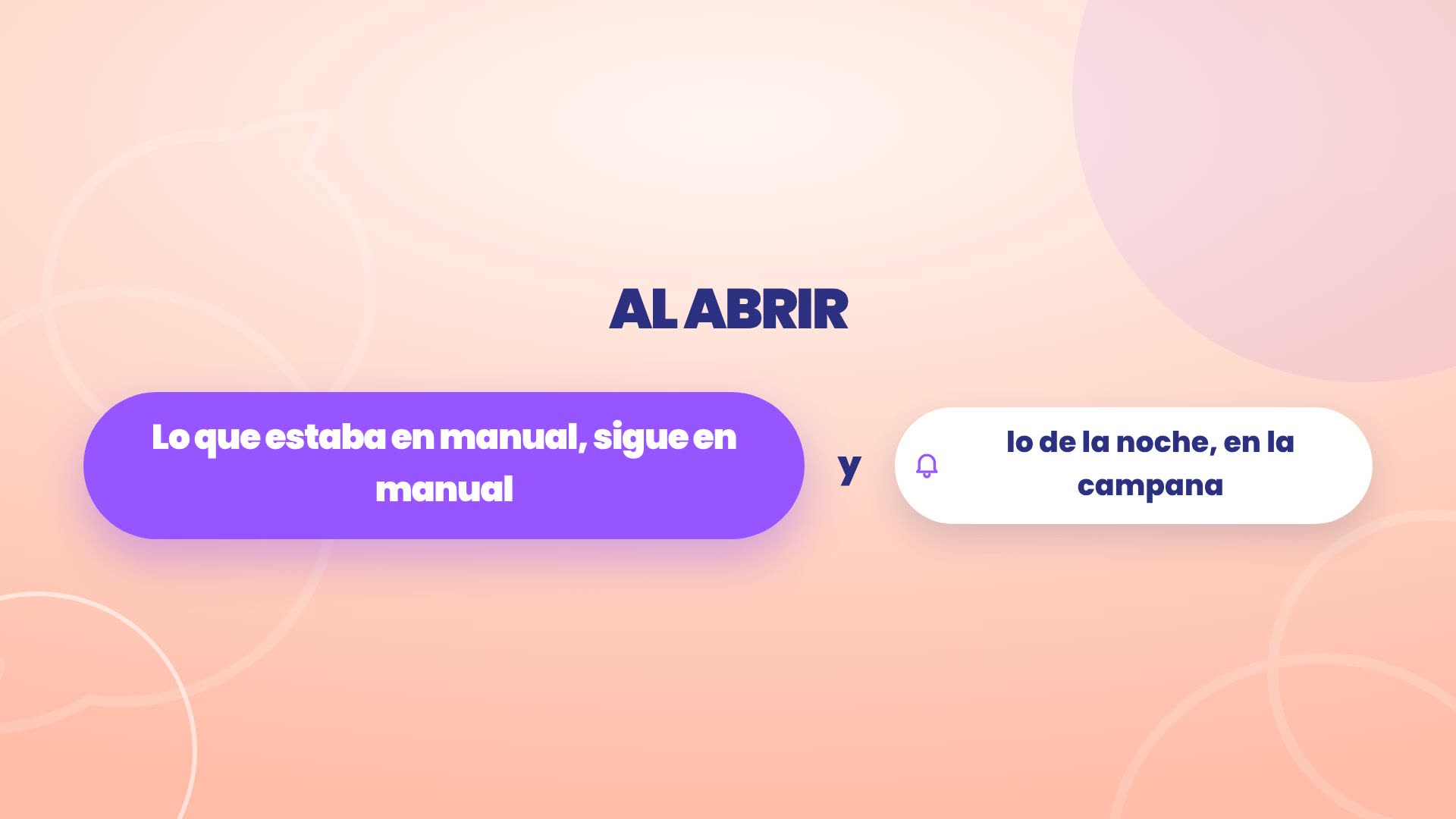
When you open
Everything goes back to how it was. What your team left on manual stays on manual, and what happened overnight waits for you in the bell.
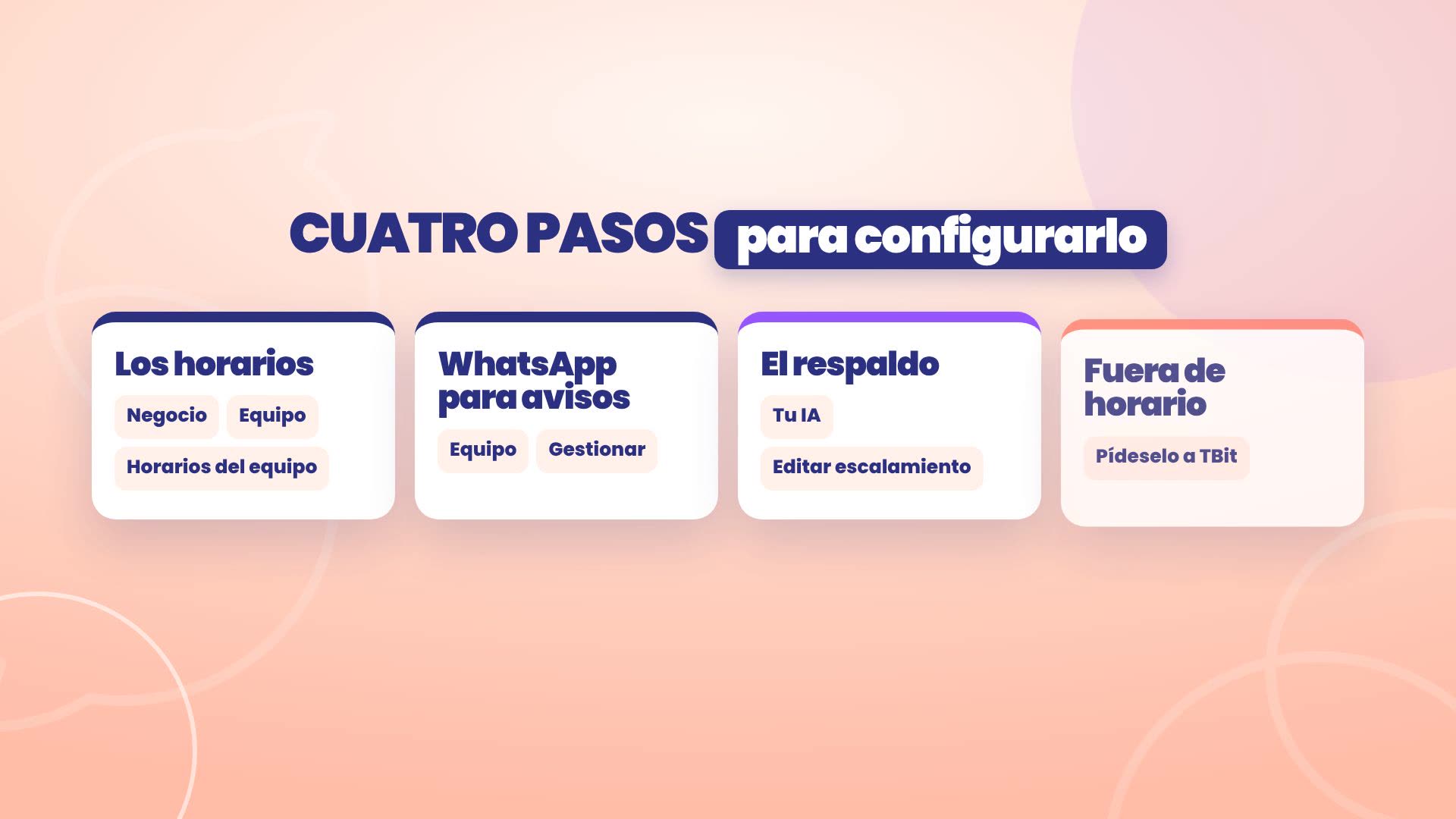
Set it up in four steps
Team schedules, in Business › Team.
The WhatsApp for alerts for each person, in Manage.
The backup, in escalation.
After-hours support.
1. Team schedules
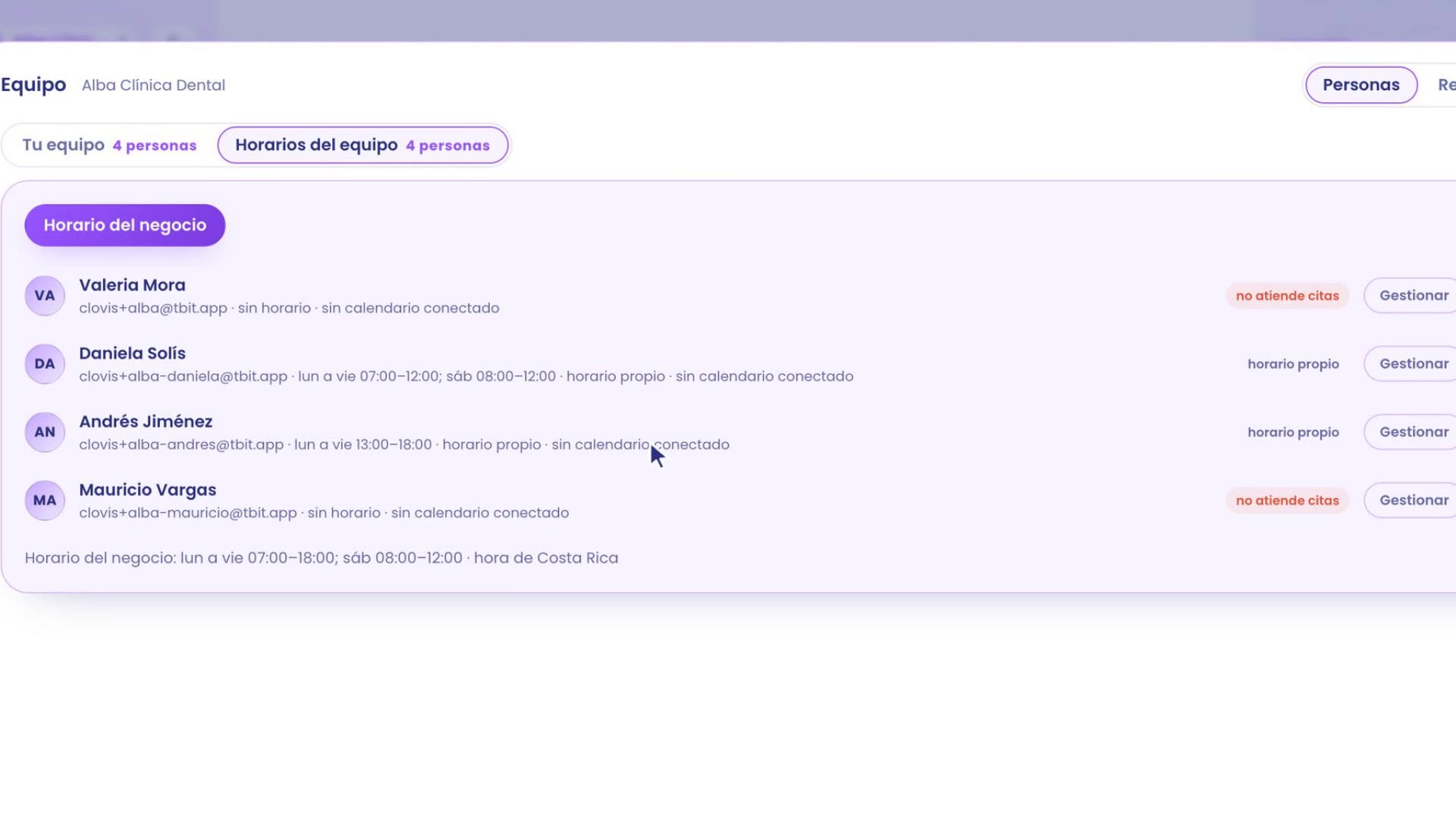
It all starts with schedules. Path: Business › Team › Team schedules.
At the top is the Business schedule button. At Alba: Monday to Friday from 7:00 to 18:00, and Saturdays until 12:00. With that, TBit knows when the clinic is open, and when it's closed.
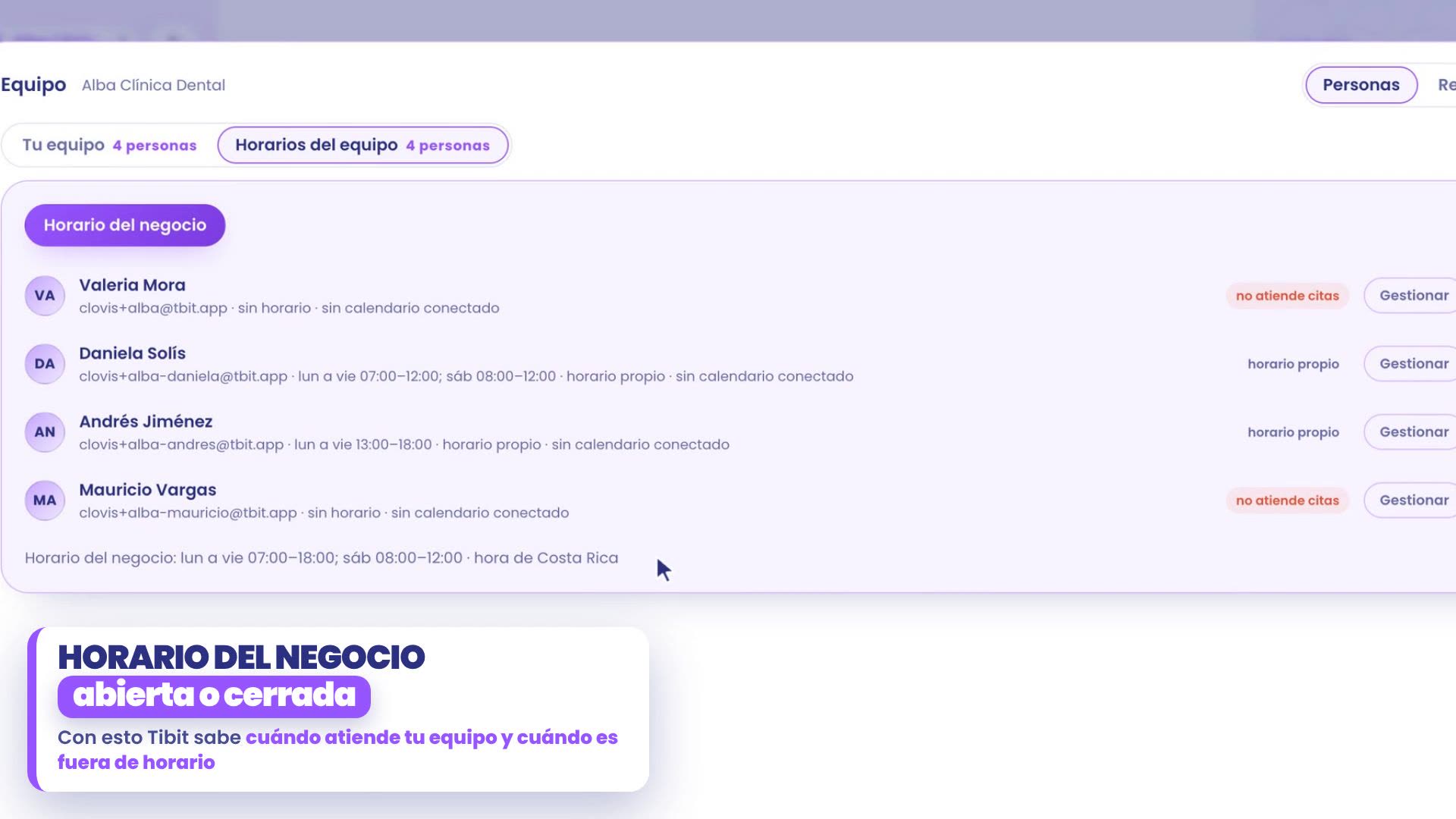
And each person has their shift. In their row, tap Manage and choose Has their own schedule. Daniela covers reception from 7:00 to 12:00 and Andrés from 13:00 to 18:00. Between 12:00 and 13:00 the clinic is open, but no one is at reception.
2. Which WhatsApp it goes to
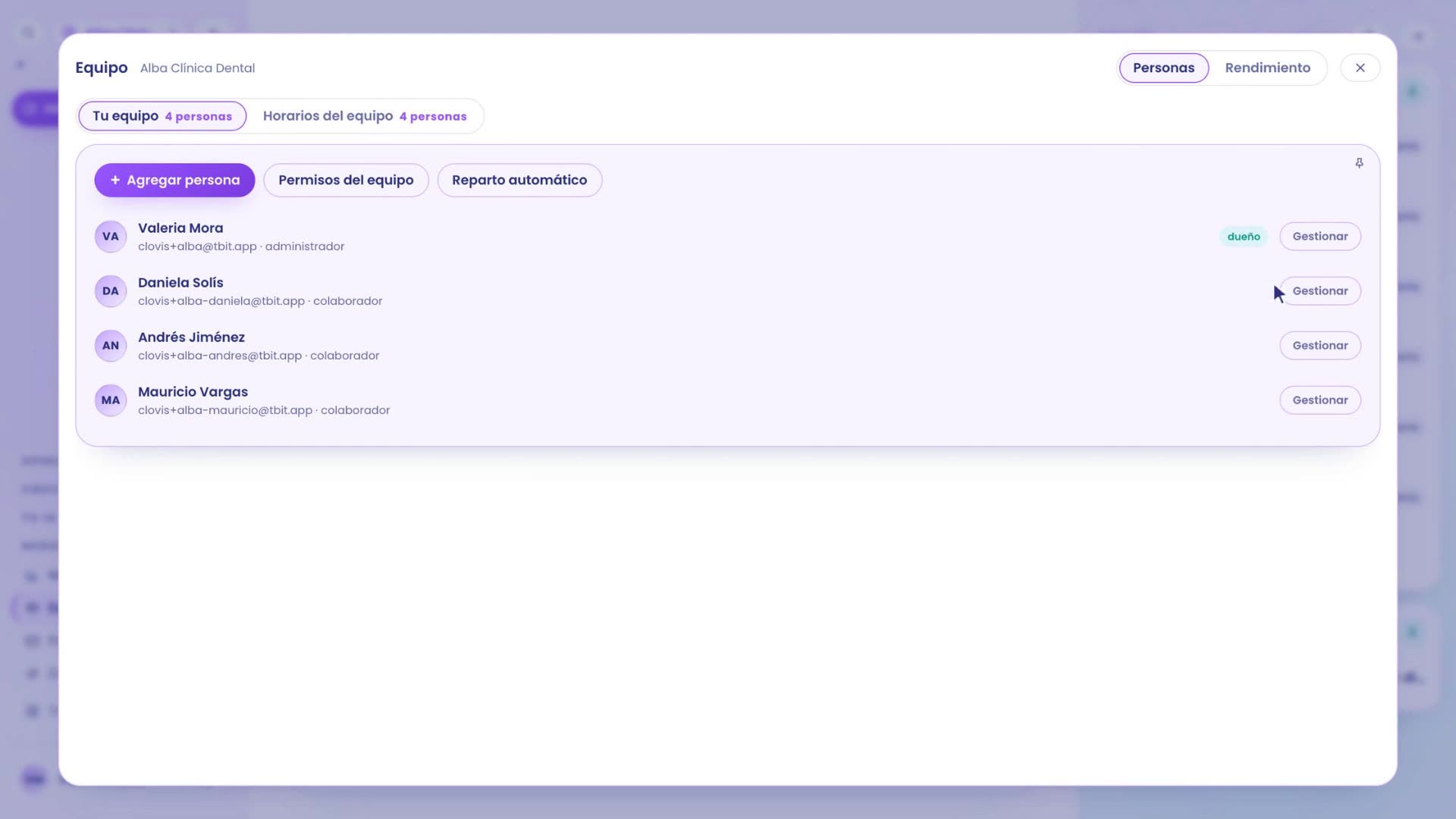
Now, where each person gets the notice. Path: Business › Team › Your team, and the Manage button for the person.
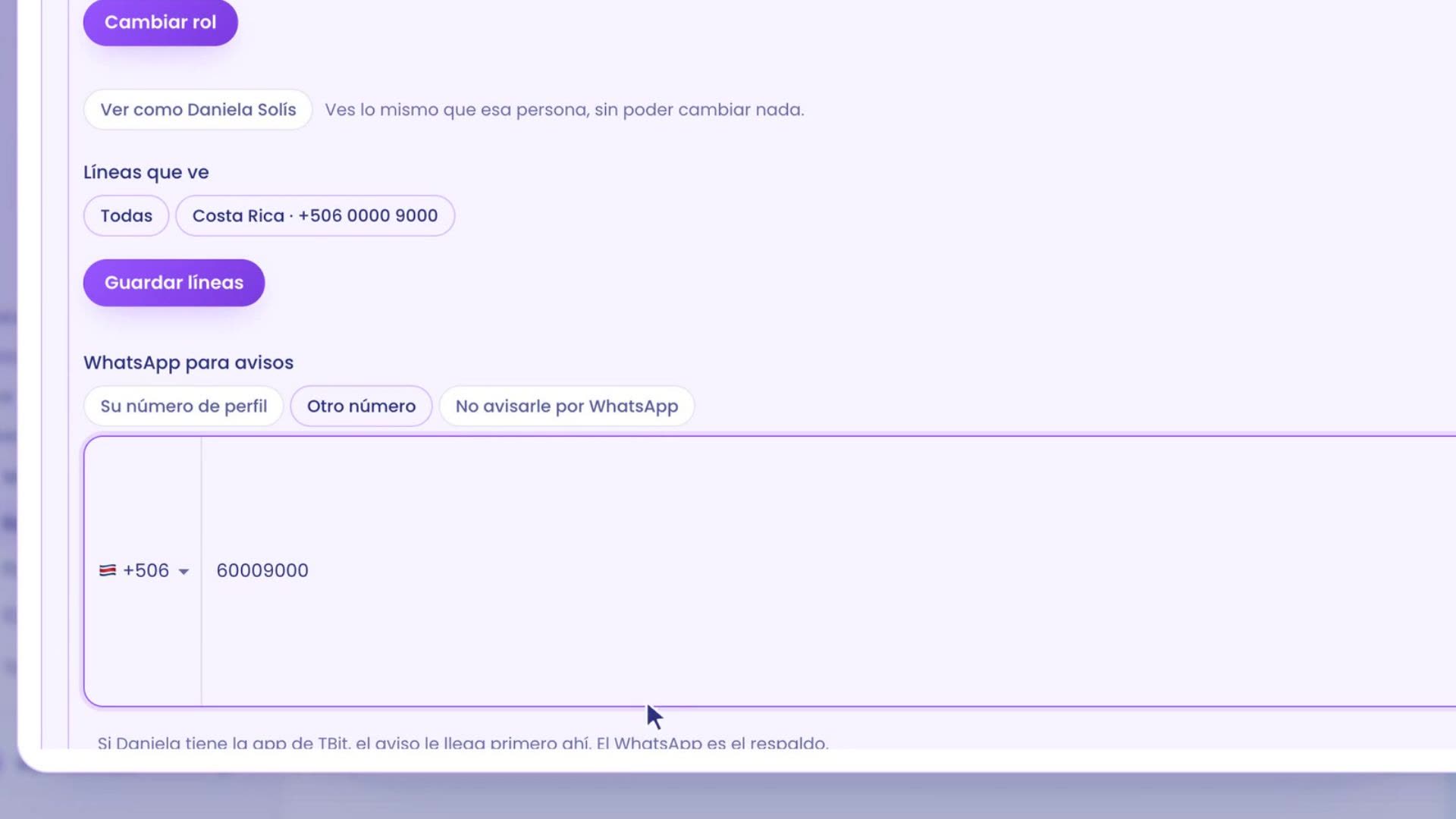
In WhatsApp for notices you choose the number. There are three options:
Their profile number, the usual one.
Another number, for example the reception cell phone. The notice only goes there.
Don't notify them on WhatsApp: they still get the notice in the app and in the bell.
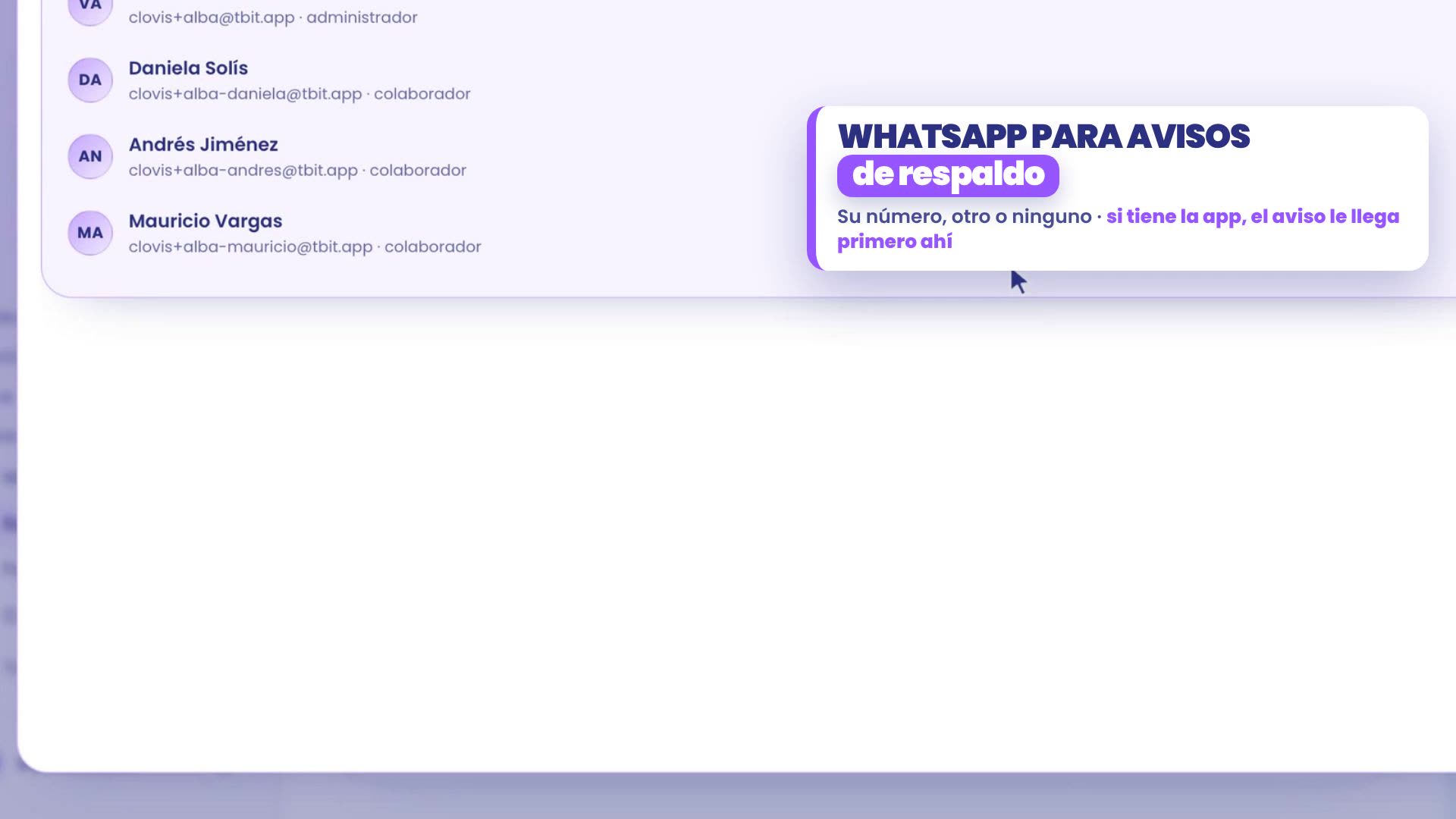
Daniela uses the reception cell phone, so in Alba you choose Another number and type it in. Tap Save notice. If Daniela has the TBit app, the notice reaches her there first: WhatsApp is just the backup.
3. The backup
Path: Your AI › How it is and how it talks › Edit escalation. If you haven't set up escalation yet, see when it hands the conversation to you.
Scroll down to Backup when no one is on shift.
Check who gets the notice when no one is there. In Alba, Mauricio Vargas.
Save by holding down Hold to save escalation.
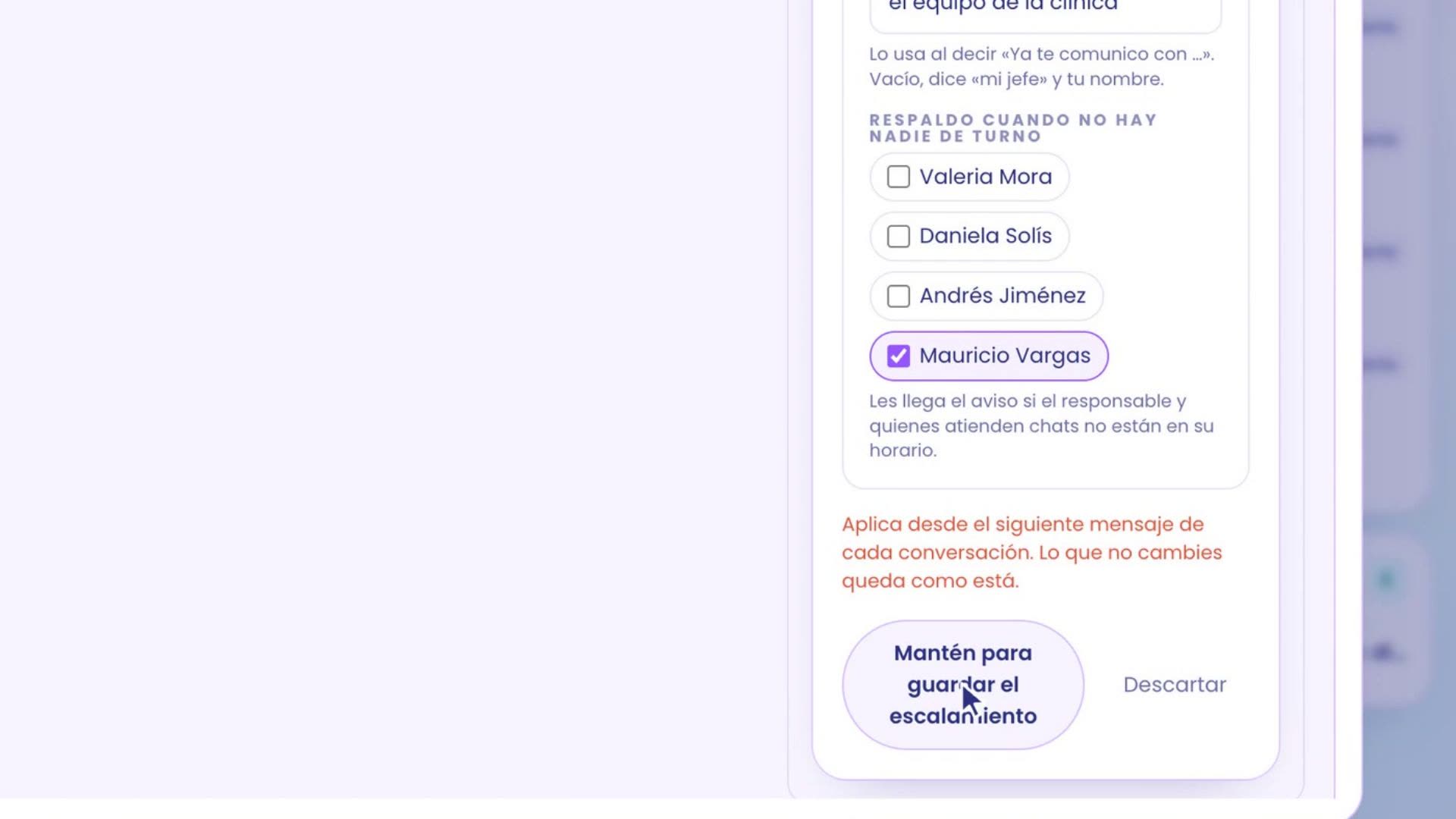
From now on, if no one is on shift, the notice goes to Mauricio. The backup's shift isn't checked: it exists precisely for when no one is there.
4. After-hours attention
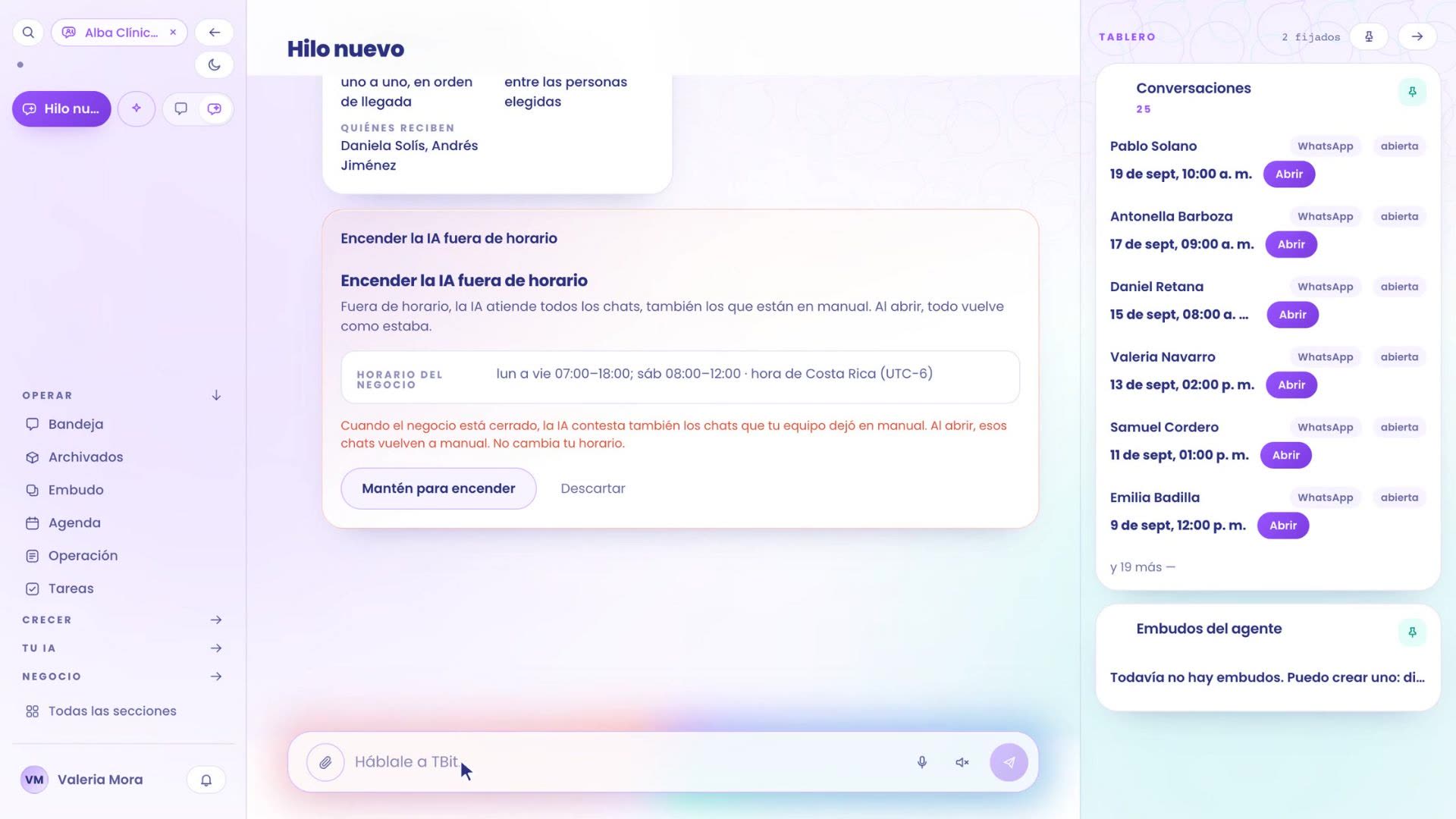
Last: with the business closed, your assistant handles all chats. It needs the business hours from step 1: without hours it can't be turned on. It only acts when the business is closed; when it opens, everything goes back to how it was.
Turn it on by hand or by asking TBit
By hand:
Go to Business › Settings. Open the Agent settings tab.
There are buttons at the top. Tap the first one: After-hours attention.
A form opens next to it with a summary, for example: It's off today. It follows the business hours: Mon to Fri 07:00–18:00; Sat 08:00–12:00 · Costa Rica time (UTC-6).
Check the box Your AI handles all chats outside business hours. Only when the business is closed: your assistant also answers chats your team left on manual. When you open, everything goes back to how it was. Your schedule doesn't change.
Save by holding Hold to save. Discard closes without changes.
If your business doesn't have hours, it won't let you turn it on and takes you to Team › Team hours. And at the end of the Agent settings card there's also the After-hours attention section, with the status and the schedule.
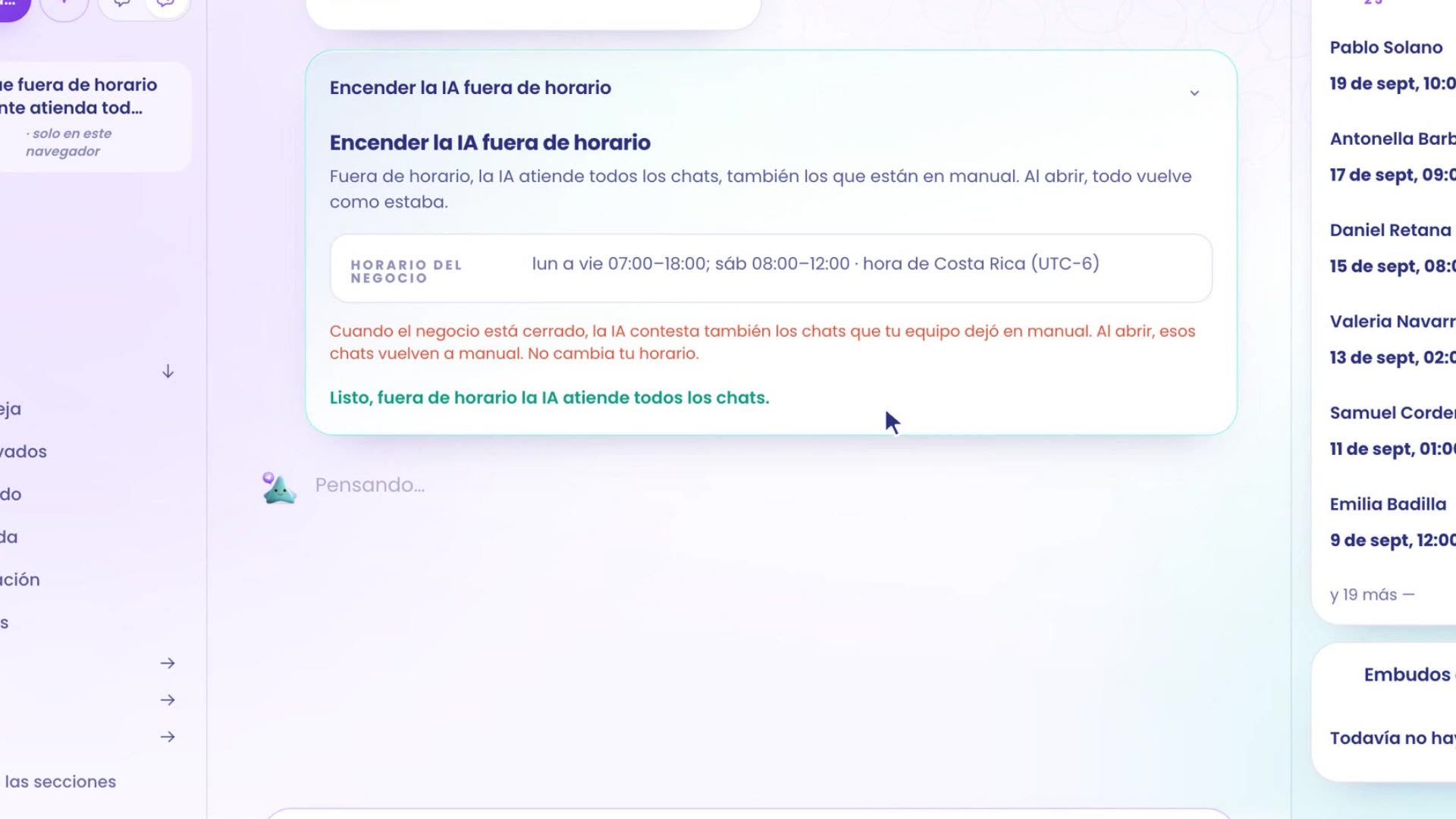
Asking TBit for it: write to it in the chat, just like this, "I want my assistant to handle all chats outside business hours". It gives you the proposal Turn on AI outside business hours and explains what changes: when the business is closed, it also answers chats your team left on manual, and when you open, those chats go back to manual. It doesn't change your schedule. To turn it on, hold Hold to turn on.
When someone is away: absences
If someone on your team is away today, for a few hours or several days, mark an absence for them. While they're away they won't get customer notifications or new chats, and the calendar won't offer them appointments. It applies in all the businesses where they work. The ladder skips them and the notice goes to the next step, also if they're part of the backup.
Go to Business › Team › Team hours and, in the person's row, tap Mark absence. It's also in Your team › Manage, in the Absences section.
Choose Today, Several days (with From and To) or A few hours (with From and To).
If you want, choose a Reason (optional): Vacation, Sick leave, Errand or Other.
Tap Mark absence. The person gets the Away today chip.
To remove it, tap Remove. The person can mark it on themselves, or an administrator or the owner can mark it on anyone. You can also ask TBit in the chat, for example: "Daniela isn't coming today".
In Test, the card tells you: "Andrés Jiménez is away today: it would notify your backup, Mauricio Vargas."
Try it every hour
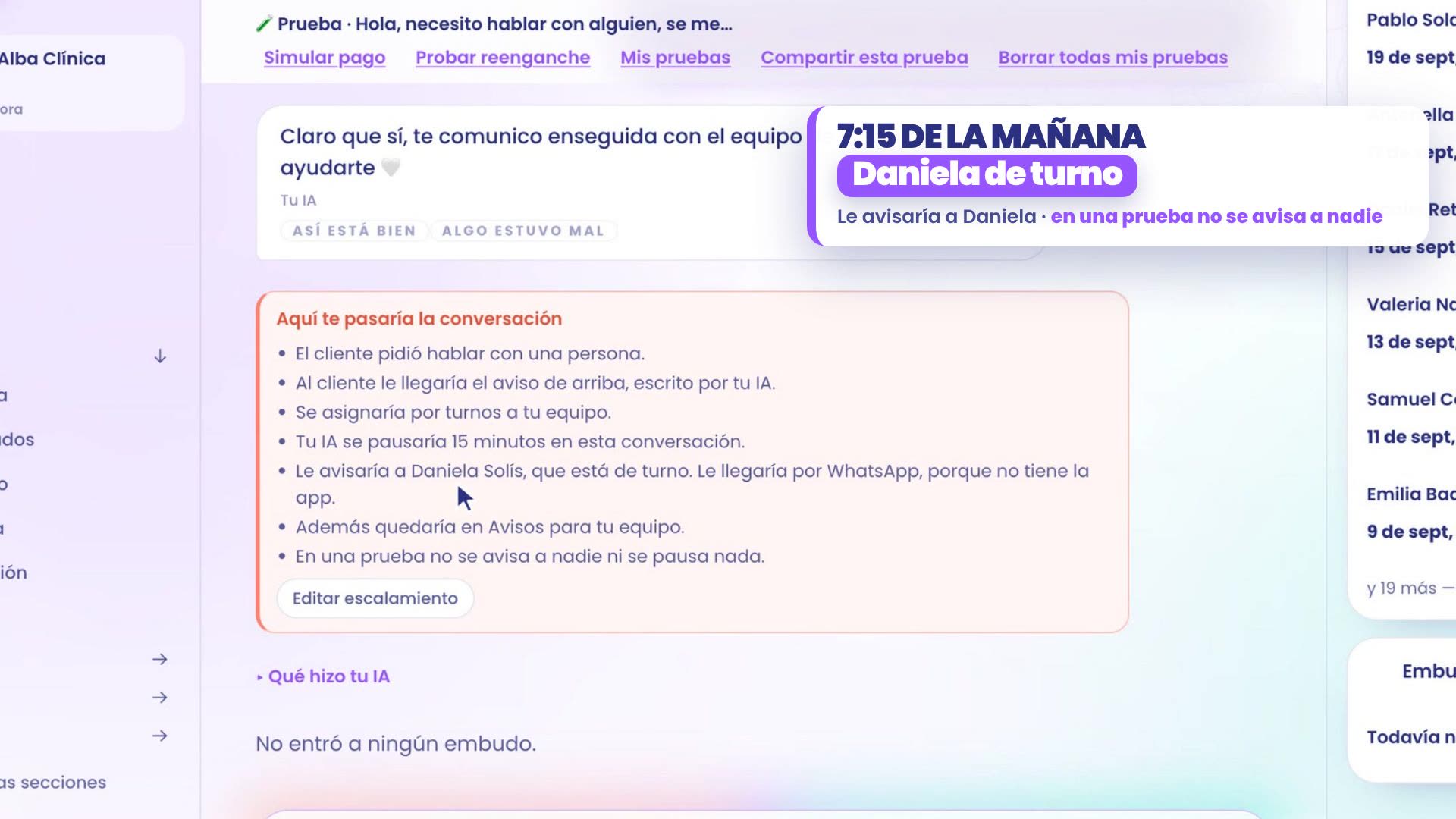
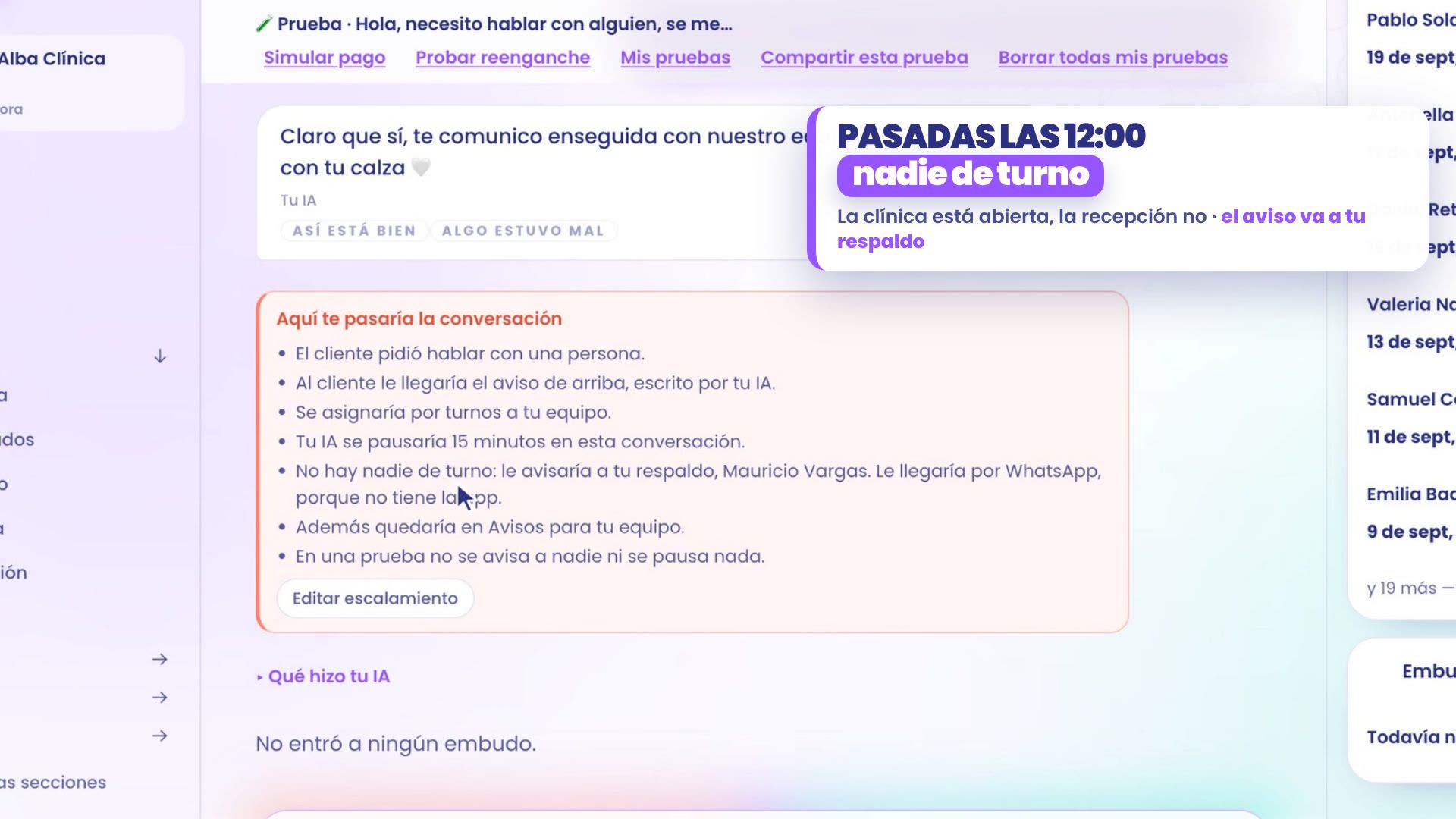
You test it like you were a customer. At the top left, next to New thread, tap Test and type: "I need to talk to someone, a legging ripped on me". Your assistant tells them it will connect them with the team, and below, the card Here's where the conversation would go shows you who it would notify at that moment. Try it at different times of day.
In the morning: Daniela, on shift
At 7:15 in the morning it would notify Daniela, who is on shift. Since she doesn't have the app yet, it would reach her by WhatsApp, on the reception phone.
At midday: Mauricio, the backup
After 12:00, the clinic is open, but Daniela has already left and Andrés hasn't arrived yet. With the same question, since no one is on shift, the notice reaches Mauricio, your backup. The patient isn't left waiting for lunch to end.
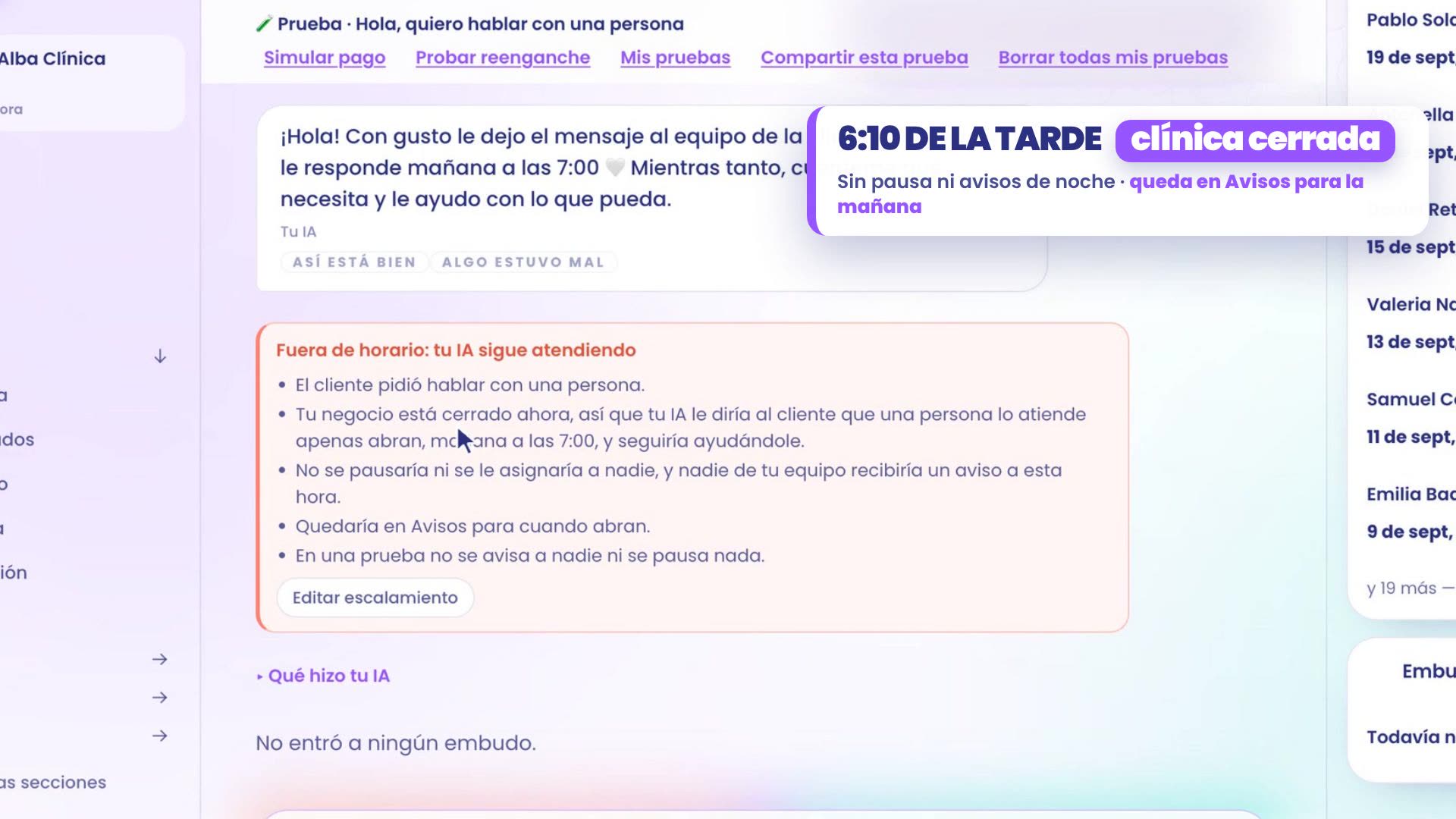
At night: your assistant keeps helping
At 6:10 in the evening the clinic has already closed. A patient writes: "I want to talk to a person". Your assistant tells them they'll be helped tomorrow at 7:00 and keeps helping them. The card is called Outside hours: your AI keeps helping: it isn't paused, it isn't assigned to anyone, no one gets a notice at that hour, and it stays in Notices for when they open.
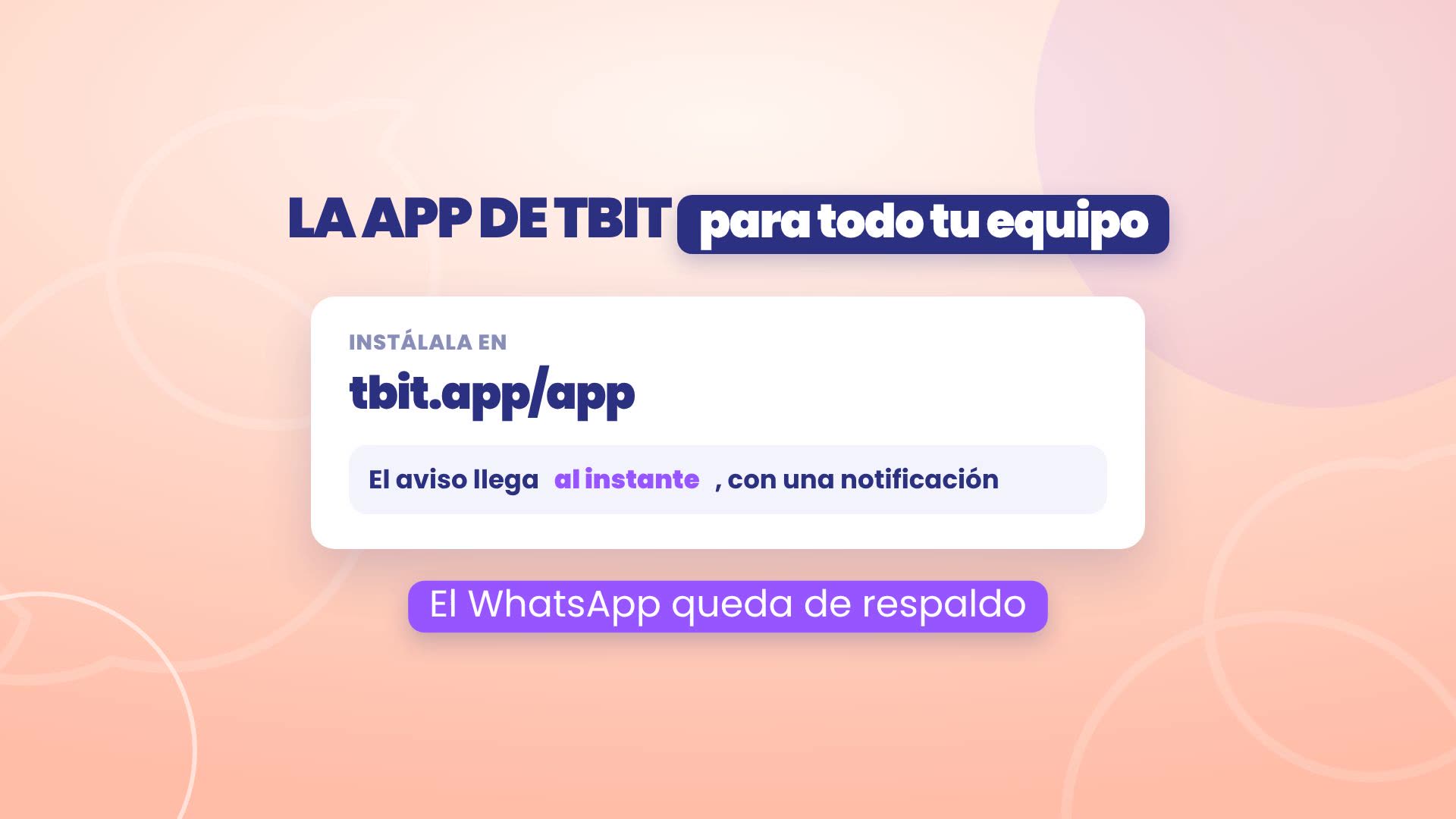
Have your whole team install the app
So the notice arrives instantly, have your whole team install the TBit app, at tbit.app/app. That way WhatsApp is only the backup.
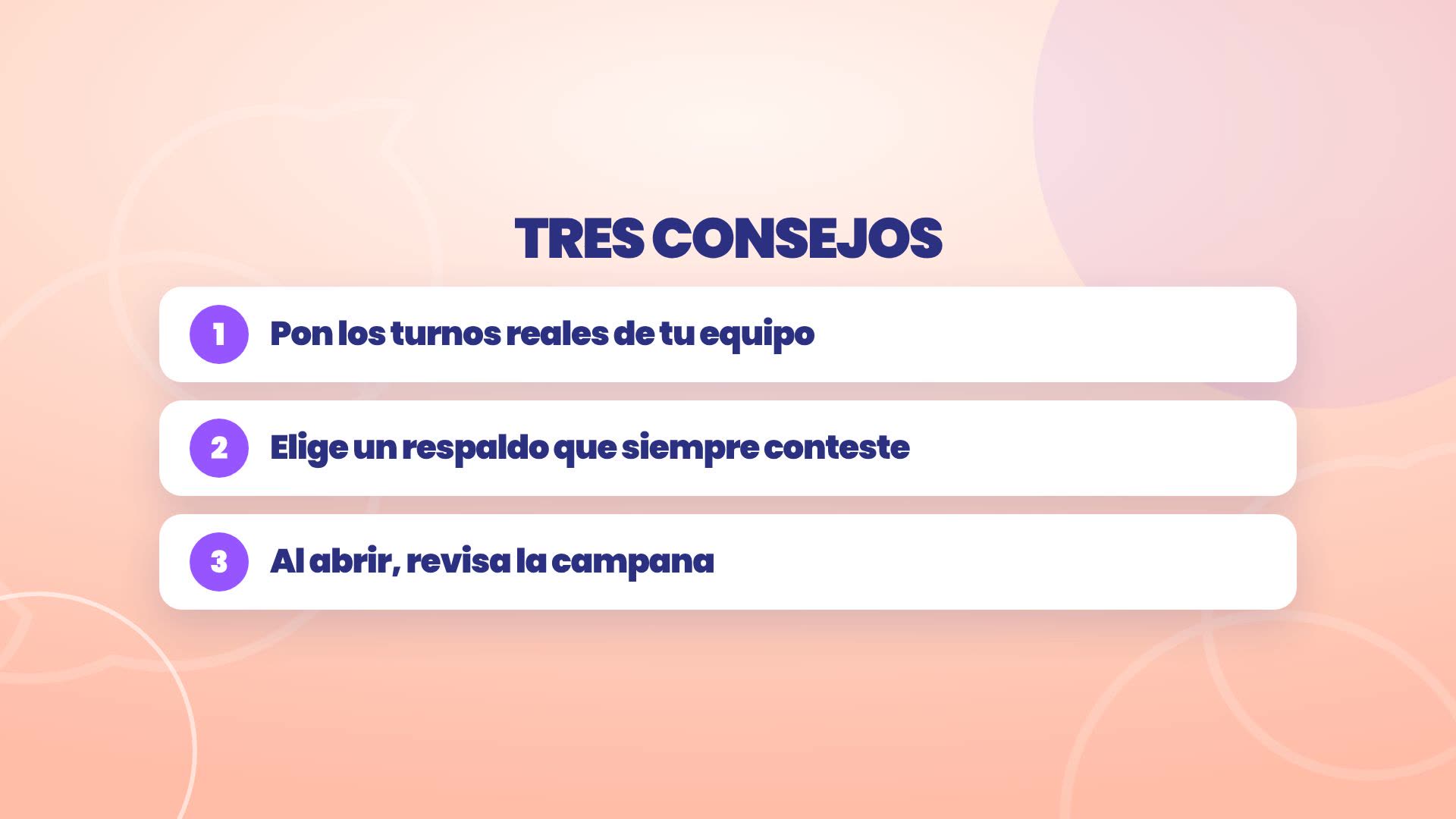
Three tips
Set your team's real shifts, because who gets the notice depends on that.
Pick a backup who always answers.
When you open up, check the bell: that's where you'll see what happened overnight.
Where everything is
Schedules: Business › Team › Team schedules.
The WhatsApp for notices: Business › Team › Your team › Manage.
The backup: Your AI › What it's like and how it talks › Edit escalation.
After-hours attention: Business › Settings › After-hours attention, or ask TBit for it in the chat.
Absences: Business › Team › Team schedules › Mark absence, or tell TBit in the chat who's out.
Test as a customer: Test, top left, next to New thread.
Notices: the bell.
Your assistant handles it, and knows who to notify.