
Help center
Get your assistant to hand the conversation over in time: escalation and funnel
Set when your WhatsApp assistant hands the conversation over to you: your reasons, the review before sending, the pause and the alert. Try it out and use the funnel for custom cases.
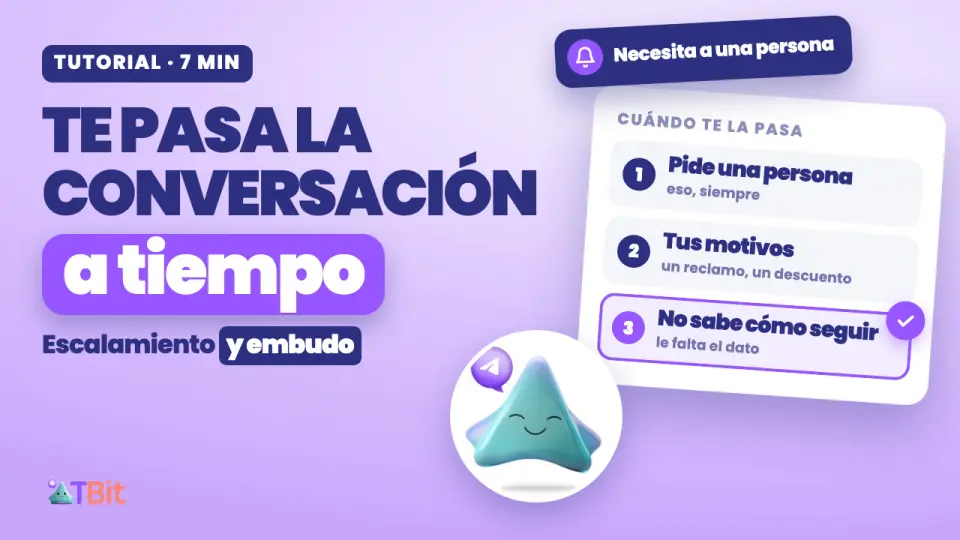
When a person is needed
Your assistant handles almost everything on its own: prices, timelines, shipments. But there are moments when a person is needed. Someone wants a custom piece of furniture. Someone complains because their table arrived scratched. Or someone simply writes to you: I want to talk to a person.
Escalating is that: your assistant recognizes the moment and hands the conversation over to you, on time and without improvising. In this guide you'll see when it escalates, what happens when it does, how you set it up, how you test it before it happens with a customer, and how you handle it when it really happens. And for the cases with a name of their own, how to do it with the funnel.
Watch it in seven minutes
The full walkthrough, with the real TBit screens. Below you have every step in writing.
The example: a furniture workshop in Santiago
We follow Roble Taller de Muebles, in Providencia, Santiago de Chile: tables, chairs and furniture made of native wood, from the catalog or custom, with delivery. Camila is the owner, Andrea designs the custom furniture and Tomás handles deliveries. Roble is a demo account with sample data.
When it escalates: three paths
When the customer asks to talk to a person. That always happens.
For your reasons: what in your business always needs someone, like a complaint or a discount.
When your assistant doesn't know how to continue: it's missing a piece of information, or its answer would leave the customer without what they were looking for.
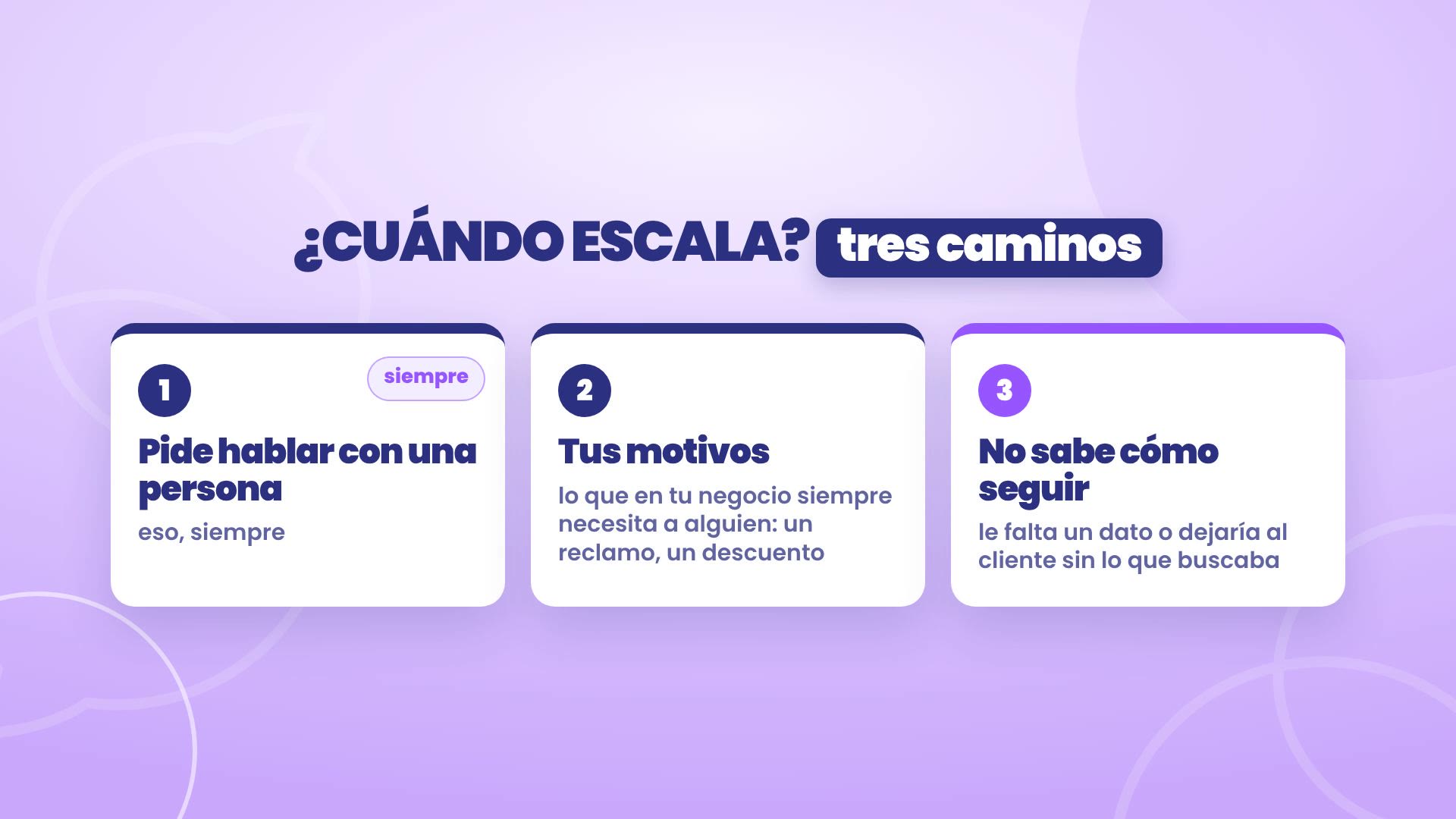
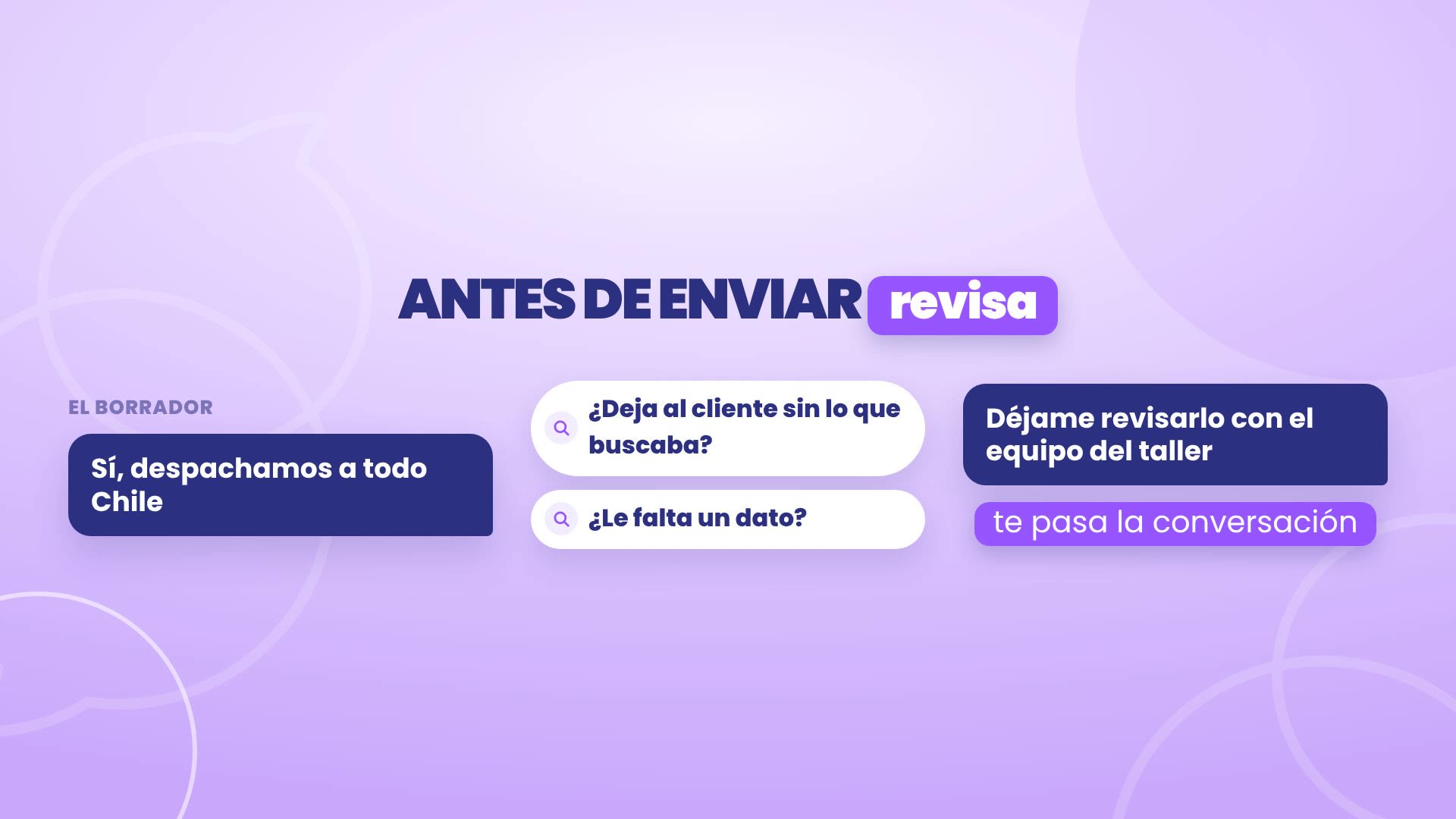
The third path is the one that takes the best care of you. Before sending each reply, TBit checks whether it leaves the customer without what they were looking for, or whether it's missing a piece of information. If so, instead of improvising, it hands the conversation over to you.
What happens when it escalates
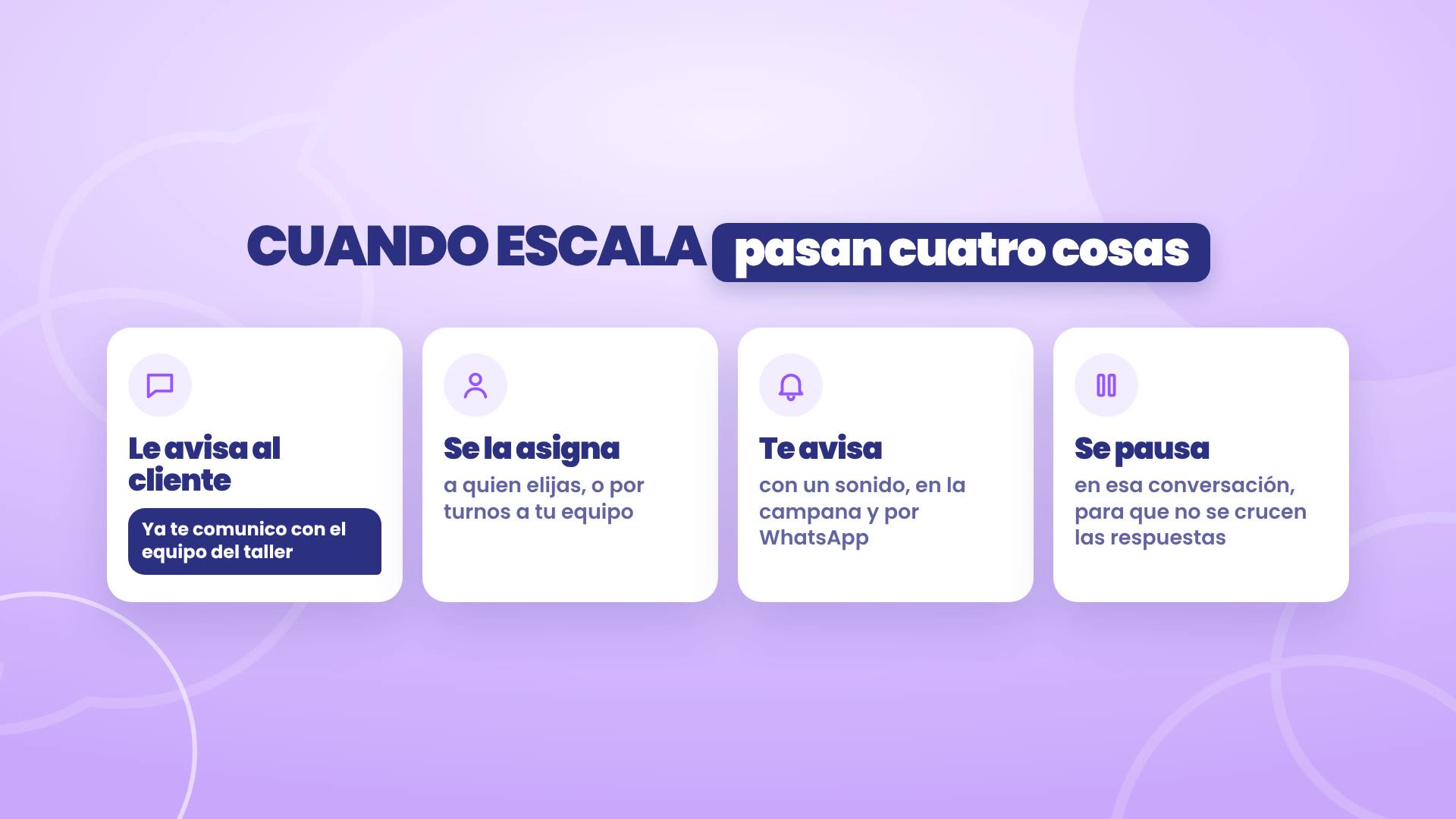
Four things happen:
It lets the customer know that it's connecting them with someone from the team.
It assigns it to whoever you choose, or in turns to your team.
It alerts you with a sound in TBit, in the bell and via WhatsApp.
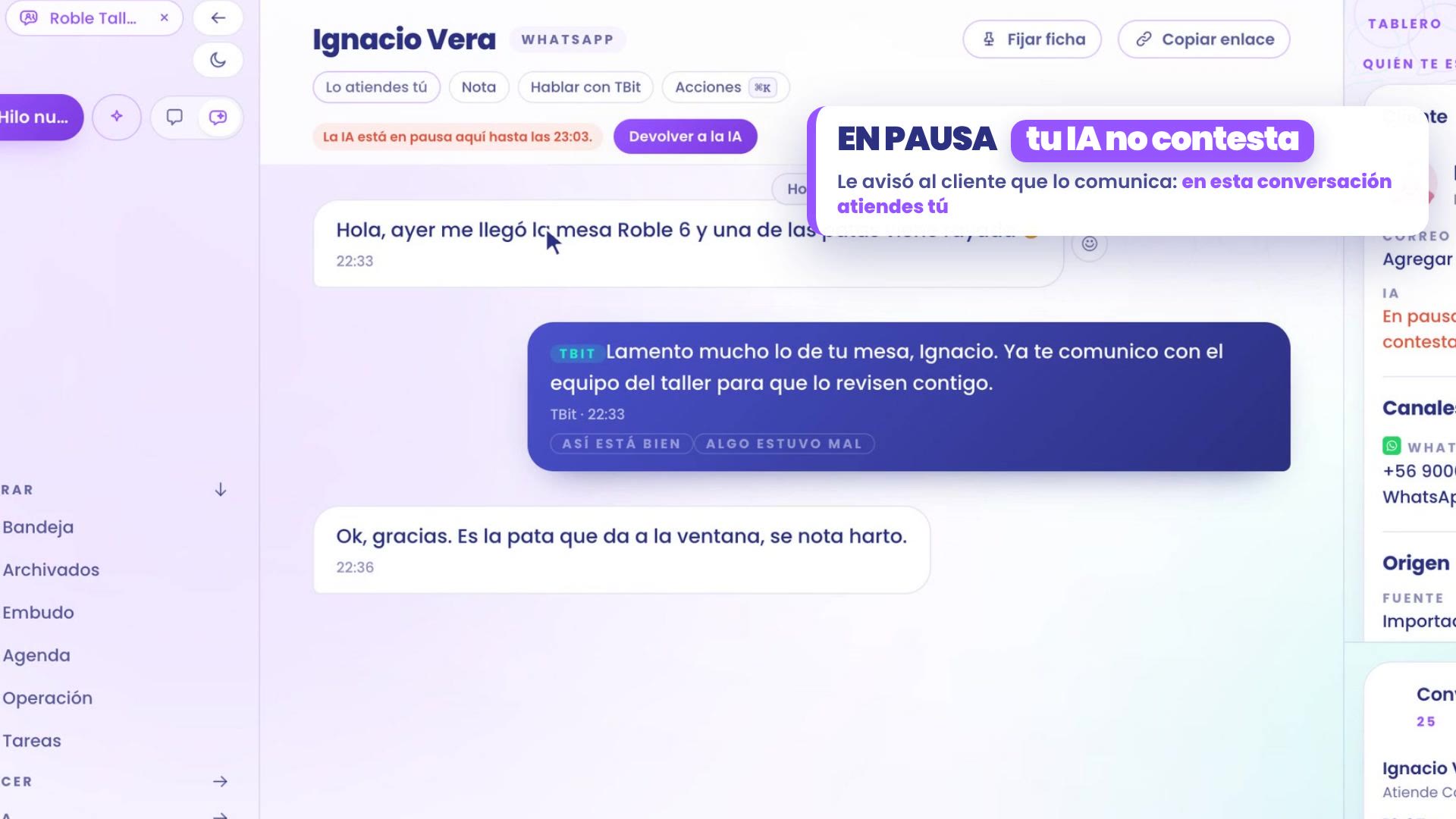
It pauses in that conversation, so replies don't cross.
When you're done, you send it back with a button. And if not, your assistant picks the conversation back up when the pause ends.
Escalation or funnel
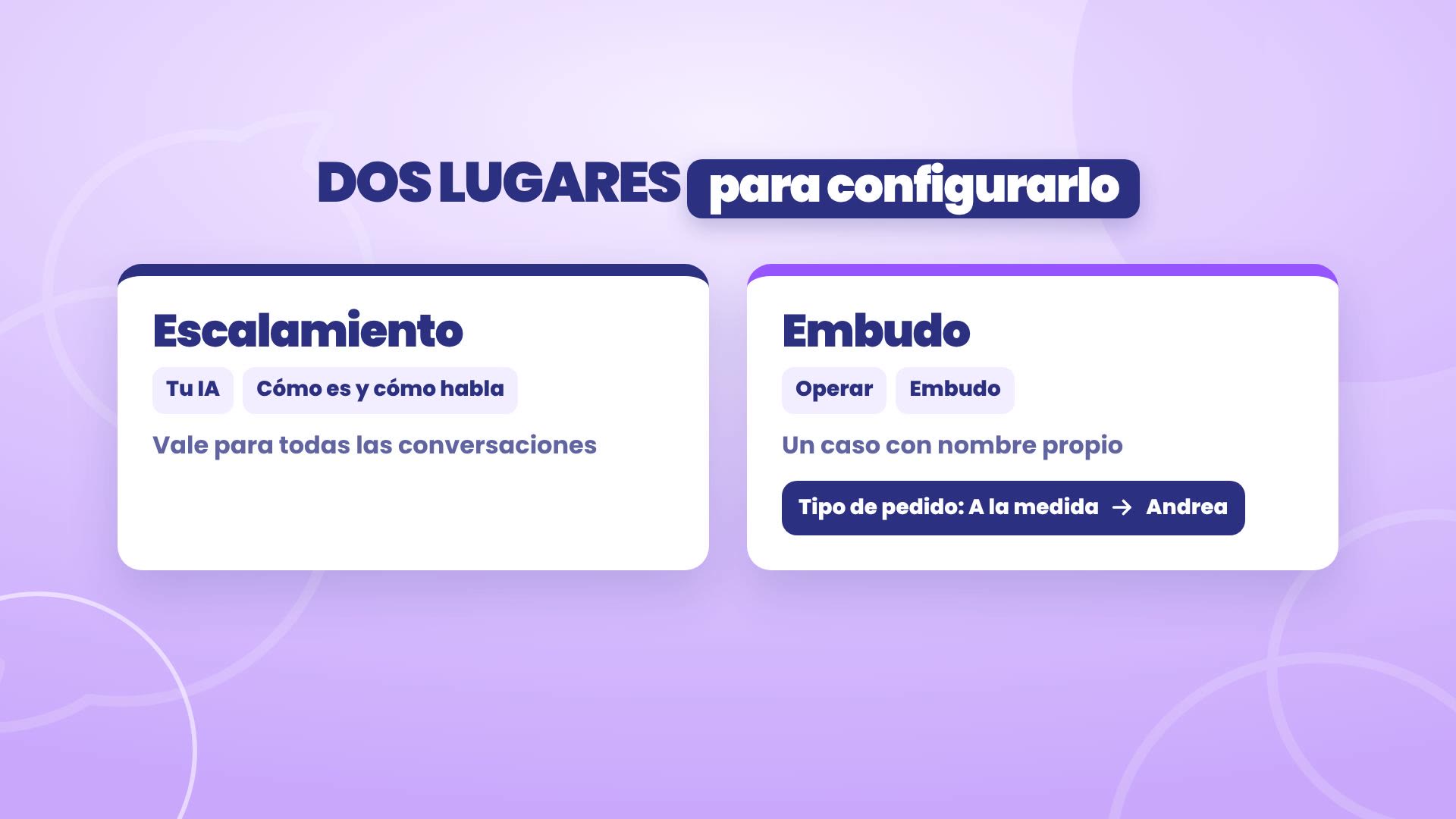
There are two places to set it up:
Escalation, in Your AI › How it is and how it talks, applies to all conversations.
The funnel, in Operate › Funnel, is for a specific case: when a customer detail takes them to a stage where a person handles it. At Roble, custom projects go straight to Andrea.
1. Turn on escalation
Path: Your AI › How it is and how it talks. Next to your text is When it hands the conversation over to you. Tap Edit escalation.
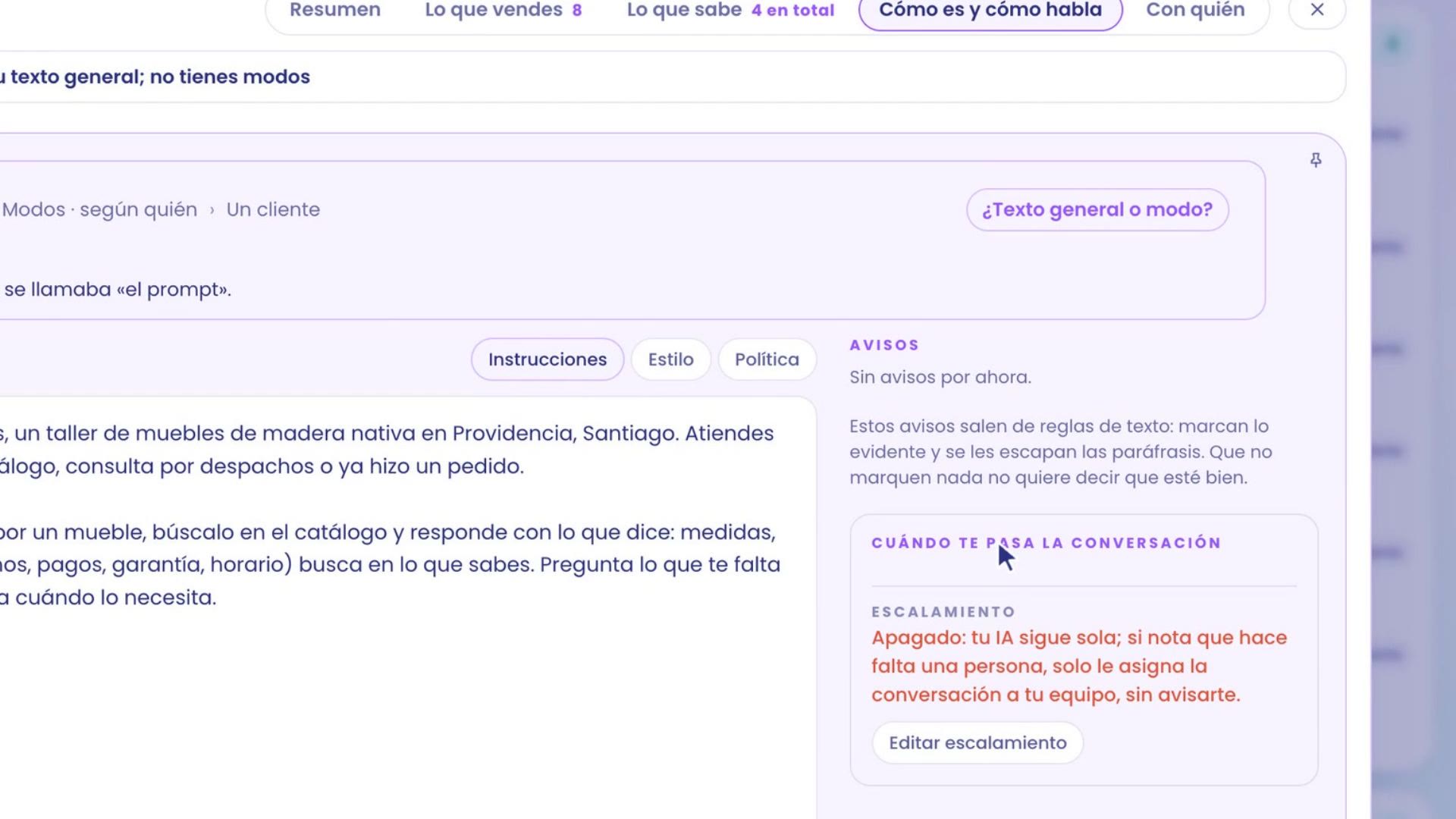
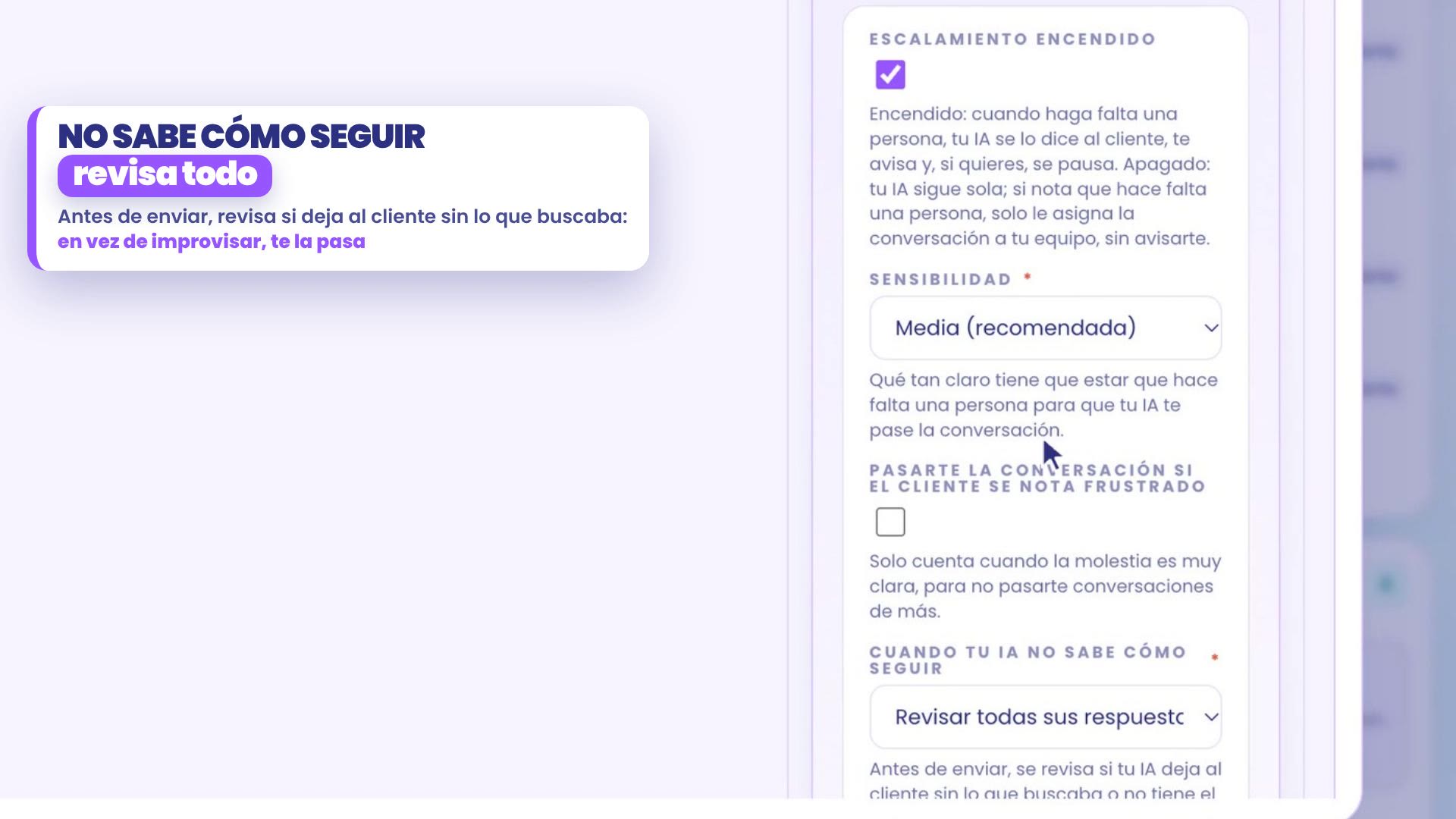
Check Escalation on.
Choose the Sensitivity: how clear it has to be that a person is needed. Medium (recommended) is the starting point; Low only escalates when it's very clear, and High, at the slightest doubt.
In When your AI doesn't know how to continue, choose Review all its replies (recommended). That way, before sending, every reply is reviewed and your assistant never makes up a detail it doesn't have.
Your reasons
Asking for a person is already covered. Here you add what's specific to your business, one per line and in your own words:
Reasons based on what the customer says. At Roble: Complains about a piece of furniture that arrived damaged or late and Asks for a discount.
Reasons based on what your AI replies: situations where your assistant shouldn't reply on its own. At Roble: Doesn't know if it can be delivered to an address.

What happens when it escalates
Notify you: you get "Ignacio needs a person" with a sound in TBit, in your notifications, on your phone or browser, and by email. Admins with their phone in TBit also get a WhatsApp message.
Who the conversation is assigned to: in Roble, By turns to your team. If someone already has the conversation, it stays with that person.
Pause your AI (minutes): in Roble, 30. While it's paused, your assistant doesn't reply in that conversation.
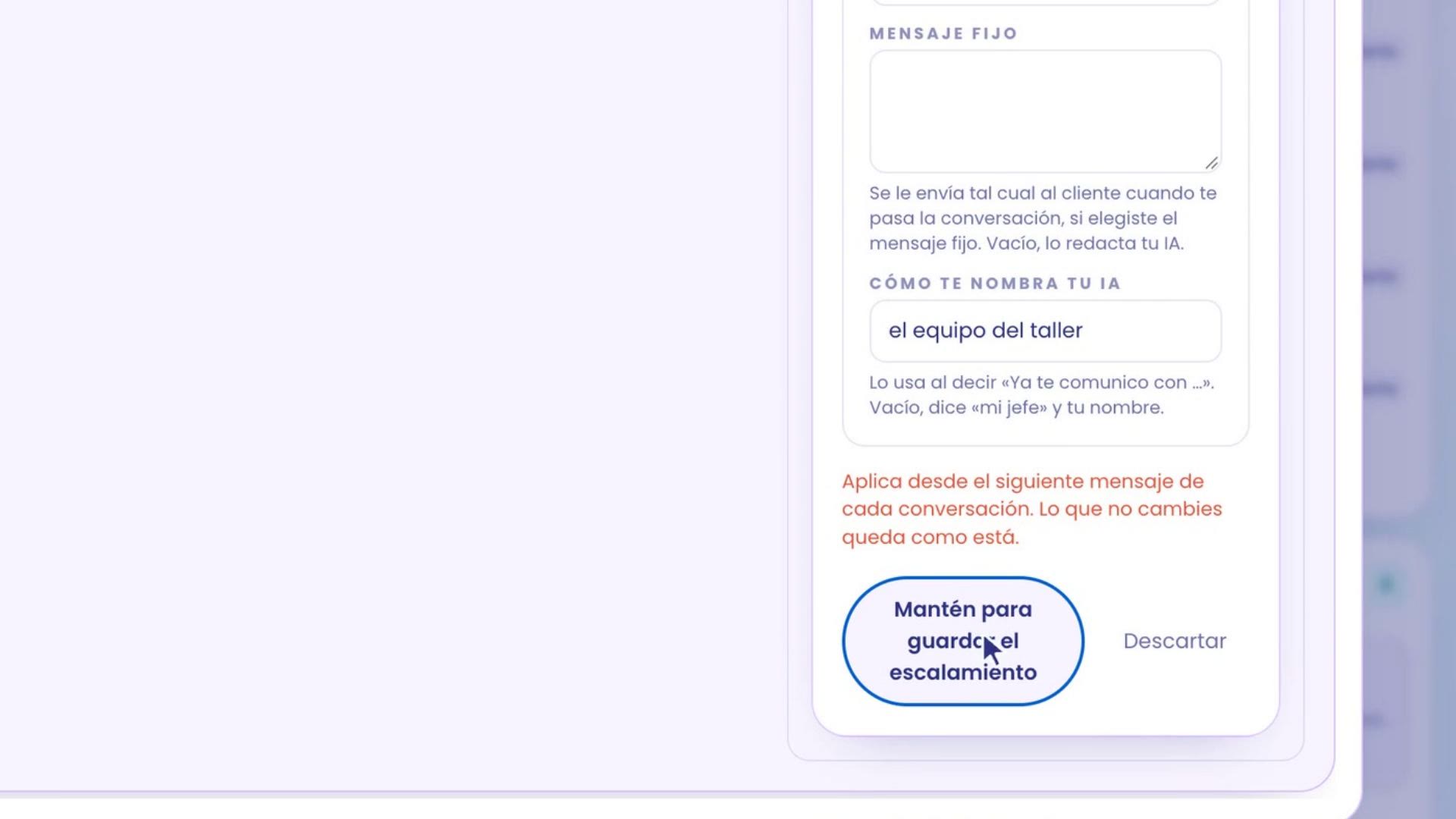
What the customer is told: Your AI writes it, or a fixed message you write yourself.
How your AI names you: however you prefer to be introduced. In Roble, the workshop team: "I'll connect you with the workshop team now."
Save by holding down Hold to save the escalation. It applies to all conversations from their next message.
2. Try it first
Now you try it as if you were a customer. At the top left, next to New thread, tap Test my AI. No one else sees that conversation.
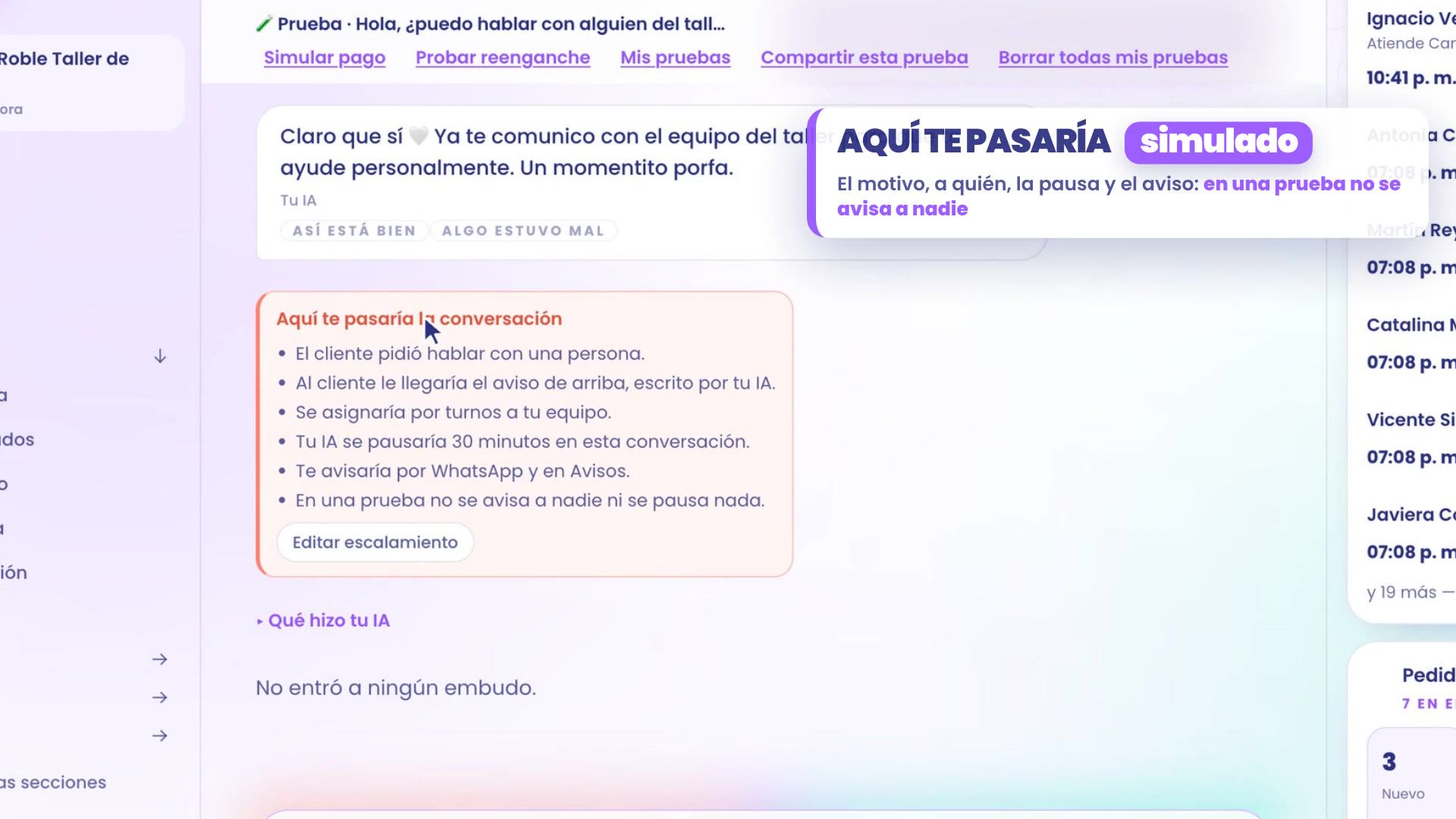
Write to it: "Hi, can I talk to someone from the workshop?"
Your assistant tells them it will connect them with the team, and below appears the card Here's where I'd pass the conversation on: the reason, that your assistant writes the notice to the customer, that it would be assigned by turns to your team, that it would be paused for 30 minutes, and that it would notify you on WhatsApp and in your notifications.
It's a test: no one is notified and nothing is paused.
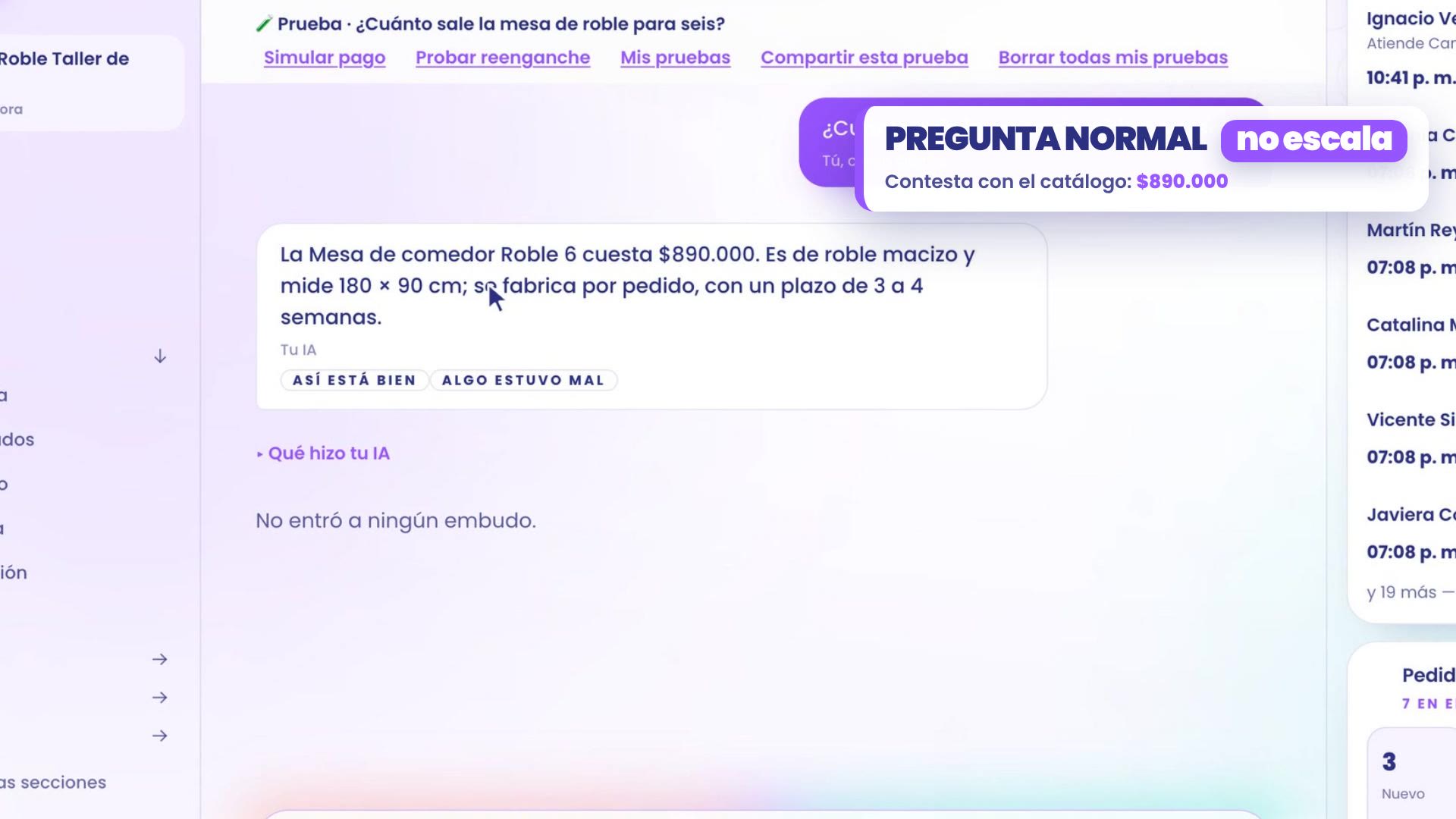
A normal question doesn't escalate
In a real conversation, your assistant would be paused. So tap Start over and ask something normal: "How much is the oak table for six?" It answers with the catalog, $890,000, without escalating.
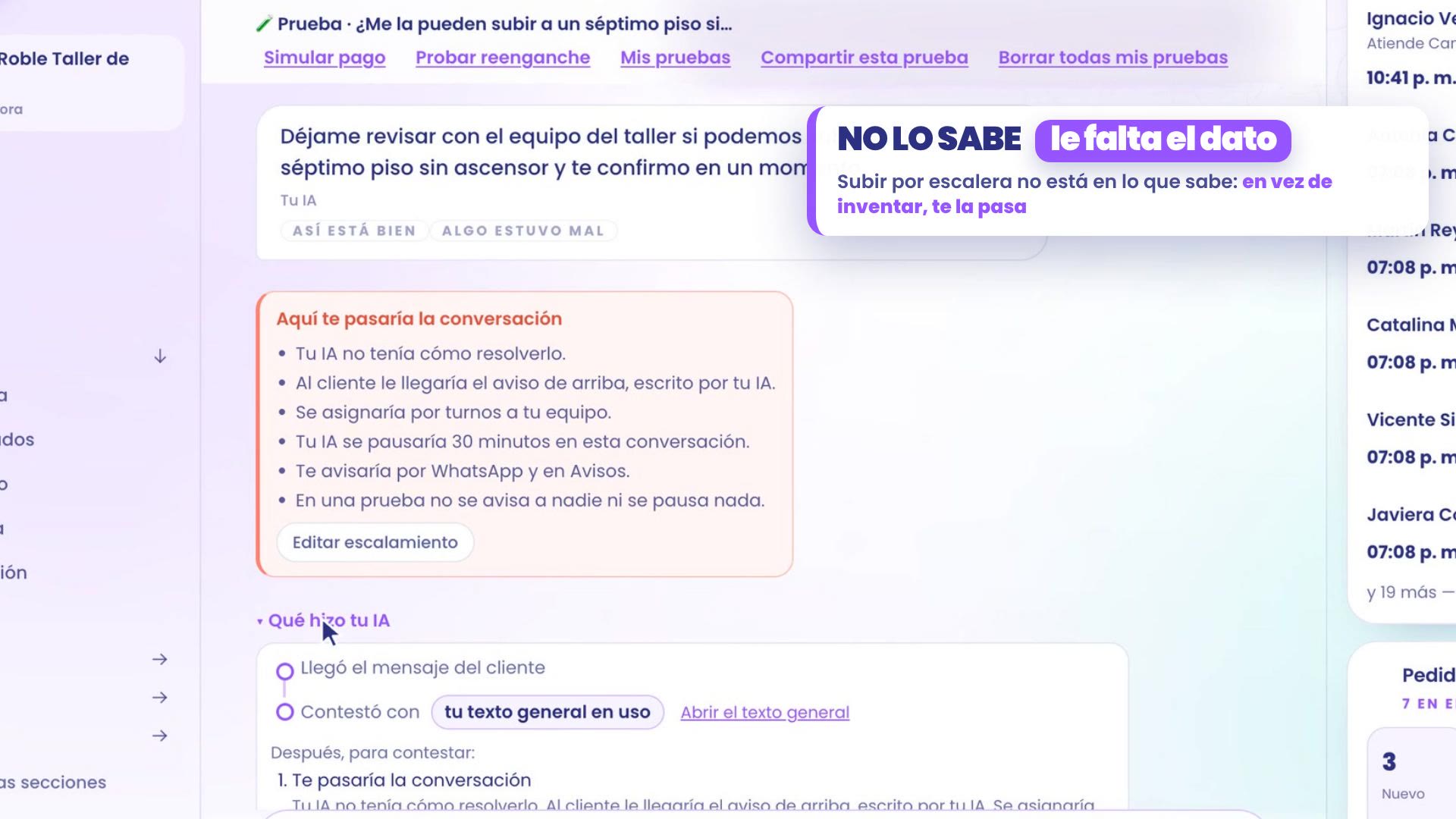
Something it doesn't know
Start over and ask something that isn't in what it knows: "Can you take it up to a seventh floor with no elevator?"
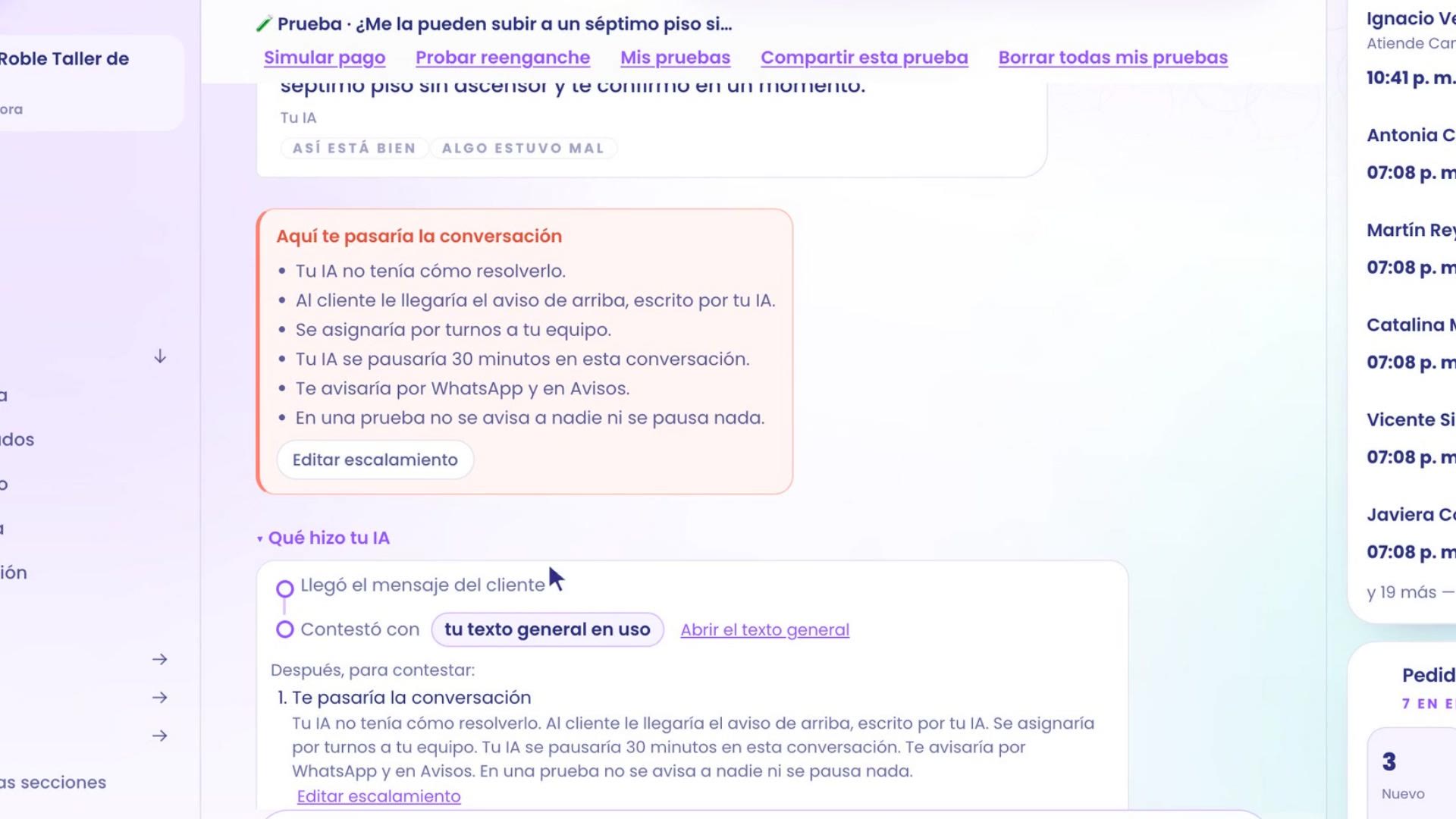
Instead of making it up, your assistant says it will check with the team and passes the conversation on to you. The card says why: it had no way to solve it.
Open What your AI did, below the reply, and you see the step: I'd pass the conversation on, with the reason.
3. When it really happens
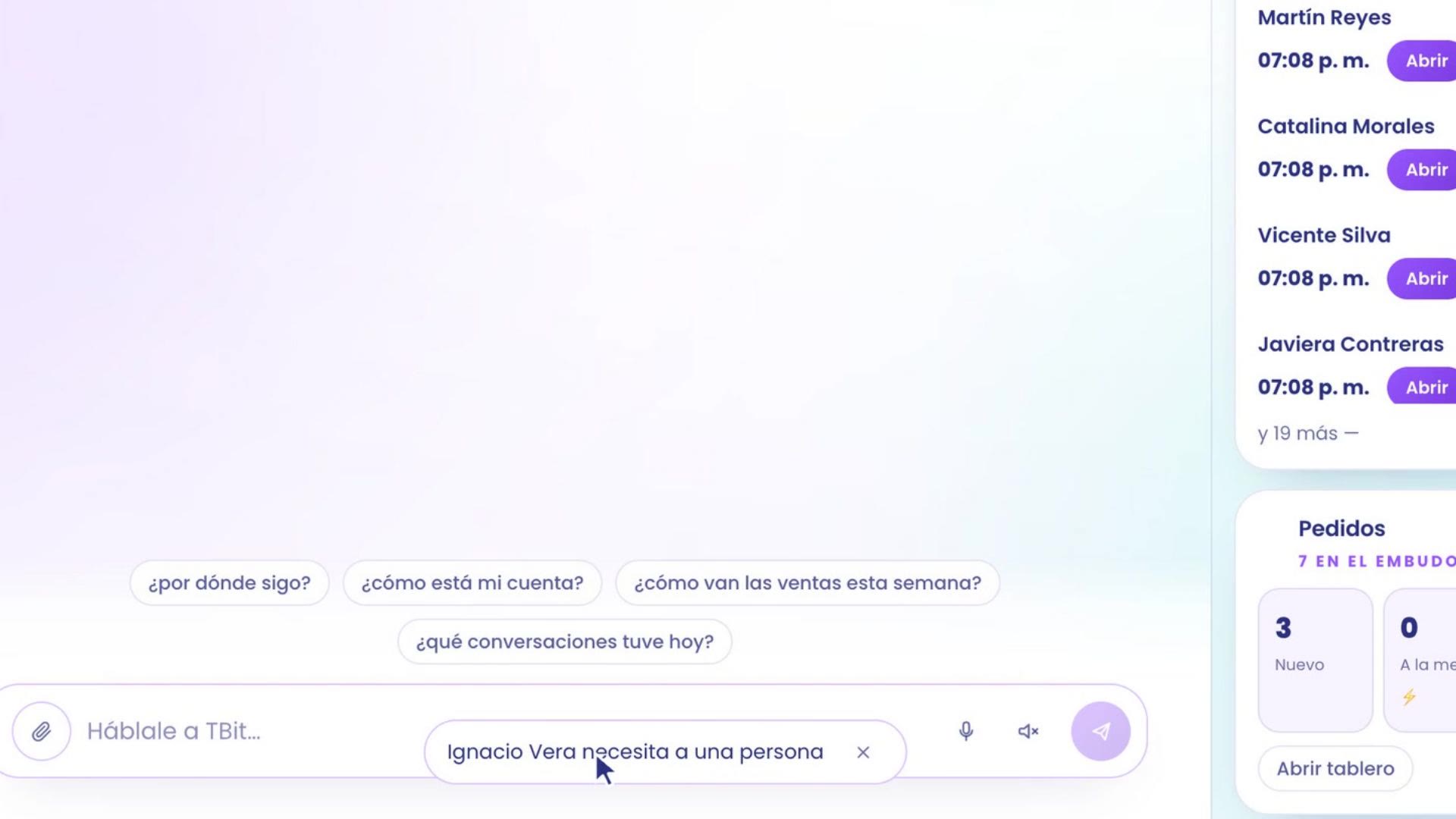
In a real conversation the alert sounds: Ignacio Vera needs a person. It also stays in the bell.
Tap the alert or the row in the bell and the chat opens. At the top, the banner says that the AI is paused in that conversation. Ignacio says his table arrived with a scratched leg, and your assistant already told him it was connecting him with the team.
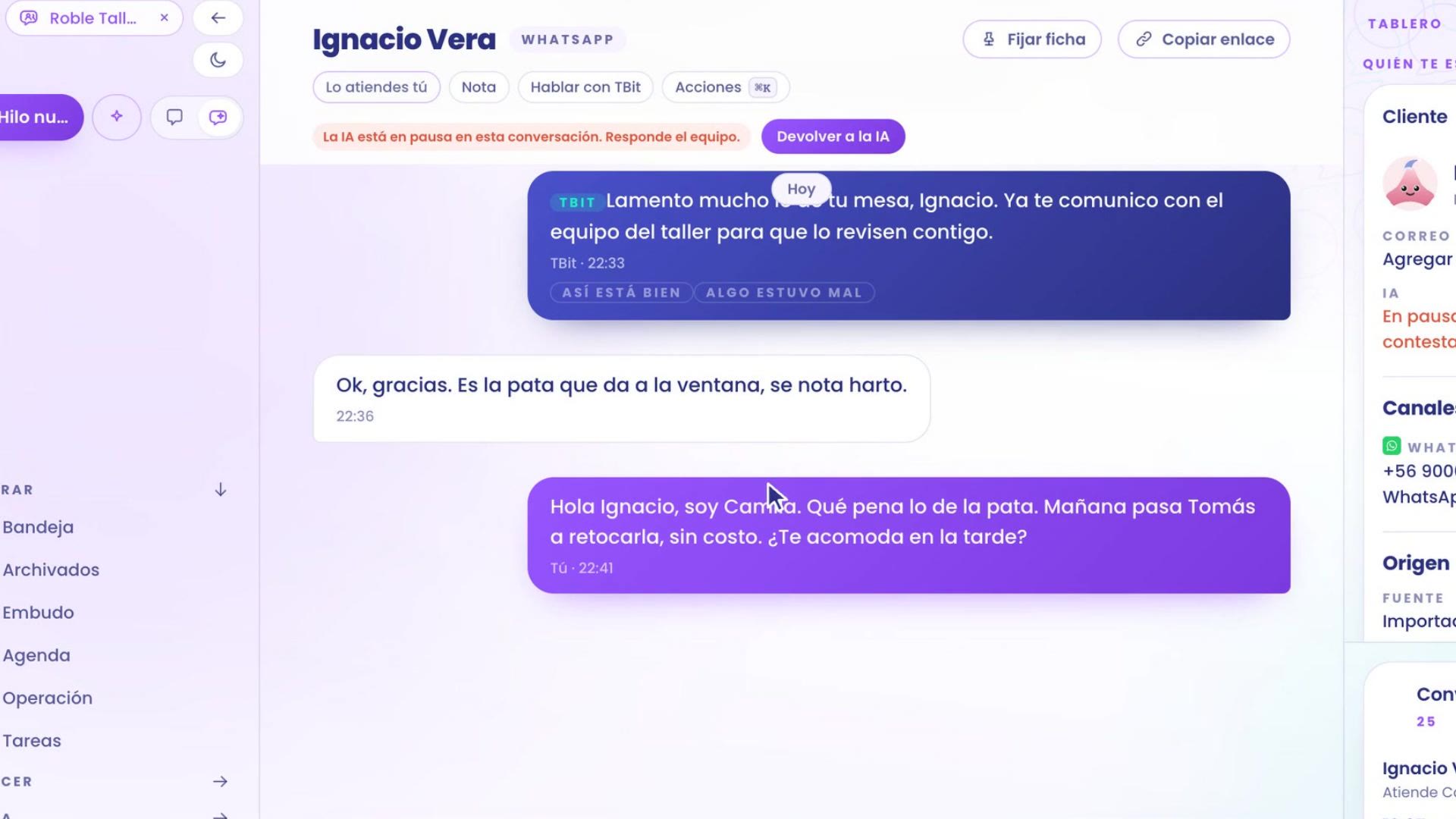
You reply. From the moment you answer, your assistant stays out of that conversation.
When you're done, tap Return to AI, at the top of the chat. From the next message on, your assistant takes over again.
4. The funnel: a case with a name of its own
For custom projects, Camila wants something more precise: that they go straight to Andrea, with a stage of their own in the funnel. It's set up in two steps: a contact field and the stage.
A contact field
Path: Grow › Contacts › Contact fields, and New field.
Name: Order type.
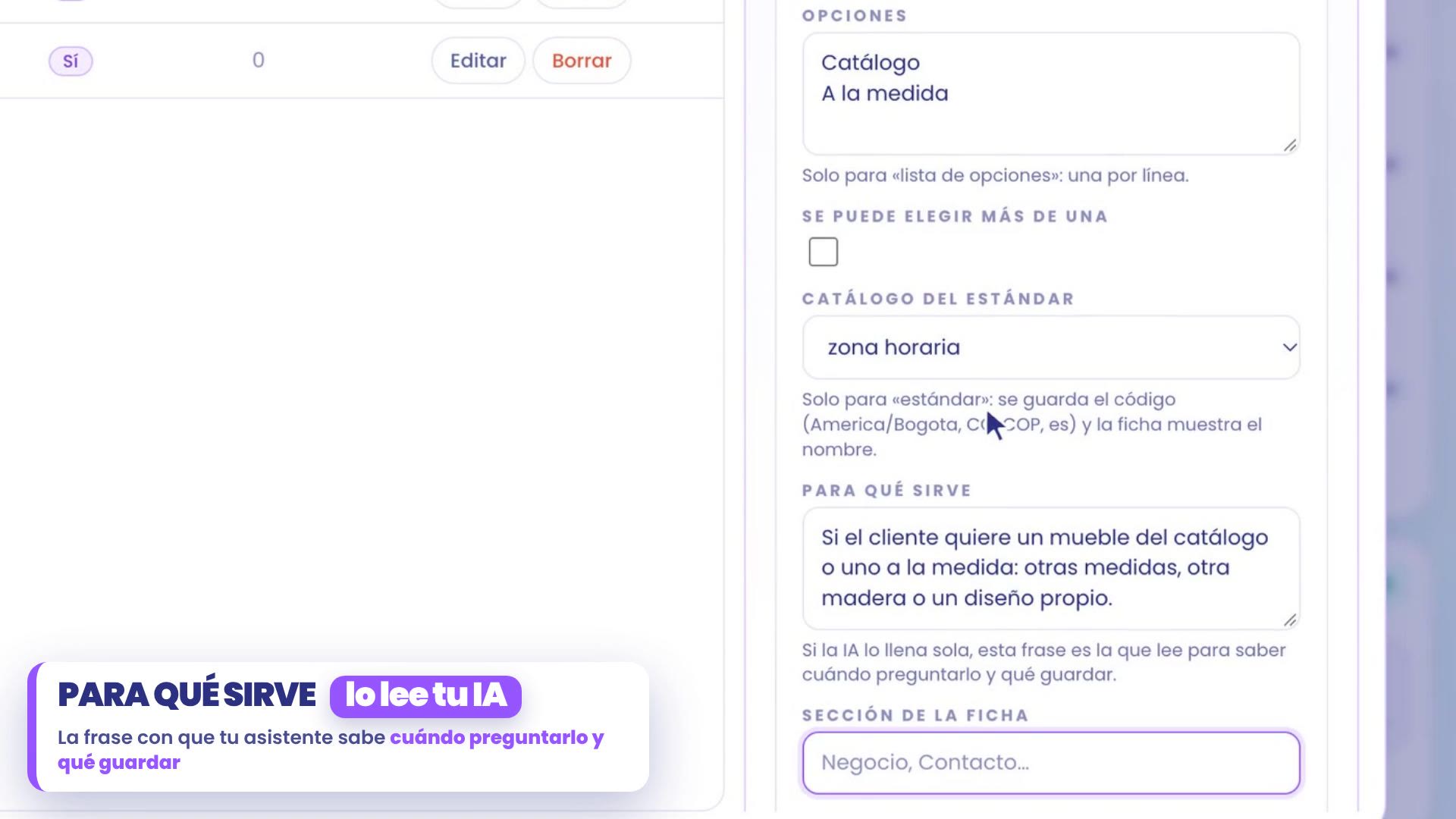
Field type: list of options. In Options, one per line: Catalog and Custom.
What it's for: the phrase your assistant uses to know when to ask it and what to save. In Roble: Whether the customer wants a piece from the catalog or a custom one: other measurements, another wood or a design of their own.
Turn on The AI asks for it and saves it on its own, and create it by holding the button.
If you want more about your contacts' data, see how to import contacts and build audiences.
The stage
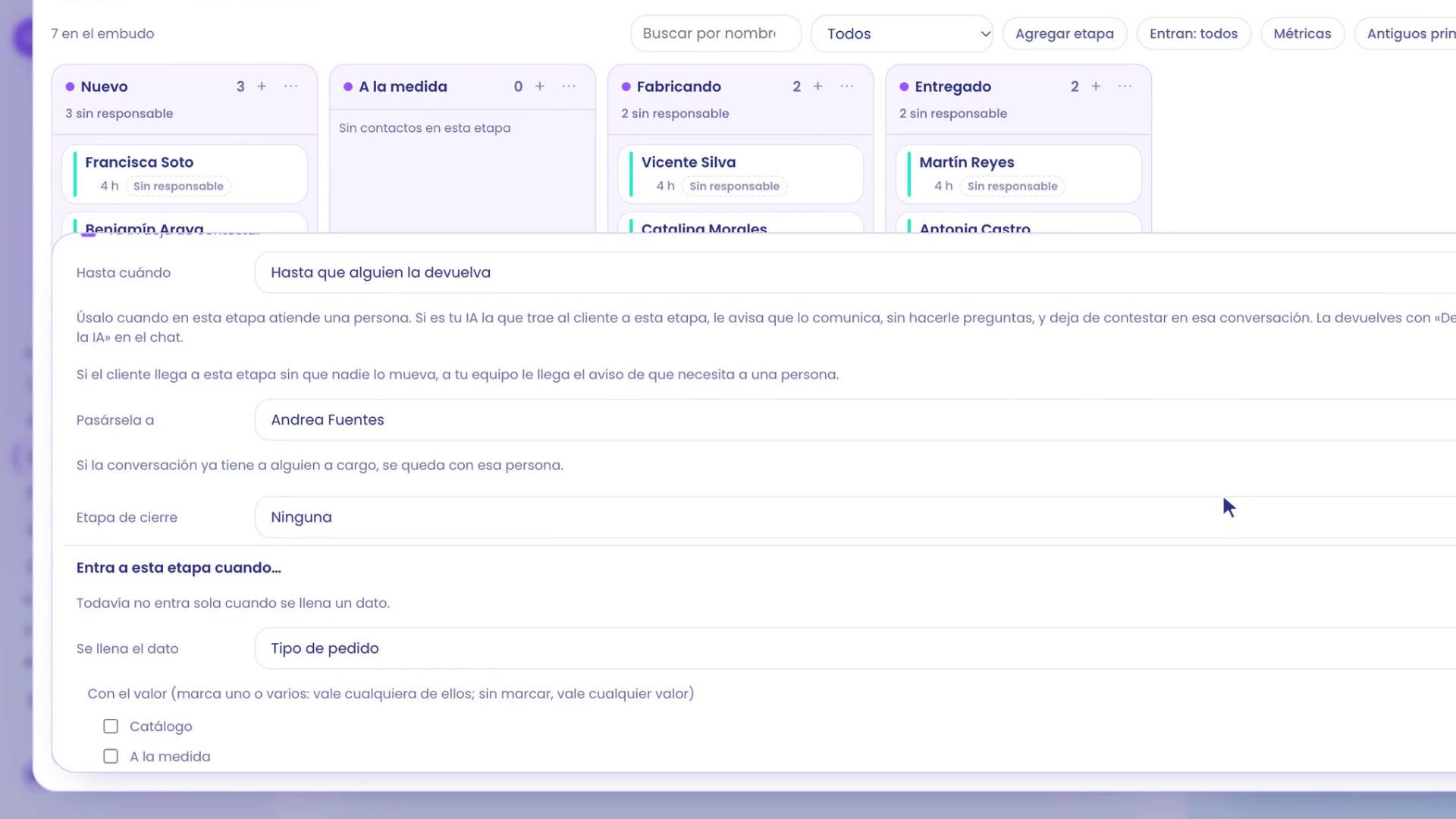
Path: Operate › Funnel. In the Custom stage, open the stage menu and tap Configure stage.
In When entering this stage, check Your AI stops replying. It comes set to Until someone hands it back. Use it when a person takes over at that stage: if it's your assistant bringing the customer to this stage, it lets them know it's passing them along, without asking questions, and stops replying in that conversation.
In Pass it to, choose Andrea Fuentes.
In Enters this stage when…, choose the field Order type, the value Custom, and tap Add rule.
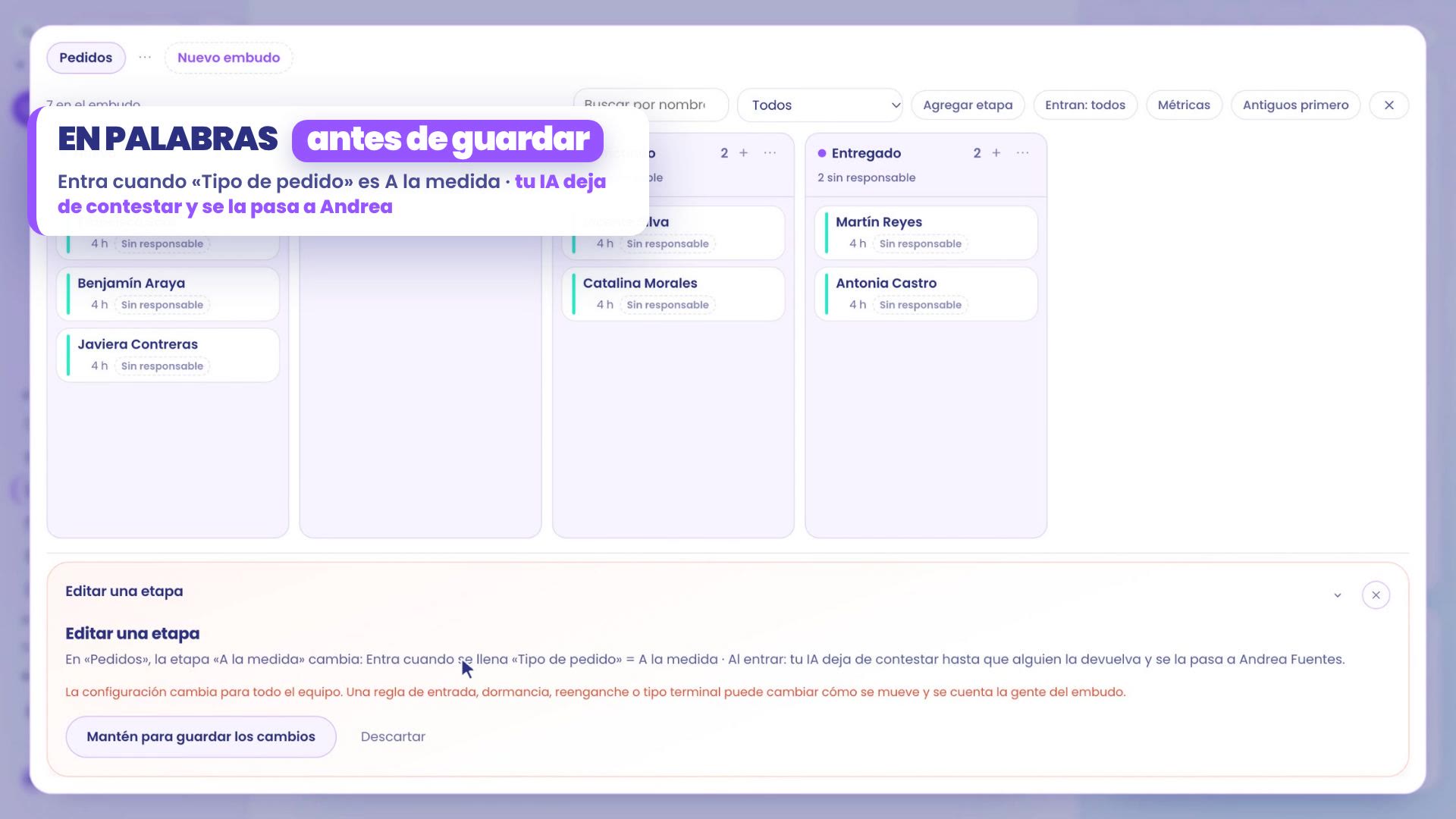
Tap Save. TBit shows you the change in words: it enters when Order type is Custom, your assistant stops replying and passes it to Andrea. Hold the button to save.
Try it out
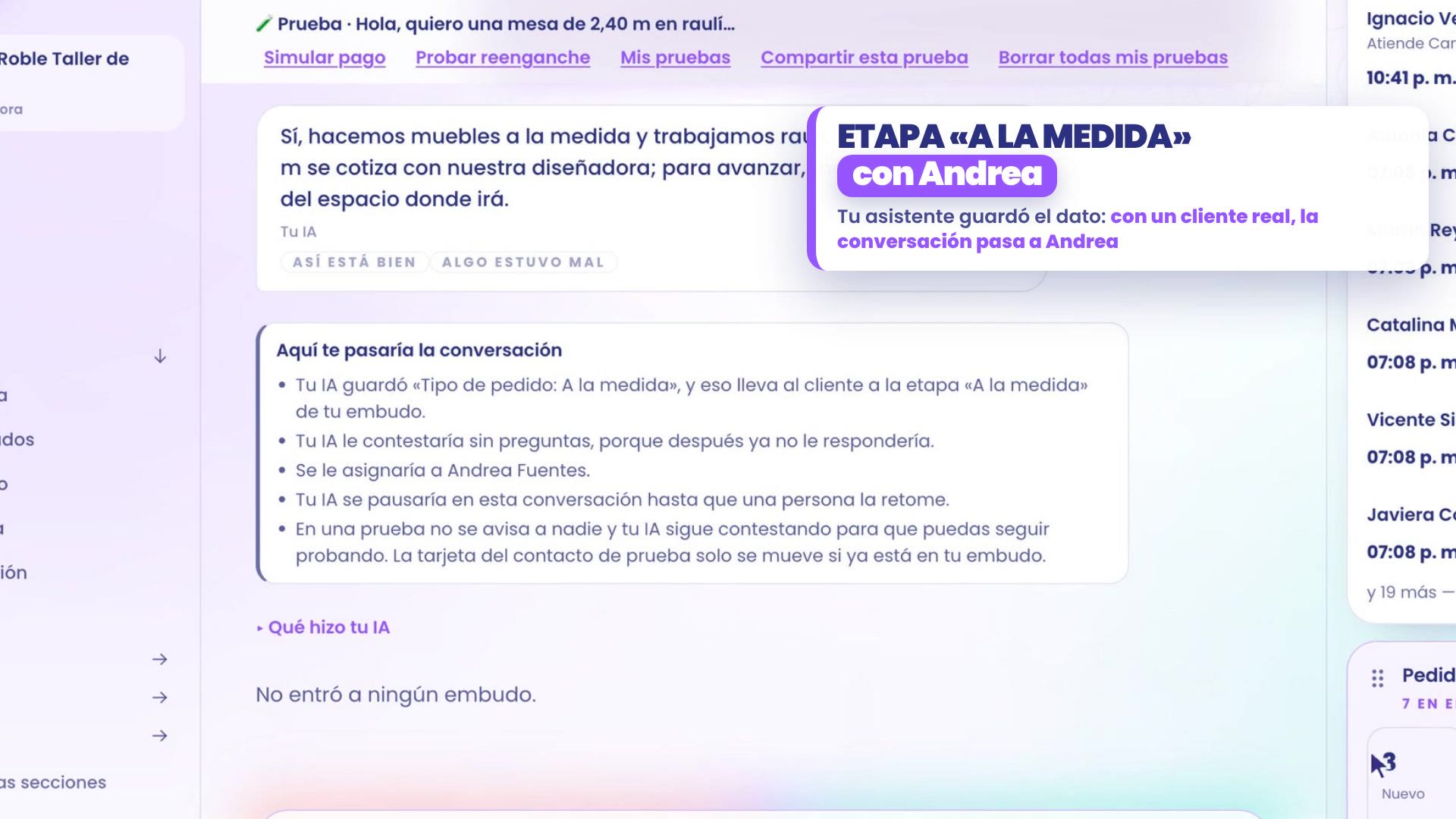
Go back to Test my AI and ask for something custom: "Hi, I'd like a 2.40 m table in raulí for ten people. Can you make it for me?"
The card tells you what would happen: your assistant saved Order type: Custom, that takes the customer to the Custom stage, it would be assigned to Andrea and your assistant would pause until a person picks it back up. In a test, no one is notified and your assistant keeps replying, so you can keep testing.
If you work with modes
If your assistant works with modes, in each mode you choose who it's passed to, in Your AI › Who with. The when is still your escalation. If you don't use modes yet, see how to train your assistant.
Three tips
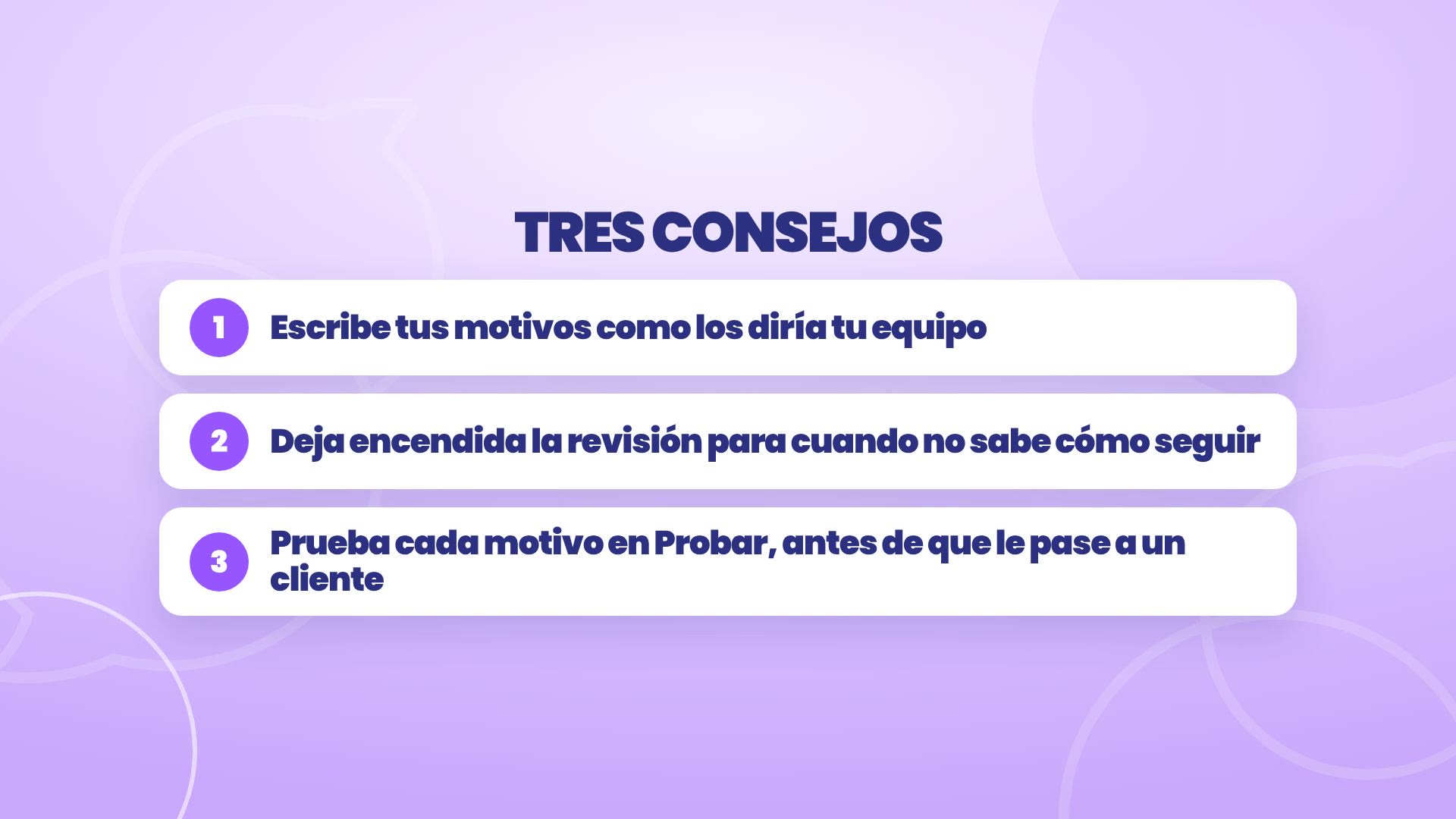
Write your reasons the way your team would say them, not as loose words.
Leave the review on for when it doesn't know how to continue.
Test each reason in Test my AI, before it happens with a customer.
Where everything is
Escalation: Your AI › What it's like and how it talks › When it hands the conversation to you.
Cases with their own name: Operate › Funnel › Configure stage.
Contact data: Grow › Contacts › Contact data.
Test as a customer: Test my AI, top left, next to New thread.
Notifications: the bell, bottom left.
Your assistant handles things, and knows when to call you.