
Help center
Make your assistant serve customers like you do: test it, fix it and create modes
Teach your WhatsApp assistant your prices and your way of serving customers: test it like a customer, fix it, create modes for each group and simulate before publishing.

Your assistant, on its first day
Your assistant arrives at your business like someone new on their first day. It knows how to chat, but it doesn't know your prices, your customers or your way of serving yet. Training it means teaching it all that, and checking that it learned.
Every conversation shows you something it's missing: a question it couldn't answer, half a piece of information, a tone that isn't yours. If you correct it in time, next time it answers well, and you stop hovering over every conversation.
In this guide you'll see where everything you teach it goes, who wins when two instructions clash, how to serve each group of customers differently with modes, and the three habits that make the difference: test and correct, test each mode, and simulate before publishing.
Watch it in twelve minutes
The full walkthrough, with the real TBit screens. Below you have each step in writing.
The example: a pastry shop in Lima
We follow Panela Pastelería, in Miraflores, Lima: cakes made to order, cheesecakes and alfajores, with delivery to several districts. Not just one type of customer writes to them. There's the person who wants a cake for Saturday, the person who already paid and asks if their order went out, and the coffee shops that buy wholesale every week. Each one is served differently. Panela is a demo account with sample data.
Everything in its place
Everything you teach your assistant lives in Your AI, at platform.tbit.app, and each thing has its own tab:
What you sell: your products with their price, and the business details, like shipping cost, zones and payment methods.
What it knows: what you need to know to serve well, like how to care for a cake or order a custom one.
How it is and how it talks: your way of serving. It's the general text, the one that applies to everyone.
A mode: what only applies to one group of customers. You set it up in the Who with tab.
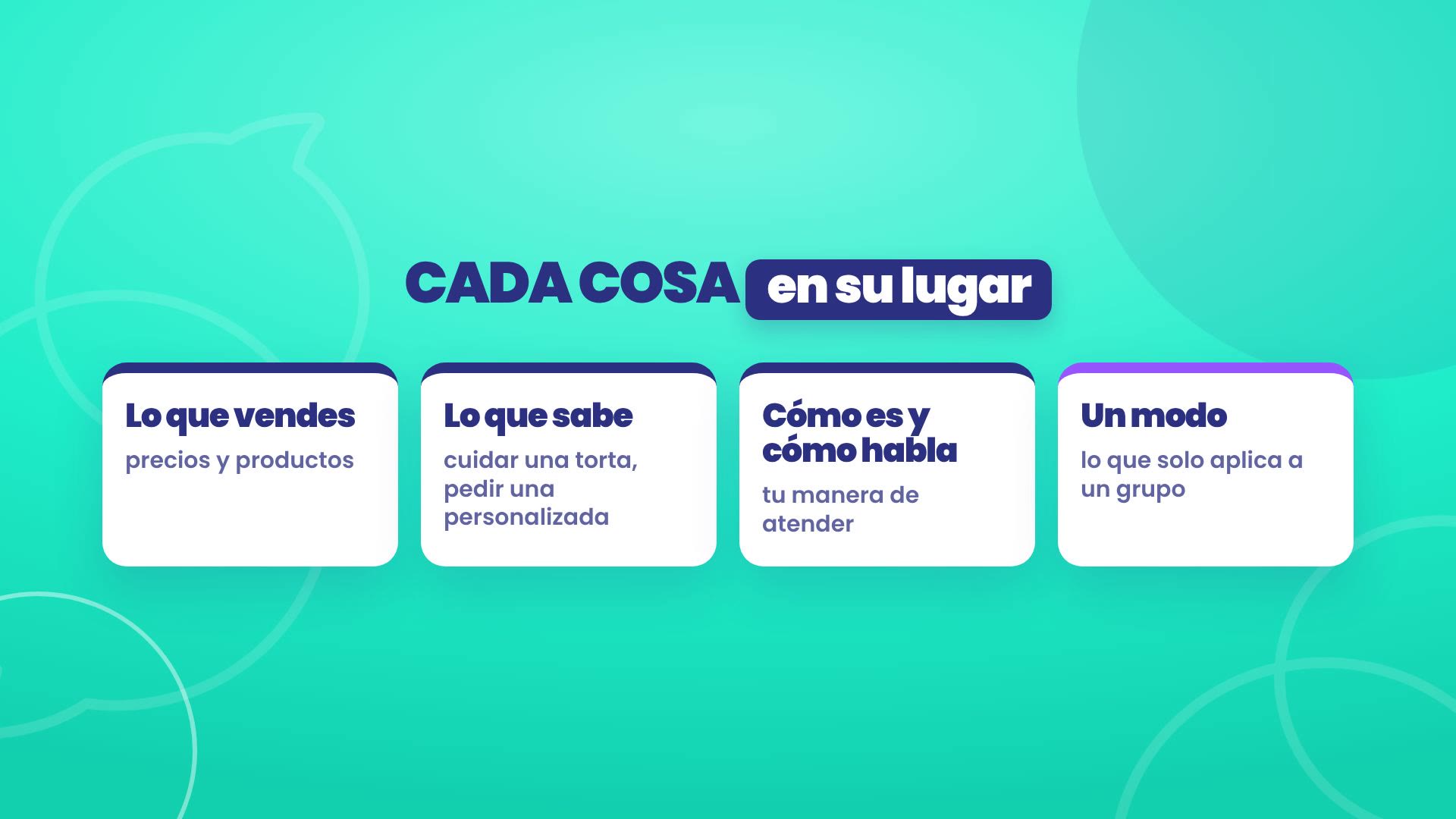
A price written in the general text goes stale the day you change it in the catalog. Saved in its place, your assistant always pulls it from the same source.
The TBit constitution and who wins
Above everything is the TBit constitution: the principles we build your assistant with.
Prices and hours come from one source, never from imagination.
If it's missing a piece of information, it says so and offers the next step.
Speak on behalf of your business, without pretending to be a person.
Only promise what it can actually do.
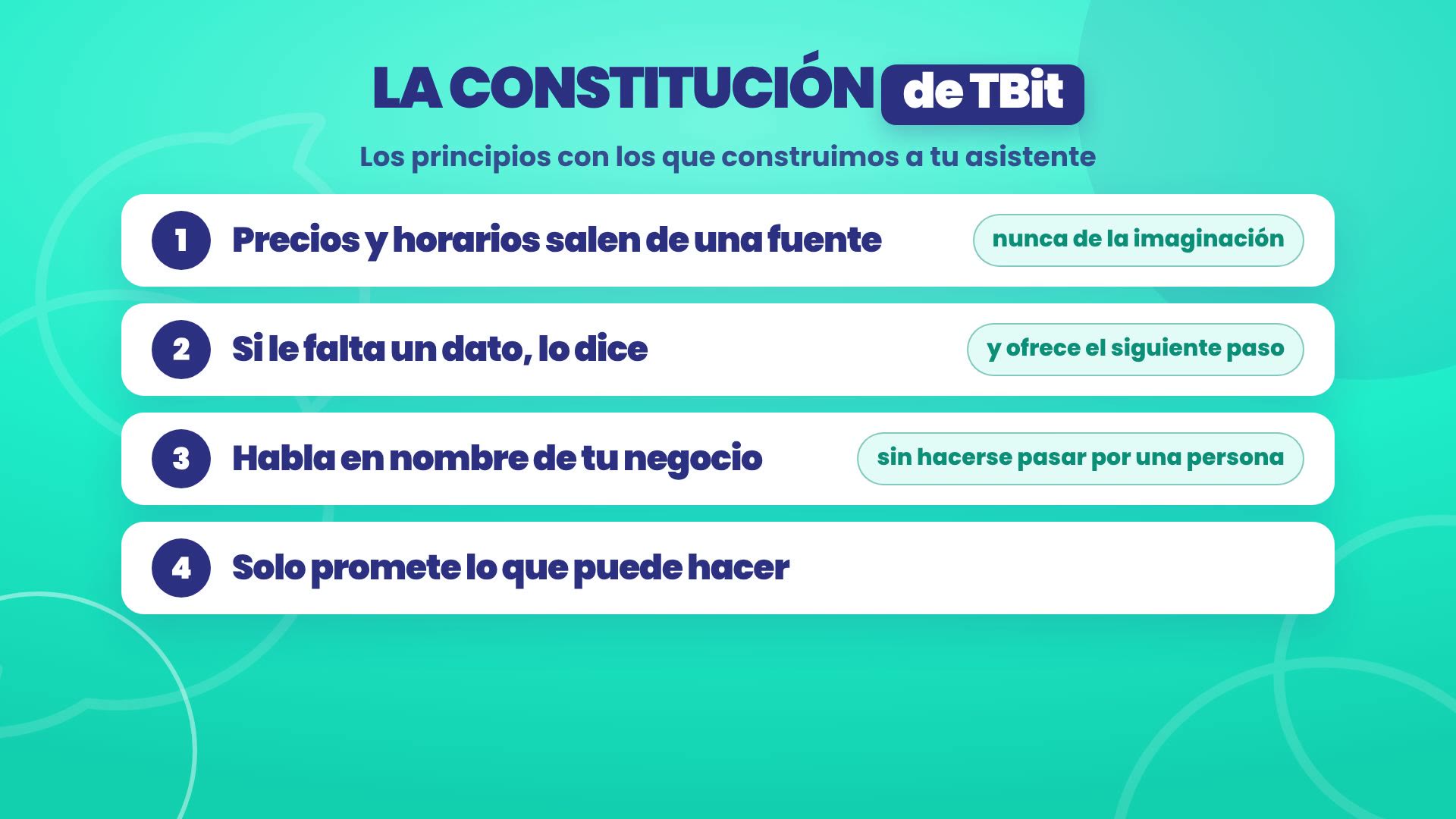
Many of those principles already live in the code. And when two instructions clash, the one higher up wins: first the TBit rules, then how your assistant is and how it talks to everyone, then the mode depending on who's writing, and finally what each customer asks for.
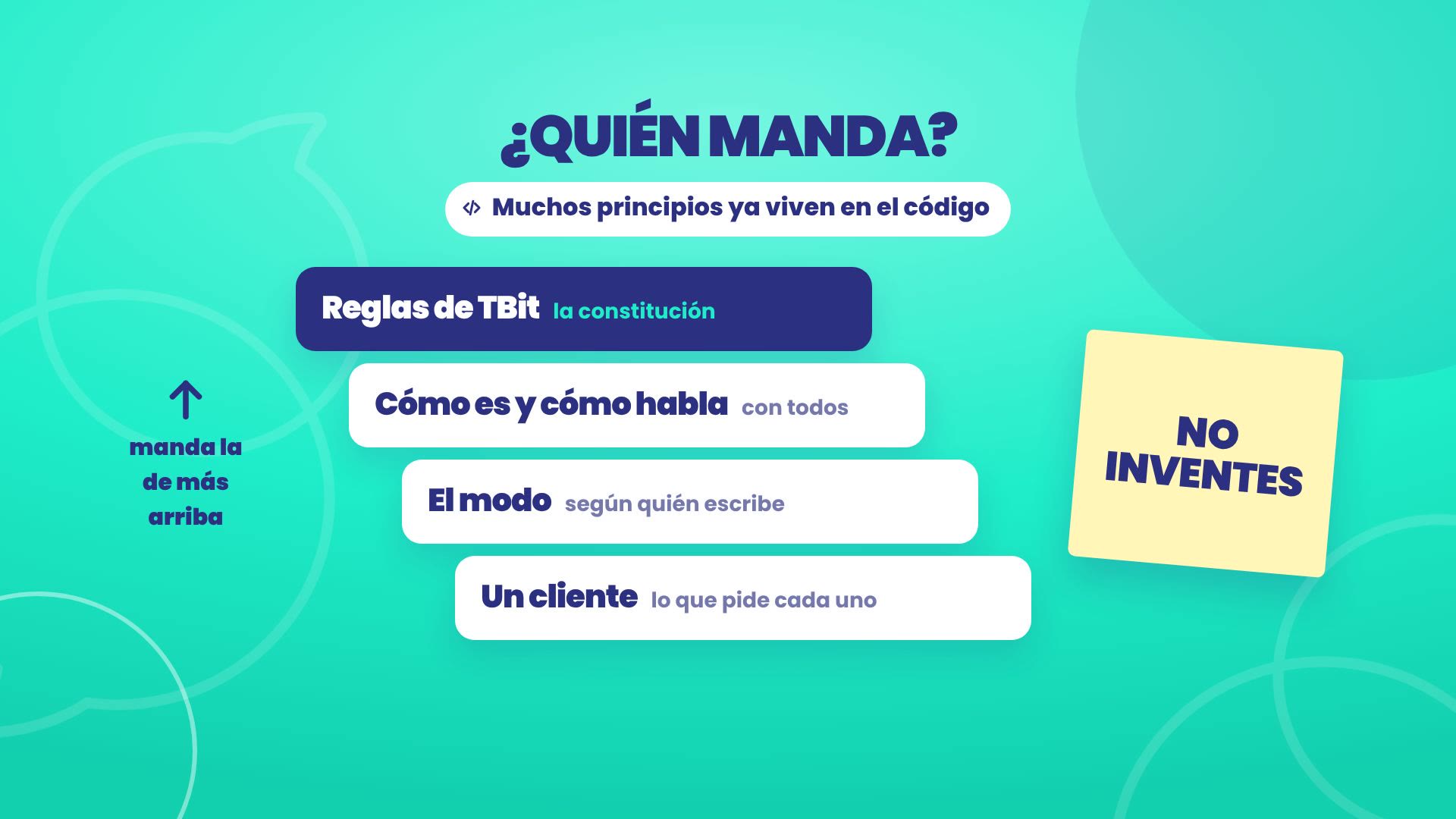
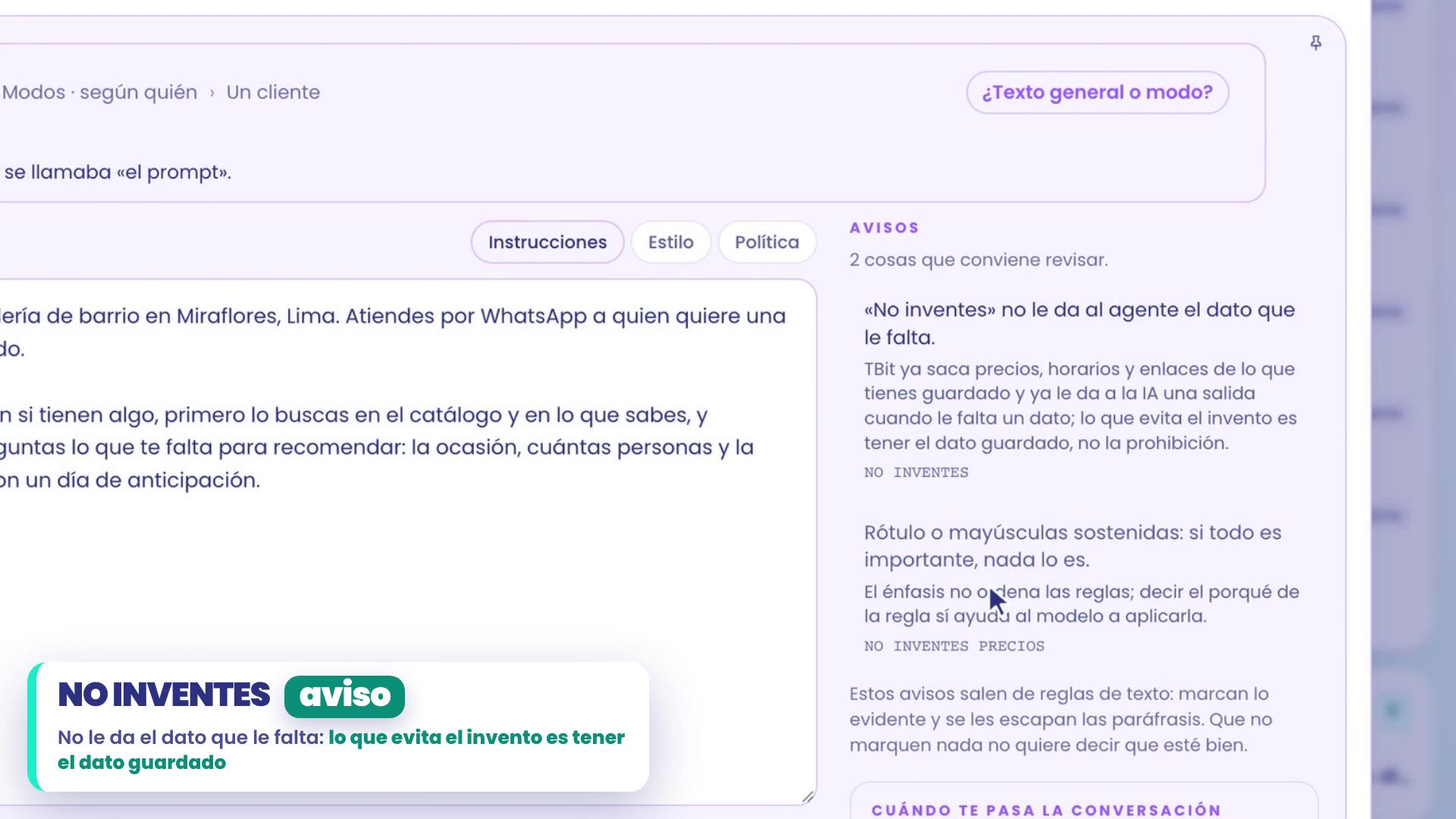
That's why you don't need to write "DON'T MAKE THINGS UP" in capital letters: what keeps it from making things up is having the data saved, and TBit warns you when something in your text clashes. If you want the details of each principle, it's in the TBit constitution.
Modes: a way to serve each group
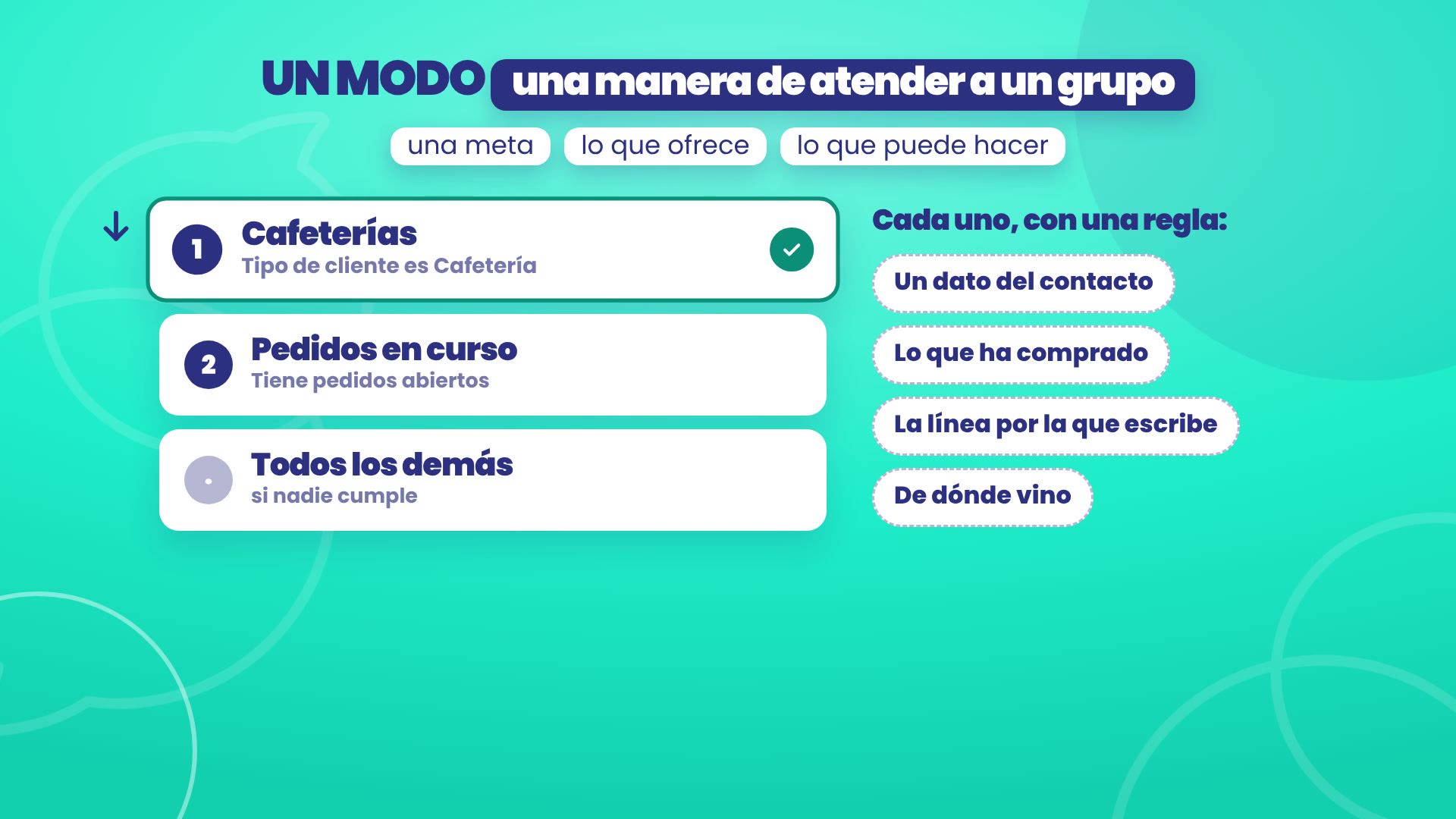
A mode is a way to serve a group of customers: it has a goal, what it offers and what it can do. In Panela there are two: Coffee Shops, for those who buy wholesale, and Orders in progress, for those who already paid and are waiting for their order.
TBit picks the mode in each conversation, from top to bottom, with a rule. The rule can be:
A piece of contact data, like Customer Type is Coffee Shop.
What they've bought, like having open orders.
The line they're writing from.
Where they came from, for example an ad.
The first one that's met, wins. And if none is met, Everyone else is served, which is how your assistant serves today.
Situations
Inside a mode, specific things also happen: situations. For example, someone who replies to the Halloween promo that Panela sent in a WhatsApp campaign. The situation adjusts that reply, without changing the mode.
But instructions aren't everything. What really makes the difference is the habit of testing. Let's go to TBit.
1. What your AI uses today
Path: Your AI, in the menu on the left.
Open Summary. At the top, the What does your AI handle? strip tells you what it handles today. In Panela: with its general text, still without modes.
In What you sell are your products and your Business data: shipping cost, other zones, payment methods and opening hours.
In What it knows is what it needs to know: wholesale sales to coffee shops, or how to customize a cake.
In How it is and how it talks is the general text. Try typing «DON'T MAKE UP PRICES». In Alerts, TBit tells you that doesn't give it the missing data, and that if everything is in caps, nothing is important. What keeps it from making things up is having the price saved. So you discard the change.
In With whom it says Today your AI treats everyone the same. There you'll create the modes. But first, the first habit.
2. Habit 1: test and correct
The first habit is testing as if you were your customer.
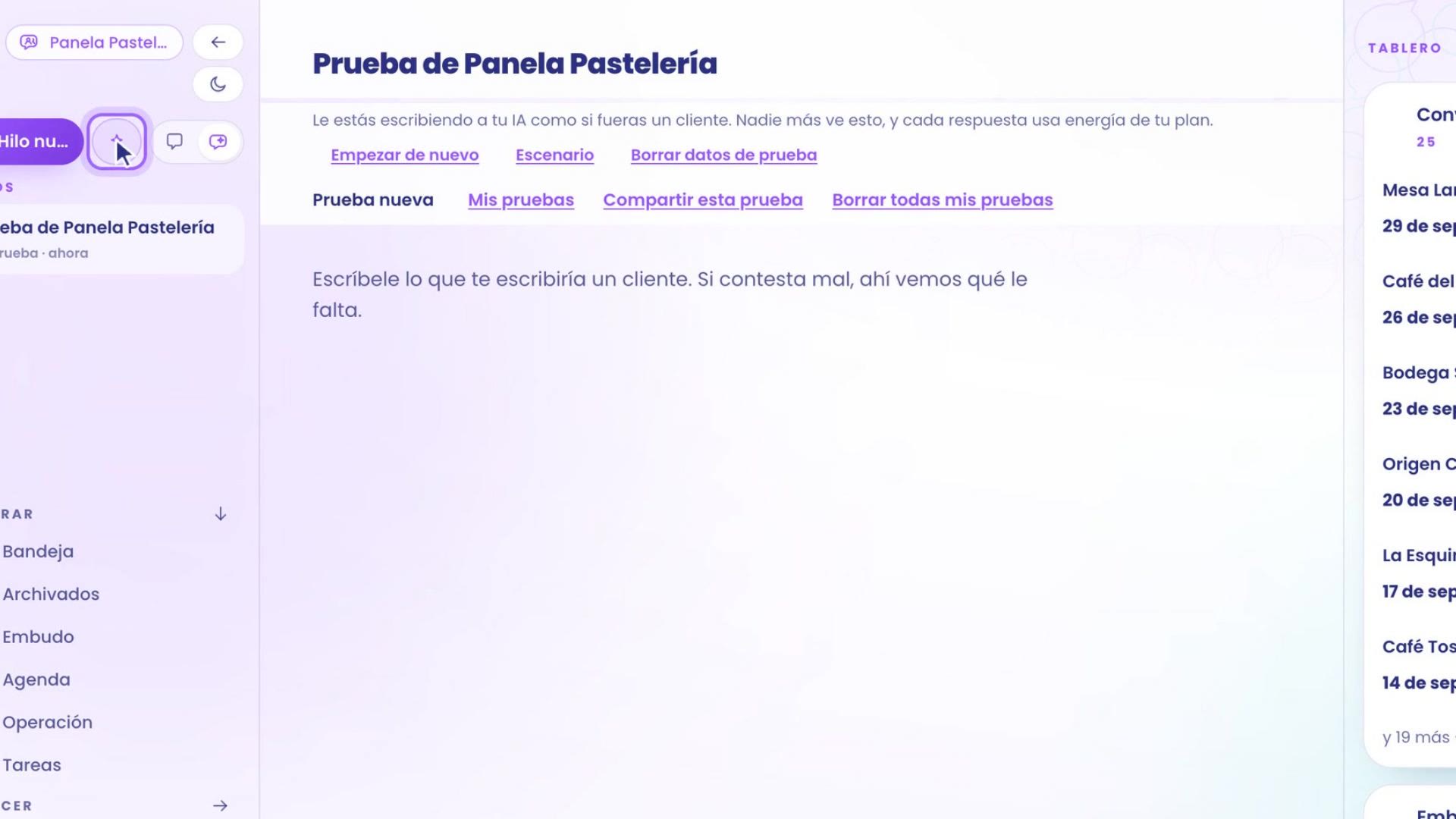
At the top left, next to New thread, tap the Test my AI button. A chat with your assistant opens, where you play the customer. No one else sees it.
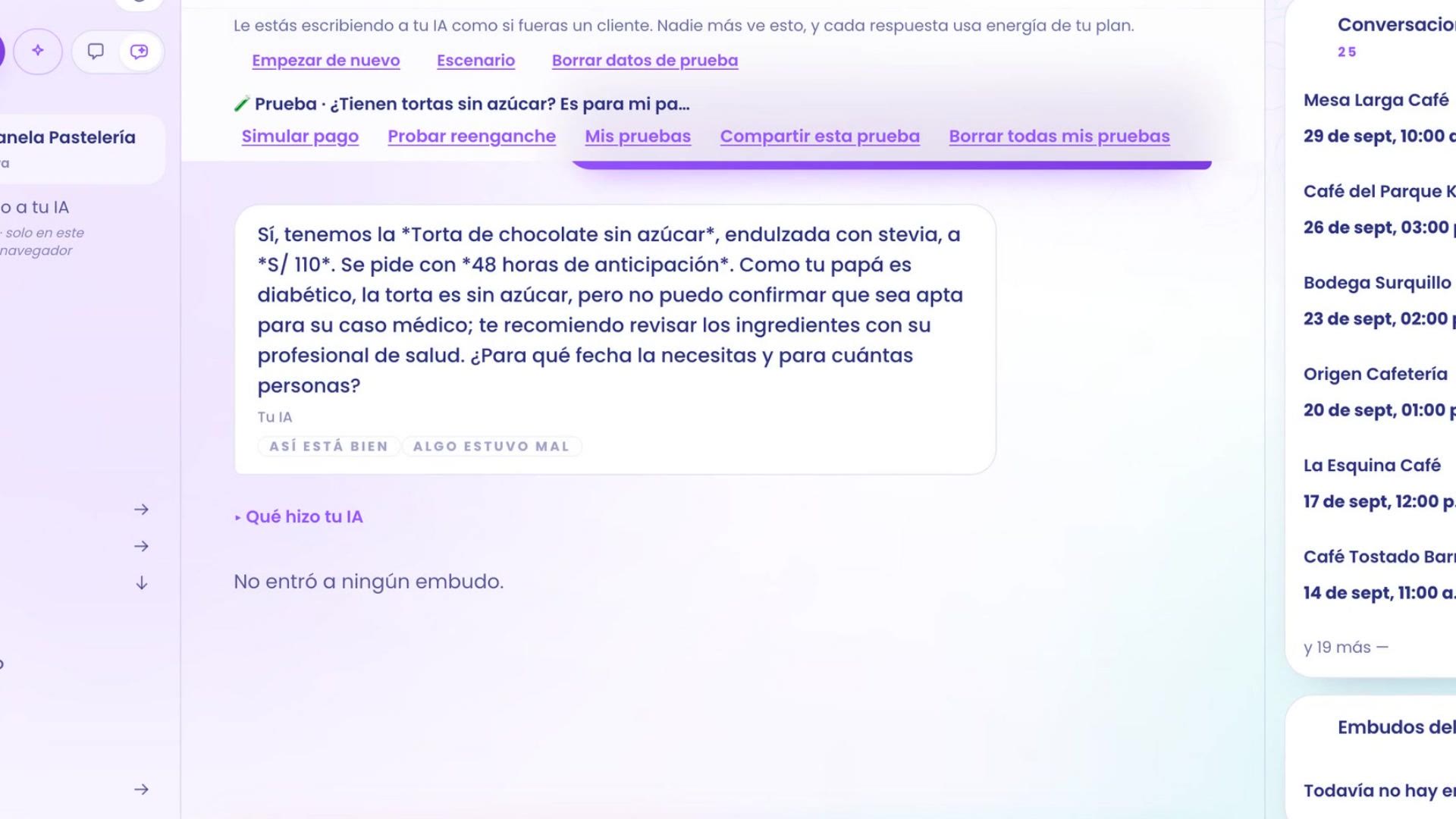
Write what a real person would ask you. In the example: «Do you have sugar-free cakes? It's for my dad, who is diabetic.»
Look at the answer. Panela didn't have any sugar-free cake saved, and your assistant didn't make things up: it says it can't find one and asks when you need it.
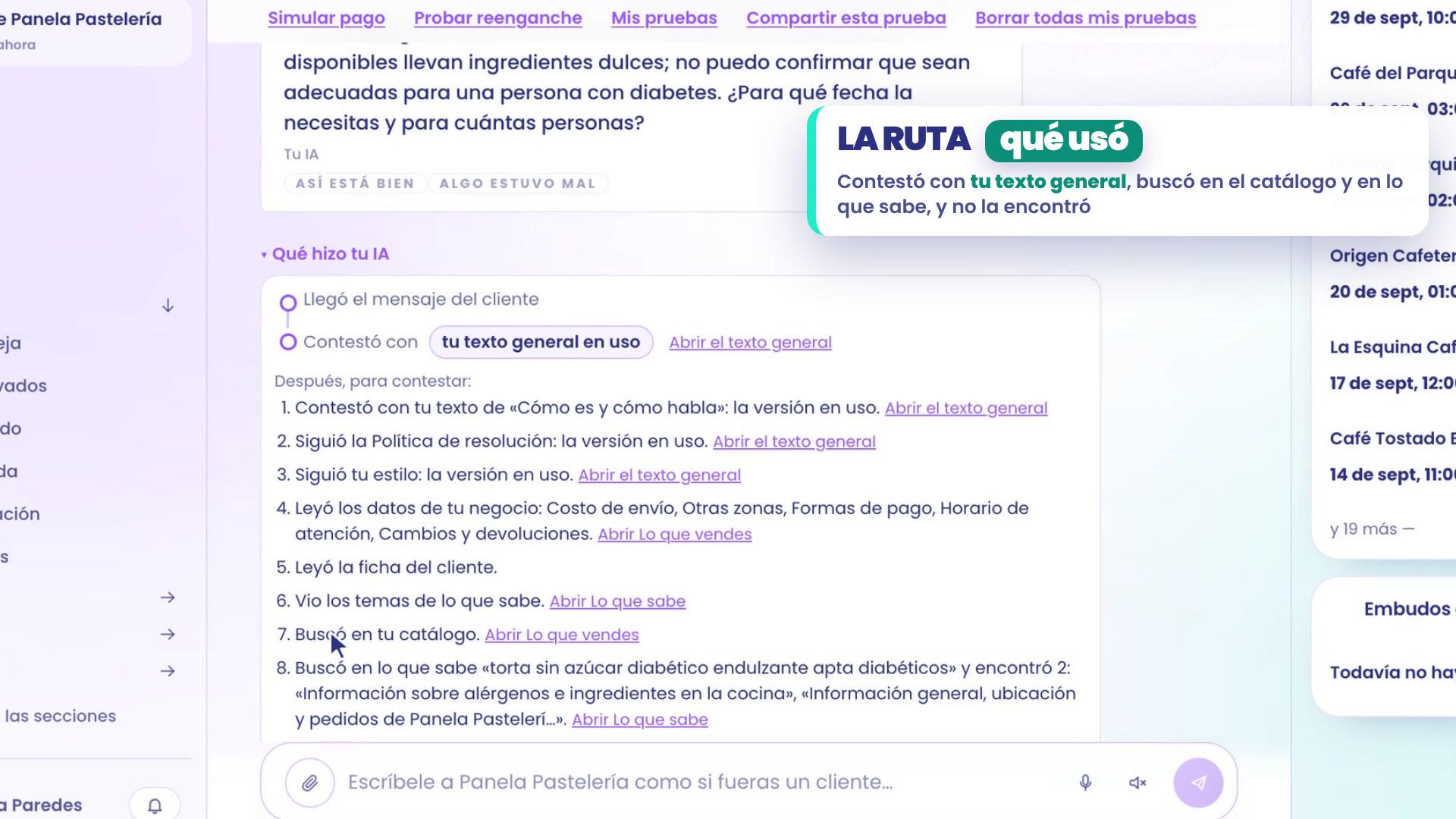
Open What your AI did, below the answer, and you see the path: it answered with your general text, searched your catalog and what it knows, and found nothing. That's what's missing.
Teach it what's missing
In Your AI › Summary, at the end, is Teach it something. Write it as you'd tell someone on your team. In the example: «We also make sugar-free chocolate cake, sweetened with stevia. It's ordered 48 hours in advance and costs S/ 110.»
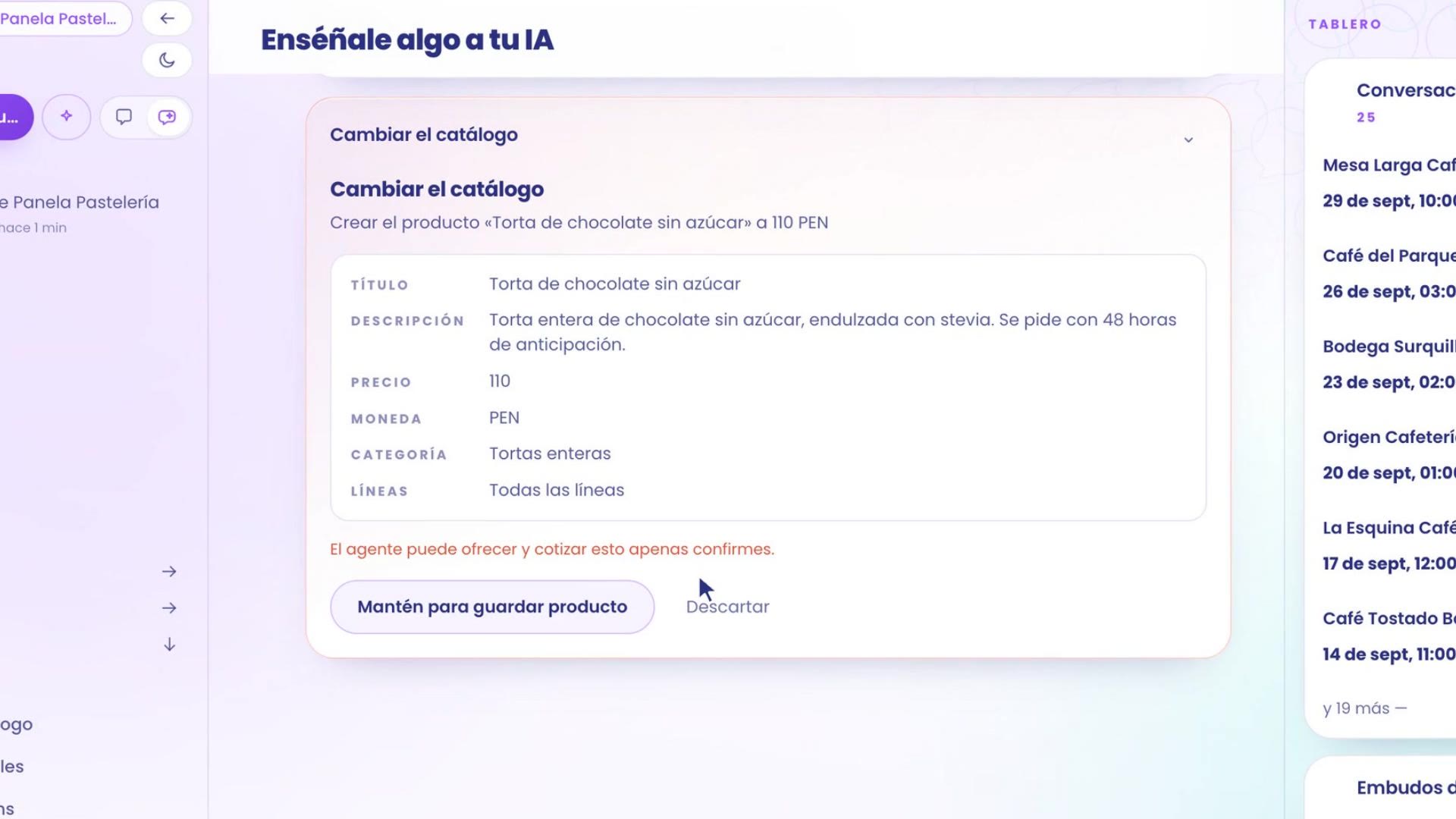
Tap See where it goes. TBit decides where it's saved: since it has its own price, it's a new product in the catalog, not a loose note.
Check the card and press and hold Hold to save product.
Go back to Test my AI with the same question. Now it does: it offers the cake without sugar, with its price and its lead time.
3. Create your modes
Path: Your AI › Who with.
In What group is it for?, give the mode a name. In the example: Coffee shops.
Give it a rule to recognize them. Here, a contact detail: Customer type is Coffee shop. Tap Create the mode.
TBit shows you how many contacts meet the rule today: in Panela, 6.
In What it does differently, write what this group is looking for and what you do differently: wholesale prices, minimum order and deliveries on Tuesdays and Fridays.
In When it hands the conversation to you in this mode, say when you want it to hand it over. For example, if they ask for 30-day credit.
Tap Save to draft. Nothing changes for your customers until you publish it.
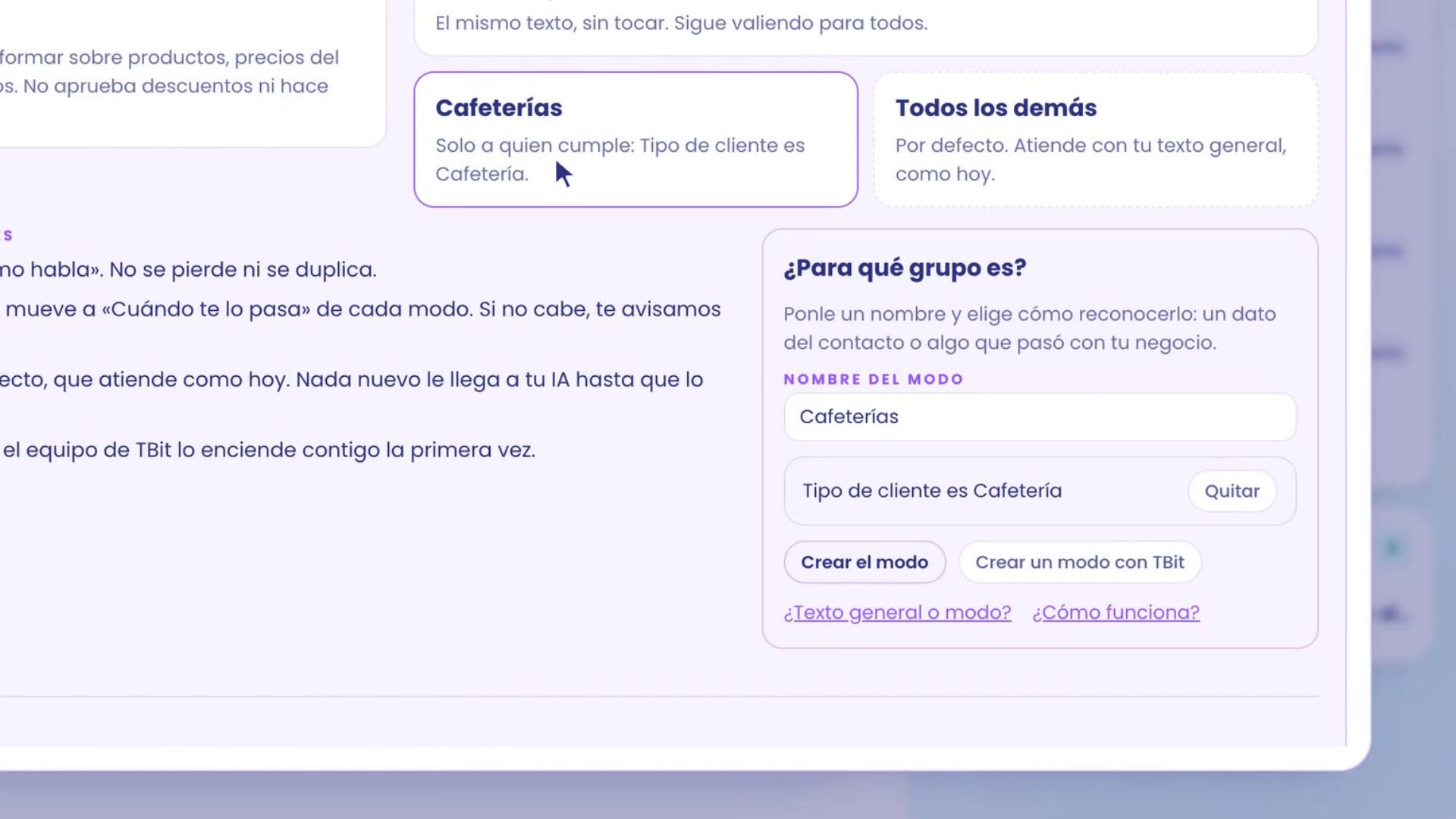
When you add the first mode, what already works doesn't change: your general text moves as is to How it is and how it talks, and Everyone else is created, which serves as it does today.
A second mode and a situation
Create Orders in progress, with another rule: Has open orders. So, whoever already paid gets news about their order.
In Situations, tap Add situation: whoever replies to the Halloween promo. Its instruction adjusts that reply, in the modes you choose.
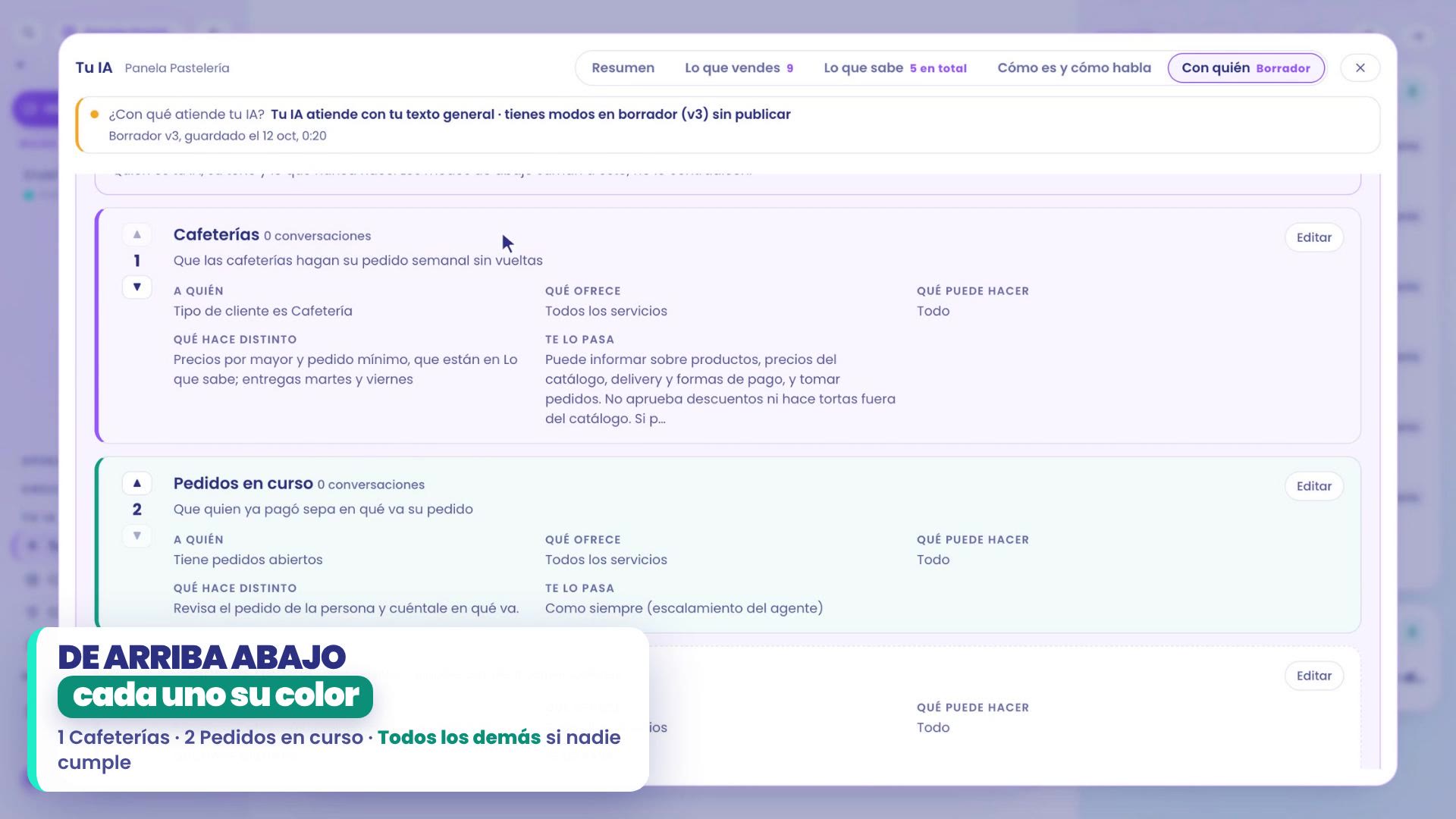
Each mode has its color, and the order matters: from top to bottom, the first one that's met wins. If no one meets, Everyone else serves.
4. Habit 2: test each mode
Open Coffee Shops and tap Try this mode.
TBit doesn't force the mode: it builds a test customer that meets its rule and opens Try. At the top you see the active scenario, Try the "Coffee Shops" mode, how much data it carries, and Meets "Customer type is Coffee Shop".
Ask it like a coffee shop: "What's the minimum order for alfajores?" It answers with the wholesale minimum order: 4 dozen, 48 alfajores.
In What your AI did, the path is drawn as a tree: it answered with the draft of your modes, reviewed them from top to bottom, and chose Coffee Shops, in its color, because it meets its rule.
Scenarios with test orders
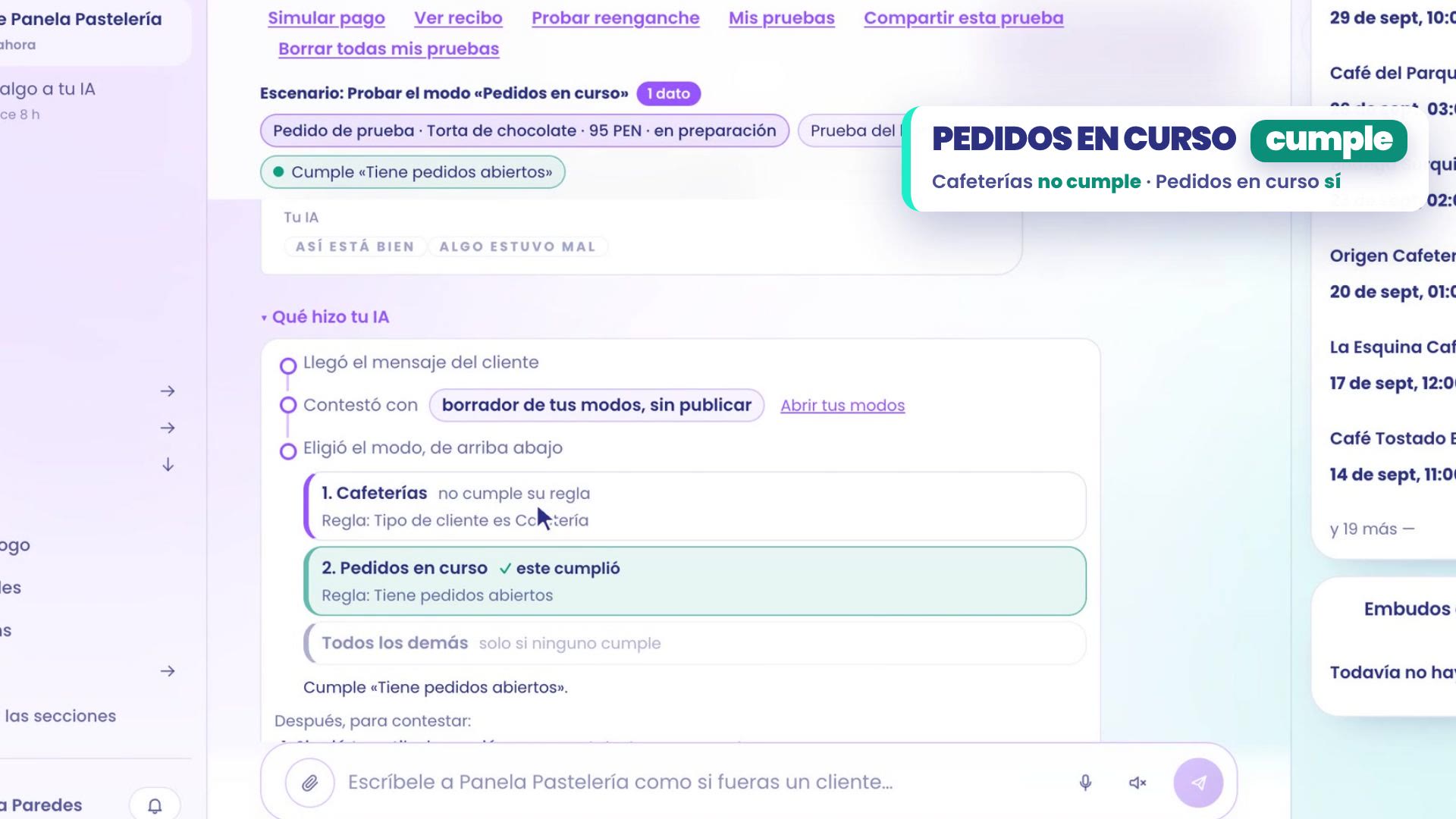
With Orders in progress it's the same. Since its rule asks for an open order, the test creates a test order with a product from your catalog: in the example, a 95 PEN chocolate cake, in preparation.
Tap Try this mode in Orders in progress and ask: "Has my order shipped yet?"
Your assistant finds the order and tells you where it stands: it's still in preparation and doesn't show as shipped yet.
In the tree, Coffee Shops doesn't meet its rule and Orders in progress does meet it.
If you want to repeat the test, open Scenario, give it a name, like "Customer with open order", and save it. Next time you pick it from the list.
5. Habit 3: simulate before publishing
Path: Your AI › Who with, at the bottom, in History and tests: Test with conversations.
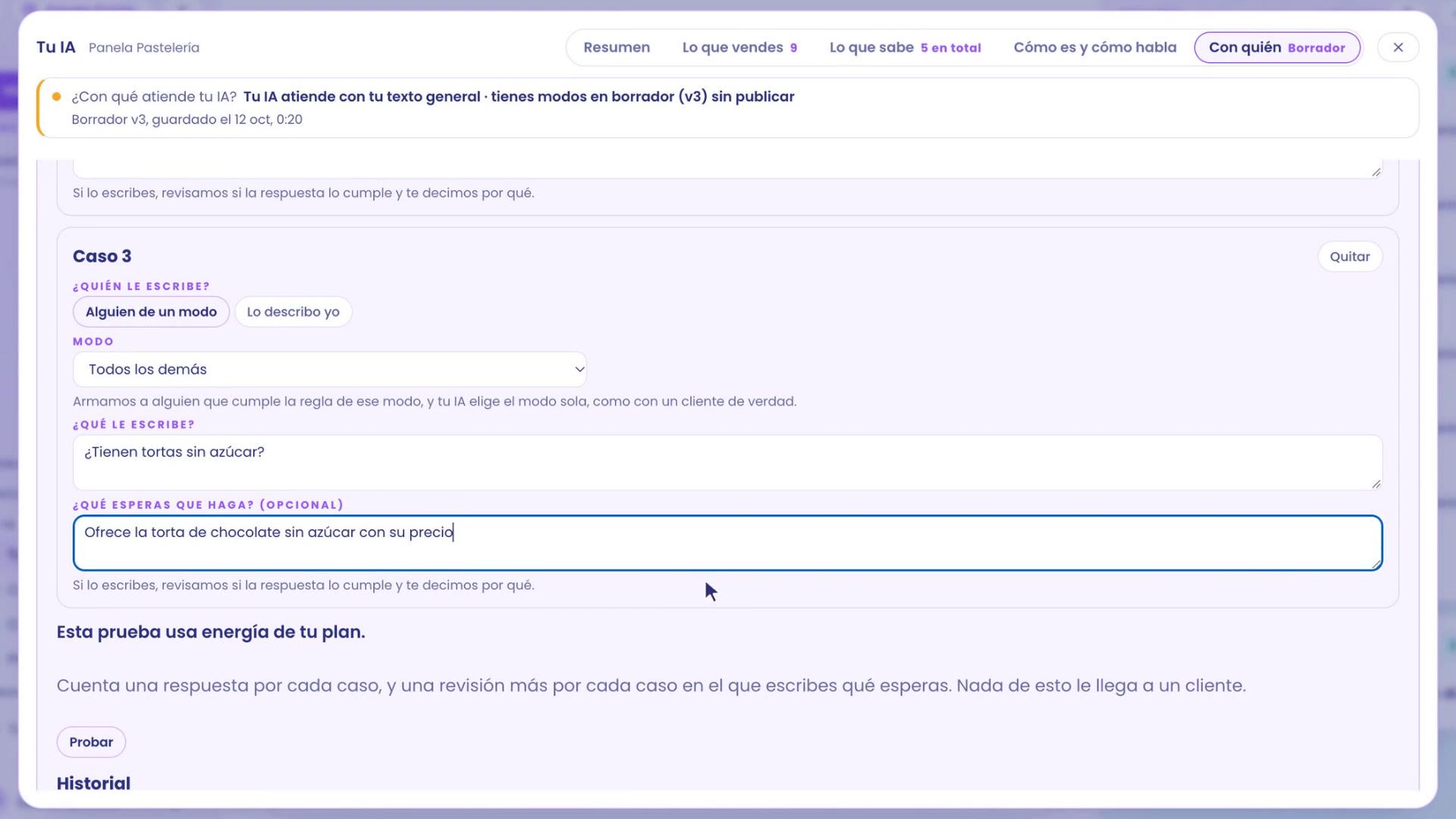
Write up to three cases. Each one has who writes to it, what they write, and what you expect it to do.
To choose who writes to it you have two paths. Someone from a mode: TBit builds a contact that meets its rule, and your assistant picks the mode on its own. Or I'll describe it myself, in your own words.
You write what you expect the way you'd tell someone on your team. In the example: a coffee shop asking the minimum order, someone with an order in progress asking if it shipped yet, and someone looking for the sugar-free cake, who expects it to be offered with its price.
Tap Test. The cases run in under a minute, with a test contact that gets deleted afterward. No customer gets anything.
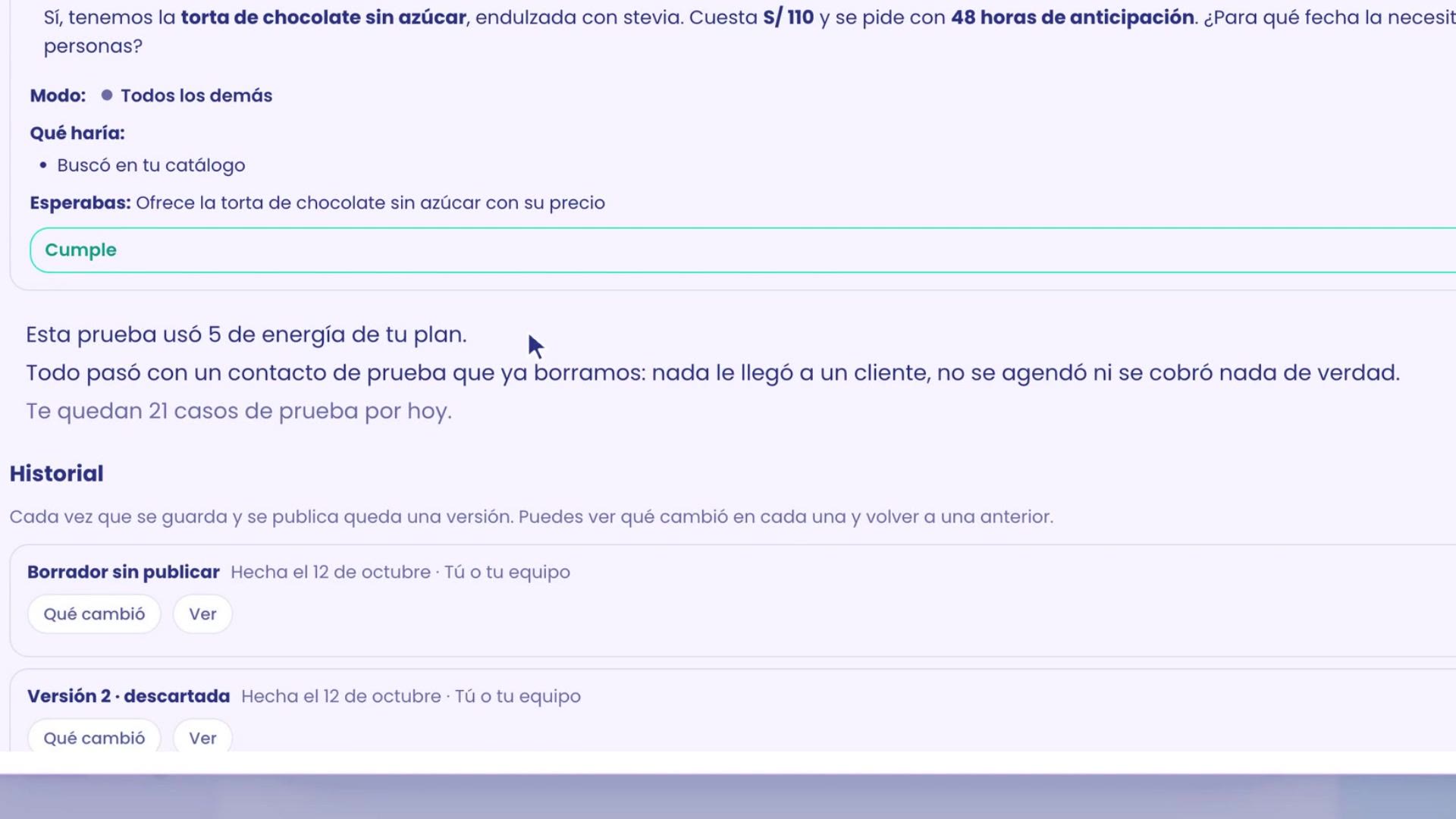
For each case you see what it would reply, in what mode, what it would do, and whether it meets what you expected. If one doesn't meet it, you see why: you adjust it and test again.
At the end, the summary tells you how much energy the test used and how many cases you have left today. In the example, all three meet it.
Publish
When everything meets it, you publish by holding down Hold to publish. Each version stays in the History, where you see what changed and can go back to a previous one. The first time, the TBit team turns the modes on with you.
6. Test on WhatsApp too
You can also test from your own WhatsApp. You need a line connected to TBit: if you don't have one yet, here we explain how to connect it.
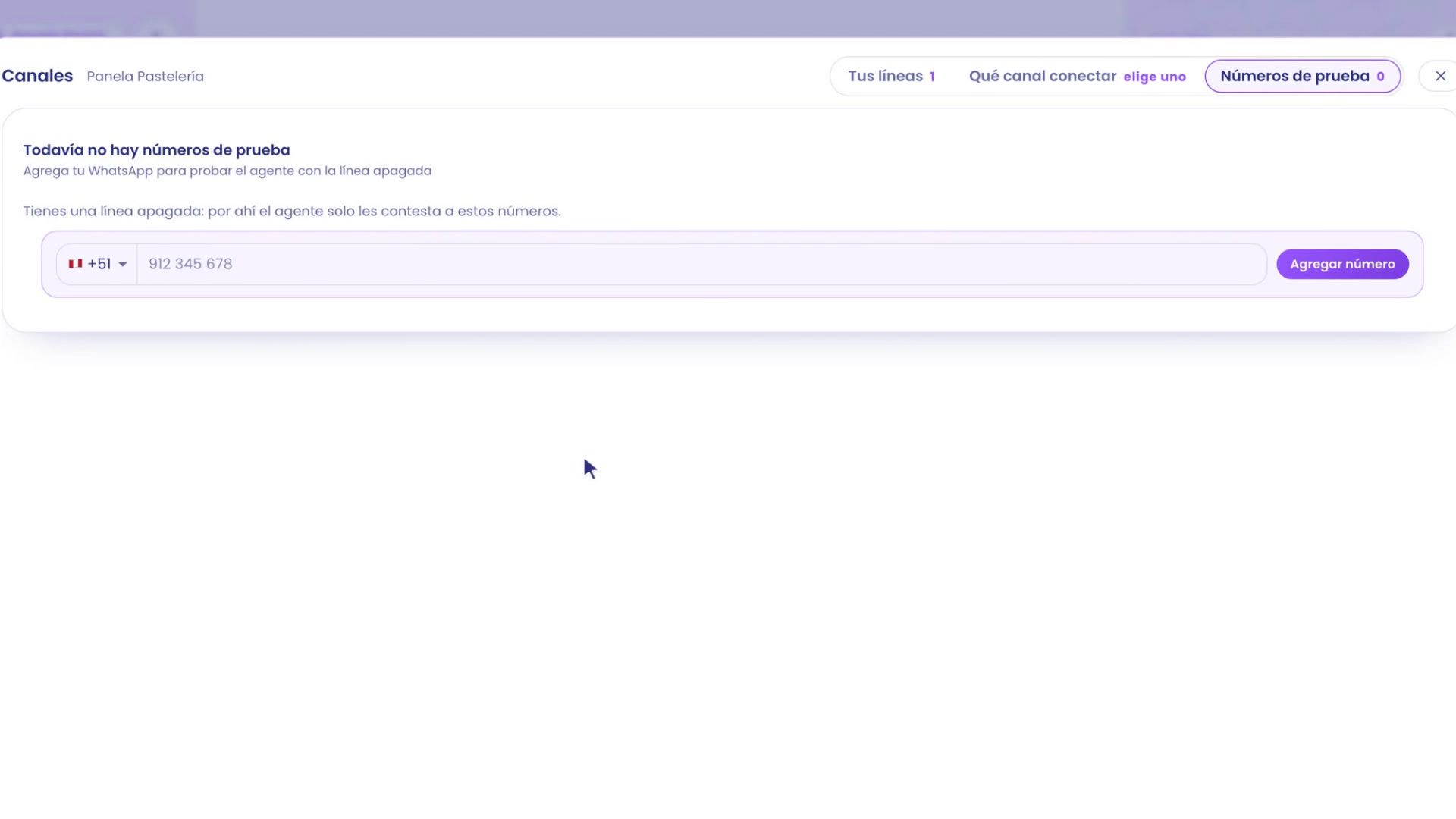
Go to Your AI › Channels. While your line is off, your assistant doesn't reply to anyone.
Except your Test numbers. Open that tab, type your number with its country (your line's is already there), and tap Add number.
Write to your line from your WhatsApp, like any customer. It replies just like in Test. That way you see the full experience on your phone, before turning it on for everyone.
Start from scratch
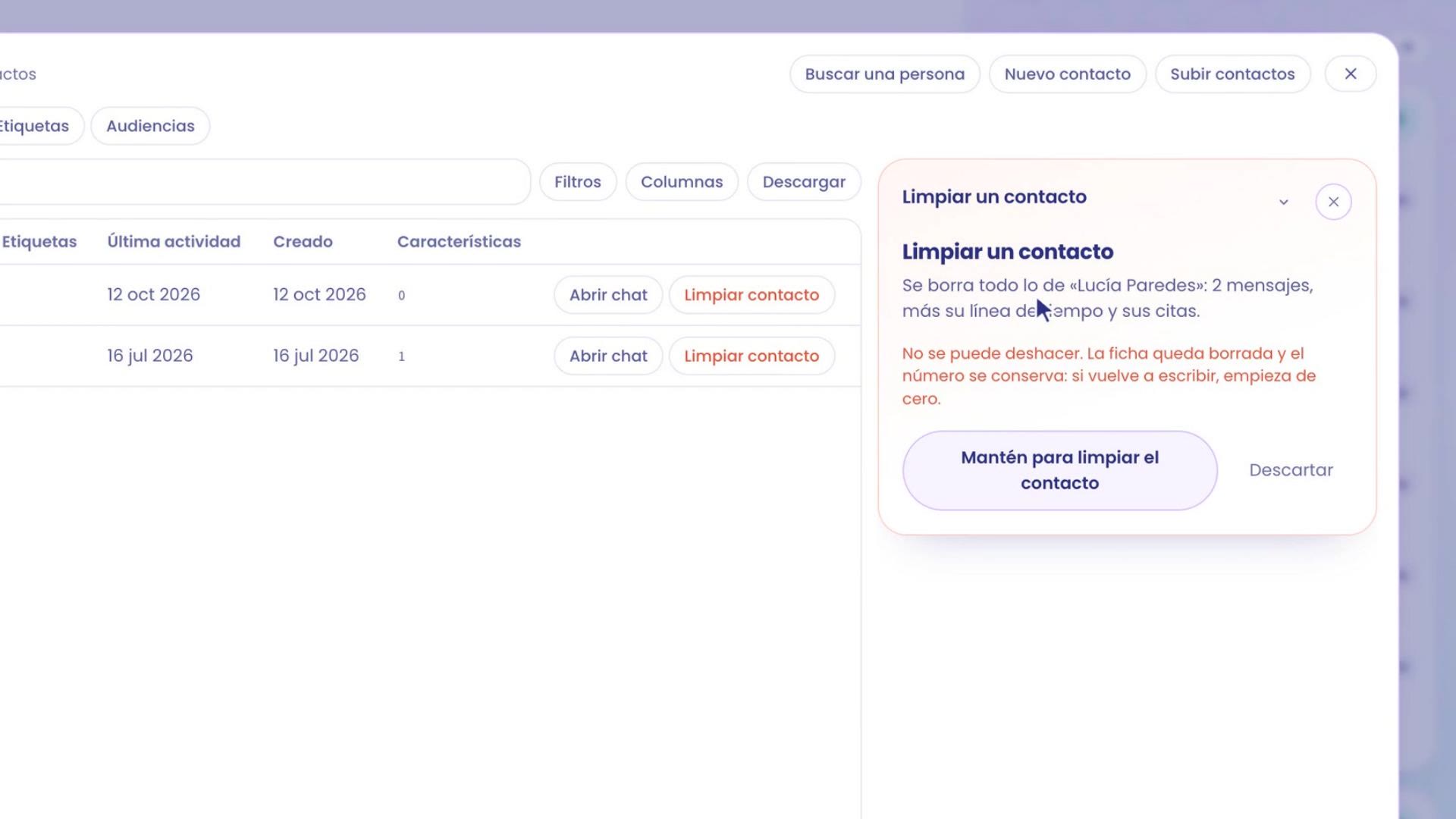
Go to Grow › Contacts and search for your name.
Tap Clear contact and hold down the button.
Your messages, your timeline, and your appointments are deleted. The number is kept: the next time you write, you start from scratch, like someone new.
Start simple
Modes are a great way for your assistant to do more. But you can always start simple: a single general text, well tested. When a group of customers needs a different way of being served, that's when you create its mode. Don't let analysis paralyze you.
Also from Claude or ChatGPT
You can also do all of this from Claude or ChatGPT, with the TBit MCP: you tell them these ideas, for example "Create a mode for coffee shops: minimum order and deliveries Tuesday and Friday", and they pass them on to your agent, in the draft. To connect them, see how to connect Claude or how to connect ChatGPT.
Where everything is
What it handles today and Teach it something: Your AI › Summary.
Products, what it knows and the general text: Your AI › What you sell, What it knows, and How it is and how it talks.
Modes, situations, Test with conversations and the history: Your AI › Who with.
Test as a customer: Test my AI, top left, next to New thread.
Test numbers: Your AI › Channels.
Clean contact: Grow › Contacts.
Test, correct and test again. Five minutes a week, and your assistant serves like you do.