
Help center
Import your contacts and build audiences for WhatsApp campaigns
Upload your contacts from Excel, CSV or your phone without duplicates, cross data to build the exact group and create an audience from an event list. Step by step.

The right message for each customer
Do you send the same message to all your customers? To someone who has a dog, the cat litter promo means nothing. And a message that isn't for them feels like a chain letter.
That's what audiences are for: a group of your people with something in common, who you message in a WhatsApp campaign. In this guide you upload your customer list, cross two data points to keep the exact group and build an audience from an event list, right in the thread with TBit.
Watch it in four minutes
The full walkthrough, with real TBit screens. Below you have every step in writing.
The example: a pet store
We follow Bigotes Pet Store, in the Condesa neighborhood of Mexico City: store, grooming and veterinary clinic. They have 48 customers in TBit, and for each one they know which pet they have: dog, cat or other. Bigotes is a demo account with sample contacts.
How your people get into TBit
Through WhatsApp, on their own. Anyone who messages you is saved as a contact, without you doing anything.
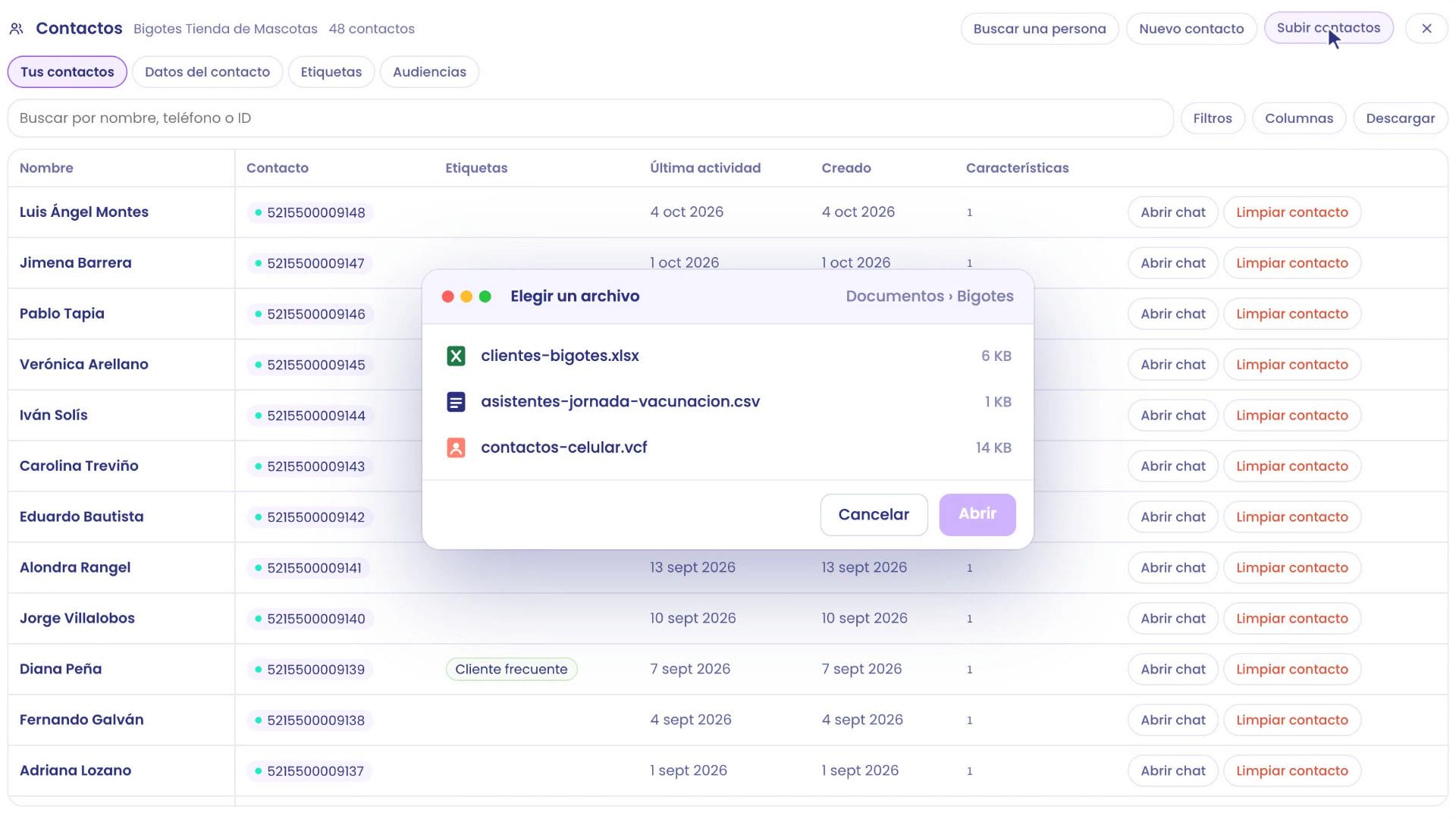
In a file. The ones you have somewhere else you upload in an Excel (.xlsx), a CSV or your phone contacts (.vcf, the file you export from Android or iPhone).
TBit looks up each person by their phone, even if it's written differently: 55 1234 5678, +52 1 55 1234 5678, with dashes or parentheses. If they're already there, it updates them; it doesn't duplicate them. And if the file brings a new column, like the neighborhood, it suggests saving it as a contact detail.
Audiences by data and by list
With that data you build sets. Those who have a cat, and those who live in Condesa: TBit crosses both conditions and leaves you only those who meet both.
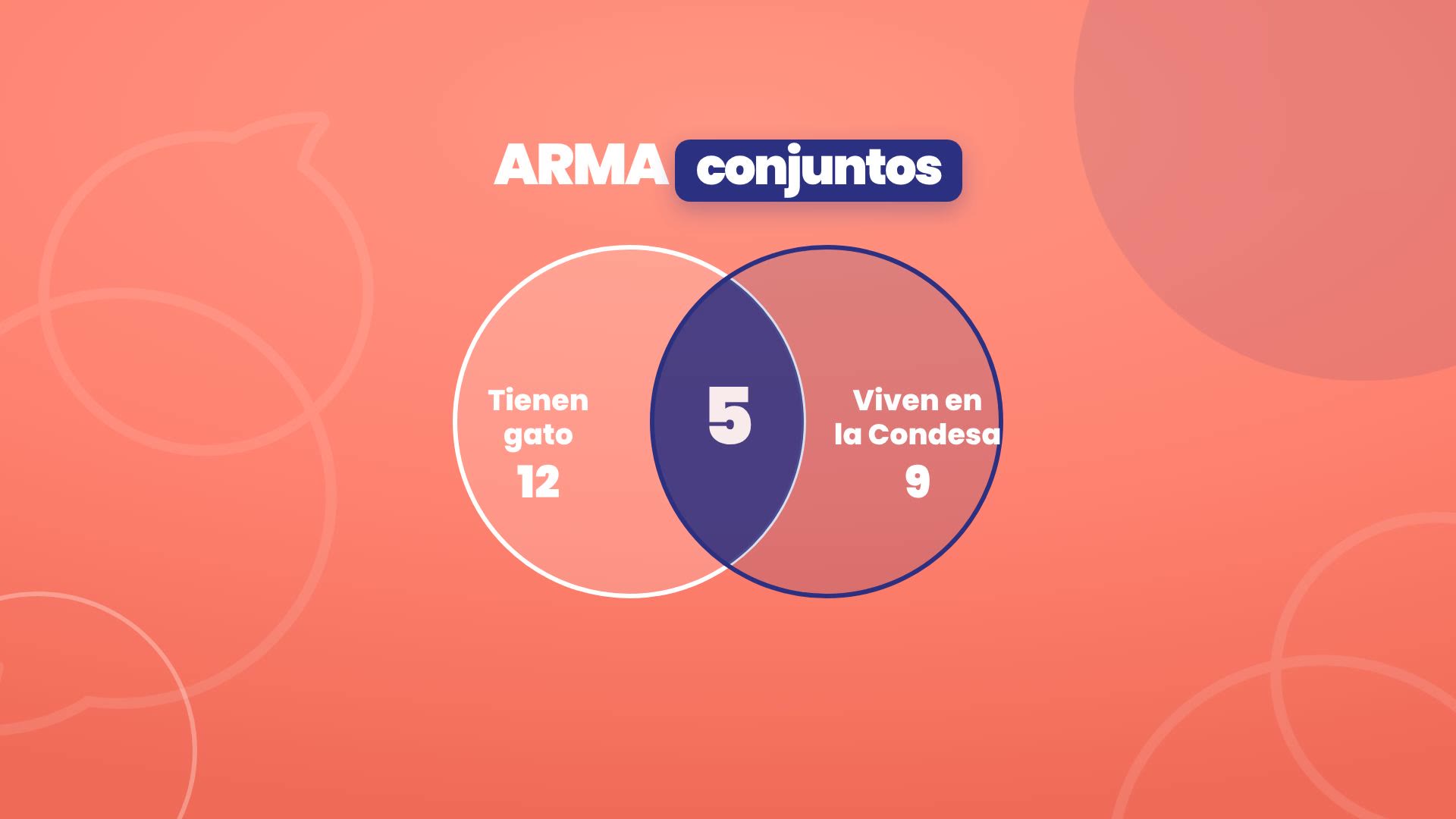
By data (dynamic): it's calculated every time you use it. If tomorrow someone meets it, they join on their own.
By list: they're exactly the people from a file, like those who came to an event.
Before uploading: three tips
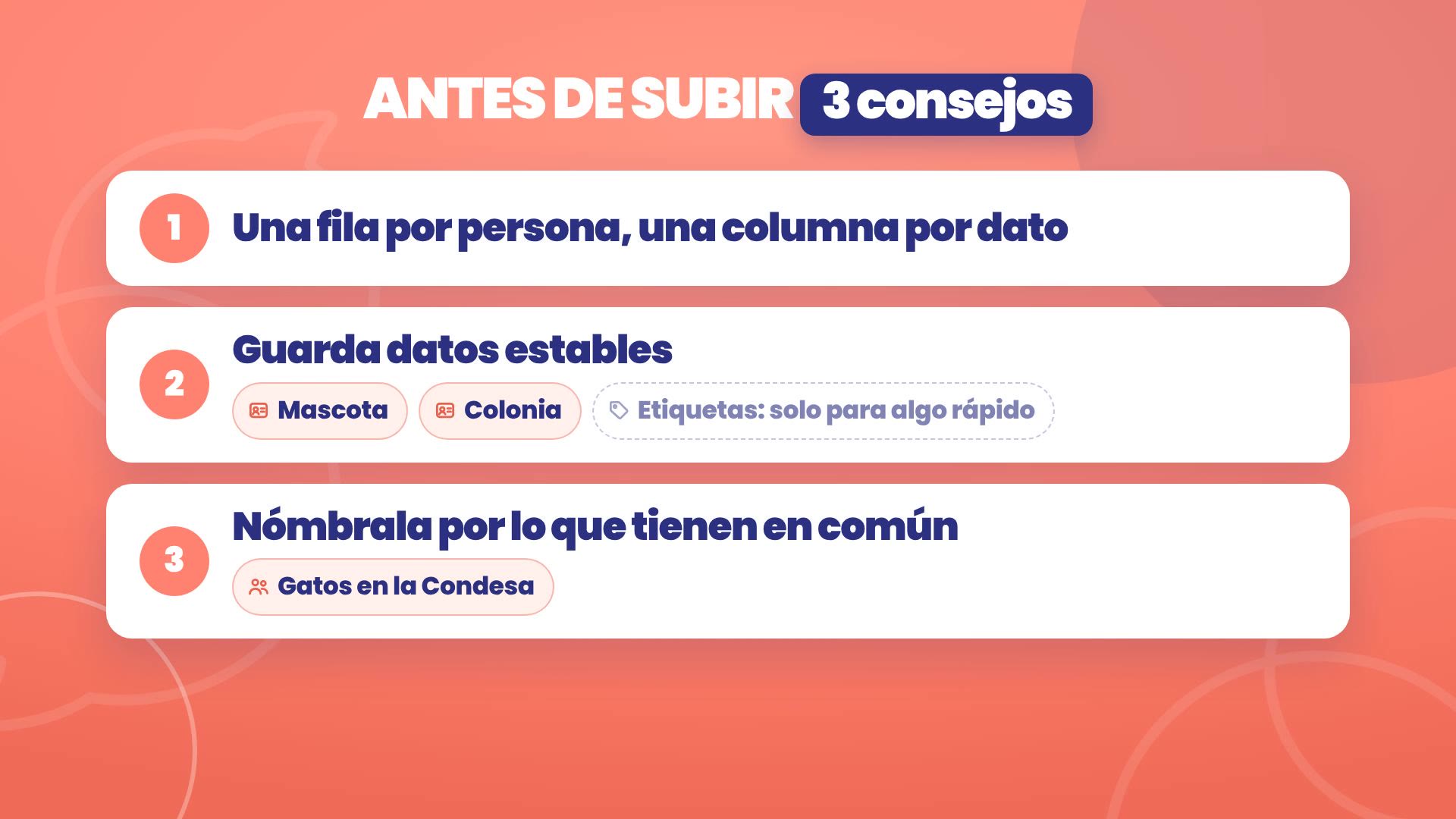
One row per person and one column per detail. First name, last name, phone, neighborhood: each thing in its column.
Save stable data, like the pet or the neighborhood. They change little, and with them you build audiences that maintain themselves. Tags, for something quick.
Name each audience by what they have in common, like "Cats in Condesa". That way you know who you're writing to without opening it.
1. Upload your list
Path: Grow › Contacts › Upload contacts, at platform.tbit.app.
Go to Grow › Contacts and tap Upload contacts.
Choose the file. In the example, the store's Excel, with each customer's first name, last name, phone and neighborhood.
TBit reviews the file and tells you what it found before touching anything. In the example: 23 contacts. 21 are already there and get updated; 2 are new.
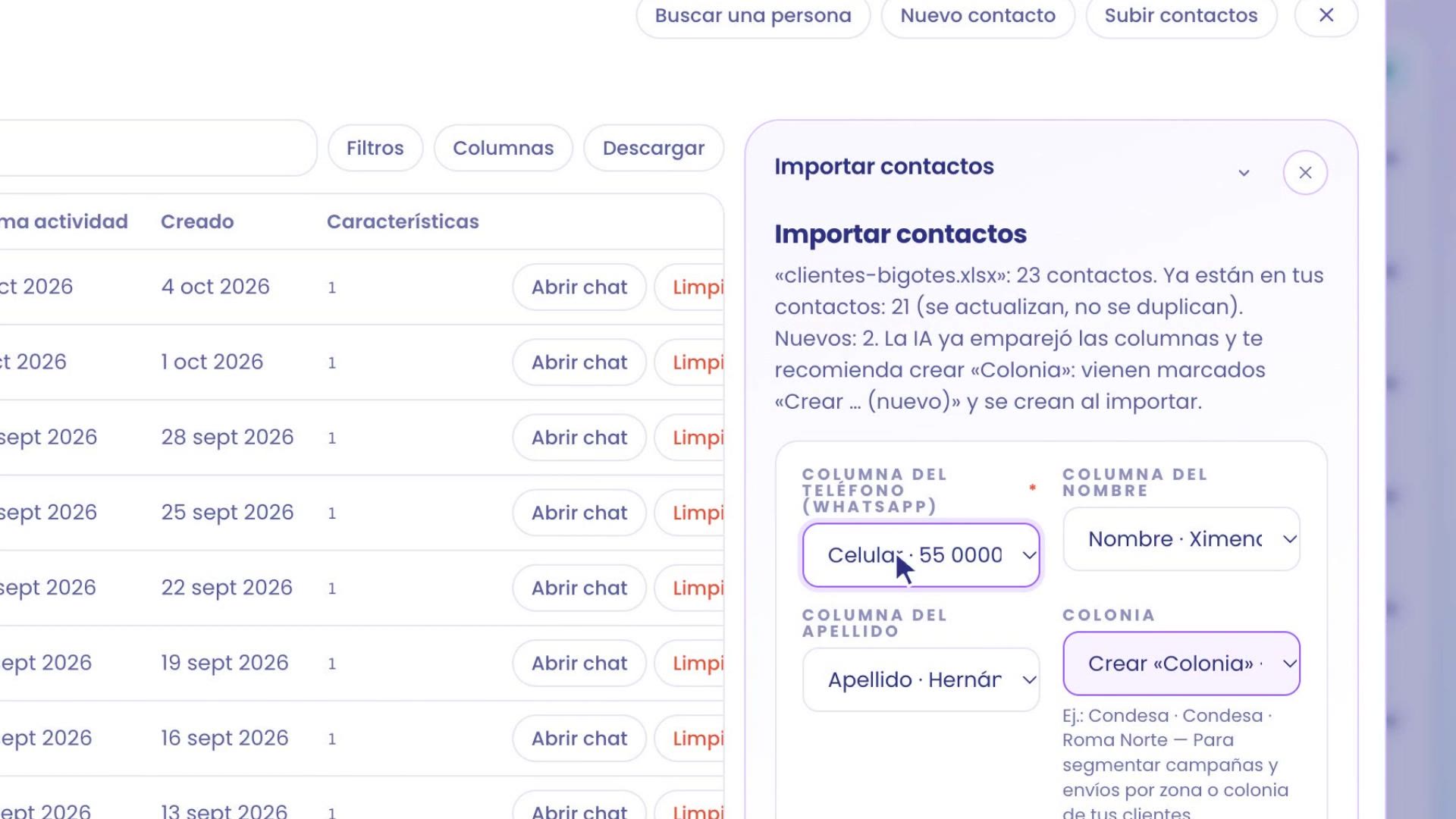
The new field: Neighborhood
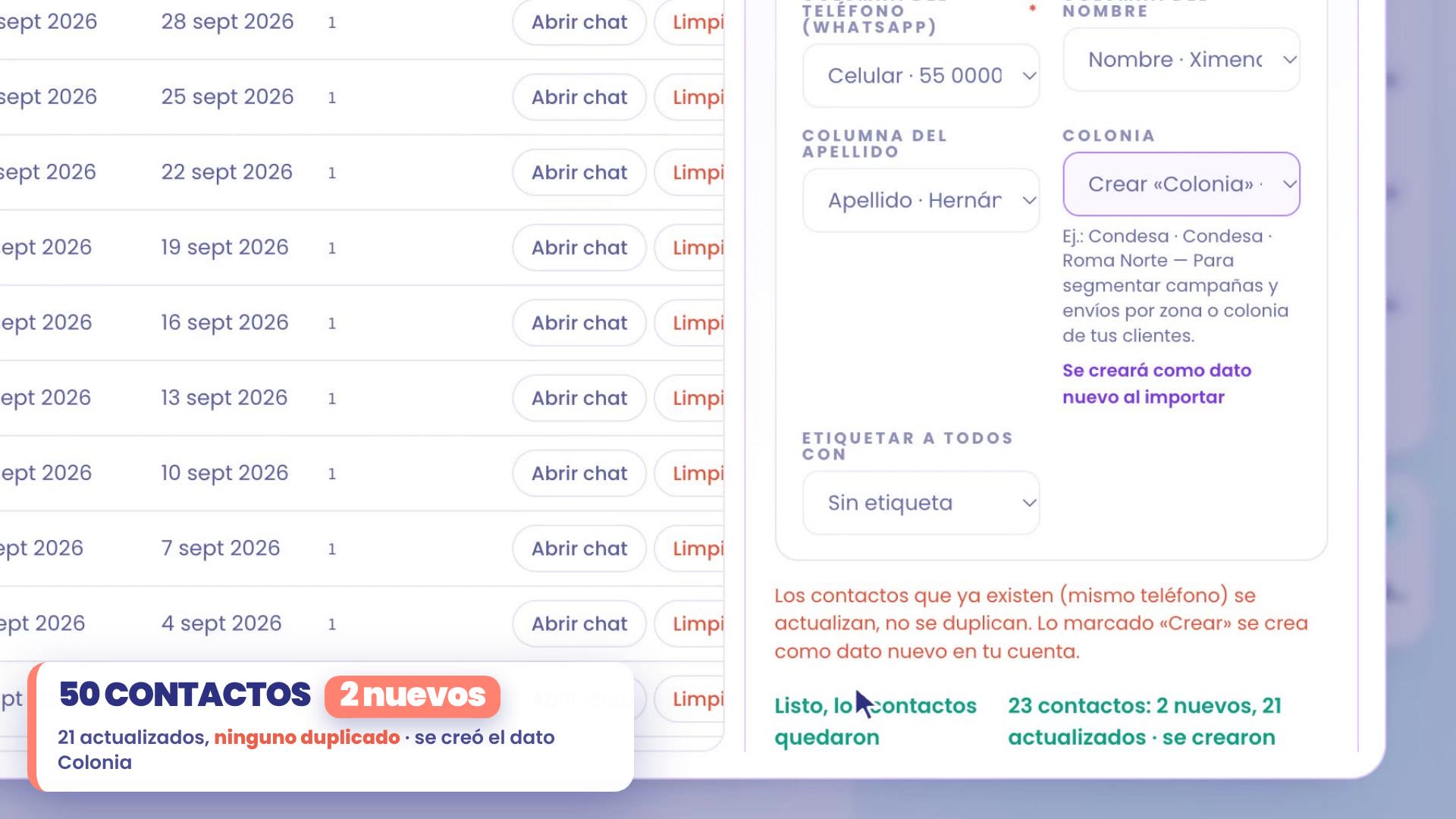
TBit already matched the phone, the first name, and the last name on its own. The neighborhood, which didn't exist, comes marked as Create "Neighborhood": when you import, it's created as a new contact field, with examples of what your file brings.
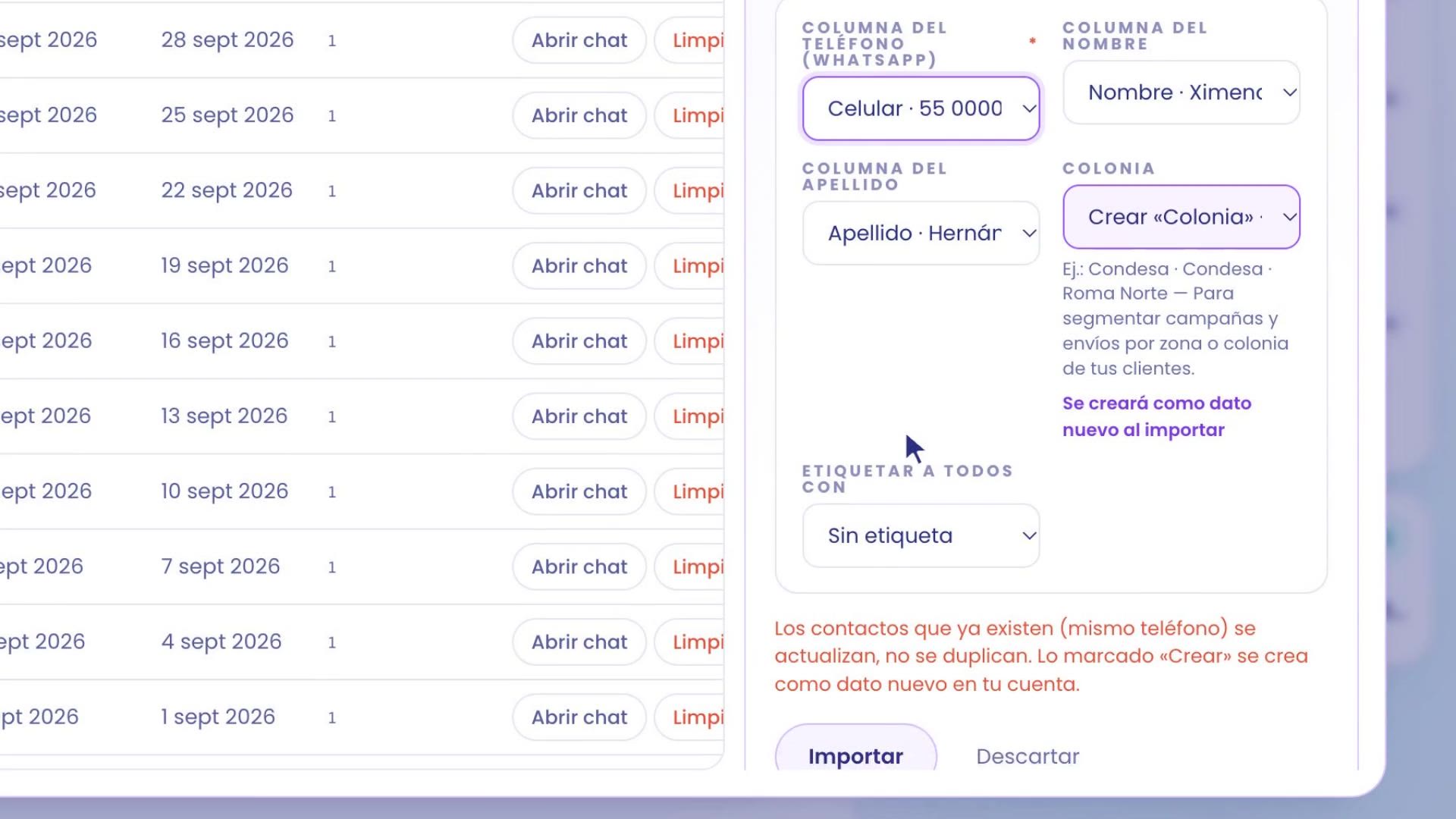
Check that each column goes where it should. If something isn't useful to you, leave it out of the import.
If you want, tag everyone with Tag everyone with.
Press and hold Import.
Done: now you have 50 contacts, each one with its neighborhood. None duplicated.
2. Cross data and build the set
Path: Grow › Contacts › Filters.
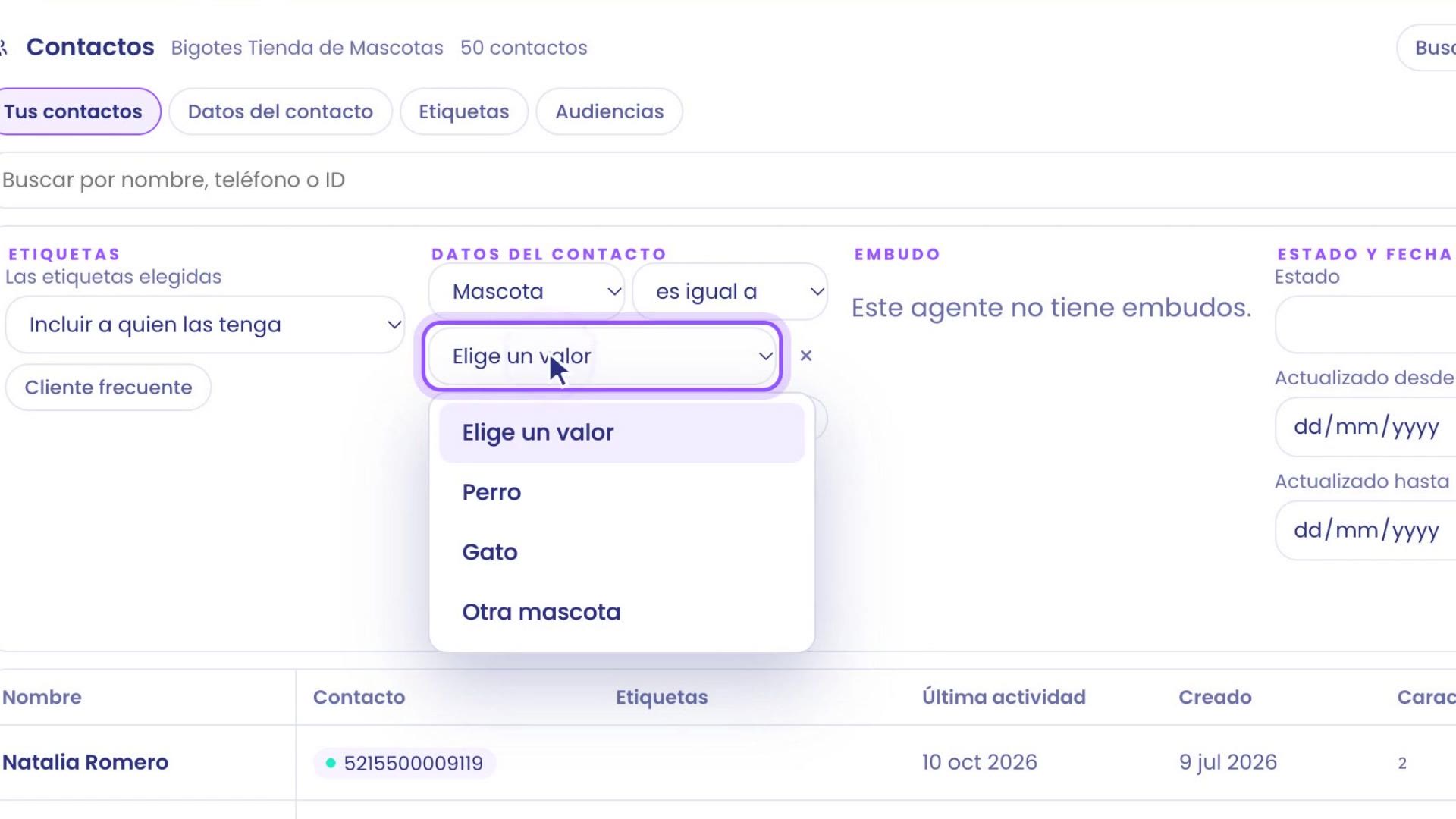
Open Filters and, in the Contact data block, tap Add data filter.
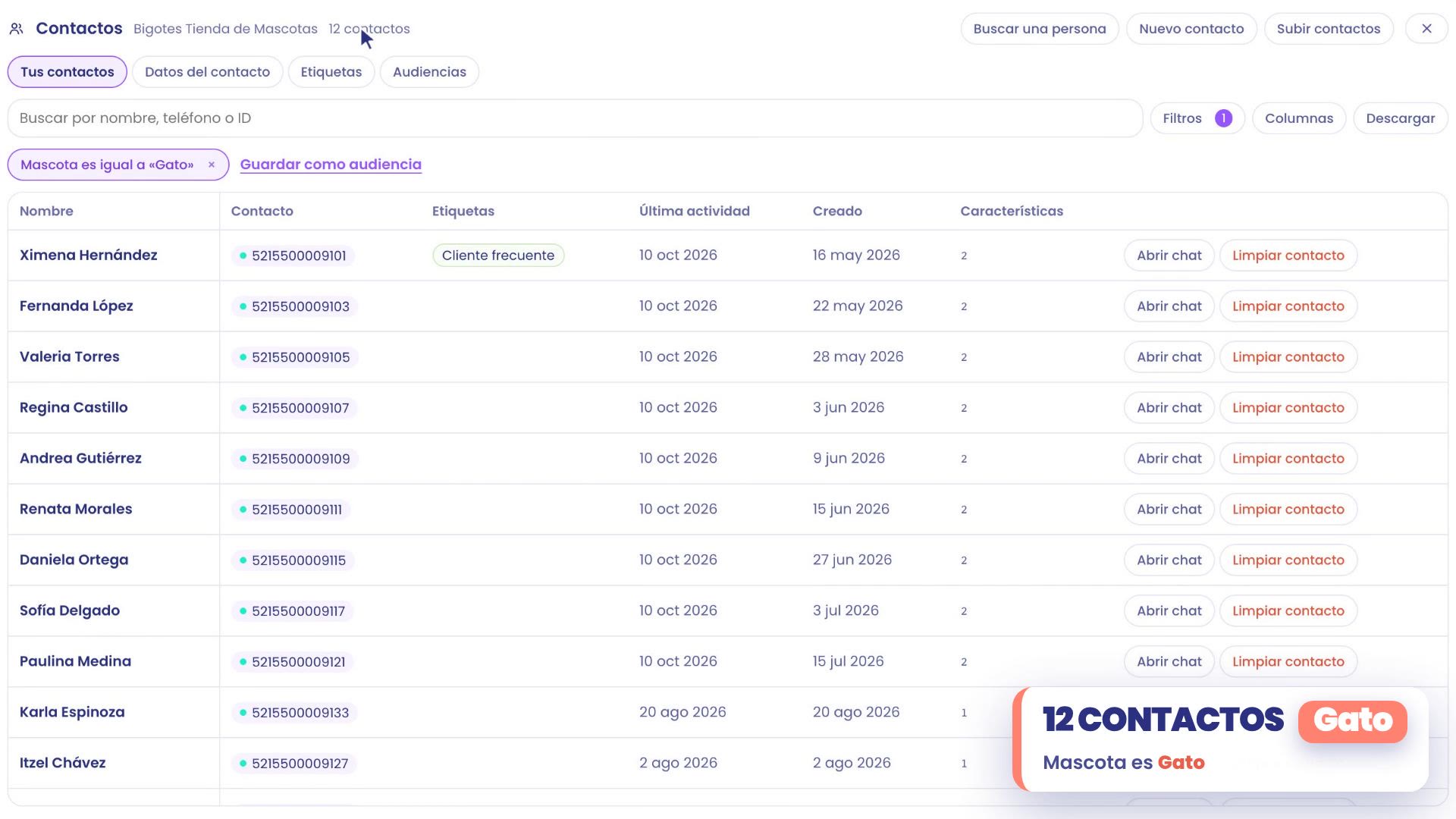
Choose the field and the value: Pet, is equal to, Cat. You're left with 12 people.
Add another field: Neighborhood is Condesa
Tap Add data filter again and choose Neighborhood, is equal to, Condesa.
TBit crosses both conditions. You're left with 5: the ones who have a cat and also live in Condesa.
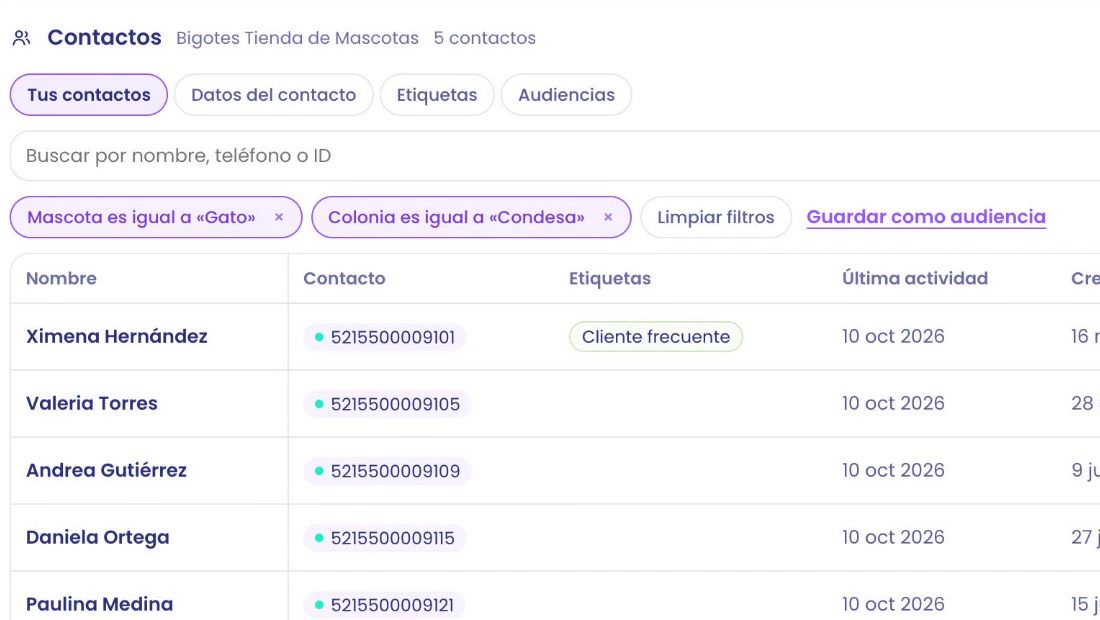
Save as audience
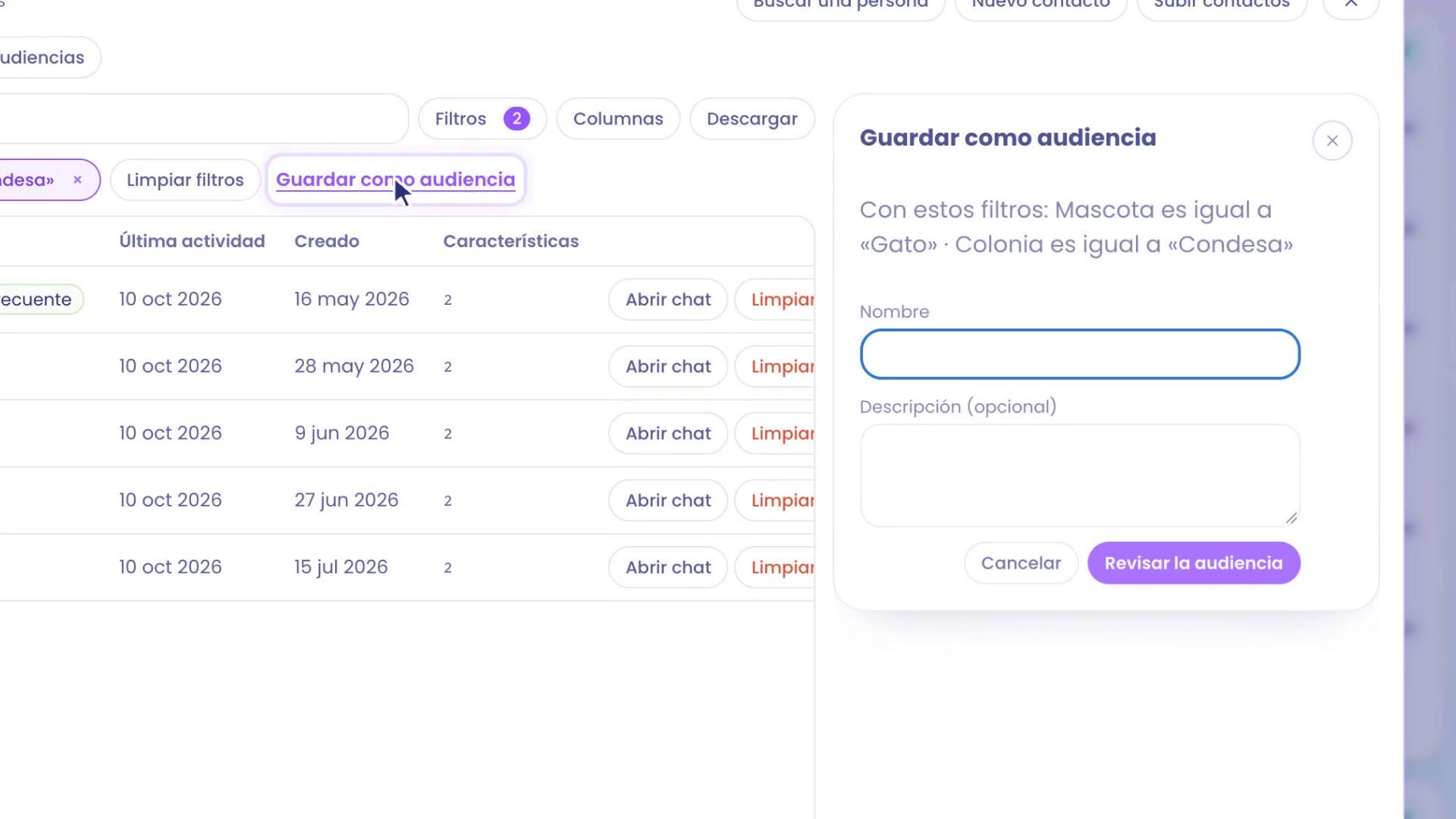
Tap Save as audience. Give it a name, like "Cats in Condesa", and a short description: "They have a cat and live in Condesa".
Tap Review audience. You get a card with the name, the criteria and how many contacts it has today.
If it looks right, press and hold the button to create it.
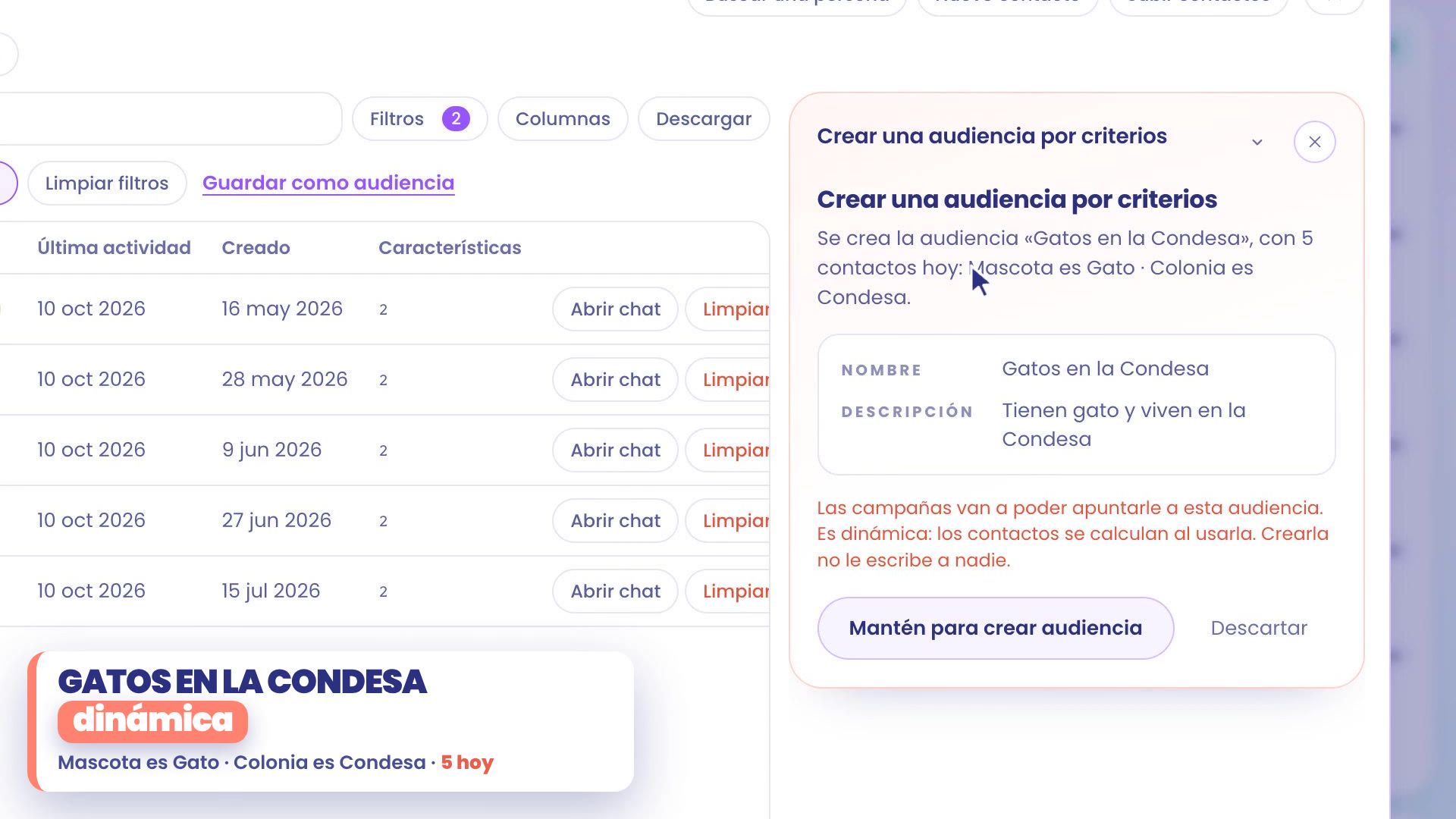
The audience is dynamic: if tomorrow someone from Condesa tells you they have a cat, they join on their own, without you doing anything.
3. An audience from a list, in the thread
What if your group doesn't come from a data point, but from an event? Saturday was vaccination day at Bigotes, and you have the list of those who came, written however each person gave it: with spaces, with hyphens, with +52 or without it.
Open the thread with TBit and attach the file.
Ask for the audience the way you'd ask someone on your team: "This is the list of those who came to vaccination day. I want to message them later, can you put together an audience with them?"
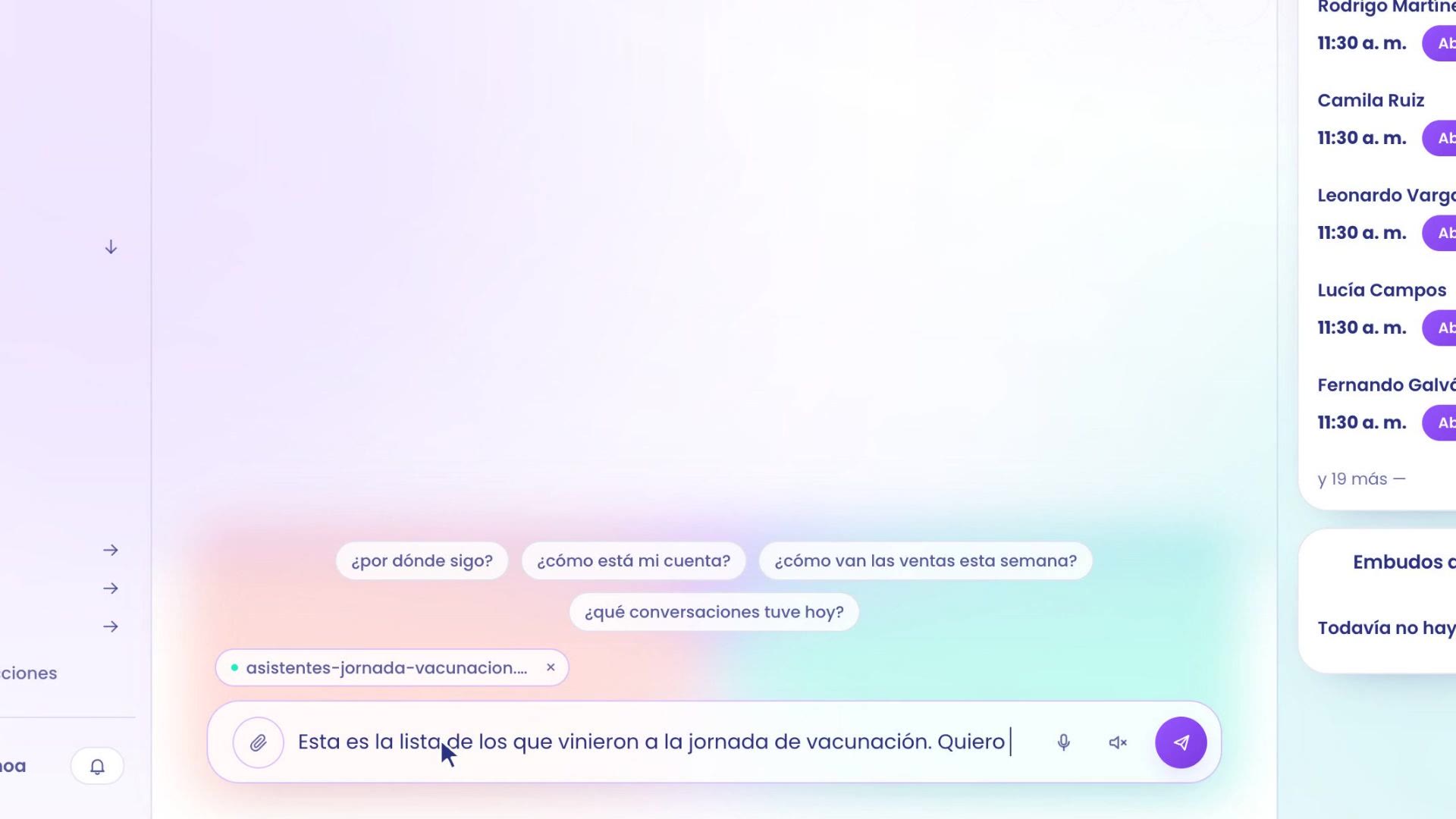
TBit cross-checks the file with your contacts, no matter what. In the example, 7 are there and join. 2 aren't there, and it tells you who they are, so you can decide.
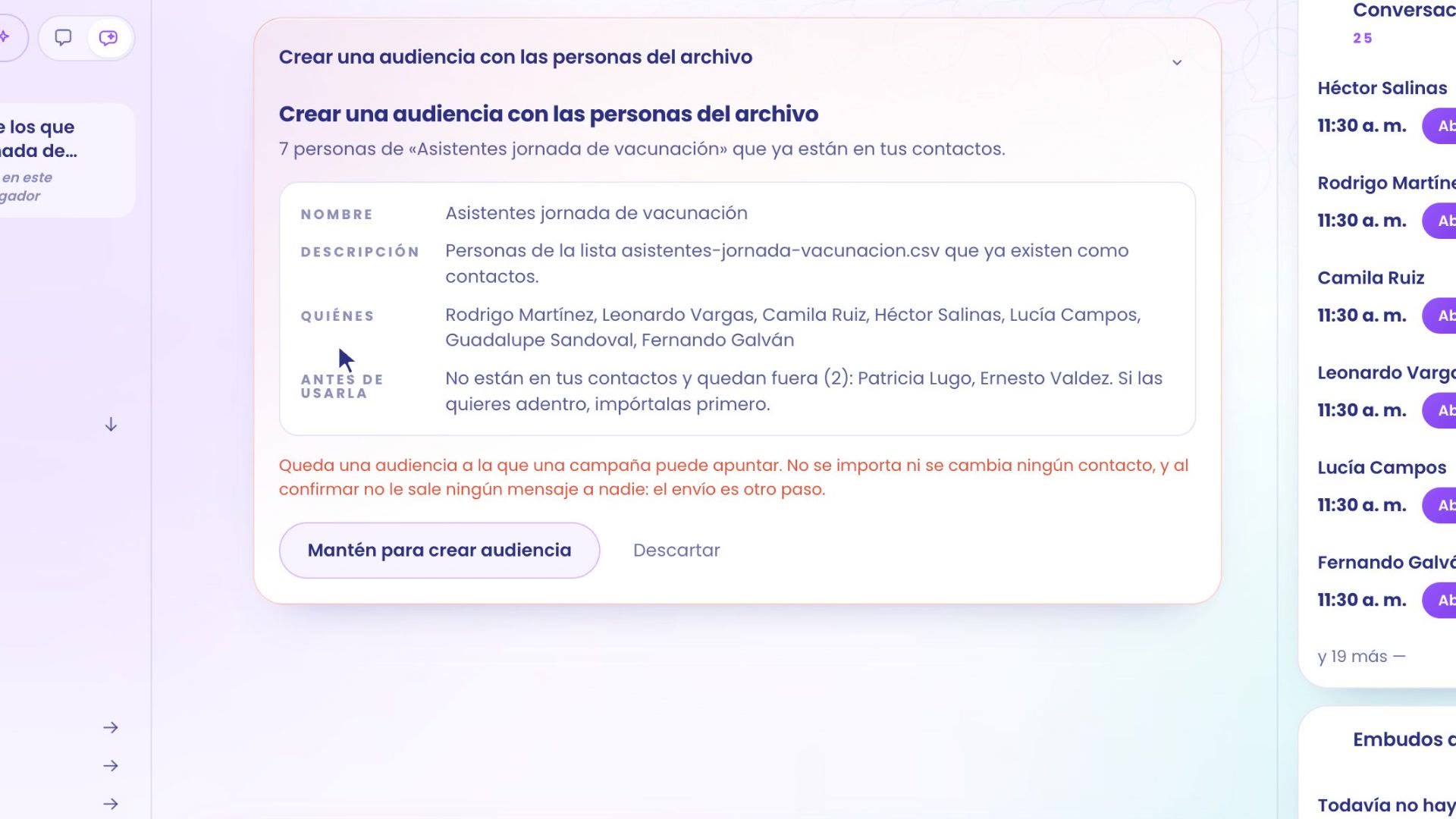
If you want the missing ones in, upload them first with Upload contacts and ask for the audience again.
If it looks right as is, press and hold the button: the audience is created.
4. Use it in a campaign
In Grow › Contacts, Audiences tab, you see them all: the Condesa one, by data, and the vaccination day one, by list. View contacts shows you who they are today.
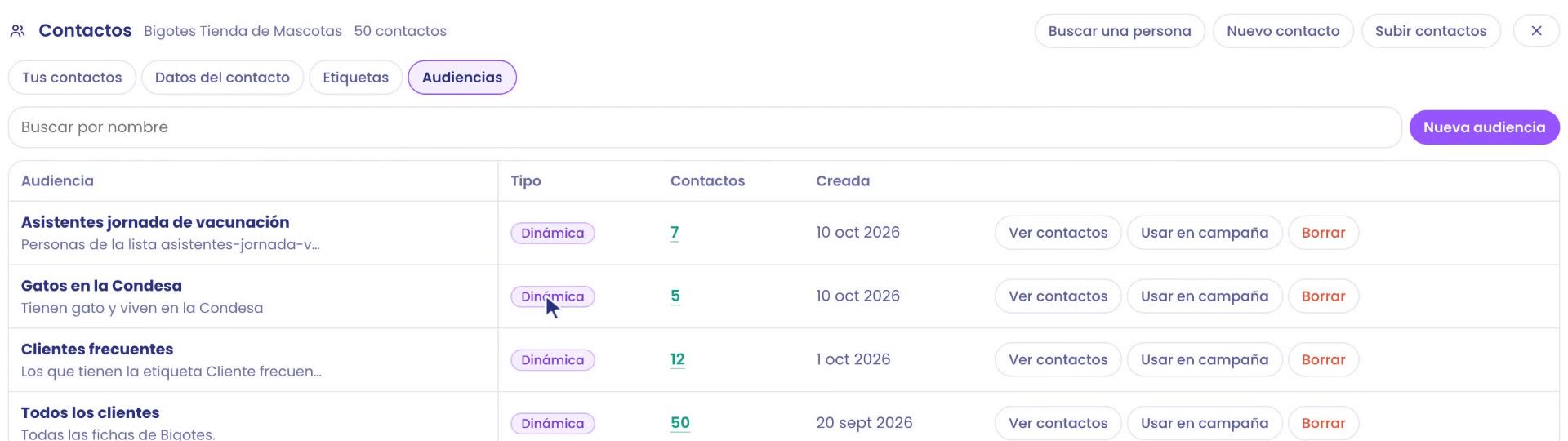
Use in campaign takes you straight to messaging them: the campaign opens with the audience already set. You just choose the template and when it goes out.
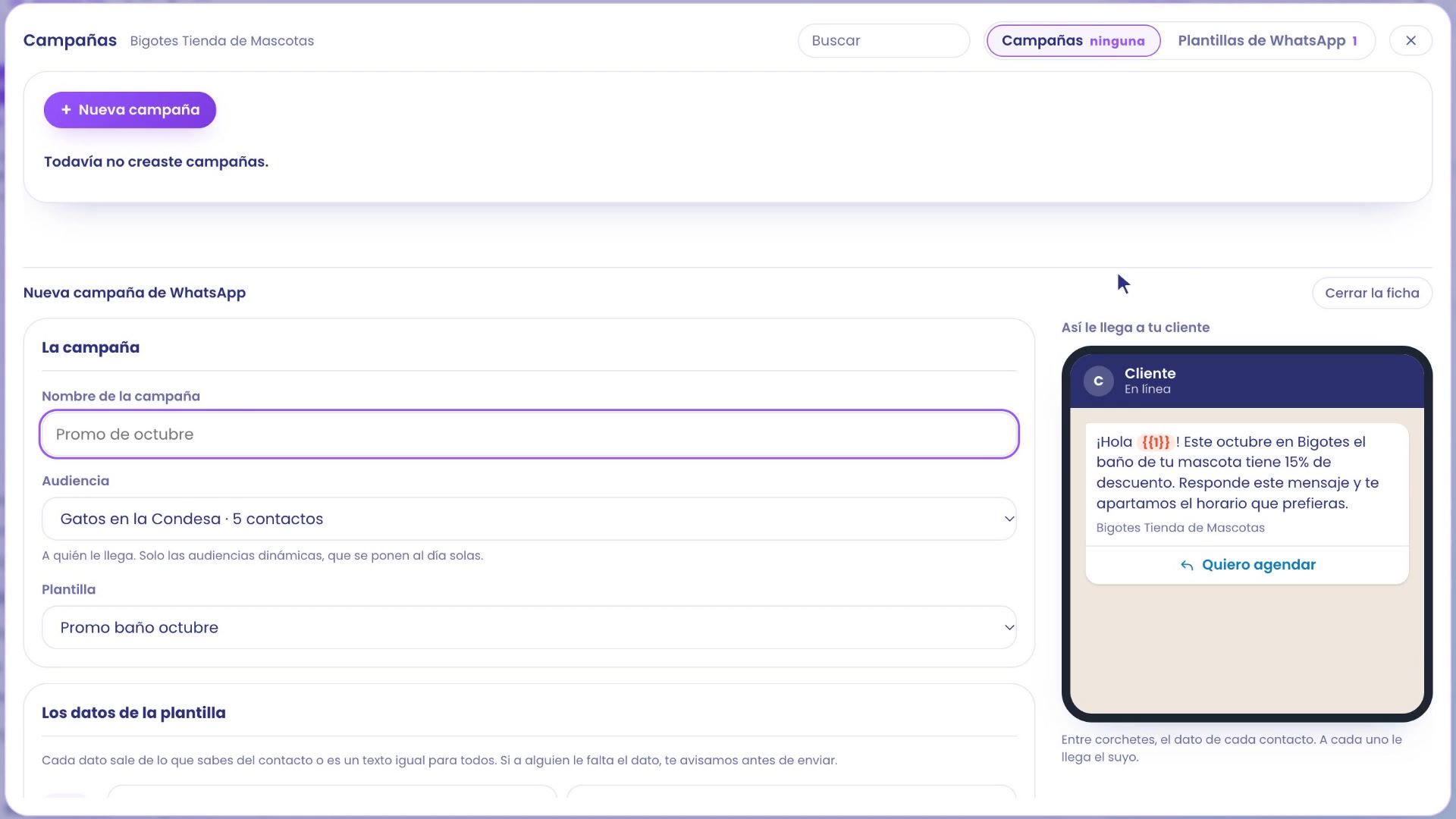
The step by step of the campaign (template, scheduling it and the report) is in WhatsApp Campaigns to sell and re-engage customers.
Where everything is
Upload contacts: Grow › Contacts › Upload contacts.
Filters and Save as audience: Grow › Contacts › Filters.
Your audiences: Grow › Contacts, Audiences tab.
With a file or an idea: ask TBit for it in the thread.
Your people in order, and every message to those who actually care.