
Help center
WhatsApp campaigns to sell and win back customers, step by step
Build a WhatsApp campaign to sell and win back customers: audience by a data point, template approved by Meta, scheduled or drip sending, and the report.
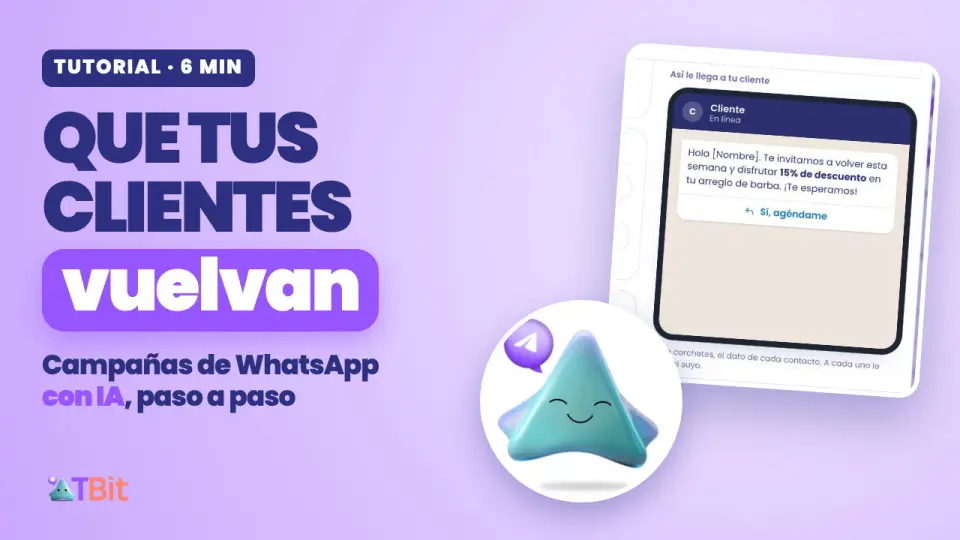
Get your customers back, without writing to each one
How many customers bought from you once and never came back? They almost never left for someone else: they just forgot. Writing to each one on WhatsApp doesn't give you the time, and the same message for everyone feels like a chain letter.
A WhatsApp campaign brings them back: to sell a promotion, remind someone about an appointment, or re-engage those who haven't come by in a while.
With a campaign, TBit writes to the right people, on the day and at the time you choose, with each person's name. And when they reply, TBit answers them and books them in.
Watch it in six minutes
The full walkthrough, with real TBit screens. Below you have every step in writing.
What a campaign is: three pieces
The audience: who. A group of your contacts who share a data point, for example their favorite service.
The template: what. The message, approved by Meta, with each customer's name and a button to reply.
The campaign: when. Put the two together and choose the day and time. It goes out all at once or in a drip.
All three live in Grow, at platform.tbit.app. And if you prefer, you can ask TBit for them in the thread. For all of this you need your line connected to TBit through the official WhatsApp Business API: if you don't have it yet, here we explain how to connect it.
How to start: three ideas
1. Save a stable data point about your people
Their favorite service, their birthday, their city. A data point like that rarely changes, and with it you build audiences that maintain themselves. Tags work for something quick, but they get added and removed. You create data points in Grow › Contacts, Contact data tab.
2. Sort your templates into folders
Promotions, Regular customers, Season. When you have ten templates, you'll be glad to find them at a glance.
3. Start small
One audience, one template and one scheduled campaign. You look at the report, and repeat what worked. And start with those who already know you: those who got a quote and didn't close, or those who haven't come by in a while.
1. The audience: who you write to
Path: Grow › Contacts.
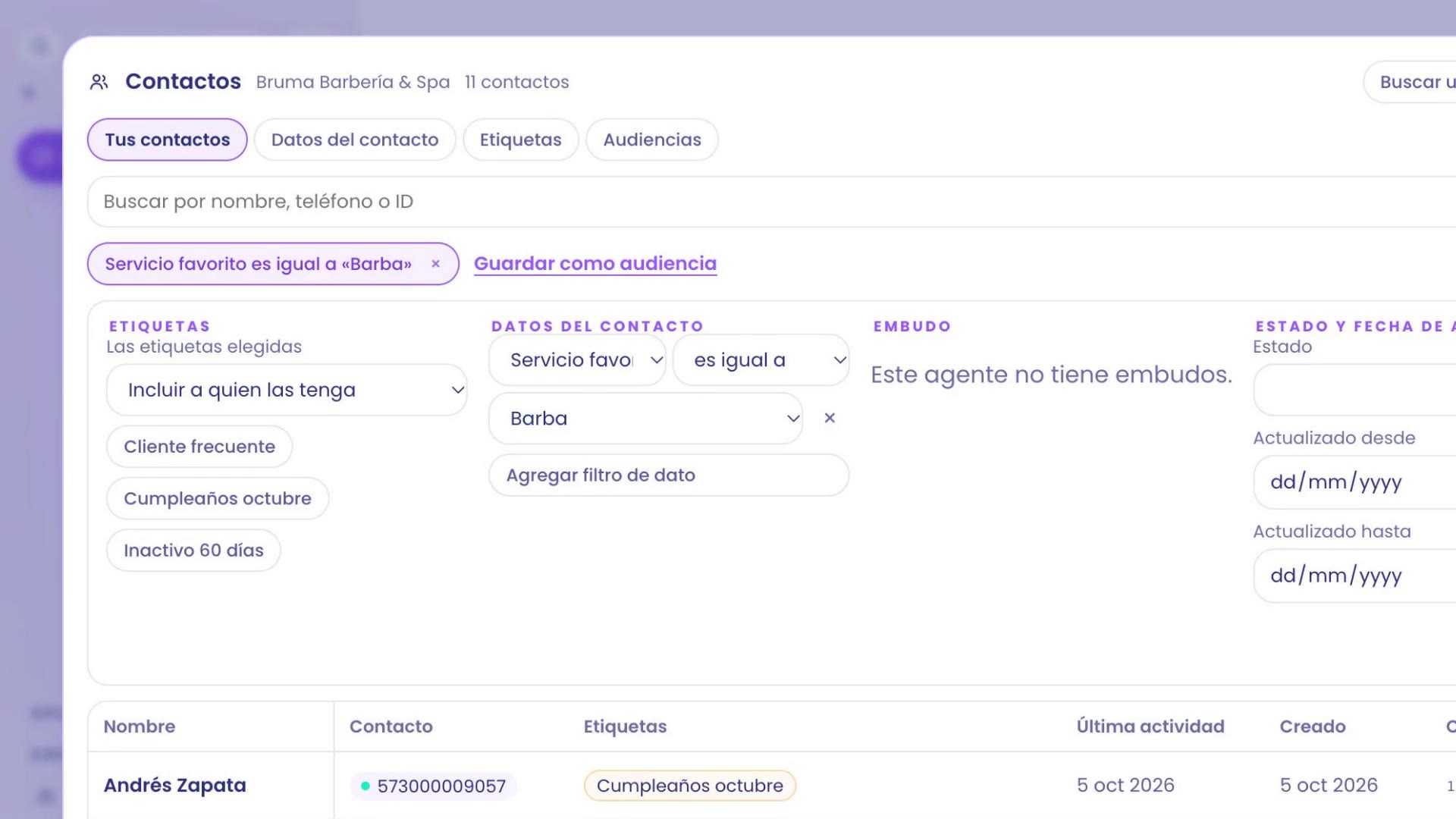
Go to Grow › Contacts and open Filters.
Instead of a tag, go to the Contact data block and tap Add data filter.
Choose the data point and the value. In the example: Favorite service, is equal to, Beard. The list keeps the 11 beard customers.
Tap Save as audience, give it a name, like "Beard customers", and a short description.
Tap Review the audience. You get a card with the name, the criteria and how many contacts it has today. If it looks right, press and hold the button to create it.
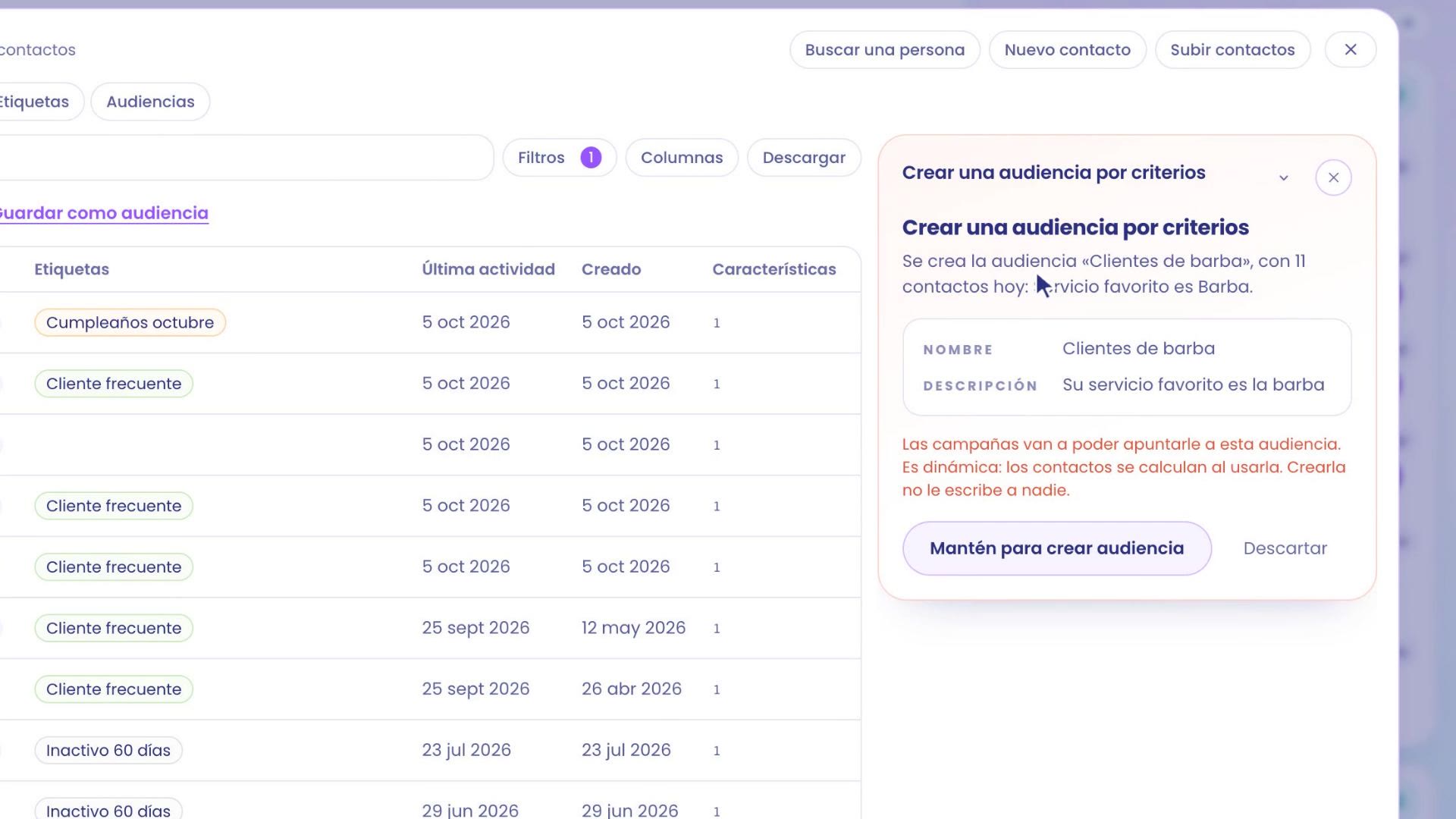
The audience stays in the Audiences tab as dynamic: contacts are calculated every time you use it. When someone new has Beard as their favorite service, they join automatically. From there you see who they are with View contacts, or take it to a campaign with Use in campaign.
2. The template: what you tell them
To message a customer first, WhatsApp requires a template approved by Meta. Path: Grow › Campaigns › WhatsApp Templates.
Go to WhatsApp Templates. There you see your folders; create one with New folder, for example "Season".
Tap New template and choose the With AI mode.
Tell it your idea like you'd tell someone on your team. In the example: "Invite beard customers to come back this week with 15% off beard trims, with their name and a button to book." And ask for the suggestion.
TBit suggests the message with each customer's name, the type, the button and even the template name. Change whatever you want: here the name becomes "Beard this week" and the button becomes "Yes, book me". On the right you see How your customer receives it.
Tap Review and send to Meta. Save it in its folder and tap Done.
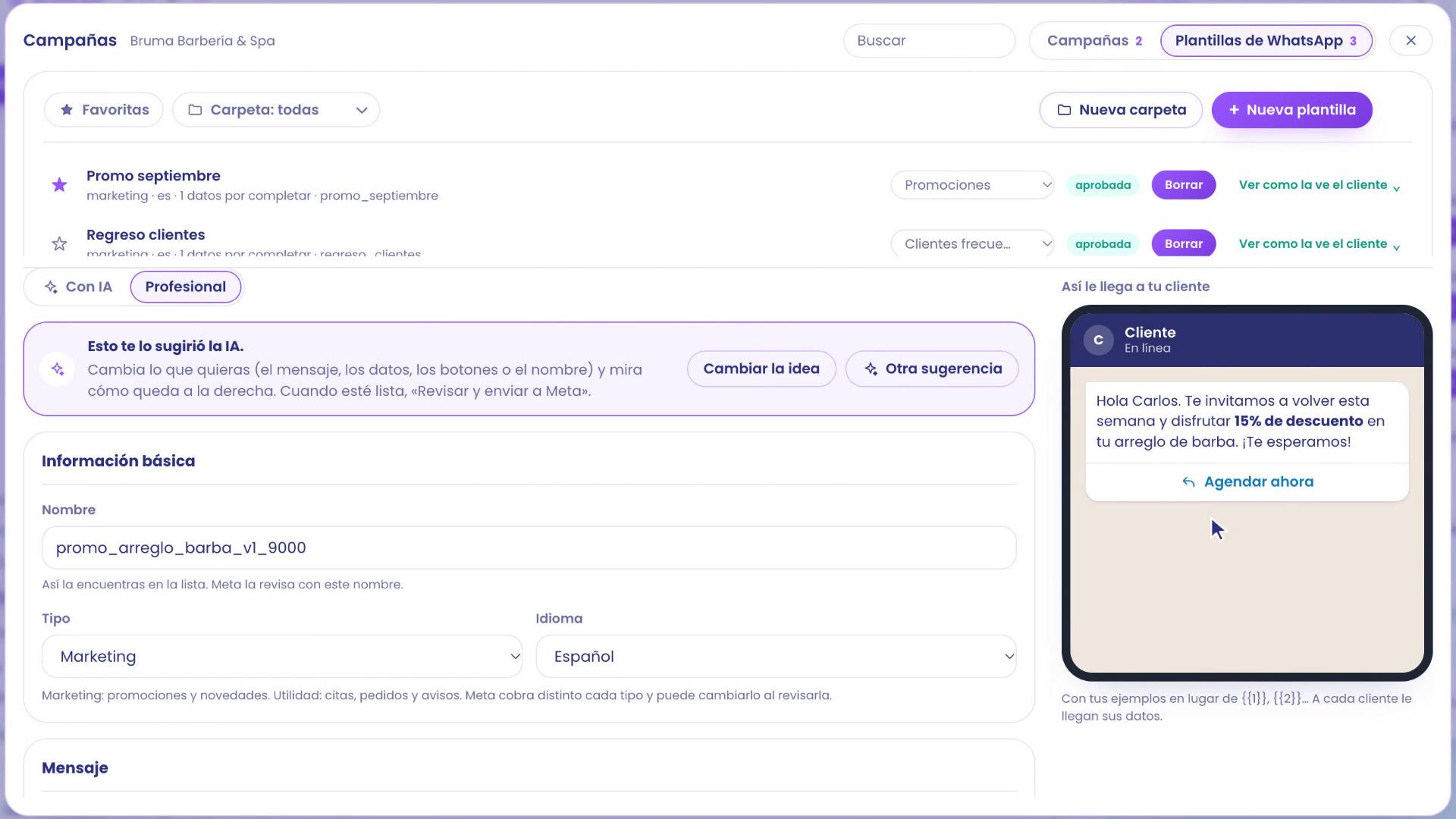
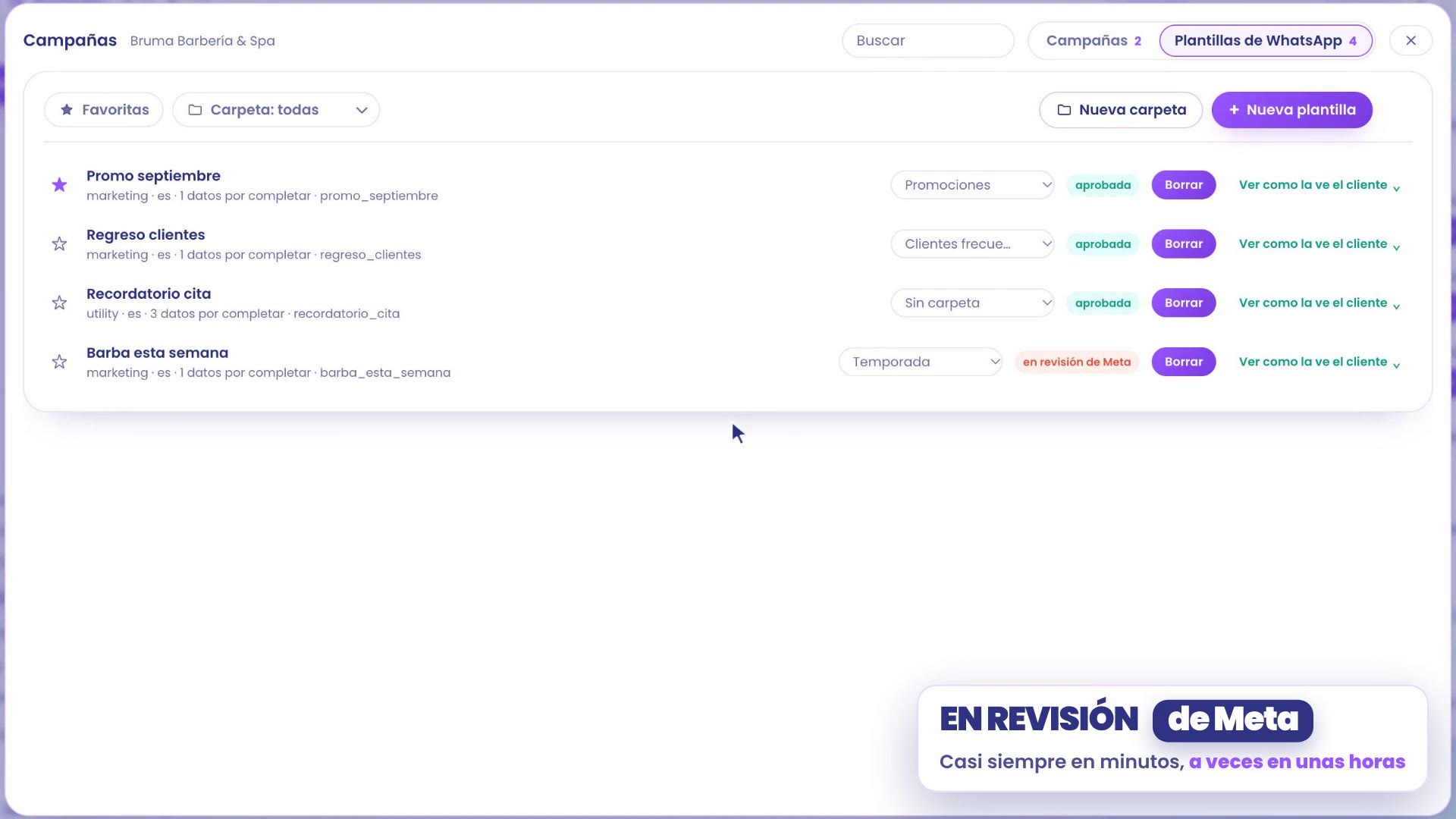
Meta reviews it: almost always in minutes, sometimes in a few hours. Meanwhile, in the list it says under review by Meta. When it's approved, it changes to approved and you can already use it in campaigns.
Utility or Marketing, and what Meta charges
Each template has a Type, and TBit suggests the right one for you. Marketing is for promotions and news; Utility, for appointments, orders and notices. Choose the type based on what the message says: if a utility template includes a promotion, Meta can change it to marketing when reviewing it.
Meta charges for every template delivered, depending on your customer's country and the type, and marketing costs more than utility. Meta charges that to your line's card, separately from your TBit plan. If you don't know whether your line has a card, check it in a minute.
Meta also makes sure people don't get too many promotions, so a marketing template may not reach someone who has already received many. In the report you see who didn't get it.
3. The campaign: when it goes out
From your audience, in Grow › Contacts › Audiences, tap Use in campaign. The campaign opens with the audience already set. You can also start in Grow › Campaigns › New campaign and choose the audience there.
Give it a name, like "Come back for your beard trim", and choose the approved template.
In the template data, the field {{1}} is Name: each customer gets their own.
In When it goes out, choose Schedule and set the day and time. In the example, Friday at 9:00 a.m.
In How it goes out, leave All at once.
Tap Review campaign. The card tells you how many people it reaches, with which template and starting when, in your business's time zone. Hold the button down and it's scheduled.
![Campaign form with When it goes out set to Schedule, day 10/16/2026 and time 09:00 AM, and How it goes out set to All at once. On the right, the preview: Hi [Name], we invite you to come back this week, with the button Yes, book me.](https://images-bucket-tbitmobile-pdn.s3.us-east-1.amazonaws.com/content/guides/campanas-de-whatsapp/campana-programar.jpg)
In the campaign list it shows as scheduled. At that time the messages go out on their own, in batches of up to 1,000 per hour. Until it goes out, you can pause or cancel it.
4. Drip: for large audiences
If your audience is large, you don't have to message everyone on the same day.
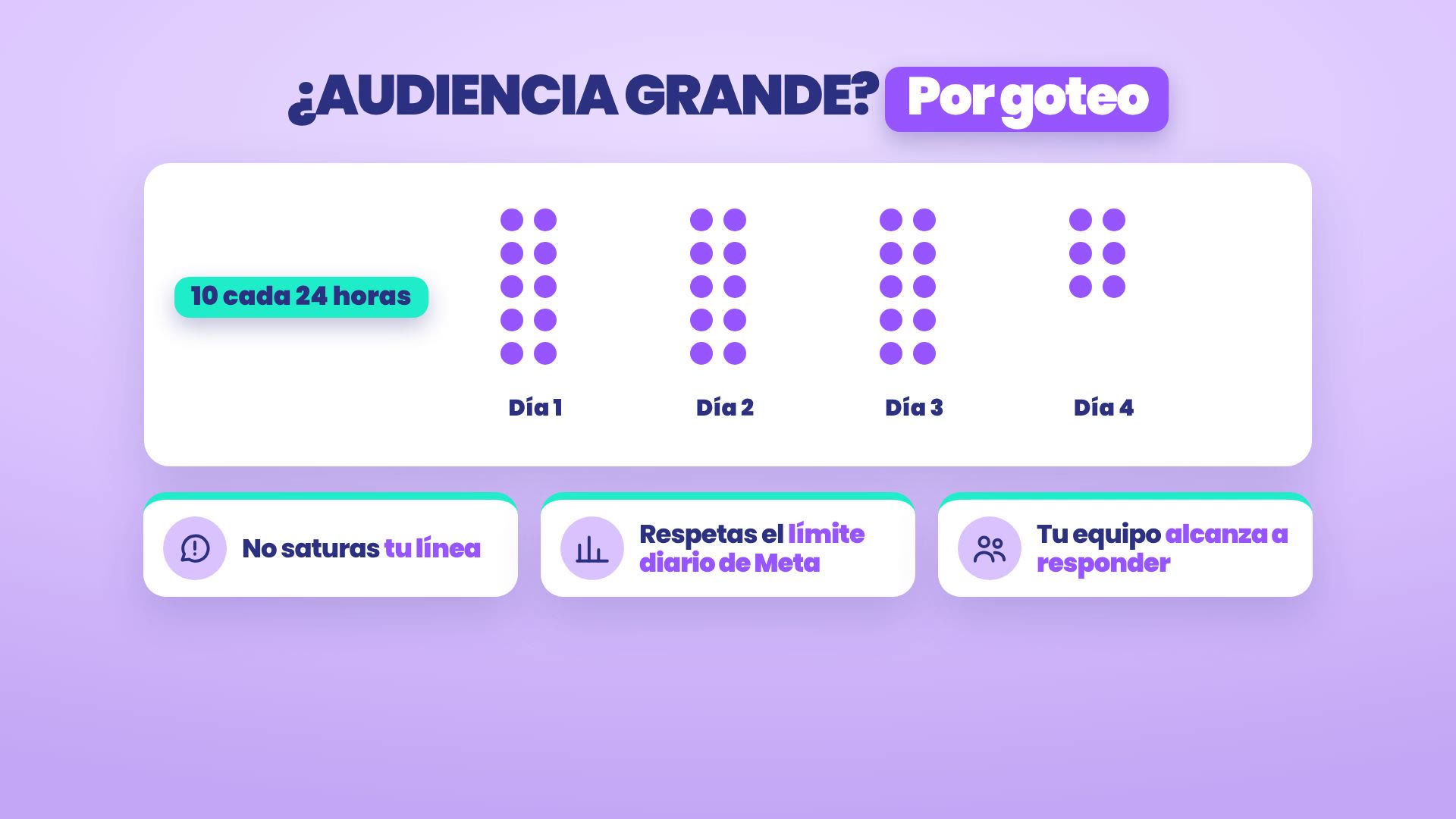
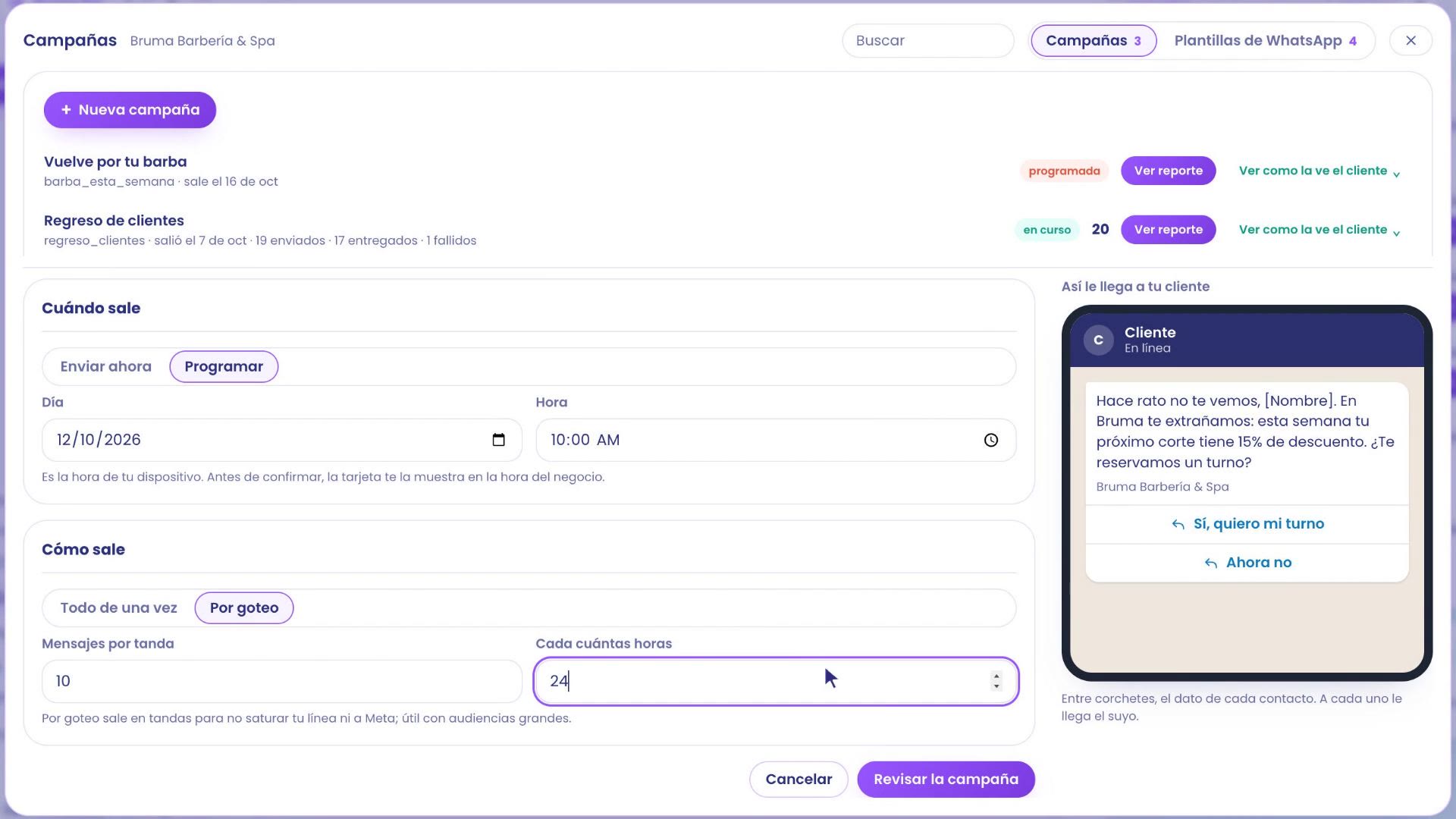
Build the campaign the same way: name ("We miss you"), audience ("Infrequent customers", 36 contacts), template and the field {{1}} = Name.
In When it goes out, Schedule: Monday at 10:00 a.m.
In How it goes out, choose Drip: Messages per batch 10 and How many hours apart 24.
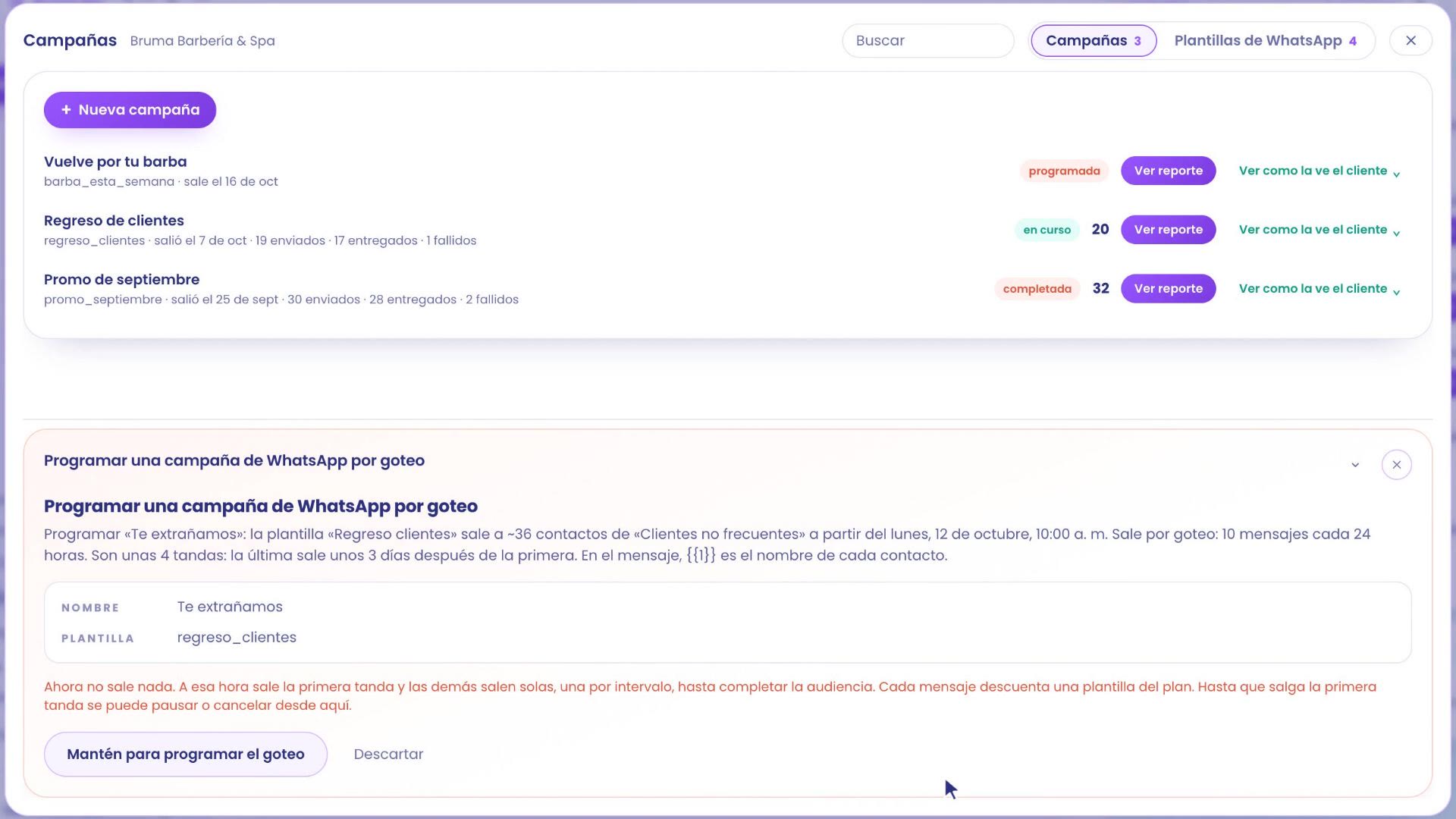
Tap Review campaign. The card tells you how many batches there are and when the last one goes out: with 36 contacts, about 4 batches, and the last one about 3 days after the first.
Hold the button down, and it's scheduled to go out in batches.
5. Ask TBit for it with your idea
Do you only have an idea? You don't need to remember audience or template names. Write to TBit in the thread, just like you'd tell someone on your team:
"I want to invite the clients who prefer the spa to a massage in November, with 15% off: a message with their name and a button so they can reply. Can you help me put it together?"
TBit looks at your contact data and suggests the audience first: "They prefer spa", 12 people. You confirm it by holding the button.
Then the template, with each client's name and a button to reply. You hold it, and it goes to Meta for review.
Once Meta approves it, you tell it when: "Meta already approved it. Schedule it for Friday at 9 in the morning."
TBit puts the campaign together, with the same card and the same reviews. You confirm it, and it's scheduled.
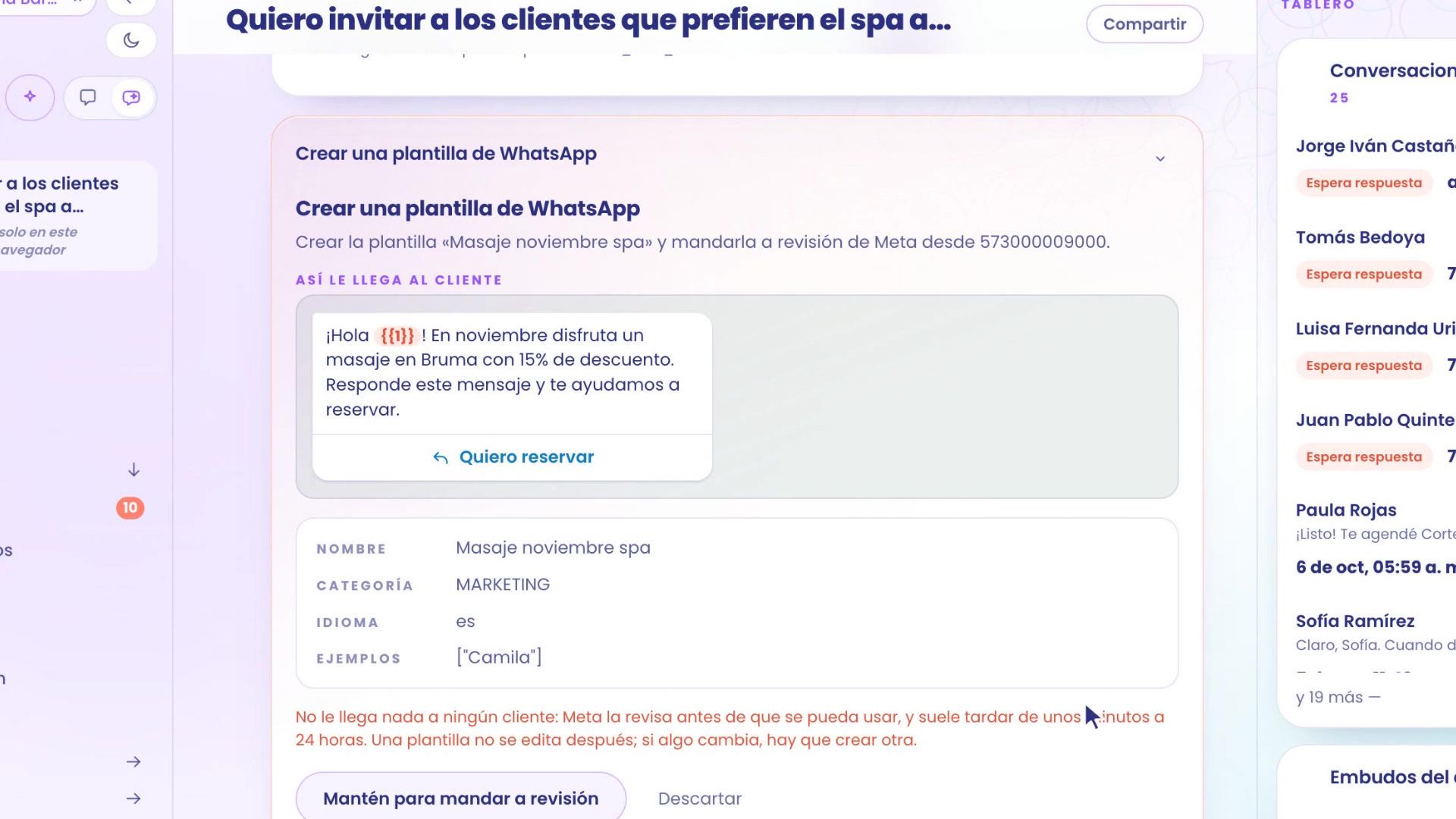
Nothing goes out without you confirming it: every step comes with its card and its button.
6. How it went: the report
In Grow › Campaigns, tap View report on the campaign. You see how many messages went out, how many were delivered, how many were read, who replied and who didn't get it.
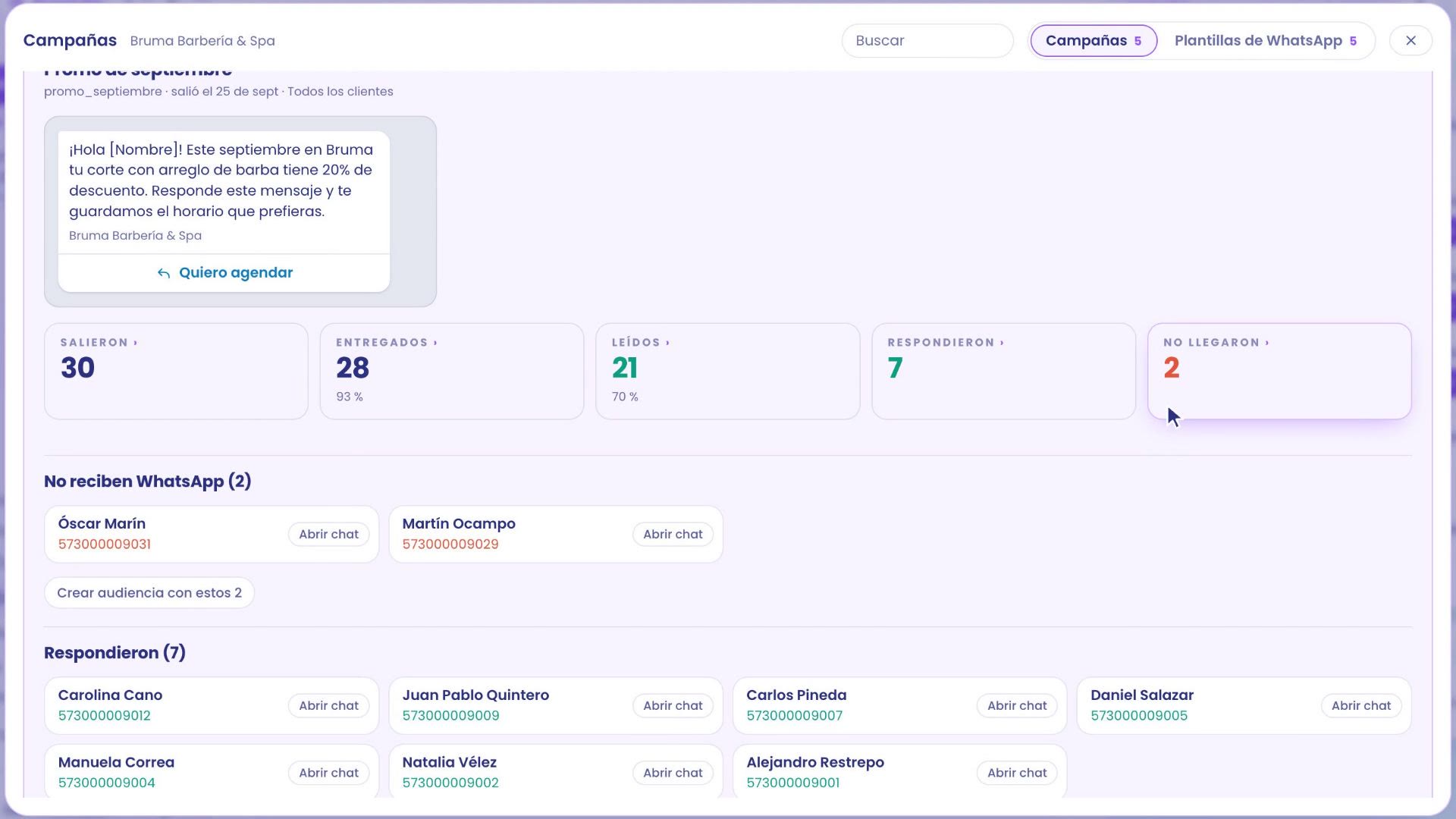
Below you see each group with their names, and why it didn't reach someone, in plain words: for example, "They don't receive WhatsApp". With those who didn't get it, tap Create audience with these and reach them another way. The replies land in your Inbox, where TBit takes care of them.
Where everything is
Audiences: Grow › Contacts, Audiences tab.
Templates and folders: Grow › Campaigns › WhatsApp templates.
Campaigns: Grow › Campaigns › New campaign, or ask TBit for it in the thread.
Audience, template and campaign. That way your customers come back, and you don't write to anyone by hand.