
Help center
How to create forms in TBit | TBit
Create custom forms in TBit to collect information from your customers. Turn on AI so it fills out forms automatically from the chat.

Forms: how to create and manage them in TBit
The Forms section lets you create and manage custom forms to collect relevant information from your users. This tool makes it easy to capture data within your support, onboarding or sales processes.
Path: Side menu → Communication → Forms
Overview
In the Forms tab you'll find the full list of forms you've created with information such as: name, number of fields, AI status, publishing status, creation date and editing options.
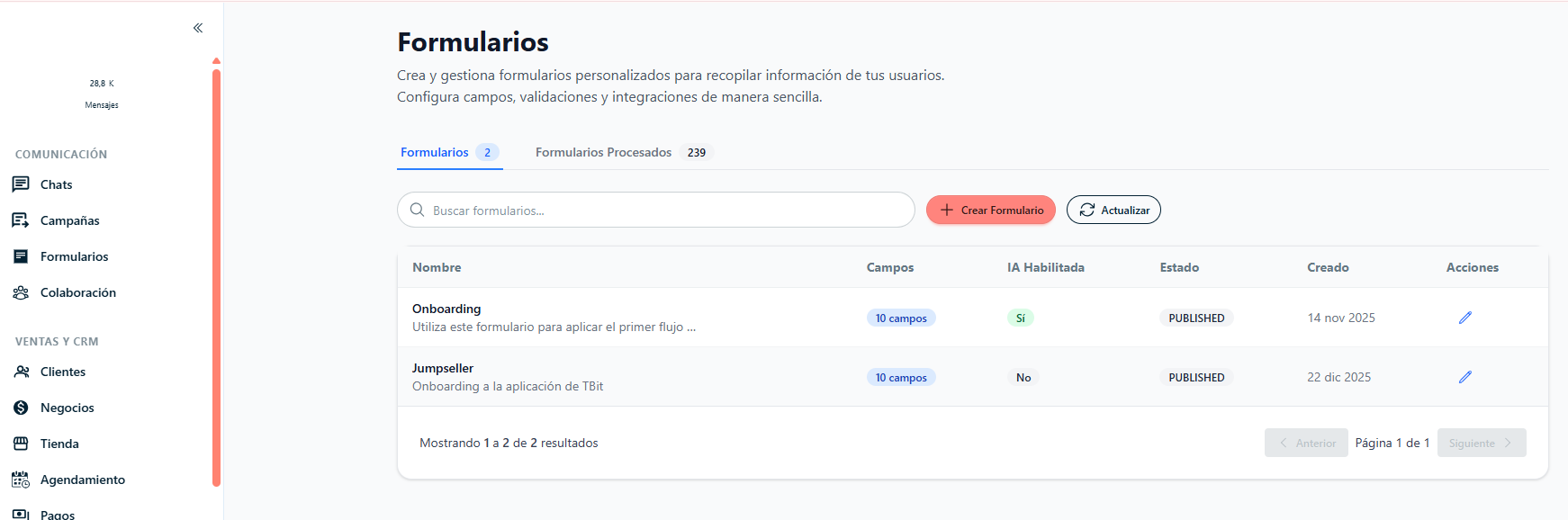
Create a Form
Step 1: Follow the path shown.
Step 2: Click "Create form".
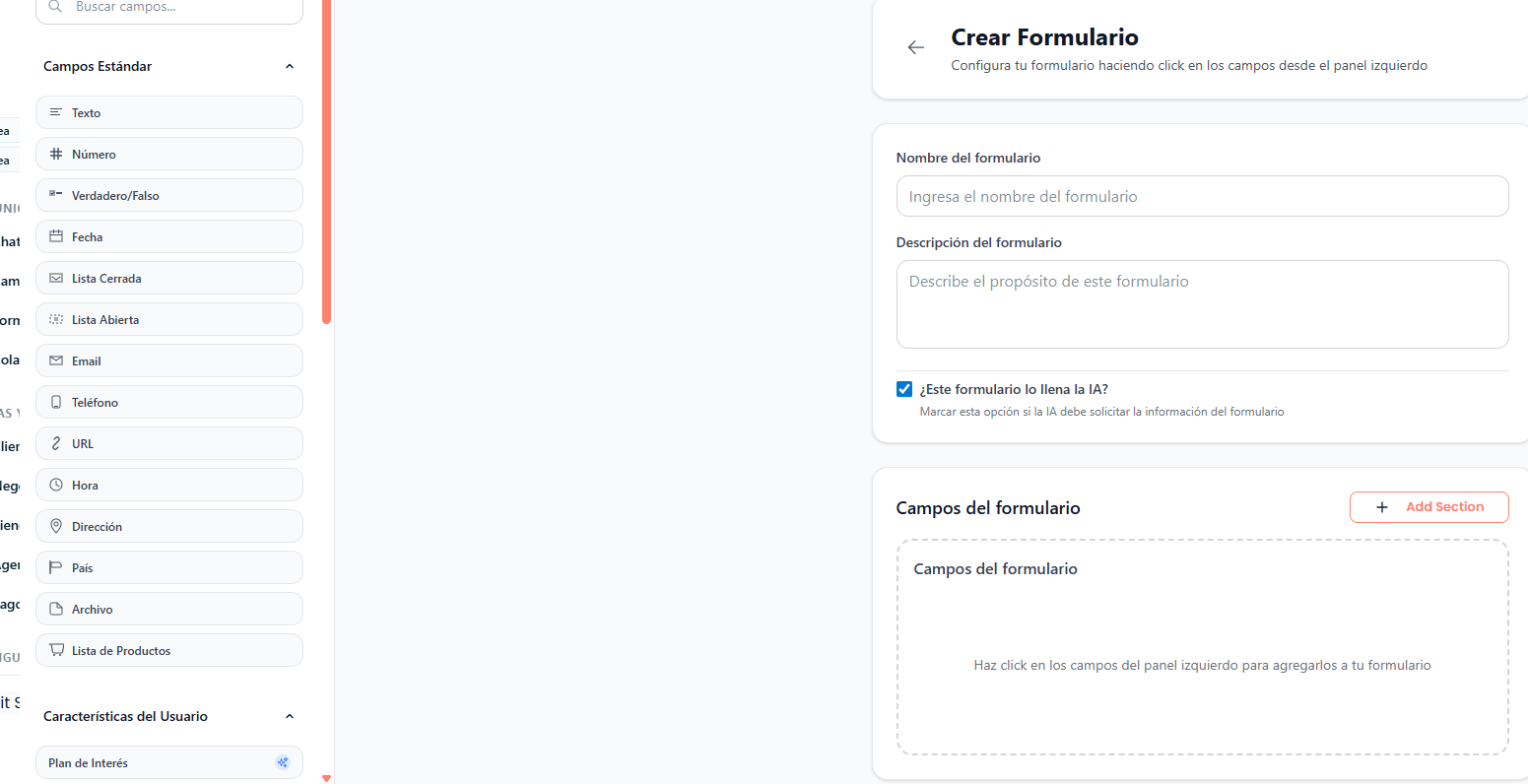
Step 3: Fill in the boxes: Form name and Description (e.g. "Collect information from the checklist I need to provide the service").
Step 4: Choose whether the form will be filled out by AI (TBit pulls the information from the chat automatically). The check must be blue if you want to turn this option on.
Step 5: Click "Add section" next to "Form fields" to add fields.
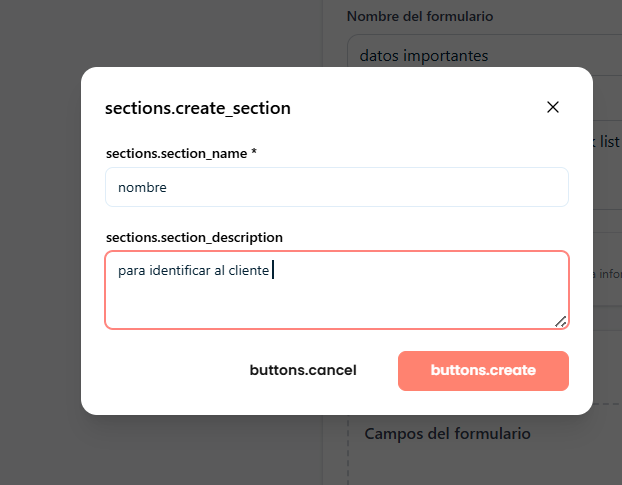
Step 6: Click "Create" to run the creation of the field.
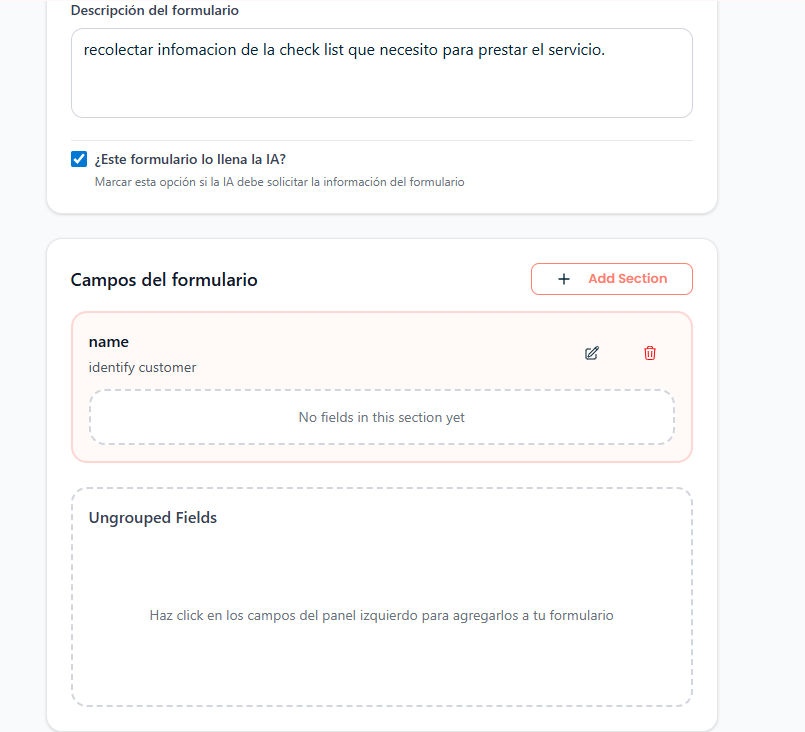
Step 7: To edit a field, click the pencil icon. To delete it, click the trash icon.
Step 8: Click the fields in the left panel to add them to your form automatically (common pre-created fields).
AI Enabled
Yes: The form can interact with AI-assisted flows or processes
No: The form works as a standard data collector
Processed Forms
In the "Processed Forms" tab you can check the total number of records completed by users, measure the use of each form and assess the performance of your data capture processes.
Before publishing a form, check:
All required fields are correctly set up
The validations match the type of information requested
The form is in "Published" status
The AI enabled option is on or off depending on the goal
This form is correctly linked to the corresponding flow