Help center
How to create audiences in TBit: Static and Dynamic | TBit
Learn how to create static audiences (CSV or manual) and dynamic audiences (filters and tags) in TBit to segment your WhatsApp campaigns.

How to create Audiences
Access Audiences
Step 1: Make sure you're in the Campaigns window from the main menu.
Step 2: Click in the center where it says "Audiences".

Step 3: Click "+New Audience". A window will open that you need to manage depending on the type of audience: Static or Dynamic.
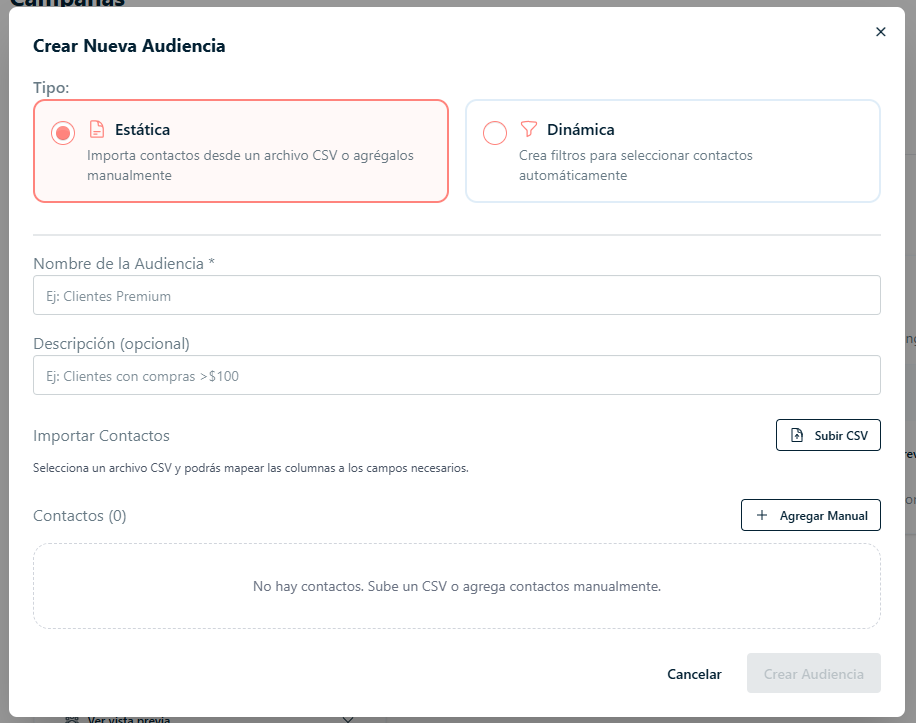
Static Audience
Step 4: Manage the fields:
Audience Name
Description
CSV File: A file that stores data in table form
Manual entry
Step 5: You can upload contacts via a CSV file (bulk upload) or enter them manually.
How to create the CSV file quickly:
From Excel or Google Sheets:
Open your file
Go to File > Download
Choose .csv (comma-separated)
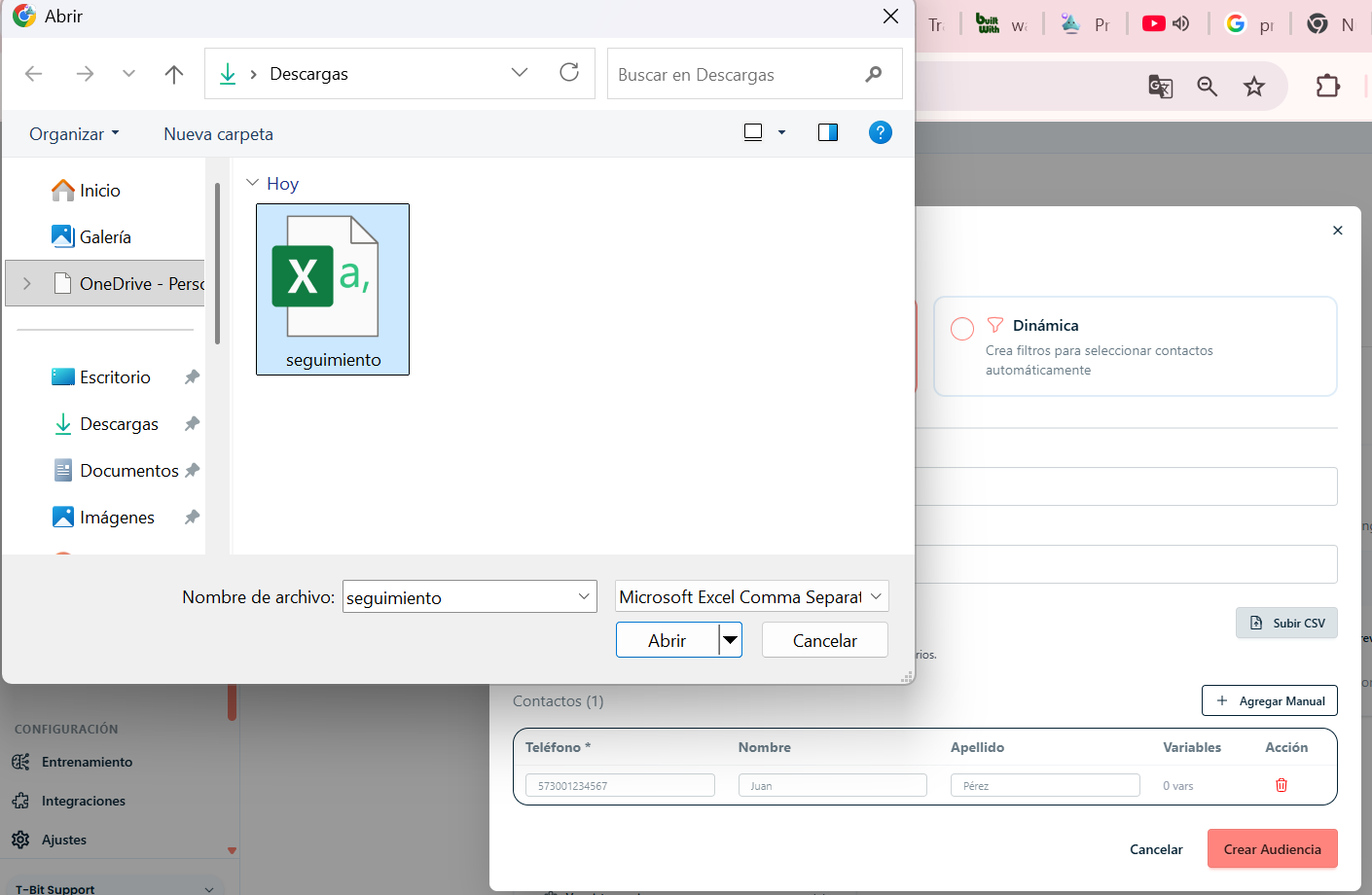
Step 6: To upload the CSV, select the document and click "Open".
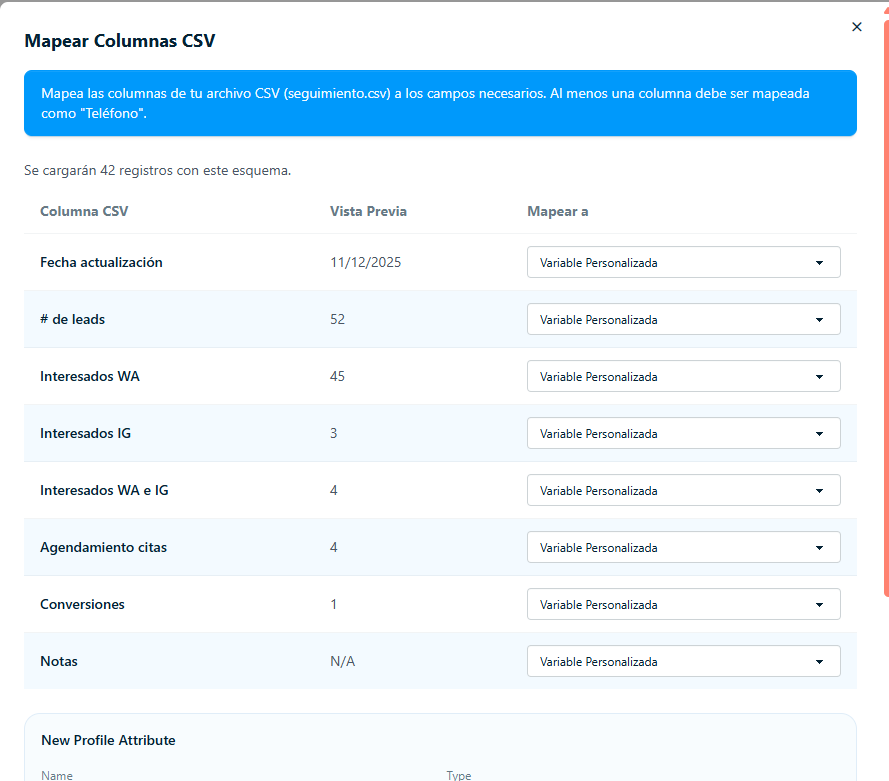
Step 8: Assign each CSV column a corresponding "Map to" (Phone, Name, etc.).
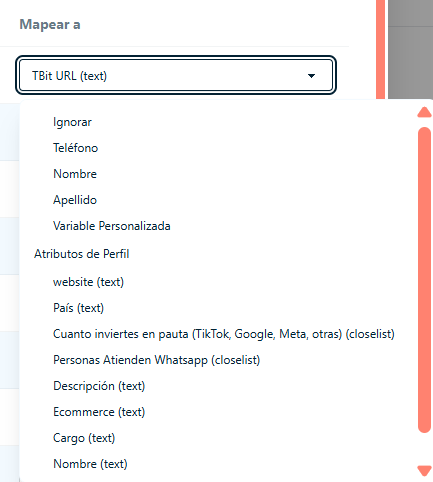
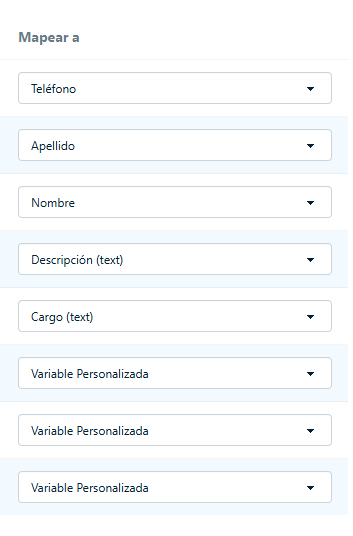
Step 9: If you need a field that isn't in the list, create it with "+Create a New Profile Attribute".
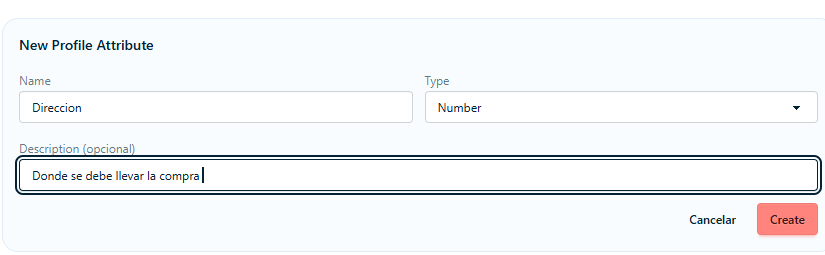
Step 10: To finish loading, click "Apply Mapping".
Step 11 (Manual): Click "+Add Manual" and manage: Phone, First Name and Last Name. Finish with "Create Audience".
Dynamic Audience
Dynamic audiences update automatically based on the filters you set up.
Step 4: Select the "Dynamic" type.
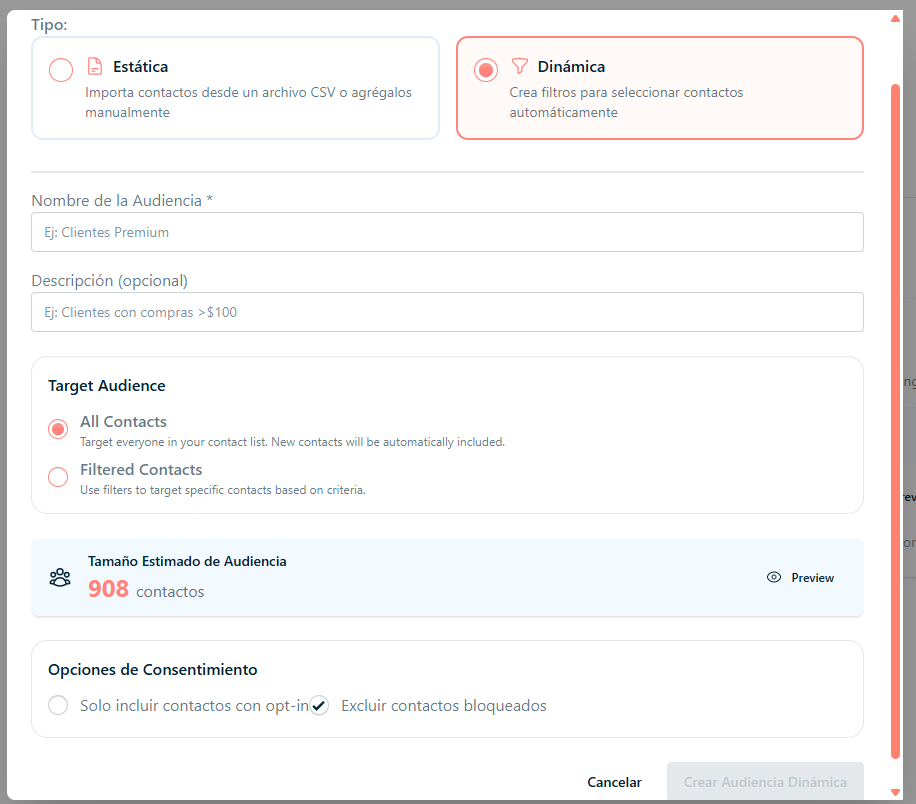
Step 5: Manage the fields:
Name: E.g.: "Loyal customers"
Description: E.g.: "They buy often"
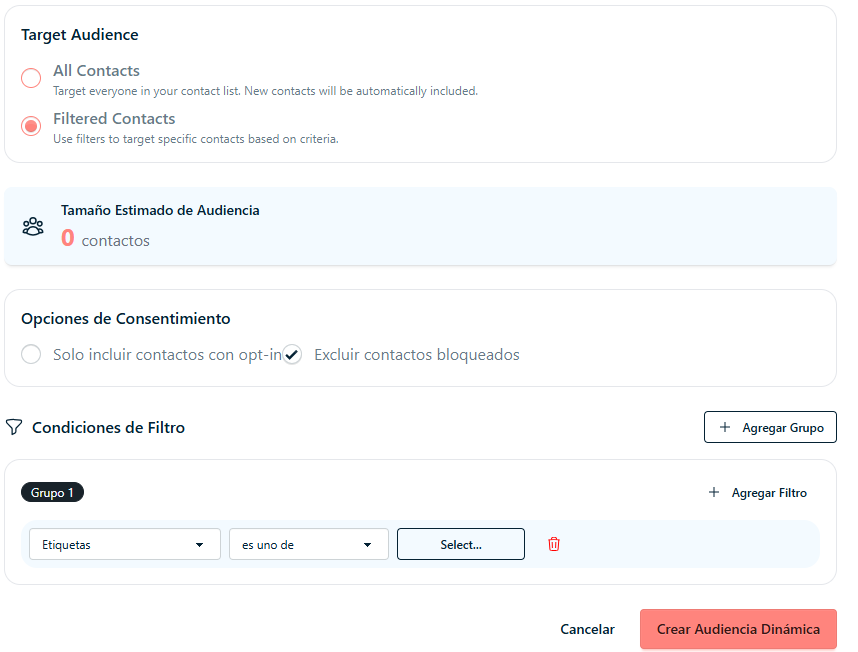
Target Audience:
All contacts (includes new ones automatically)
Filtered contacts (uses filters by specific criteria)
Consent Options: Only include contacts with opt-in or exclude blocked ones
Step 6-7: If you select "Filtered contacts", build the filter.
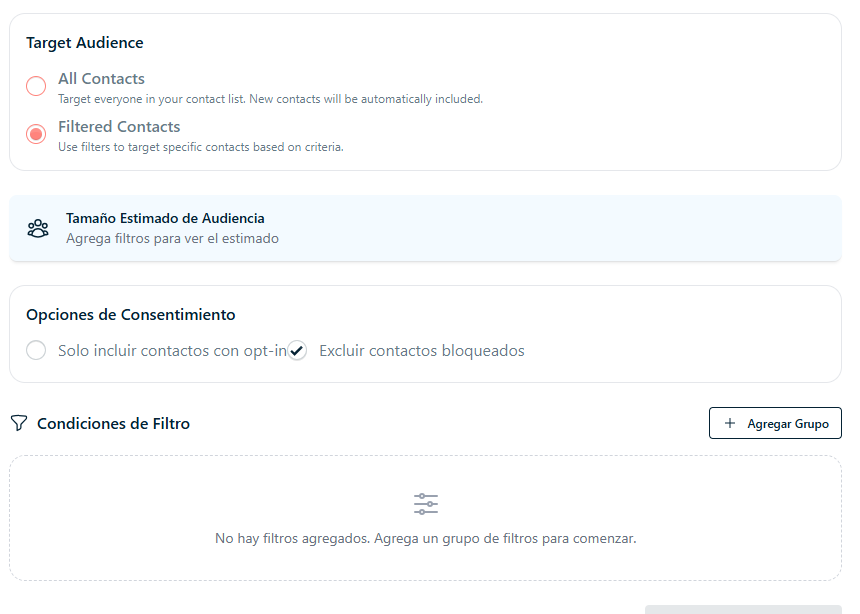
Step 8: Click "+Add group".
Step 9: Select the tag that matches the group of people you want to include.
Step 10: Click "Create Dynamic Audience" to finish.