
Help center
How to create a campaign from TBit | TBit
Step-by-step guide to create and send campaigns from the TBit platform. Quick send or scheduled campaigns for your customers.

How to create a campaign from the TBit platform
TBit is designed to offer an intuitive and accessible experience, especially for entrepreneurs and business owners who don't necessarily have advanced technical knowledge.
Path: Side menu → Communication → Campaigns
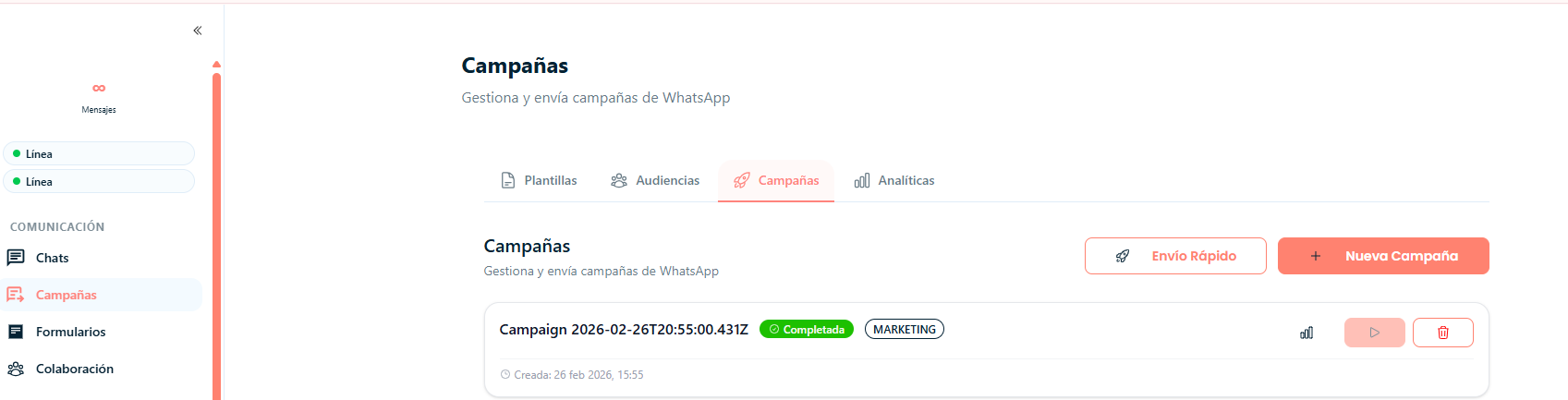
Select campaign type
Step 2: In the Campaigns option you'll see two options:
Quick Send: To send a template quickly to a group of people (no more than 200, no less than 75)
+ New Campaign: For a more structured campaign with the option to schedule the send
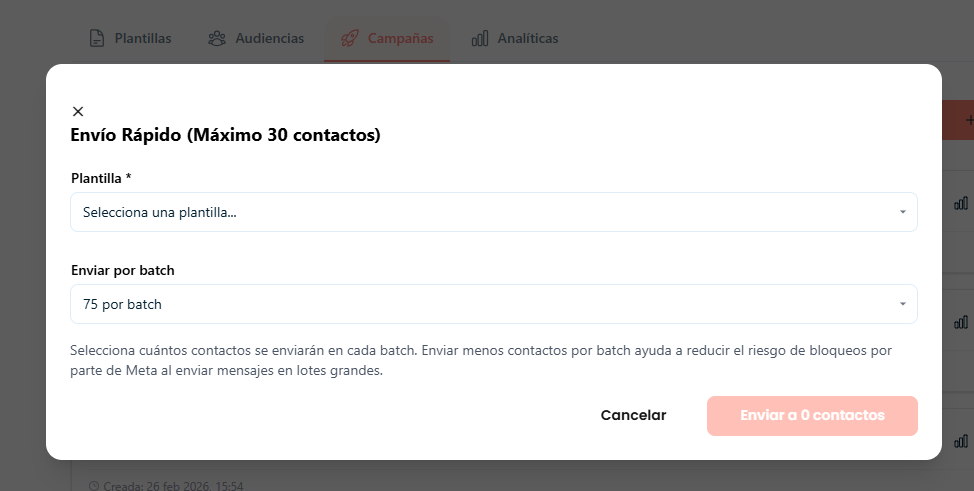
Quick Send
Step 3: Select the "Quick send" option.
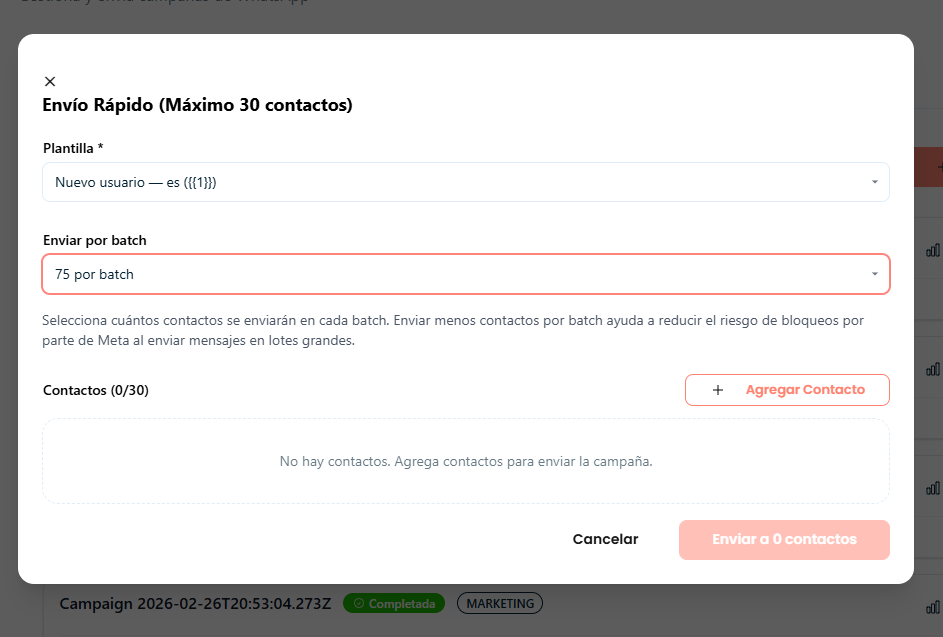
Step 4: Select the template you want to share and the batch number (how many people you'll send this campaign to).
Step 5: You'll have the option to enter the contacts you want to reach.
Step 6: Click "Add Contact" to enter the phone number and contact name.
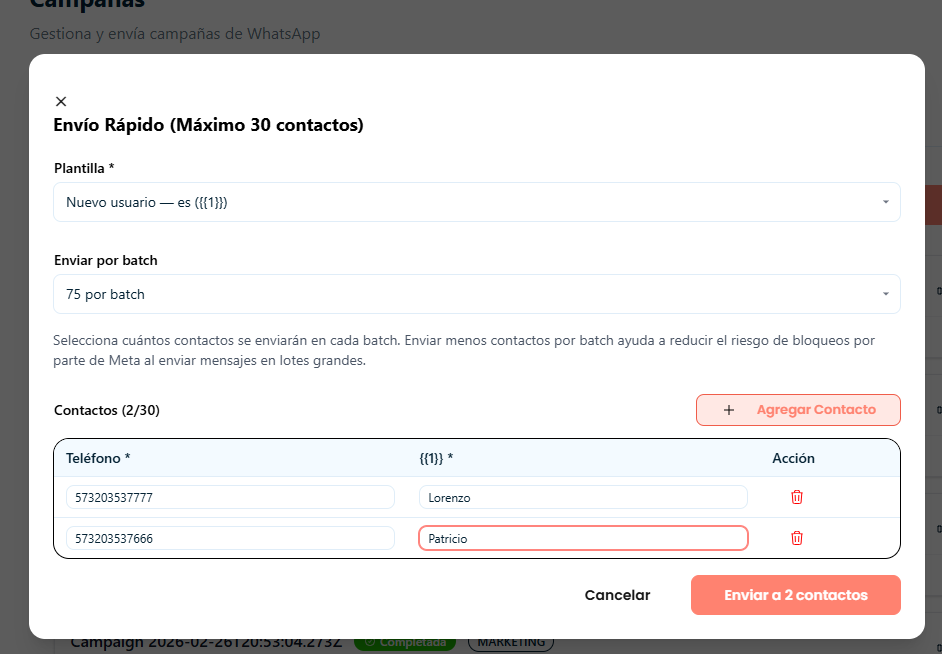
Step 7: You can enter the number of contacts according to the batch you selected.
Step 8: Once you've finished entering them, click "Send to X contacts".
Confirmation
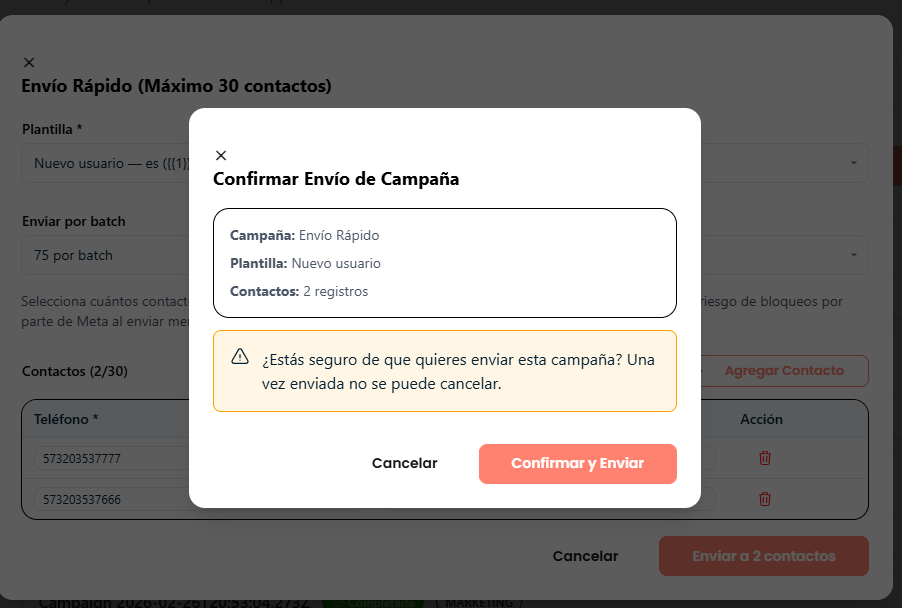
Step 9: A confirmation window will open where you can review:
The campaign type
The selected template
The number of numbers it will be sent to
If everything is correct, click "Confirm and send". If you need adjustments, select "Cancel".
Step 10: Wait until the confirmation message appears indicating the process was completed successfully.
