
Help center
How to create campaign templates in TBit | TBit
Step-by-step guide to create WhatsApp campaign templates in TBit. Set up messages with custom variables for promotions and reminders.

How to create and manage campaign templates
Campaign templates let you reuse message structures to send promotions, reminders or automatic flows without having to create them from scratch every time.
Create a template
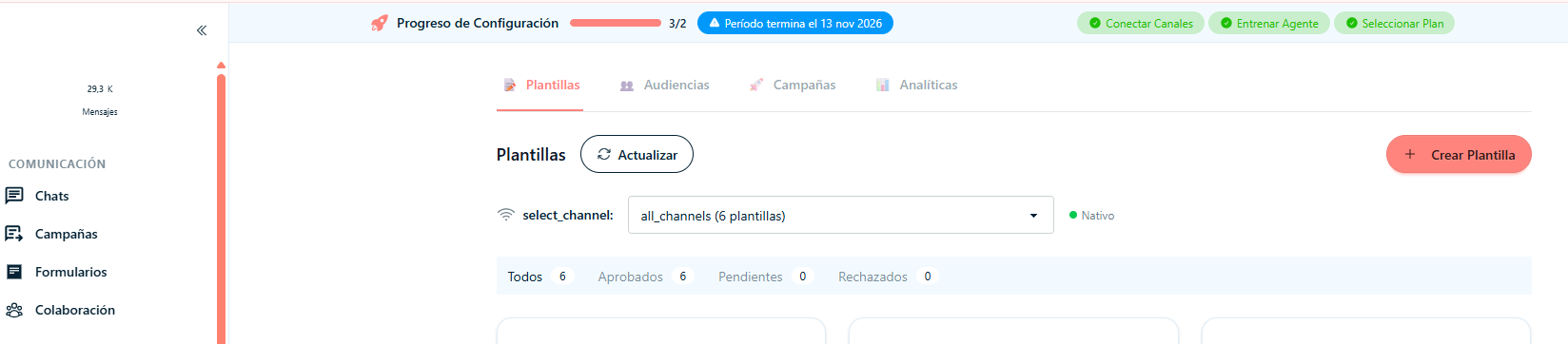
Step 1: In the main menu, click on "Campaigns".
Step 2: Click on the central part where it says "Templates".
Step 3: Click on the "Create template" button.
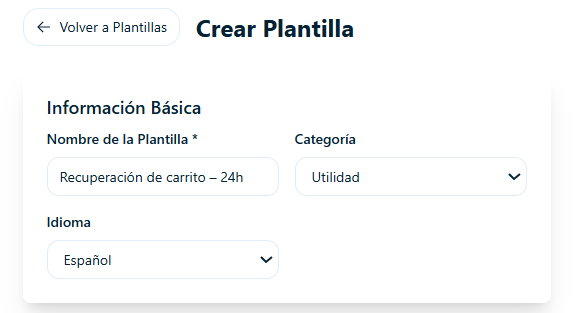
Basic Information
Step 4: Manage the basic information of the template:
Template Name: Example: "Cart recovery – 24h"
Category: Utility, Marketing or Authentication (depends on the requirement)
Language: Spanish / English
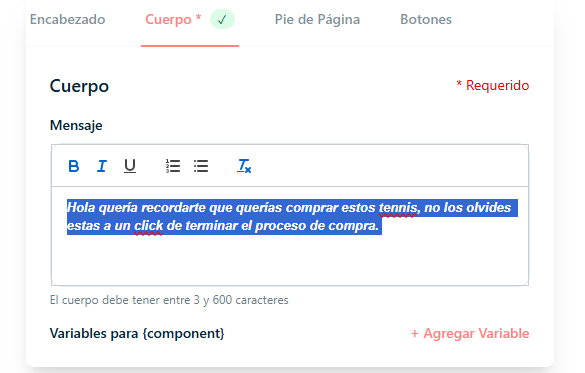
Message body
Step 5: Type the text you want to communicate. You can use formatting: Bold, Italic or numbered list.
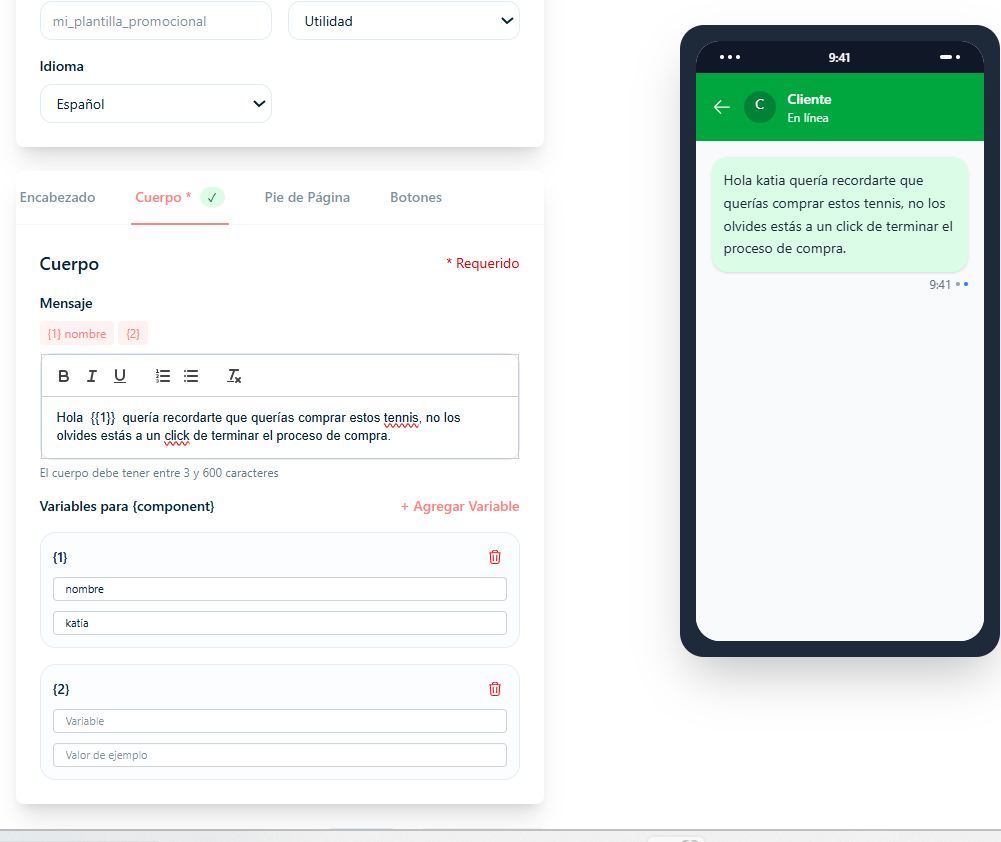
Custom variables
Step 6: Click on "Add Variable" to personalize the template with names, links or other data.
Step 7: In the "Variable" field, name the variable (e.g.: "Name").
Step 8: In "Example value", write an example (e.g.: "Andres", "Katia").
Step 9: To place the variable in the text, put {{1}} where you want it to appear.
Step 10: To create another variable, click on "+Add variable" and repeat the steps.
Step 11: To finish, click on "Create Template".
Note: Meta is in charge of approving each template. It must go through a review period of about 24 hours. Once approved, you can send it to your desired audience.