
Help center
Finish your website and publish it today
You already saved your website in TBit. Here's how you log in, add your photos, your products and your texts with TBit, publish it for free and share it with your customers.

You already saved your website in your TBit account. What's next is filling it with your photos, your products and your words, testing it the way a customer would use it and publishing it. Publishing is free at a TBit address, so today you can send the link to your customers.
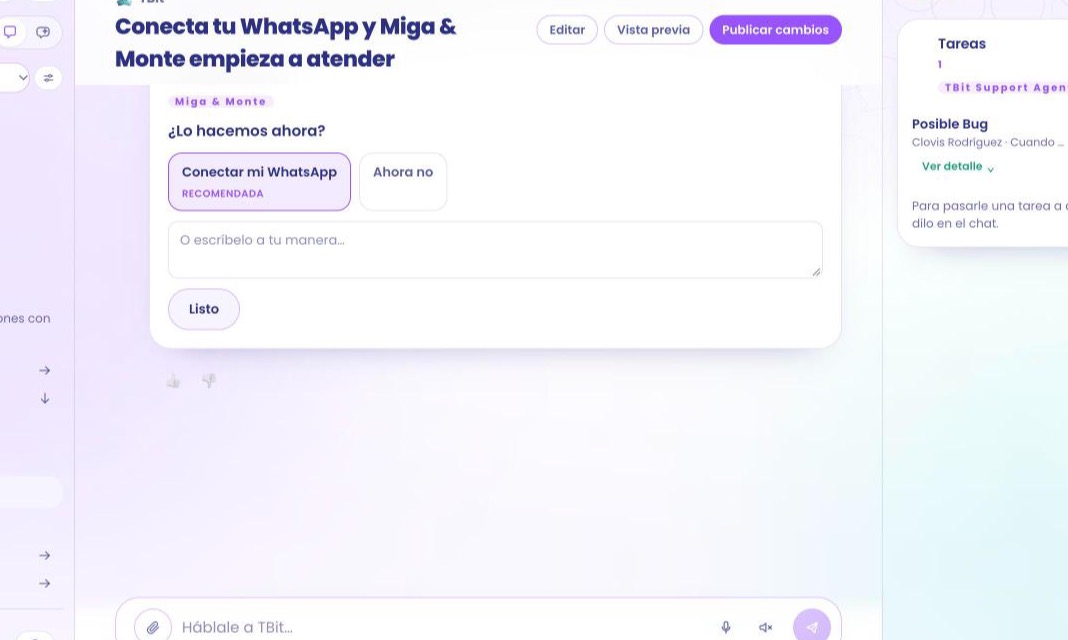
Connecting your WhatsApp or your Instagram can wait until your website is ready. First, your website.
1. Log in to your TBit
On your computer, open platform.tbit.app in Chrome, Edge or Safari.
Enter the email you used to save your site and tap Send magic link.
Open the email you receive and tap the link. It expires in 15 minutes and works only once: if it expired, request another one.
If you created your account with Google or with a password, log in as usual.
2. Open your site editor
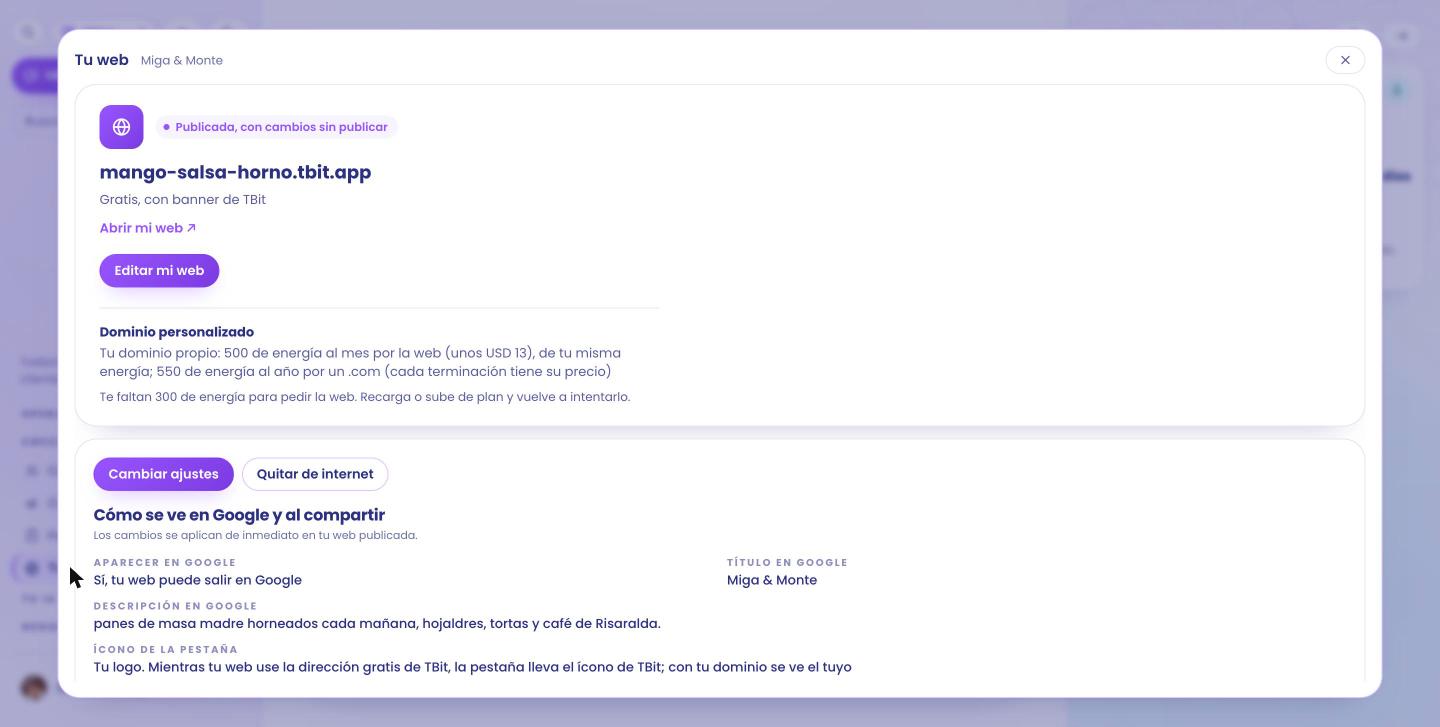
In the left menu, open Grow and tap Your site.
There you see your site: its address, whether it's already published, the link to open it and, below, how it looks on Google and when shared. Tap Edit my site.
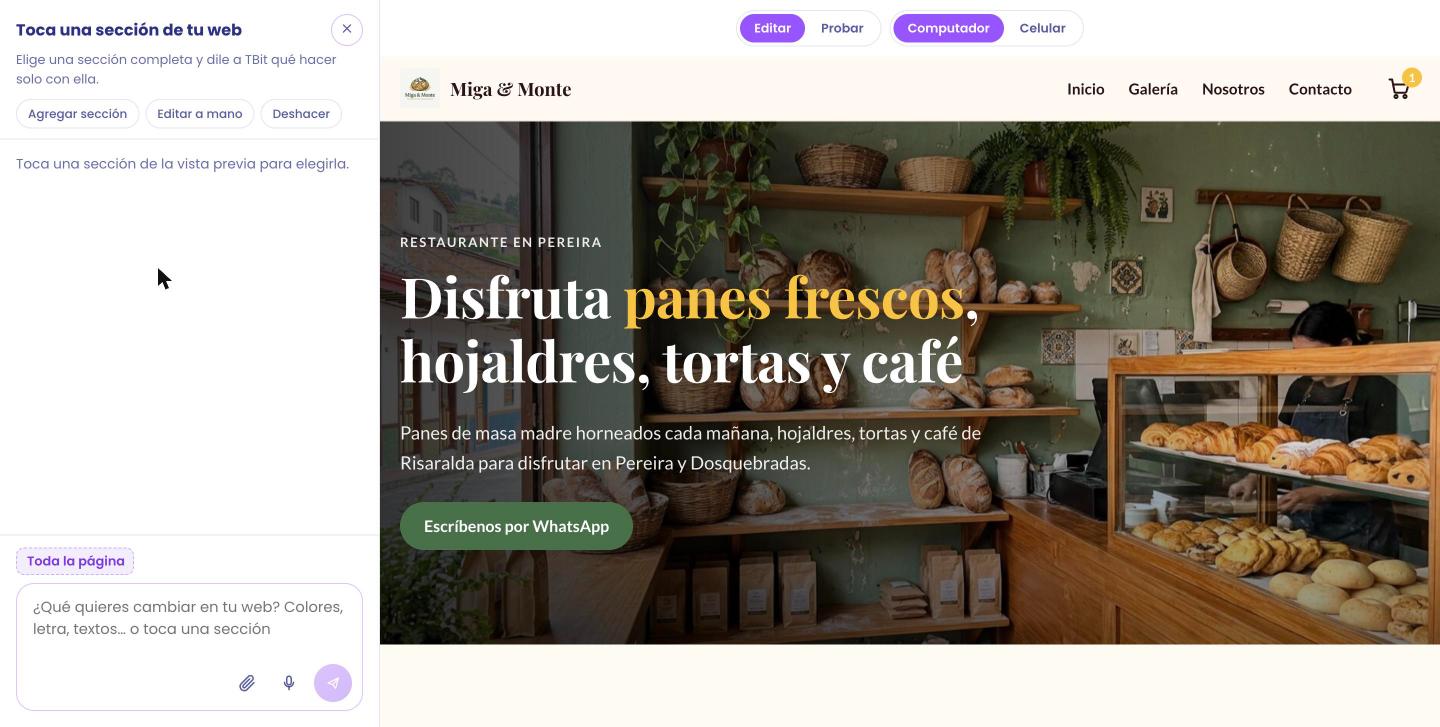
Your site opens large and, on the left, the conversation with TBit: Tap a section of your site. At the top you choose what clicks do: in Edit, each click selects a section to change it; in Test, your site works as your customers see it. You can also see how it looks on Computer or Phone.
3. Ask TBit for the changes
With Edit on, tap the section you want to change. It gets marked with a border and its name appears above the text box.
If the change includes photos, drag them from your computer onto the conversation or tap the clip. You can send several at once.
Write what you want, in your own words, like you'd tell someone helping you, and send it.
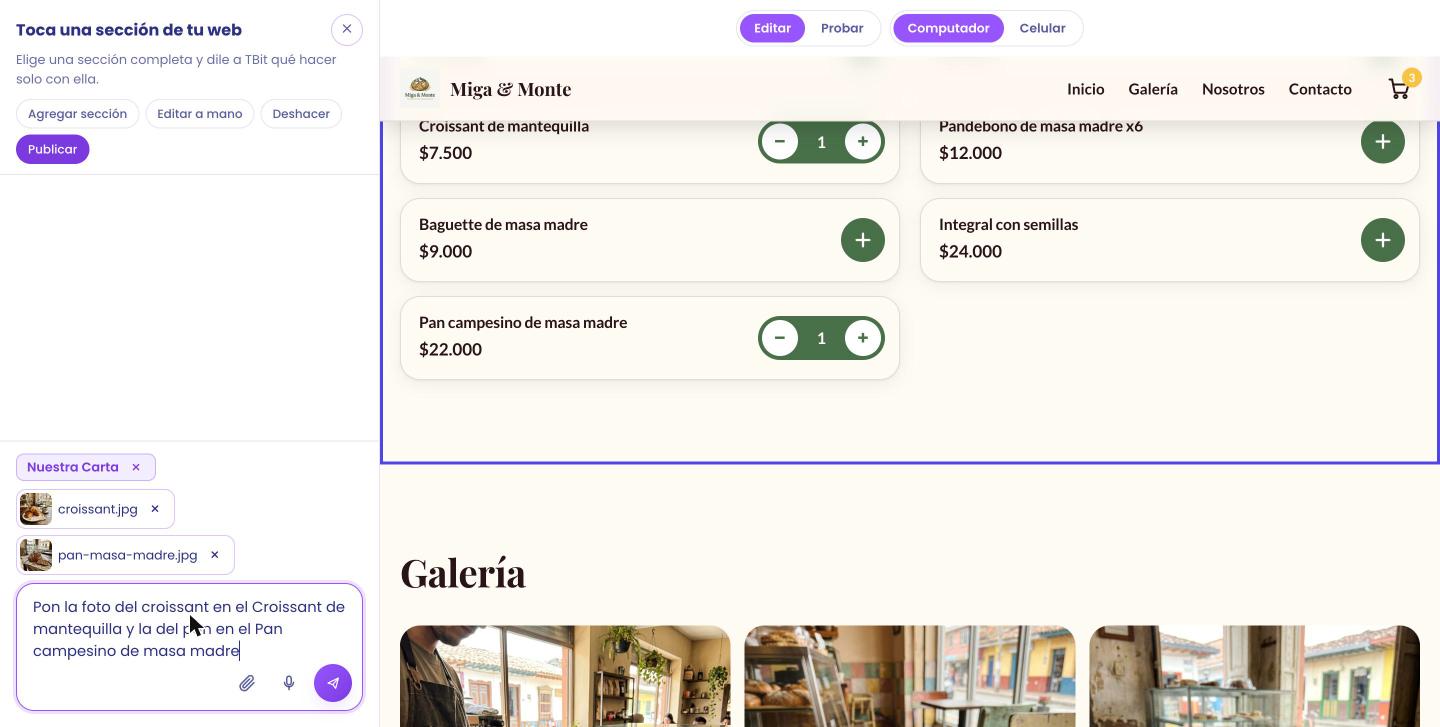
Changes to texts, colors or sections show up immediately in the preview. What touches your catalog, like a product's photo or price, TBit first proposes it to you in a card: review it and press and hold the button to save it.
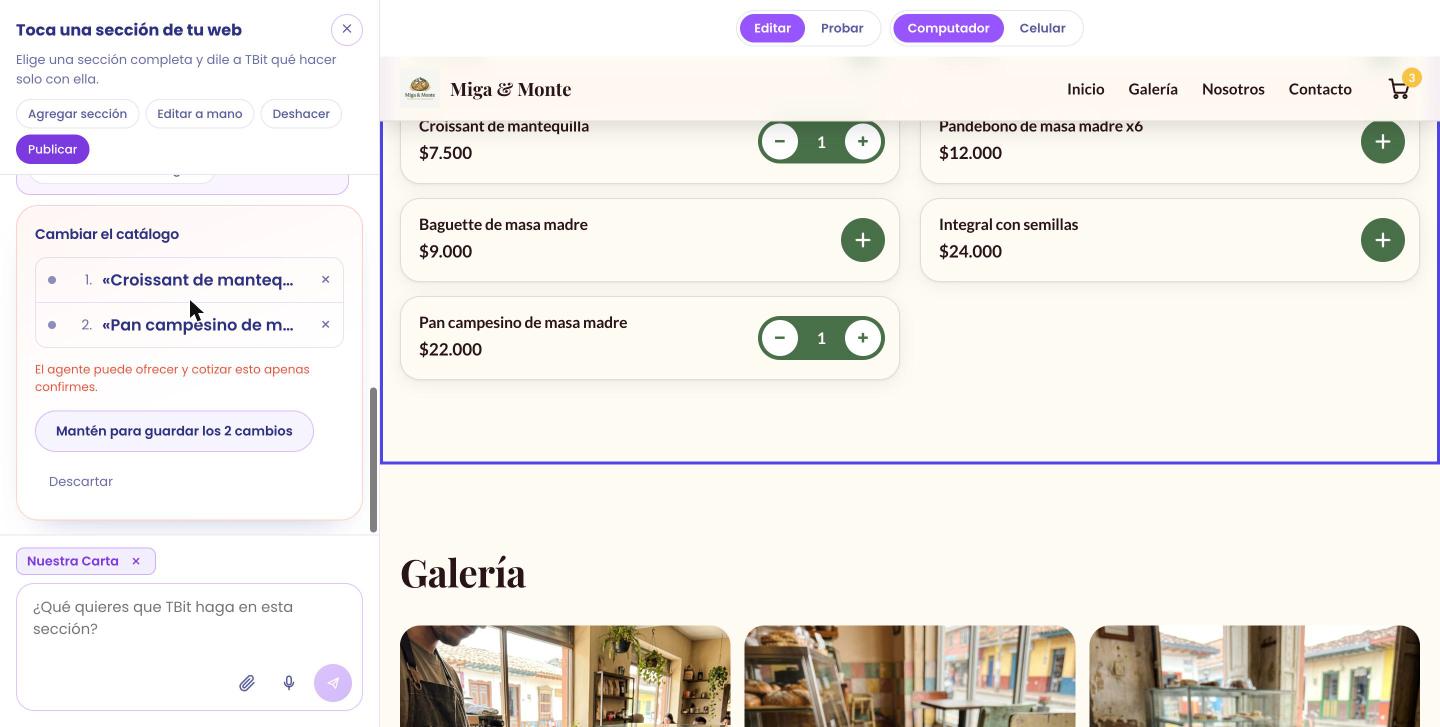
Product photos can take a few minutes to appear in the preview. This is how the menu turned out with the two photos:
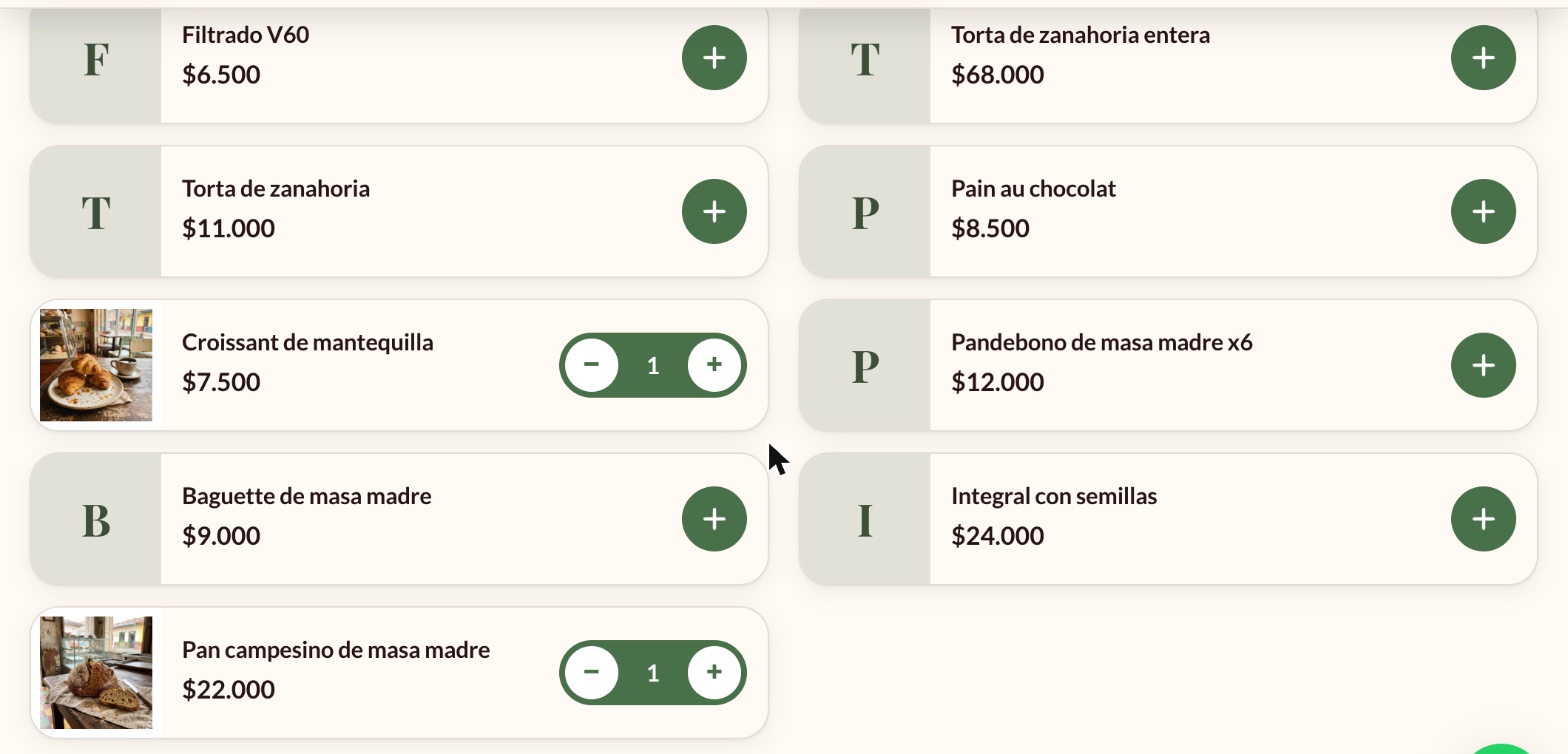
This order works well:
Your photos. Swap the sample photos for photos of your business and your products.
Your logo. Send it as an image and tell it to add it.
What you sell, with prices. If you have a menu or a price list, send it a photo: TBit turns it into products for your catalog and suggests them so you can confirm them. If you have them in Excel, upload them in Catalog with Import Excel.
Your texts. What you do, who for and where you are. Change whatever doesn't sound like you.
Your WhatsApp on the buttons. The order and message buttons open a conversation with you on WhatsApp. You don't need to connect anything for that: your number just needs to be on the site.
If you're not sure what to do next, ask TBit what does my site need to be published? and it tells you what's missing and what would improve it. Something didn't turn out how you wanted? Tap Undo.
4. Try a purchase like you were your customer
At the top, switch to Test. Now clicks work like they do for your customers.
Add products with the + and open the cart, top right.
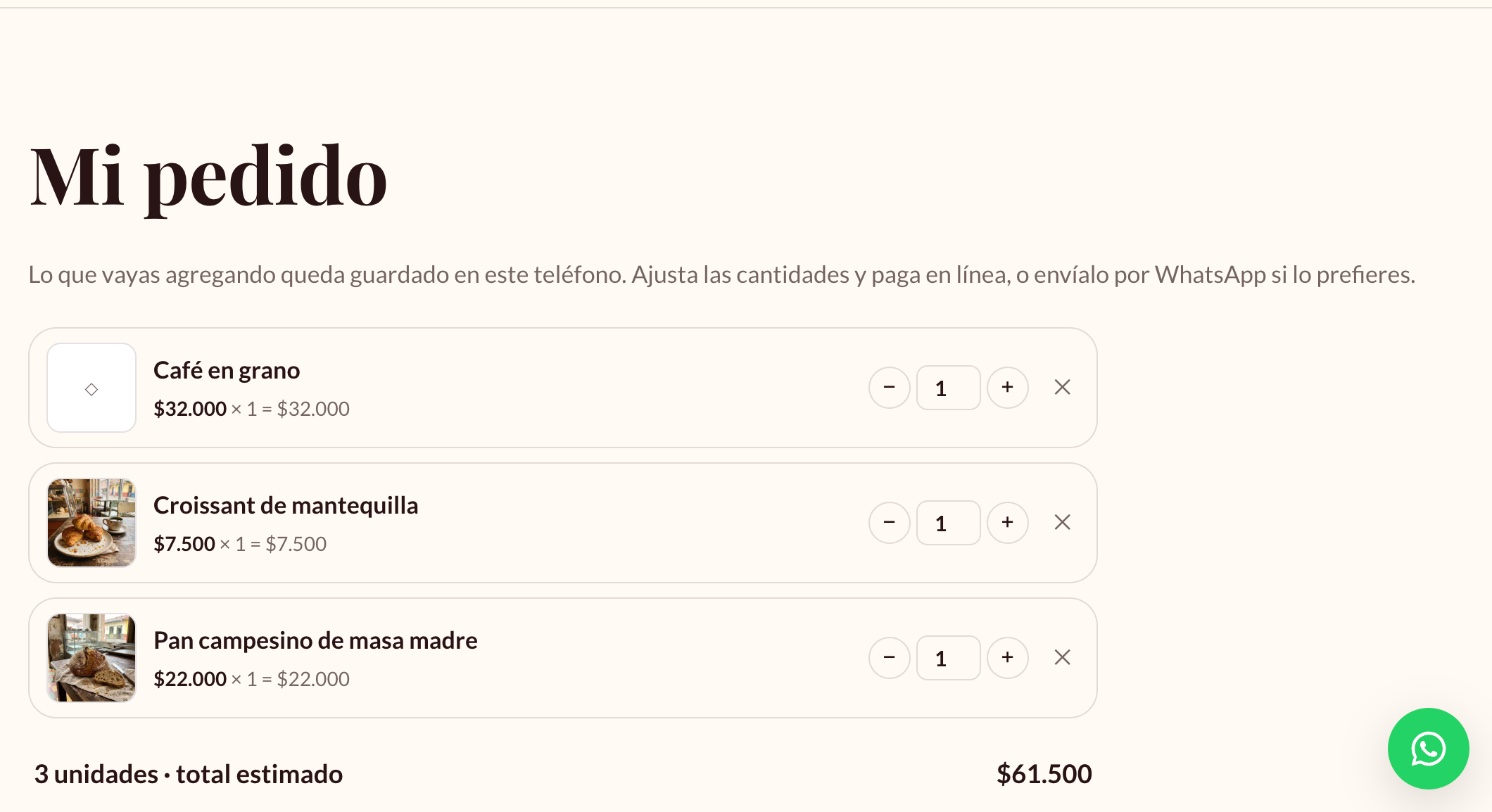
Check My order: quantities, photos and total.
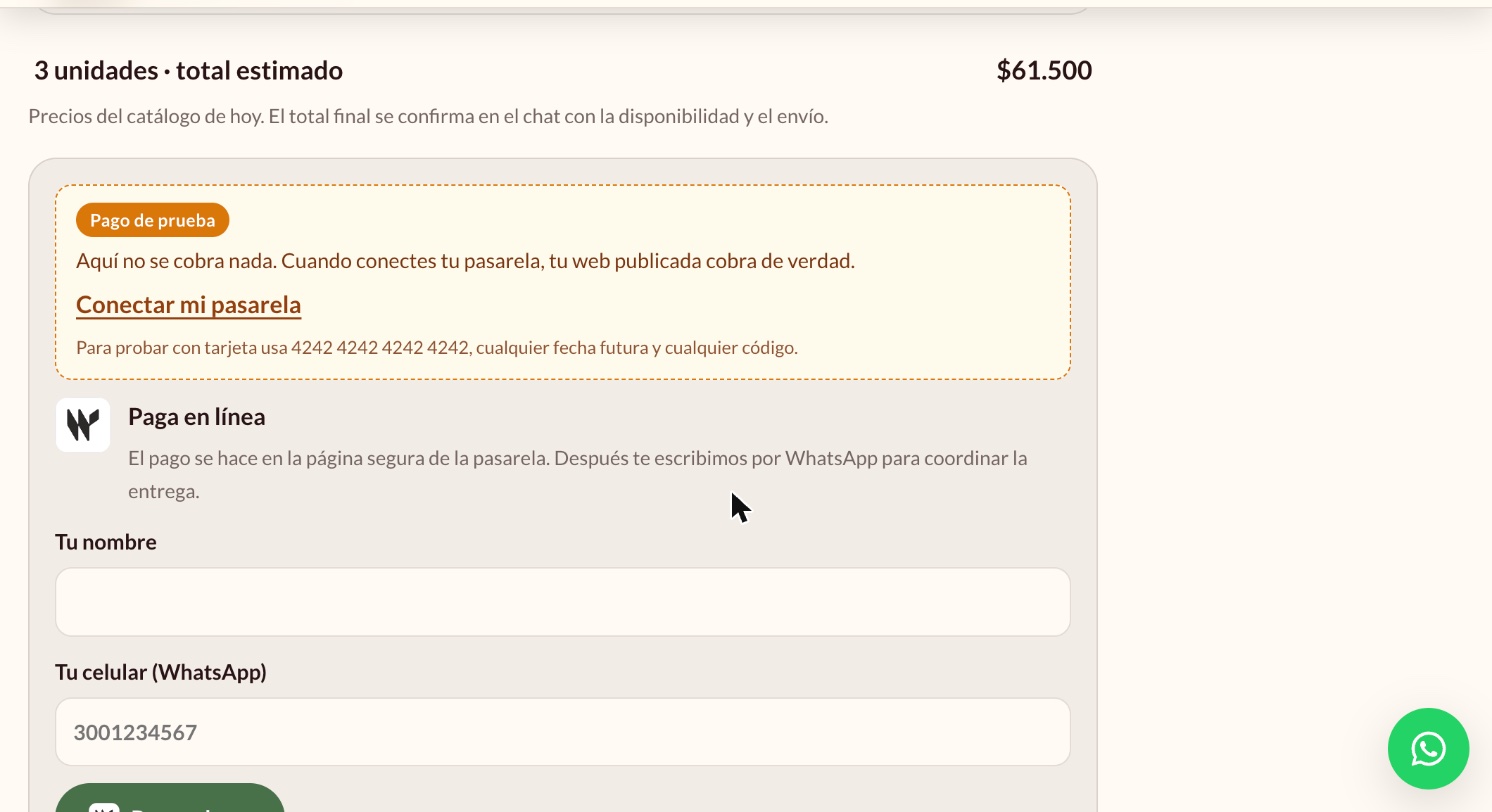
Further down is the payment. In the preview it's a test payment: nothing is charged, and to try it with a card you use 4242 4242 4242 4242, any future date and any code. If you haven't connected a payment gateway yet, your customers order from you on WhatsApp with the details of what they chose.
5. Publish it for free
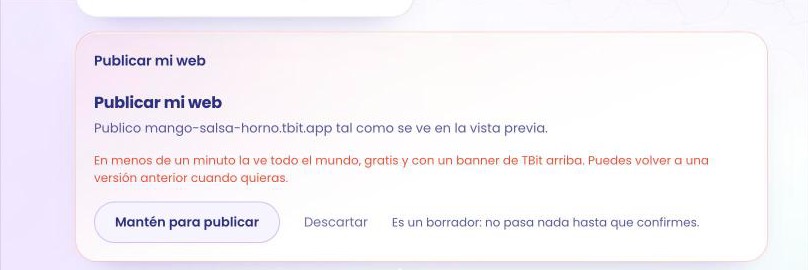
When you like how it looks, tap Publish in the editor. TBit shows you what it's going to publish and asks you to confirm: hold down Hold to publish. Your site goes live on the internet at a TBit address, something like yourbusiness.tbit.app, with the TBit notice at the top. Publishing there is free.
Before publishing, check in Your site › Change settings the Google title, the Google description and the Sharing image, which is the one that shows when you send the link on WhatsApp or social media.
Whatever you change afterwards stays in the draft until you publish again. That way you can try things without your customers seeing anything half done.
6. Share it
Put the link in your WhatsApp status and in your Instagram bio, and send it to the customers you already have. When someone places an order from your site, it reaches your WhatsApp with the details of what they ordered.
If you want them to pay you on the site itself, connect a payment gateway: Wompi if you sell in Colombian pesos or Mercado Pago if you sell in another currency. It's optional: without a gateway, you arrange payment on WhatsApp.
When you want your own domain
Your website can live on your own domain, like tunegocio.com, and without the TBit notice. That uses 500 energy per month, plus the domain once a year depending on its ending; you can see today's price in Your website, under Custom domain. The details are in how much energy it uses.
And then, let your TBit take care of it
With your website published, the next step is to connect your WhatsApp or your Instagram so TBit replies to your customers at any time, with what it already knows about your business and your website.