
Help center
Team and collaborators in TBit
Invite your team to TBit, assign permissions by role and control which lines and conversations each person sees.

Define who handles what, with which permissions and at which hours. There are two types of profiles: team members (with access to the platform) and collaborators (who the AI schedules but who don't access the system).
Go to Settings → Business / Team.
Team members
Users with direct access: they log in, see chats, get notifications and step in when the AI transfers a case to them. You can invite as many people as you need: seats are unlimited and free on all plans. Click Invite member and choose the role:
ADMIN: full control (AI, prompt, metrics, billing, members).
EDITOR: edits flows, memories, catalog and tags; no access to billing or critical settings.
COLLABORATOR: only sees the chat, replies and manages assigned tags; can't change settings.
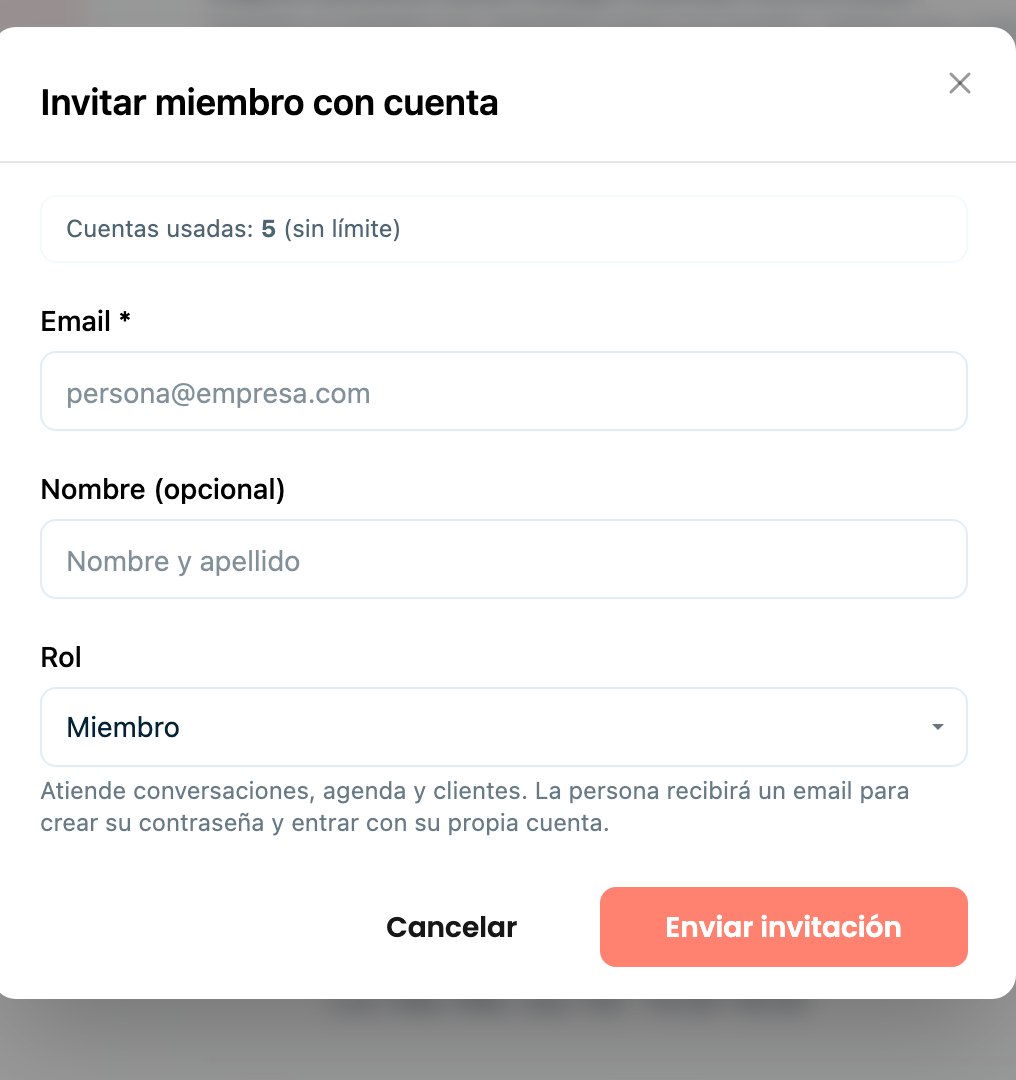
Invite member and assign their access role.
Visibility by line or location
If you have several WhatsApp lines in the same TBit (for example, two locations), from Business / Team you define which lines each person can see. That way, a location's team only sees its own conversations and not the other's, avoiding mix-ups between advisors working on commission. As administrator, you can see all lines and filter by each one.
Collaborators
A team member doesn't log in to the system: they're created so the AI can assign them appointments based on their availability. Define their profile (name, email to sync their calendar, bio), their status (active/inactive), the services they handle and their hours per day. When you save, the AI checks their availability in real time when a customer books.
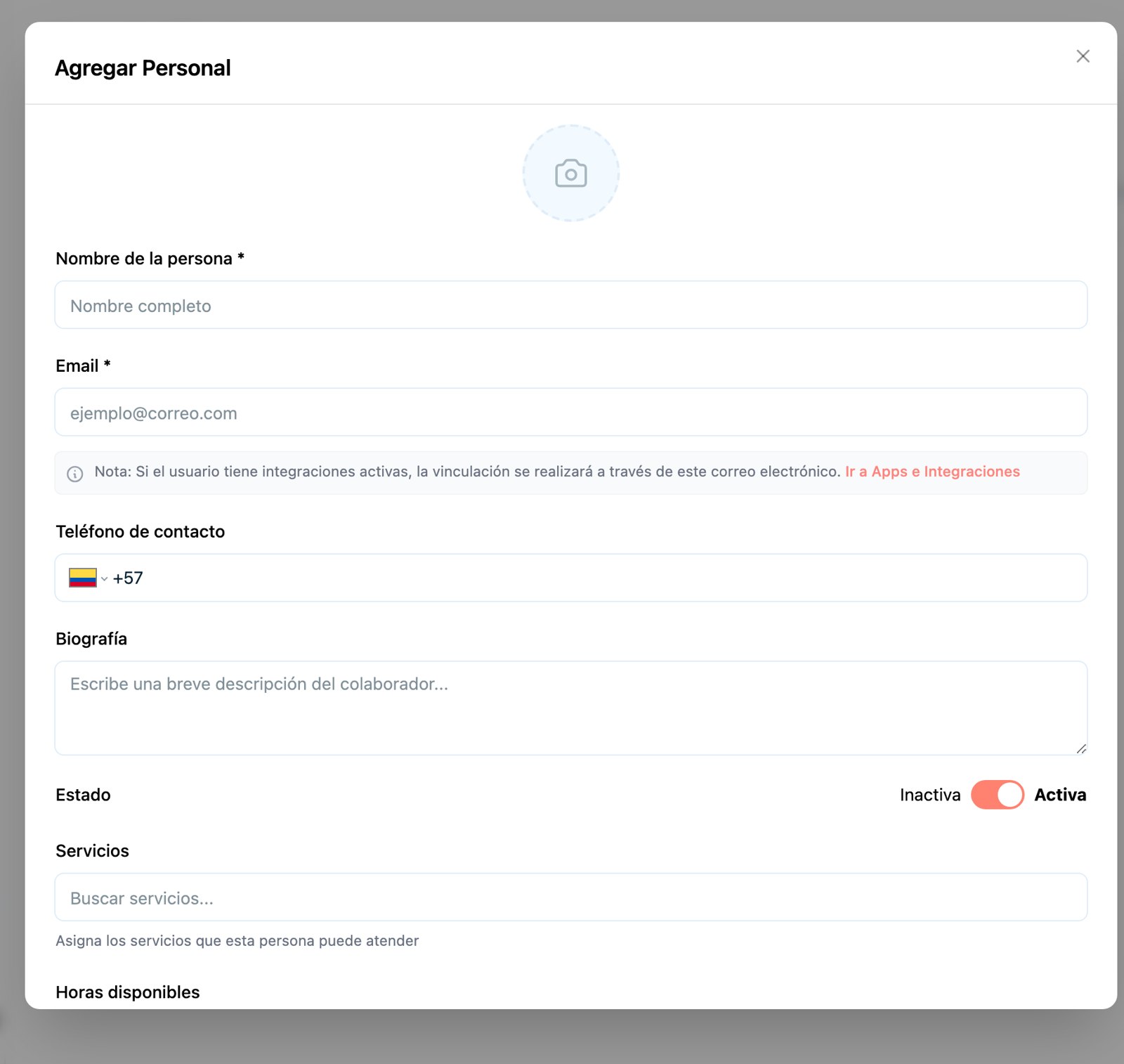
Team member card: profile, services they handle and hours.