
Help center
Pipeline and sales funnel in TBit
Build your funnel in TBit: stages, how deals move forward, and what the agent handles on its own while your team closes.

The Pipeline is your sales board: a visual funnel that shows what stage each prospect or customer is in, in real time. Cards move from left to right as they progress.

Watch the video: Tutorial: Pipelines — Sales Funnels in TBit
Choose the funnel type
Lead: to capture and qualify interested contacts before they buy.
Order: for e-commerce; sync orders and inventory (Shopify, Jumpseller) — abandoned cart, payment confirmed, shipment on the way.
Appointment: for businesses with a schedule (health, beauty, services) — appointment requested, confirmed, attended.
Custom: a blank canvas for unique flows.
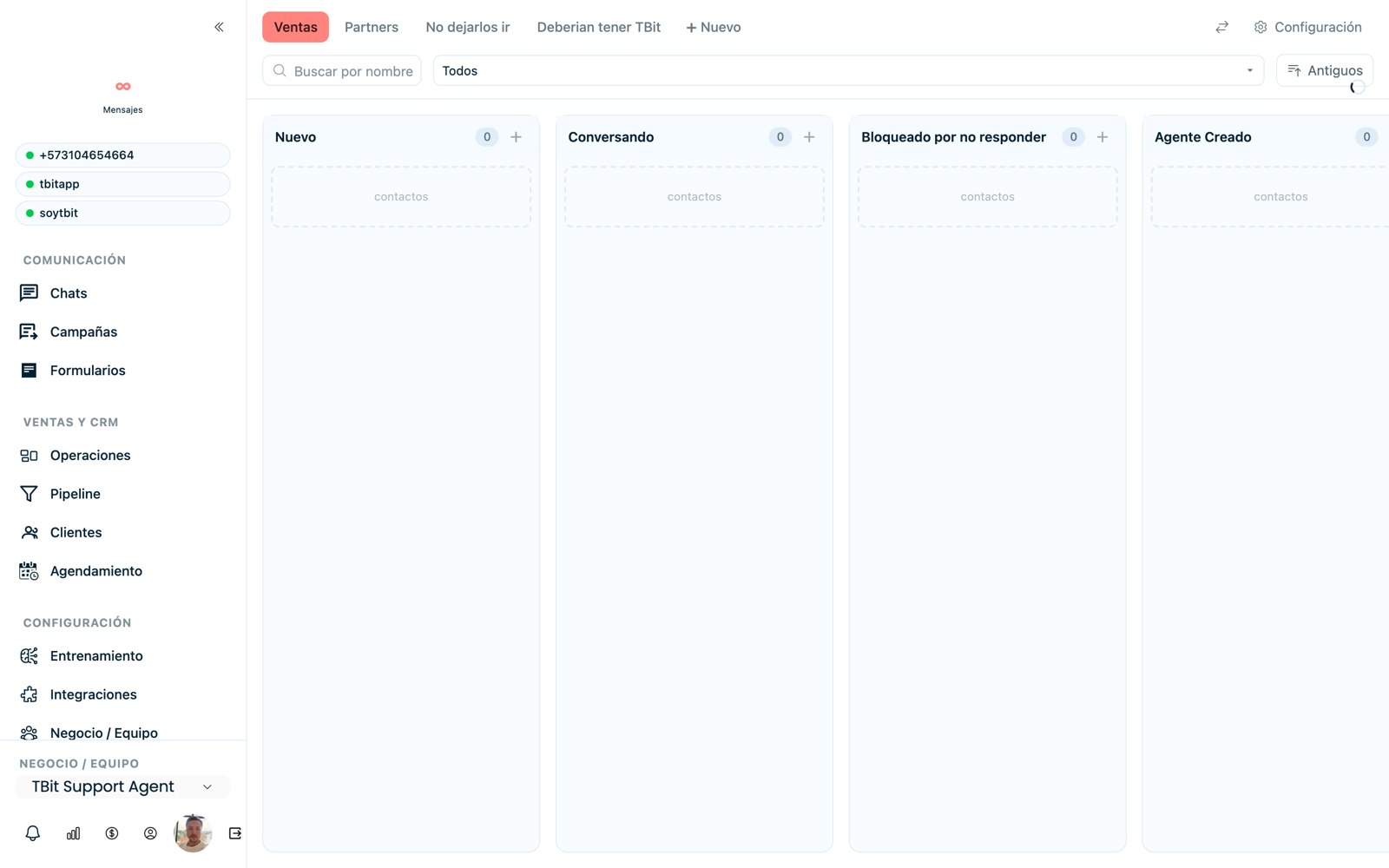
Visual pipeline board by stages.
Work each card
Each card is a contact. When you open it, you have everything you need to decide the next step without reading the whole chat:
Automatic summary: TBit summarizes what that person talked about, so you understand the case at a glance.
Notes for the team: leave internal instructions (e.g. “follow up next week”).
Assign an owner: put an advisor in charge; that person decides whether to write or let the AI continue.
Time-based color codes: a card turns red when it has been stuck in its stage longer than expected — your signal to act.
Deleting from the board doesn't erase the contact
If a lead is cold and just making noise, remove it from the board to clear your view. You don't lose it: it stays in Customers, and if they message you again they automatically re-enter the flow. The idea is to cut the noise so your team focuses on those who are actually ready to buy.
Set up each stage
When you configure a stage you control how contacts come in and what happens to them:
Time limit and cleanup: how long a contact can sit idle and when to archive inactive ones.
Automatic assignment: send each contact in this column to a specific advisor.
Entry triggers: Manual (drag & drop), When an event happens (e.g. a WhatsApp message arrives or they fill out a form), or by Time in stage (auto-advance).
Actions on entry: send a campaign, add a tag or alert the team, with an optional delay.
Closing stage: mark the final columns (sale or loss) so they feed your metrics.
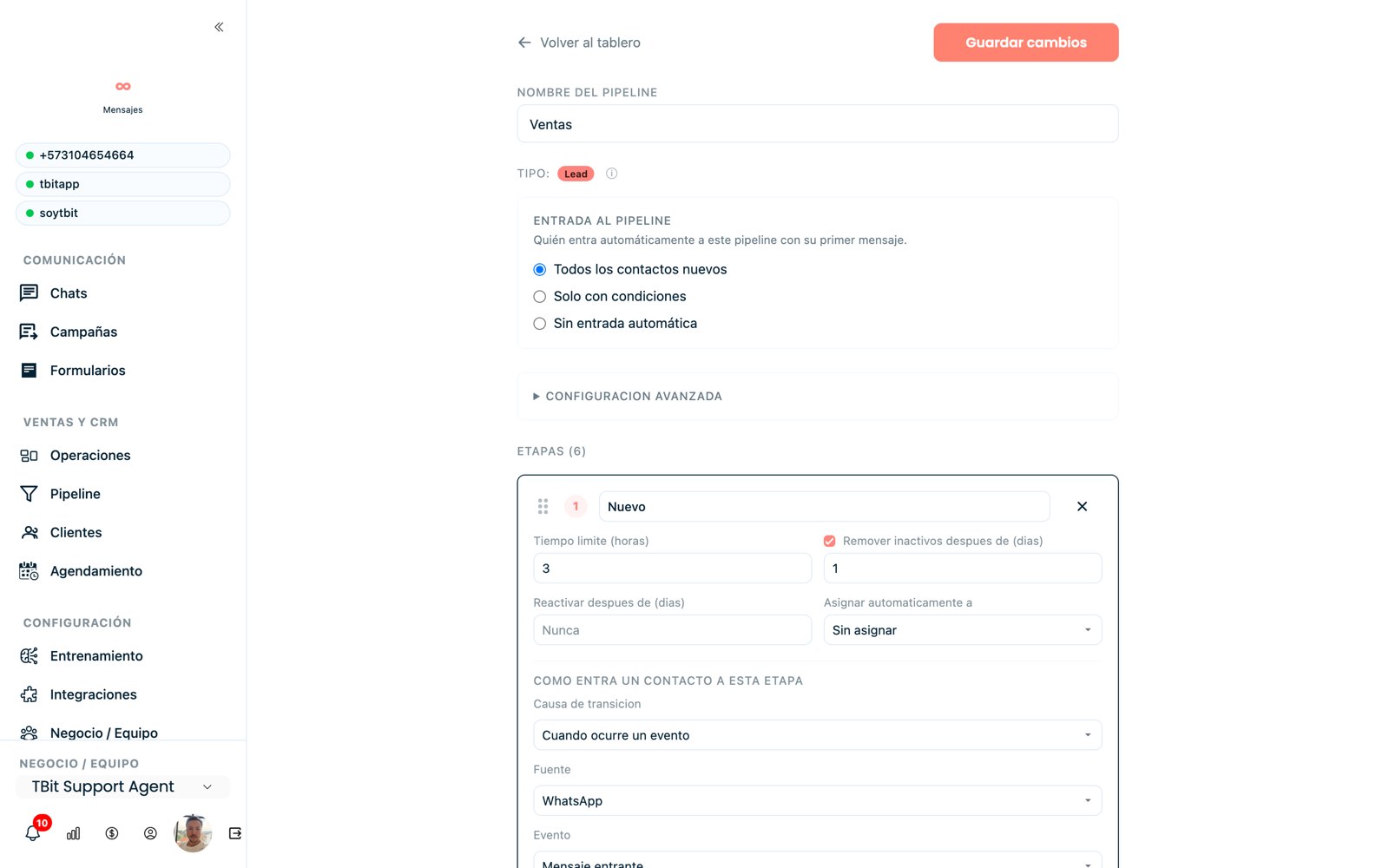
The pipeline editor: funnel type, automatic entry and configuration of each stage with its triggers.
Split conversations across your team
Instead of dragging each card by hand, let TBit assign conversations for you. Each advisor has their own pipeline (with the New and Chatting columns plus any you define), and new conversations land right on the responsible person's board:
Load balancing: the next conversation goes to the advisor with the fewest, spreading the work evenly.
Compound routing rules: combine conditions to decide where each contact goes. For example: “if they're new and come from an ad → sales team; if they're new but don't come from an ad → general inbox to review and redirect (support, accounting, etc.)”.
Clear ownership: each advisor becomes responsible for moving and cleaning up their pipeline (who booked, who went cold), instead of everything piling up in a single inbox.
Test mode and danger zone
Use Test mode to simulate the funnel with only your test numbers before launching it. Heads up: Delete pipeline is permanent and irreversible.