
Help center
How to connect ChatGPT to your TBit agent, step by step
Connect ChatGPT to your WhatsApp agent in TBit in two minutes: Add-ons, Create custom MCP server and your TBit account. With video and screenshots.

Ask ChatGPT about your TBit agent
When you connect ChatGPT to TBit, you ask the AI you already use about your agent: what it sells, how it handles conversations, how they're going and what questions it couldn't answer. You can also ask it to train it: it creates memories and suggests prompt improvements, which you approve in the app.
You set it up just once and it takes about two minutes. Here's the video and, below, each step with its screen.
Watch it in two minutes
What you need
ChatGPT Plus or Pro, or a ChatGPT for business (Business, Enterprise, Edu). You can't add your own servers on the free plan.
Your TBit account: the email and password you use to sign in to the platform.
ChatGPT on the web (chatgpt.com) or in the desktop app. Once connected, you can also use it from your phone.
Do you have to turn on developer mode?
In Plus and Pro, no. OpenAI removed that step: the Create custom MCP server option shows up directly in Plugins and ChatGPT installs the plugin in developer mode on its own. We checked it on a Plus account on October 5, 2026.
If the option doesn't show up for you, check this:
Free plan: it doesn't exist. You need Plus or Pro.
ChatGPT for business: the admin turns on developer mode in Workspace settings, Permissions and roles. Ask whoever manages ChatGPT at your company.
If your account still shows a "Developer mode" toggle in Settings, Security and login, turn it on and go back to Plugins.
Step 1: create the plugin
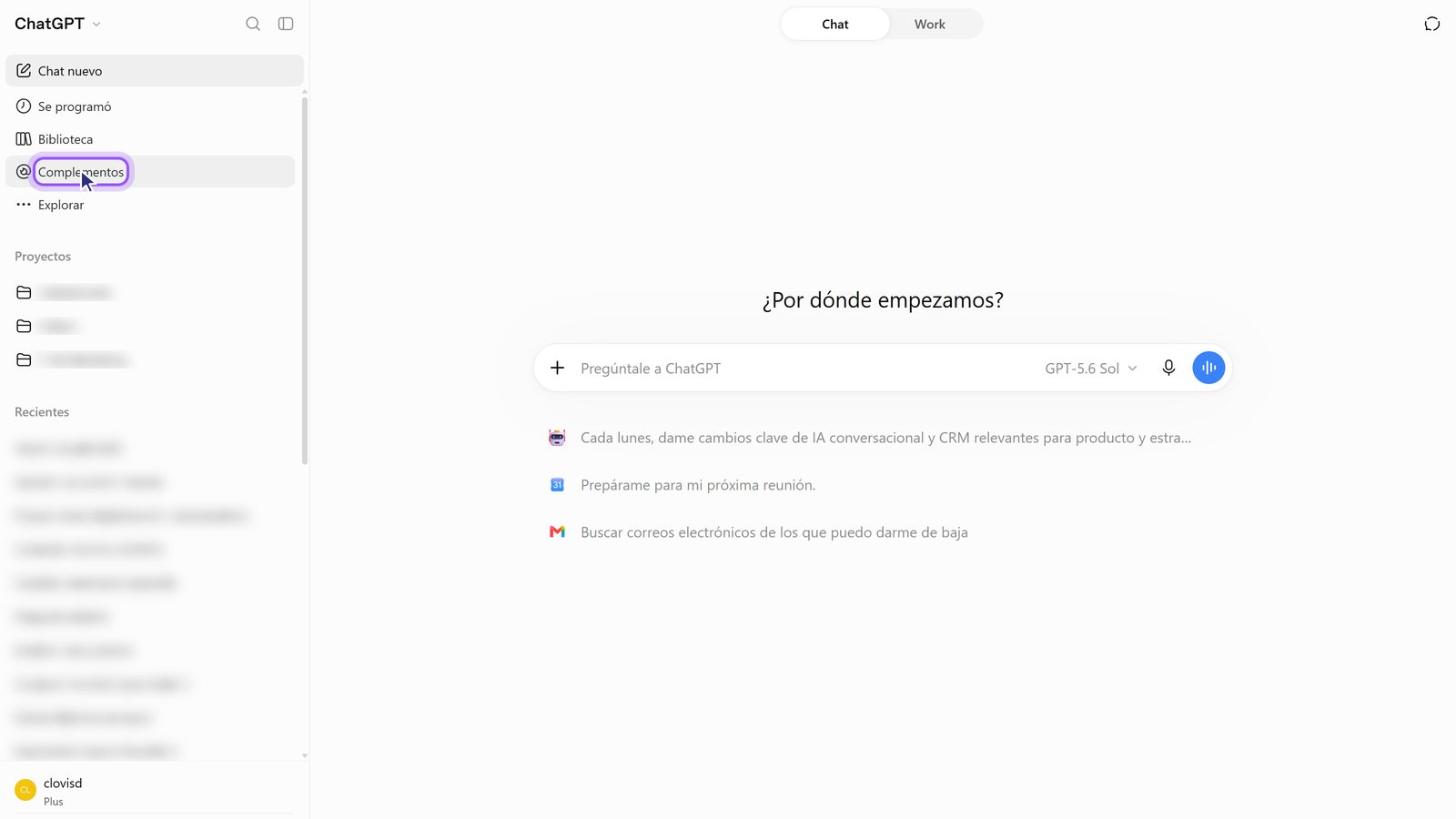
1. Open Plugins. It's in ChatGPT's left menu.
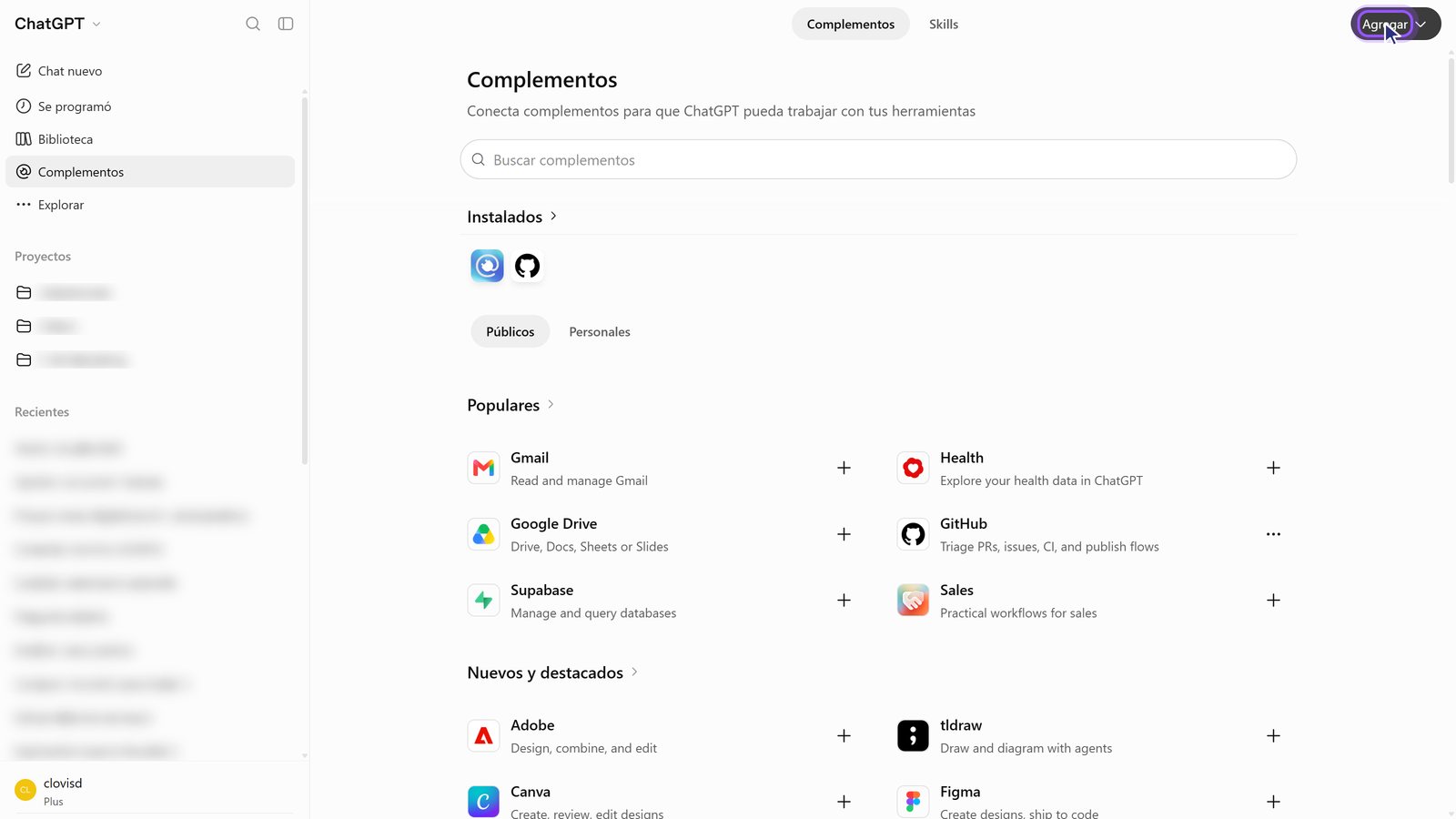
2. Tap Add. It's the black button, top right.
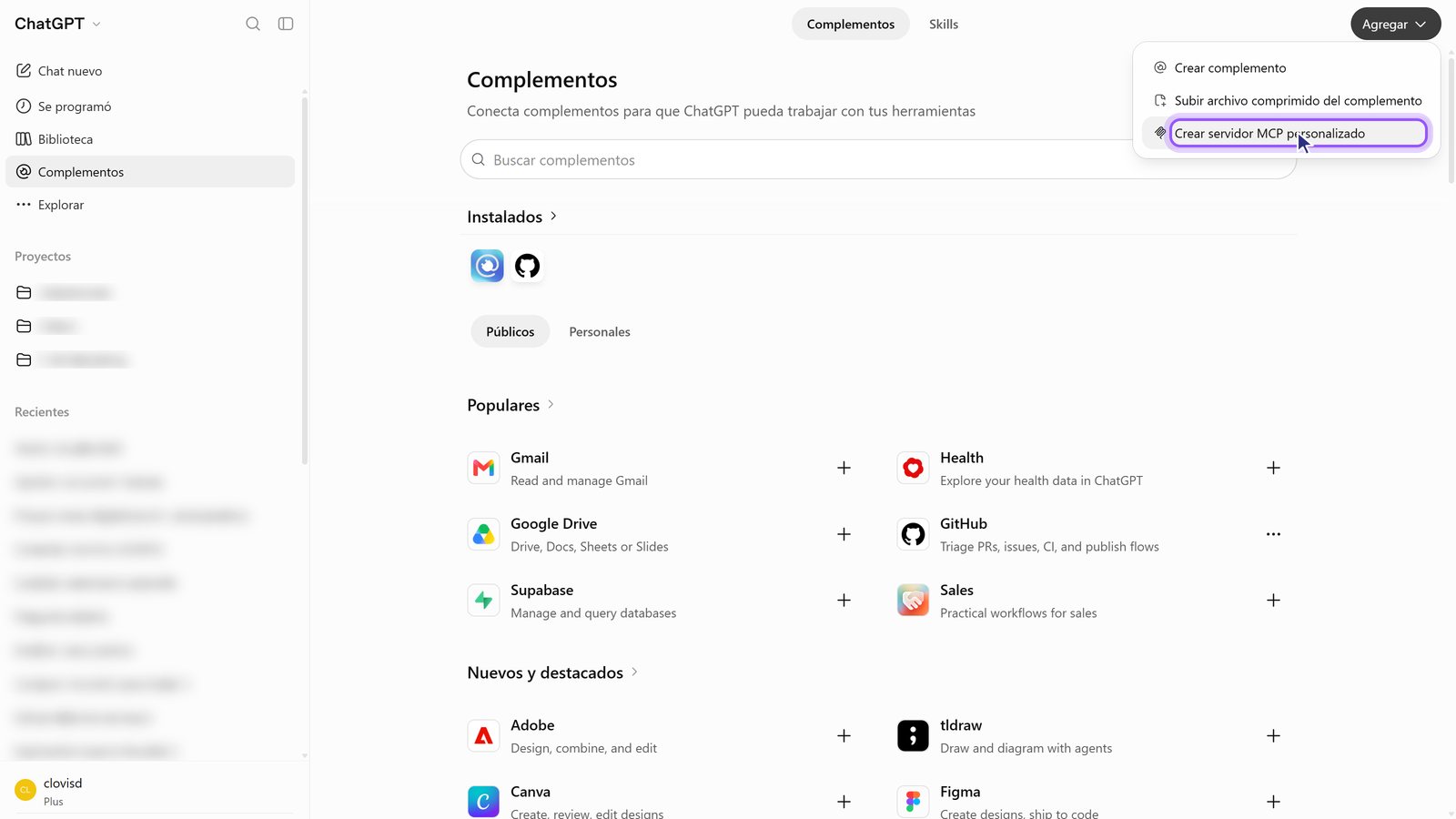
3. Choose "Create custom MCP server". It's the third option in the menu.
4. Fill in name and address. Name: whatever you want, for example "My TBit". Description: optional. Connection, Server URL: paste https://api.tbit.app/mcp.
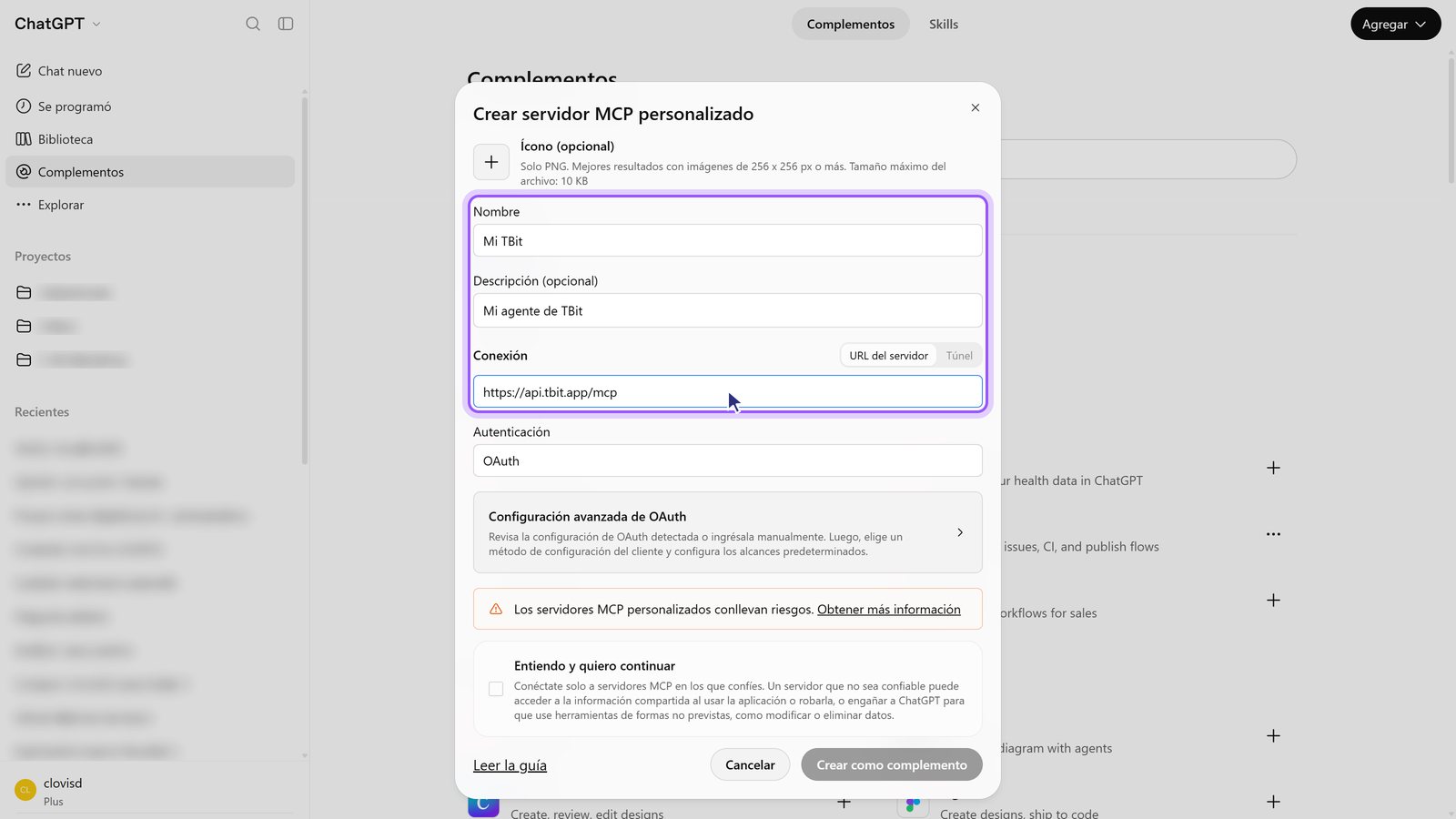
5. Leave authentication on OAuth. It's already set that way. Don't touch the advanced settings.
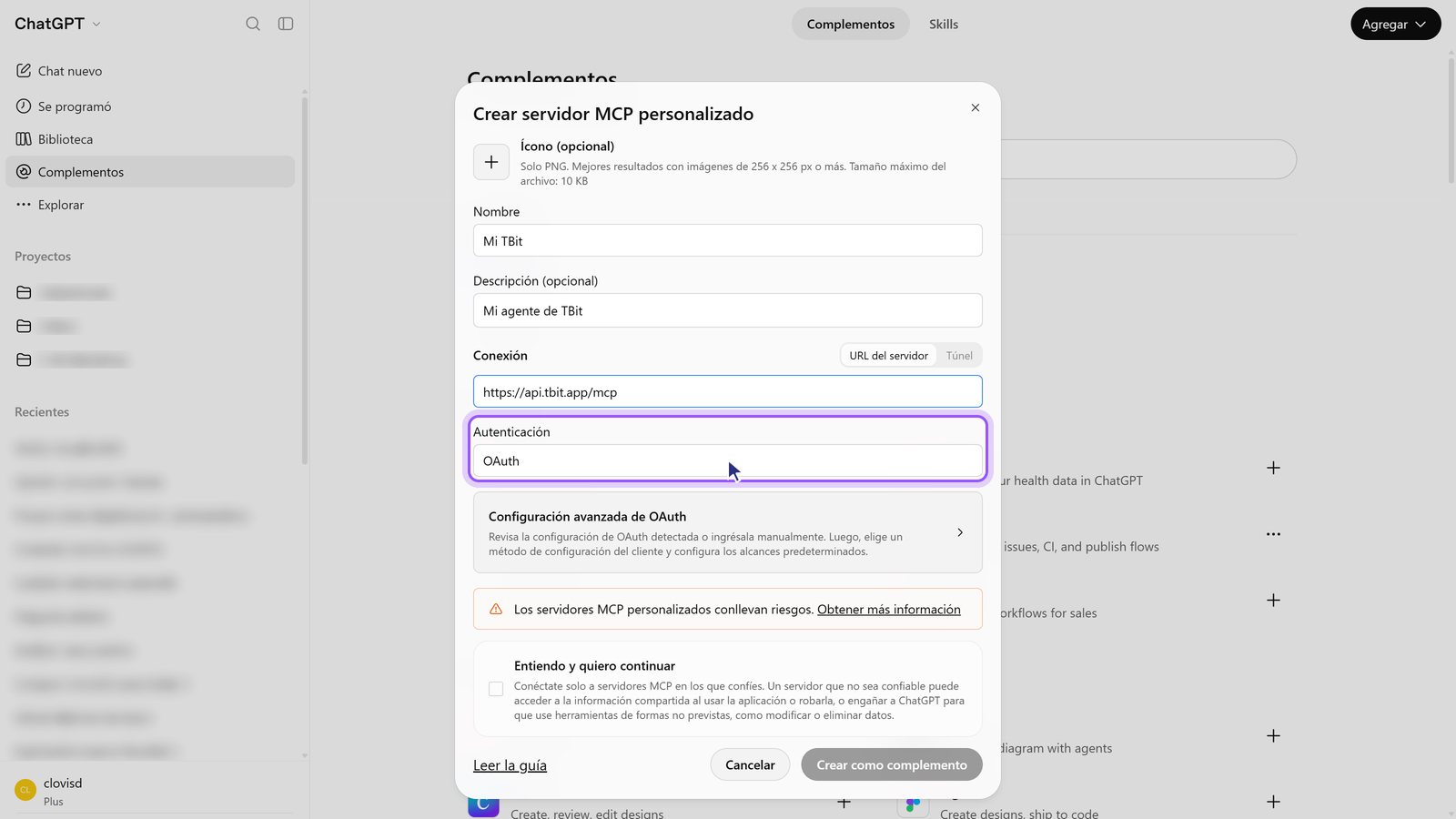
6. Check "I understand and want to continue". It's the notice ChatGPT shows for any server of your own.
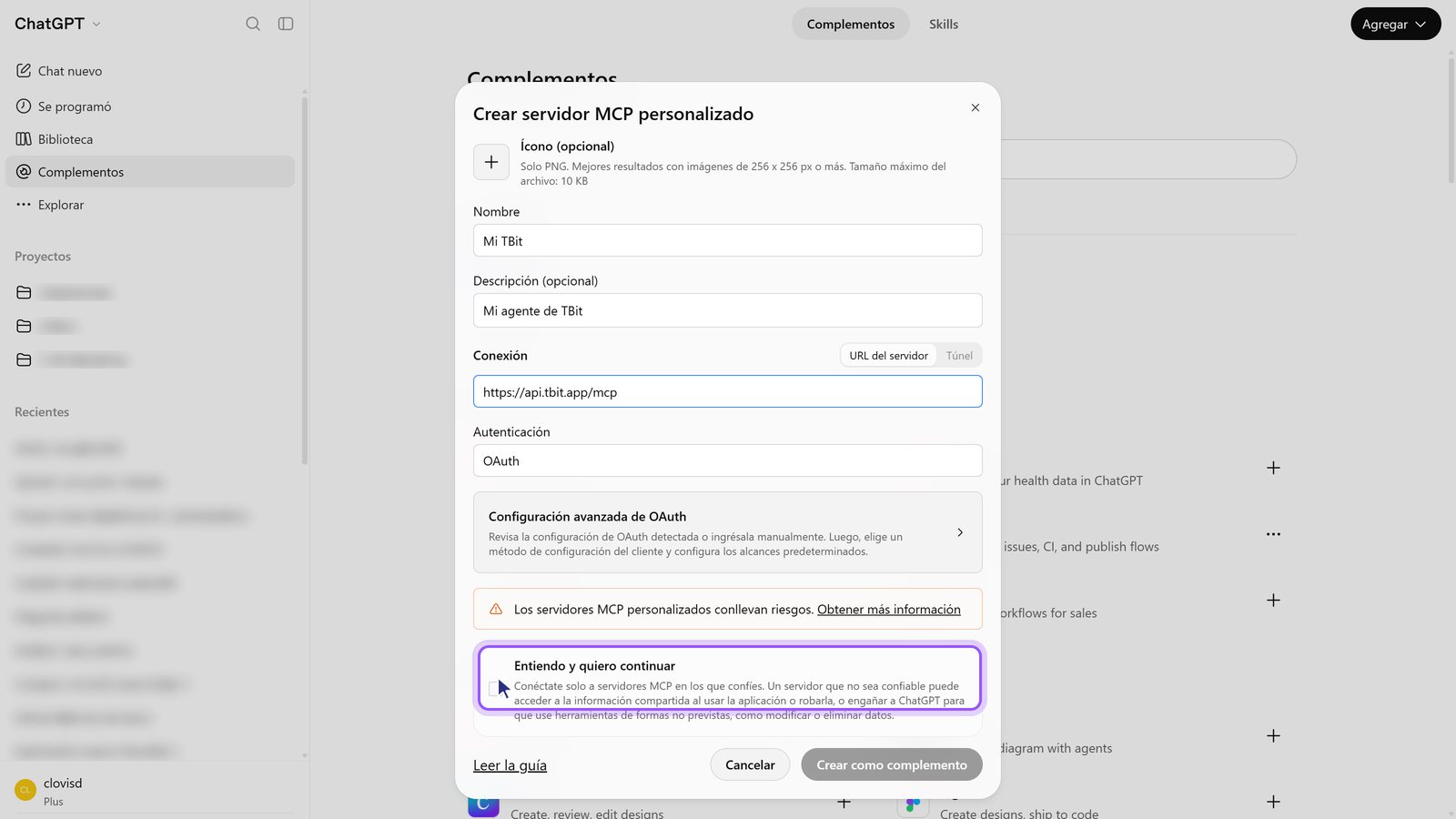
7. Tap "Create as plugin". ChatGPT checks the server; it takes a few seconds.
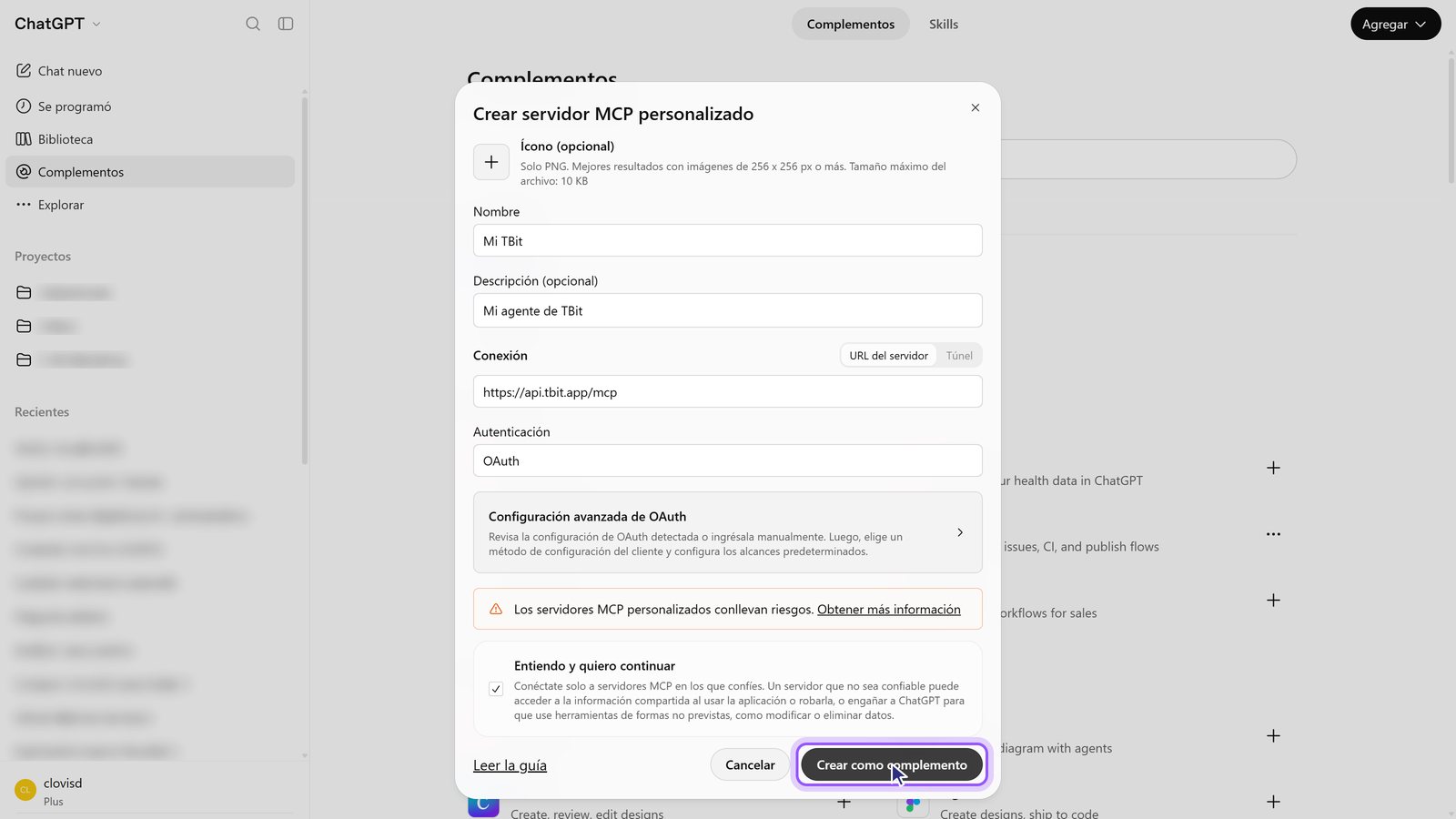
8. Tap "Continue to My TBit". It takes you to TBit so you can log in.
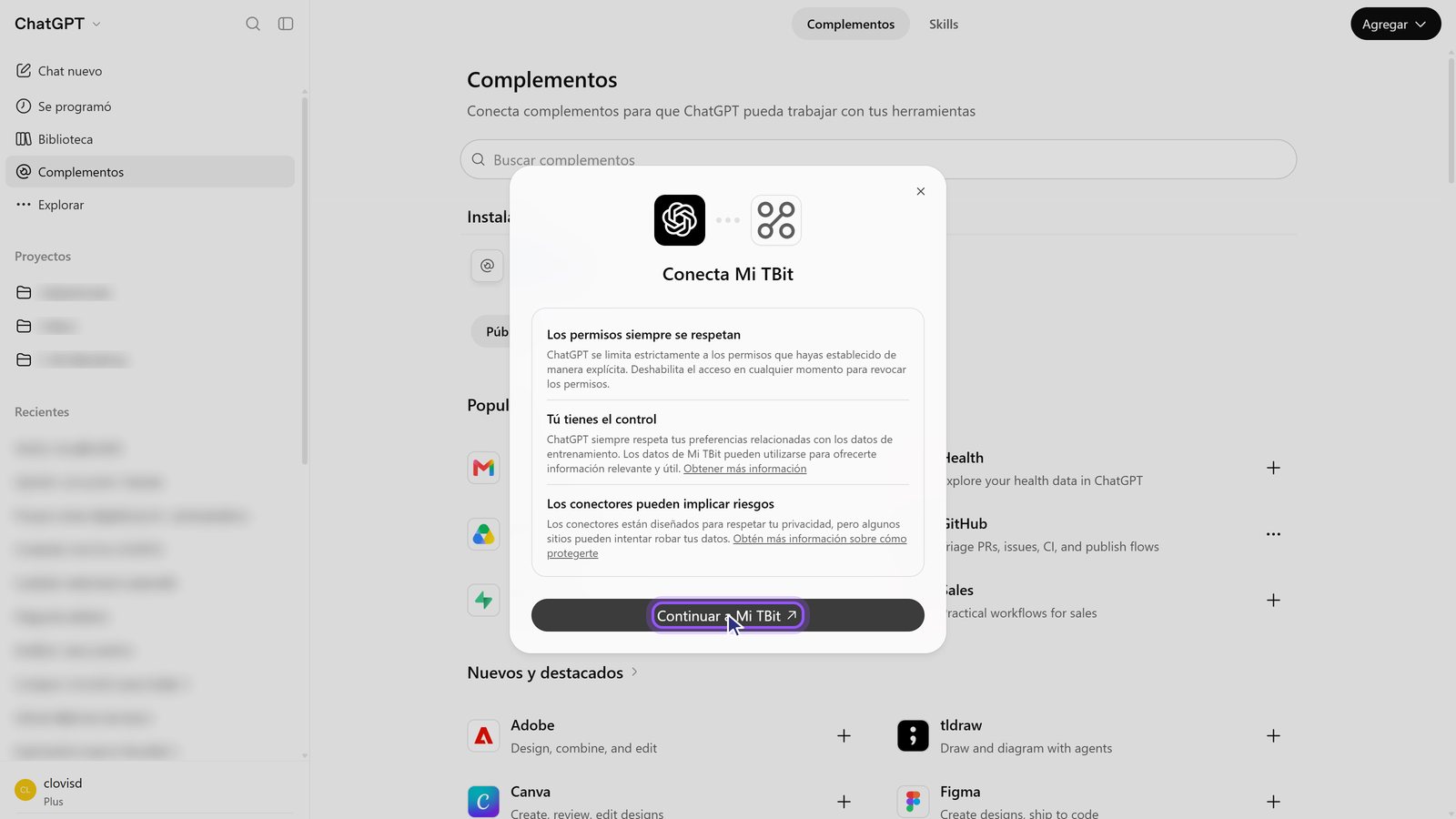
Step 2: log in with your TBit account
9. Log in to TBit. With your TBit email and password, or with Apple or Google if that's how you sign in.
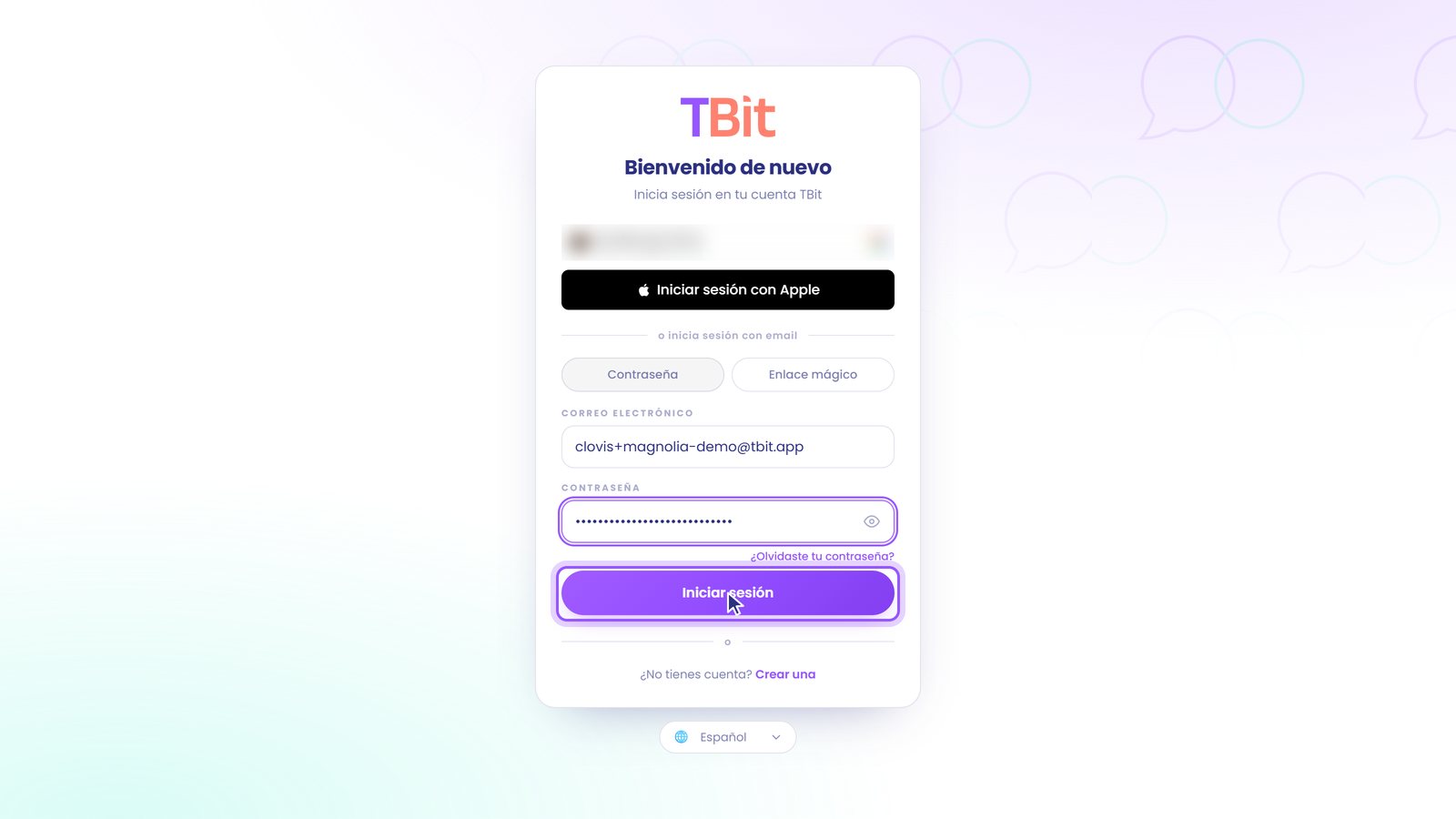
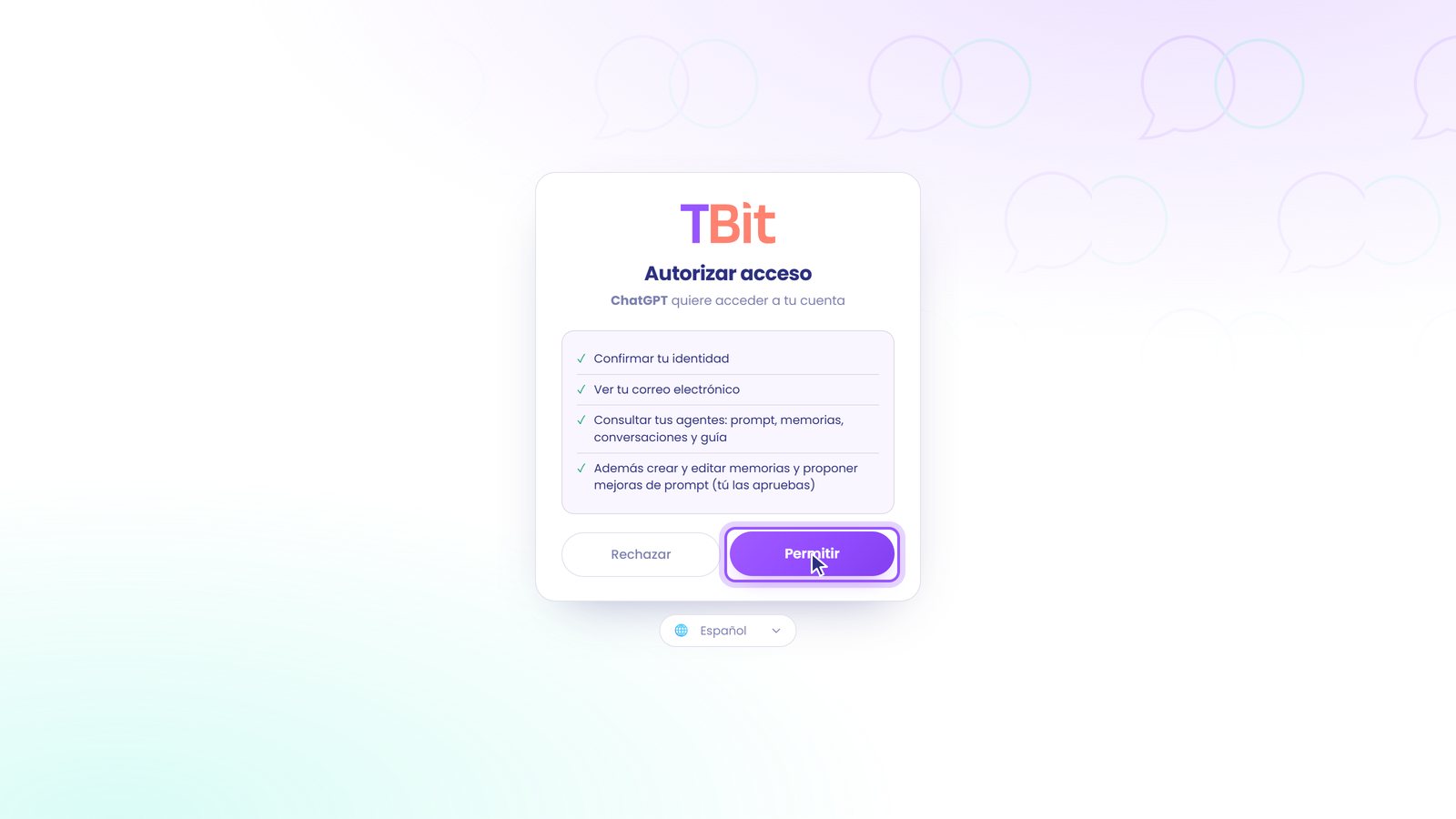
10. Tap Allow. You give ChatGPT permission to check your agents and suggest changes. You always approve changes to the prompt yourself.
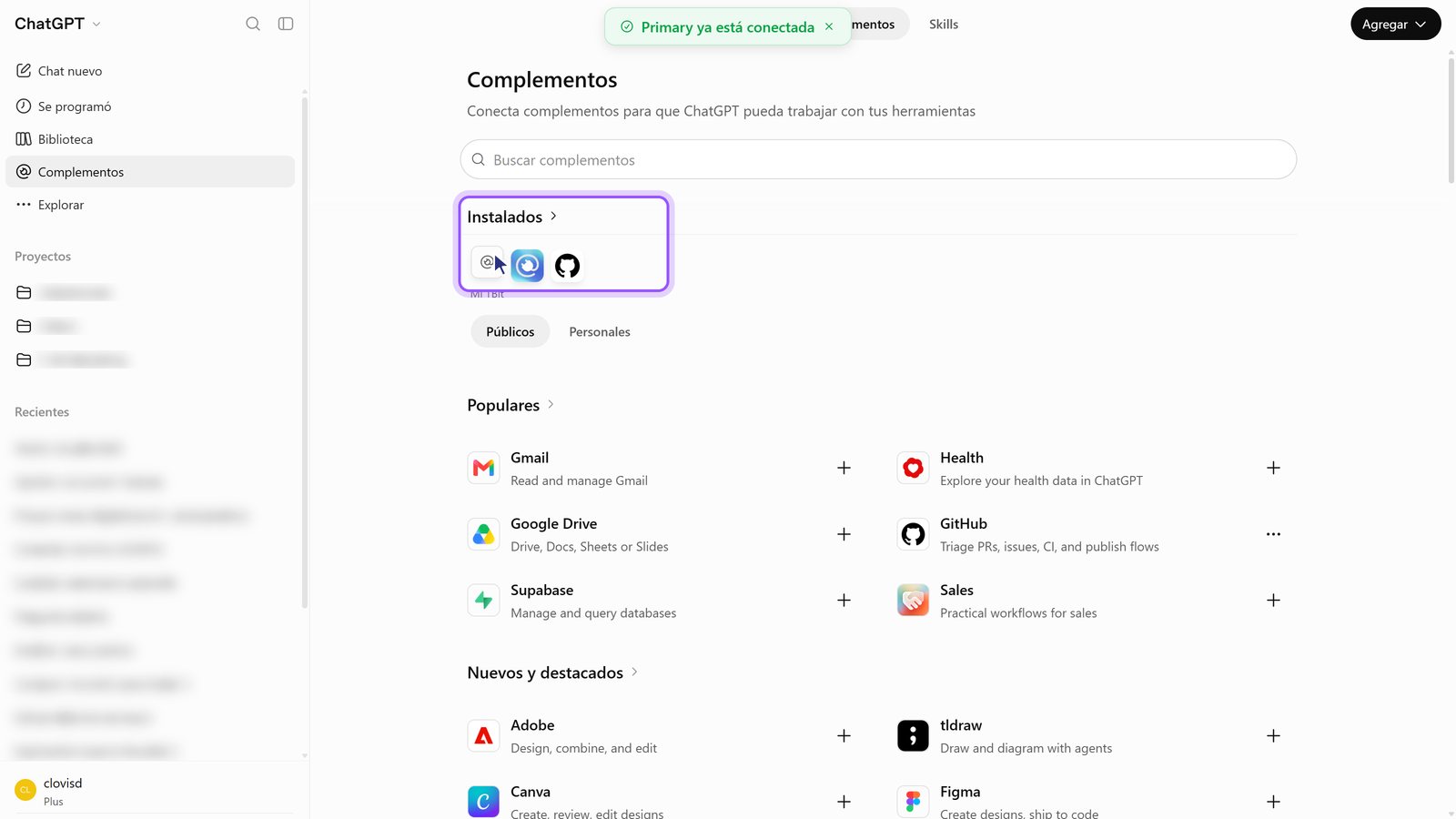
11. Done: it shows up in Installed. You go back to Plugins and ChatGPT shows a green notice that it's connected.
Step 3: ask your agent
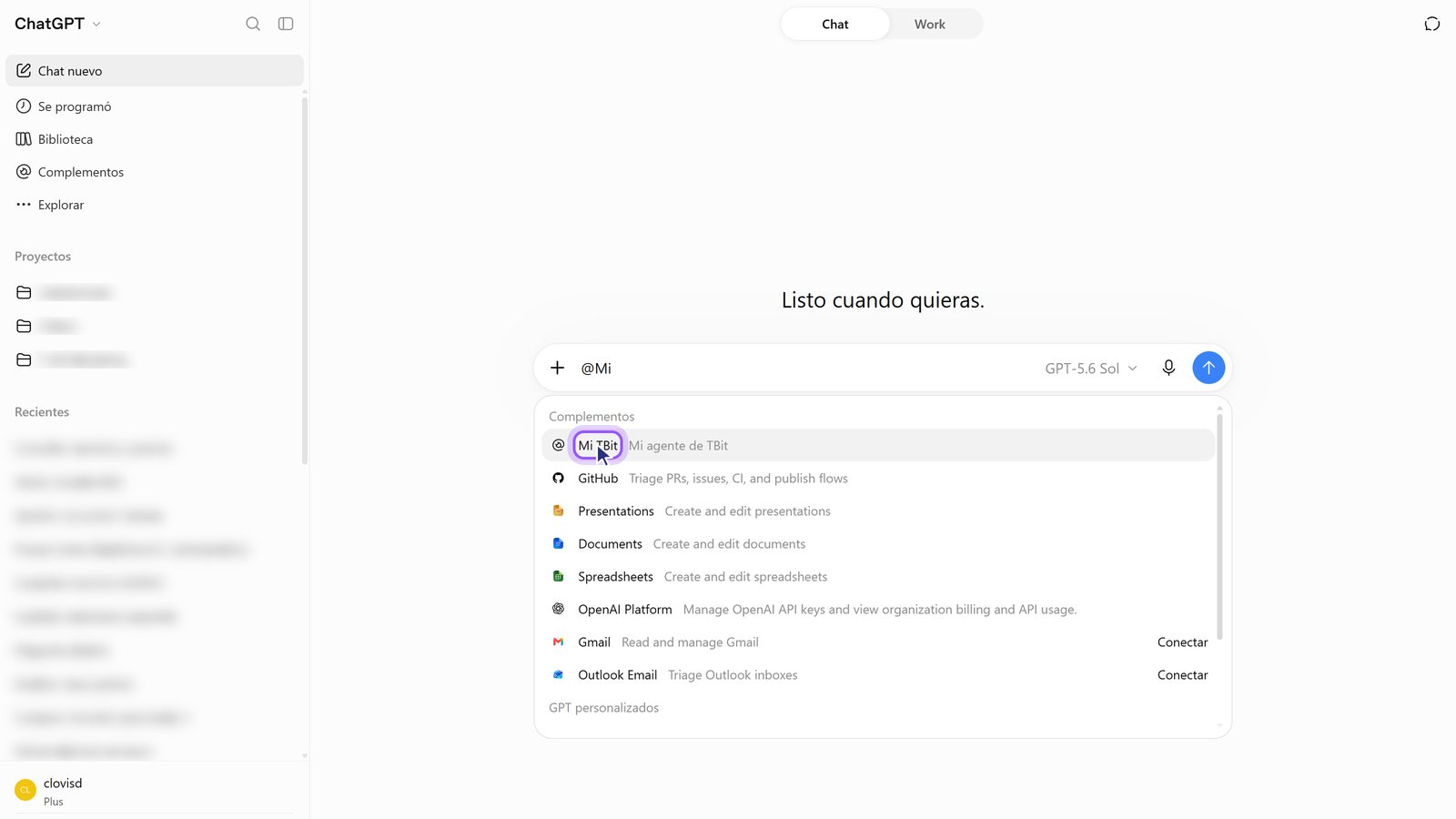
12. In a new chat, type @ and choose your add-on. That way ChatGPT knows it should use TBit.
13. Type your question and send it. For example: "Give me a summary of my agent: what it does, how it responds, and what it knows."
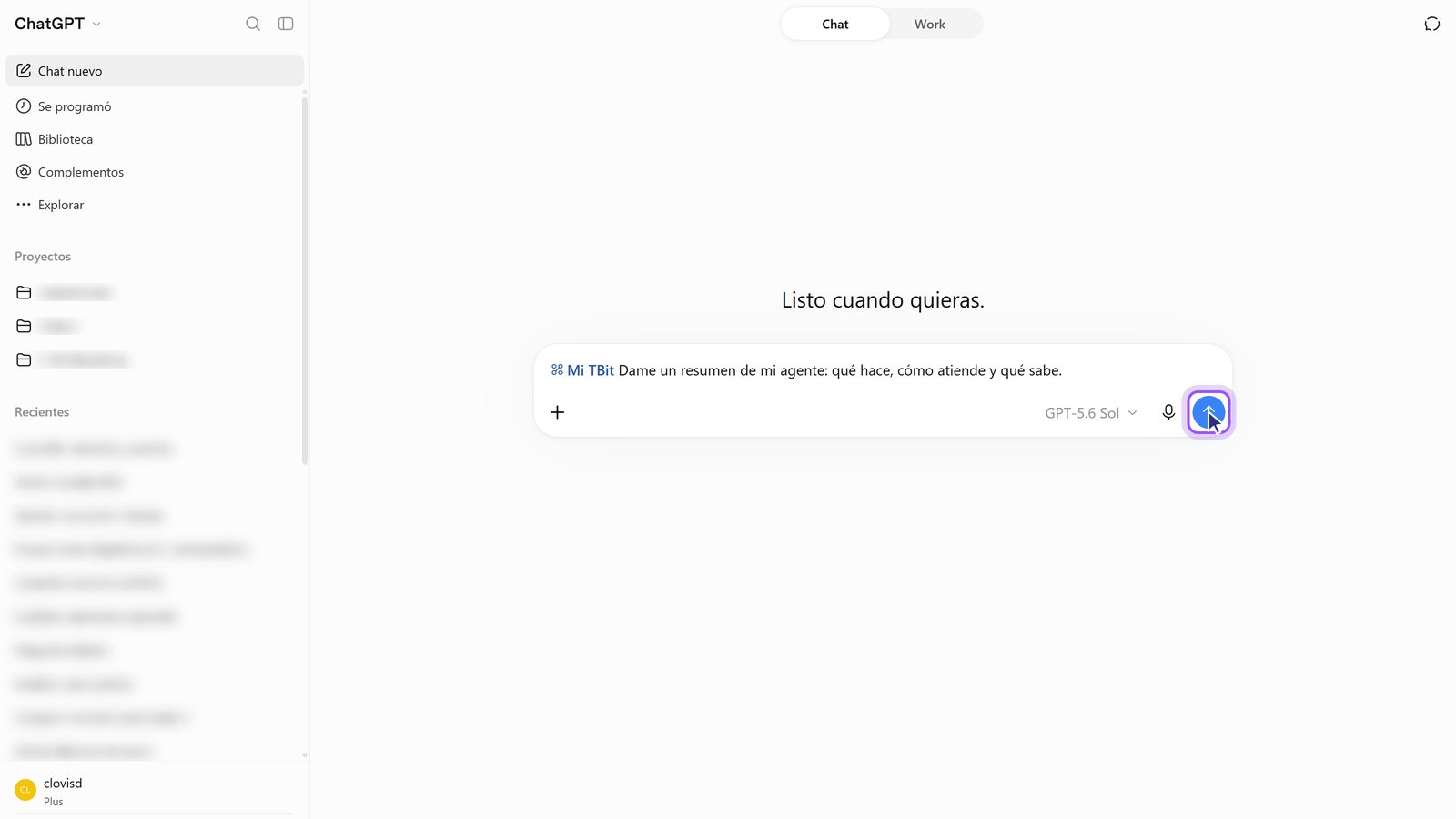
14. ChatGPT answers with your agent's data. It reads the prompt, the memories, and the real conversations.
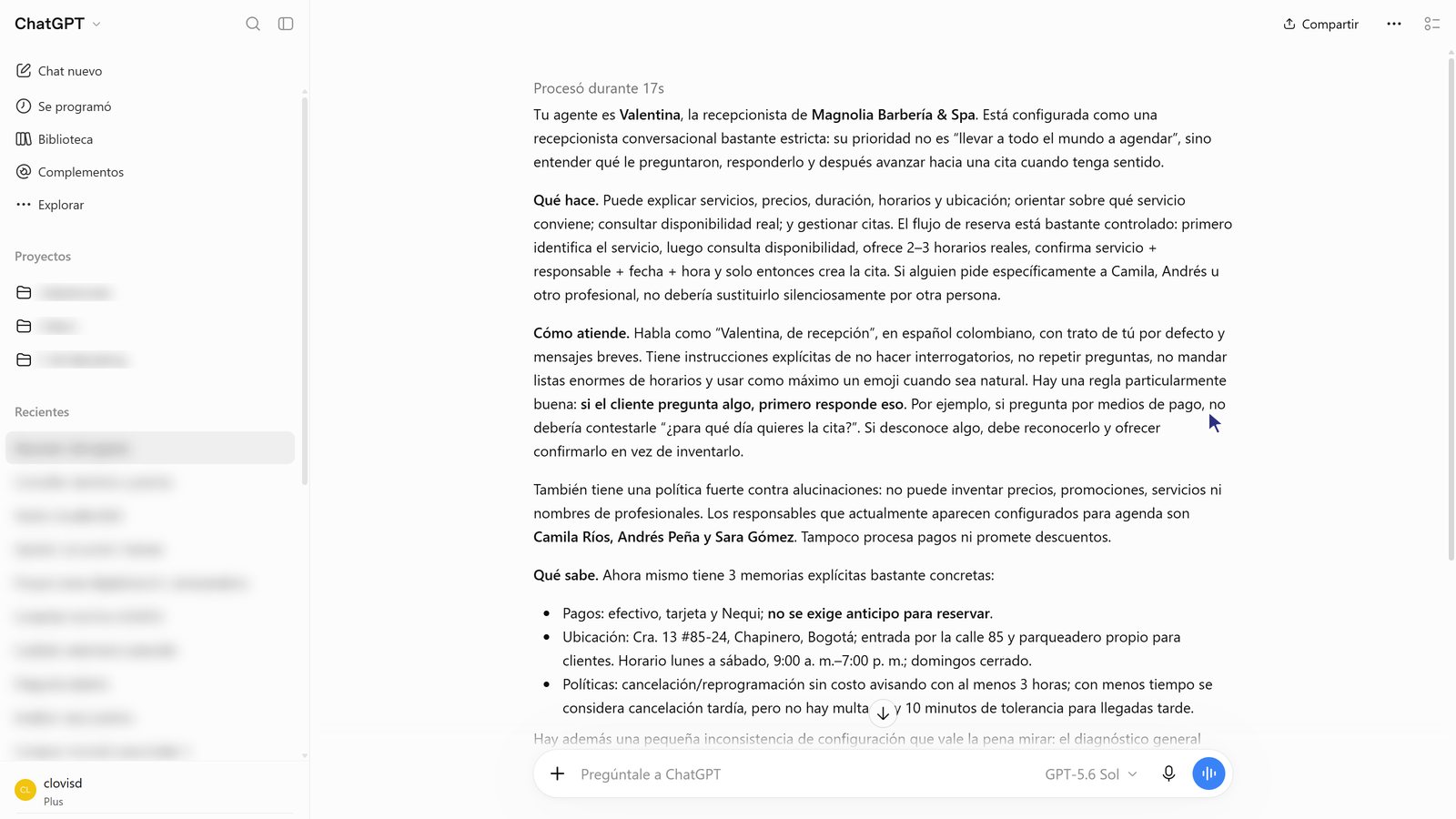
Questions to try
Give me a summary of my agent.
How are my conversations going this week?
What questions could my agent not answer?
Add a memory: we're closed on Sundays.
Do you use Claude?
We also have the guide for Claude: Connect Claude to your TBit agent. And the page with all compatible clients is at tbit.app/es/mcp.