
Help center
Does your WhatsApp line have a card on Meta? Check it like this
Starting October 1, 2026, without a payment method Meta won't deliver your WhatsApp replies. Check in a minute if your line has a card and how to add it.

Your assistant replies. Make sure the customer gets it too.
Starting October 1, 2026, Meta also charges for service messages: the replies your WhatsApp line sends within the 24 hours that each message from your customer opens. They're charged per delivered message and each number comes with 1,000 free per month.
The tricky part isn't the price. It's that if your line's WhatsApp account has no payment method, Meta stops delivering those replies. Your assistant replies, and the customer gets nothing.
Checking it takes a minute. Here you see where to go, what each case looks like and where to add or change the card.
Watch it in a minute
The full walkthrough, with Meta's real screens.
Before you start
Log in with the Facebook account that owns the business portfolio: the same one you used to connect your line to TBit. With another account you won't see your line.
It's easier from a computer than from your phone.
Have a Visa or Mastercard credit card handy. According to Meta's help, for now it doesn't accept American Express or PayPal.
How to check it, step by step
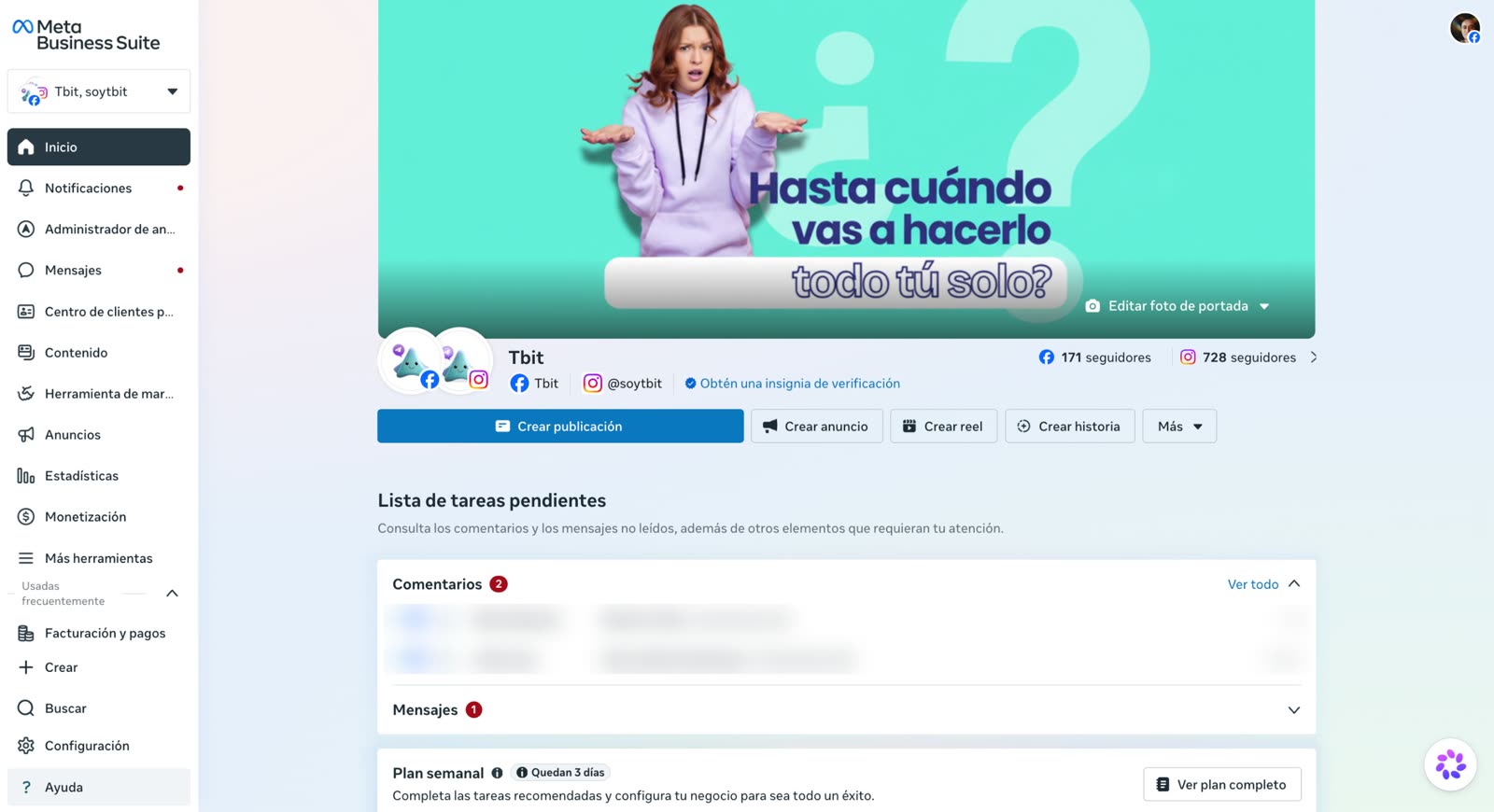
Go to business.facebook.com. Meta Business Suite opens. At the bottom left, tap Settings.
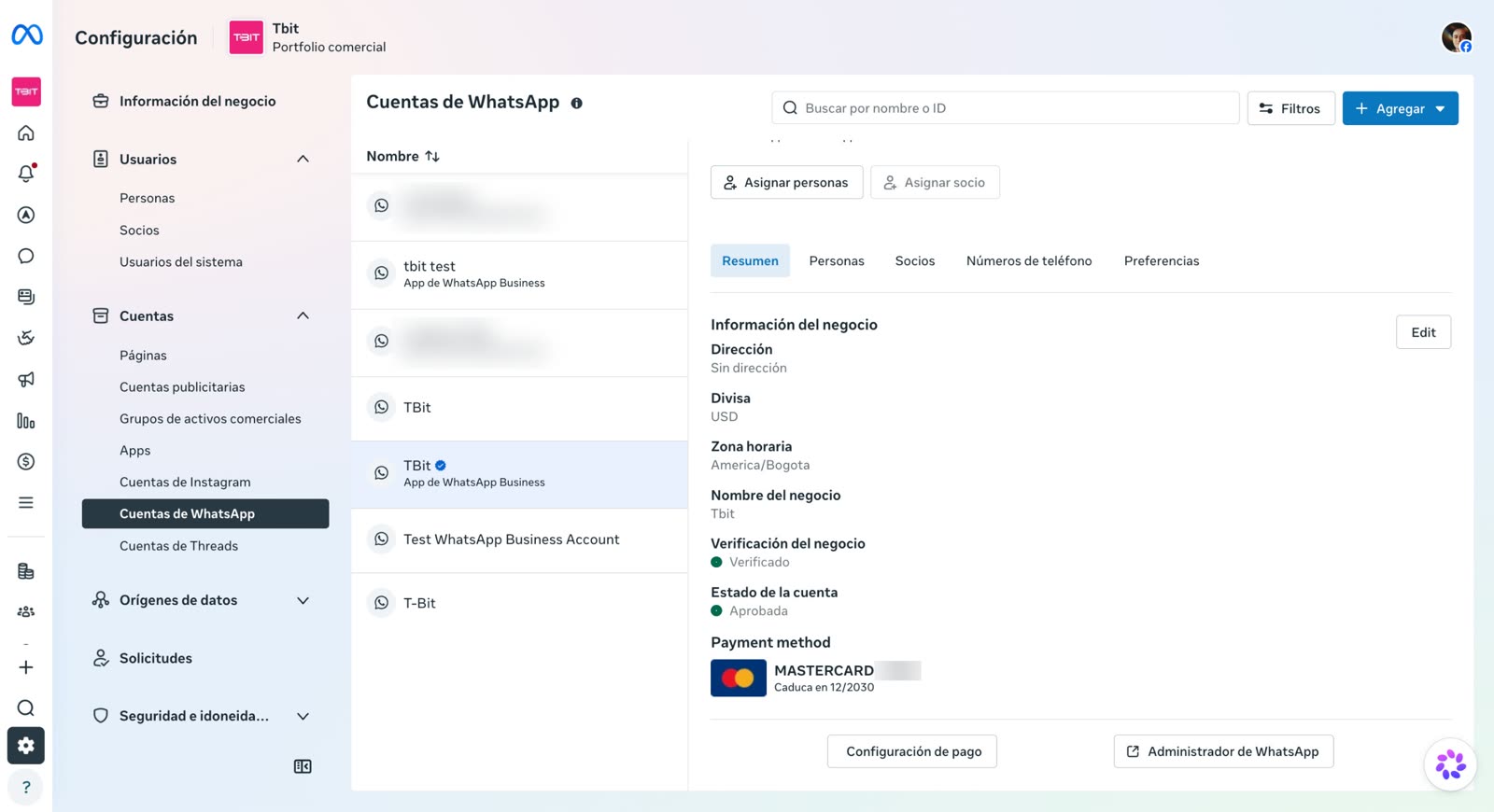
Open WhatsApp Accounts. In the left menu, expand Accounts and choose WhatsApp Accounts.
Choose your line. It's the one you connected to TBit. Its profile opens on the Overview tab.
Scroll down to "Payment method". It shows up like that, in English, even if you have Meta in Spanish. There's your answer.
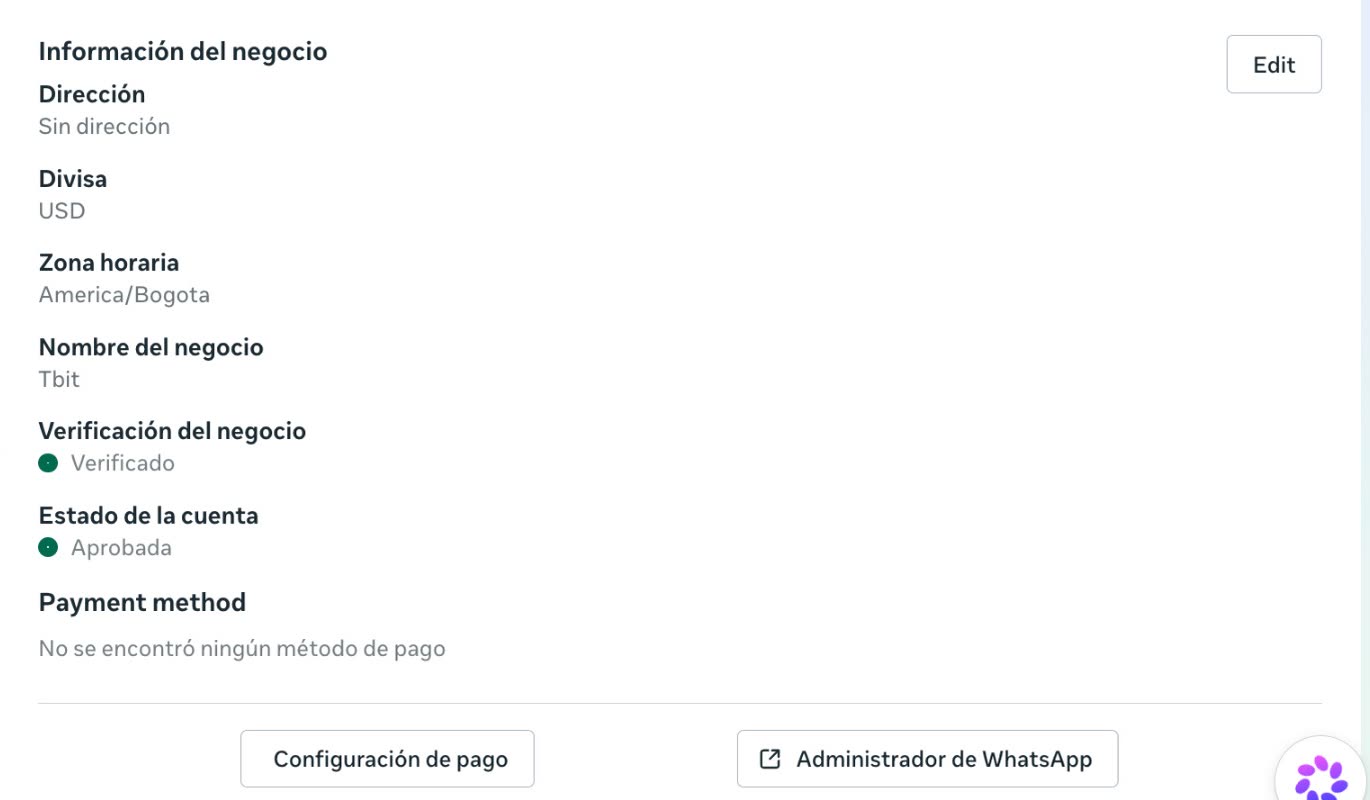
The three cases you might find
1. Valid card. You see the card brand and "Expires on" with a date that hasn't arrived yet. Your line is covered and you don't have to do anything else.
2. "No payment method found". Your line doesn't have a card. Starting October 1, your assistant's replies won't reach the customer until you add one.
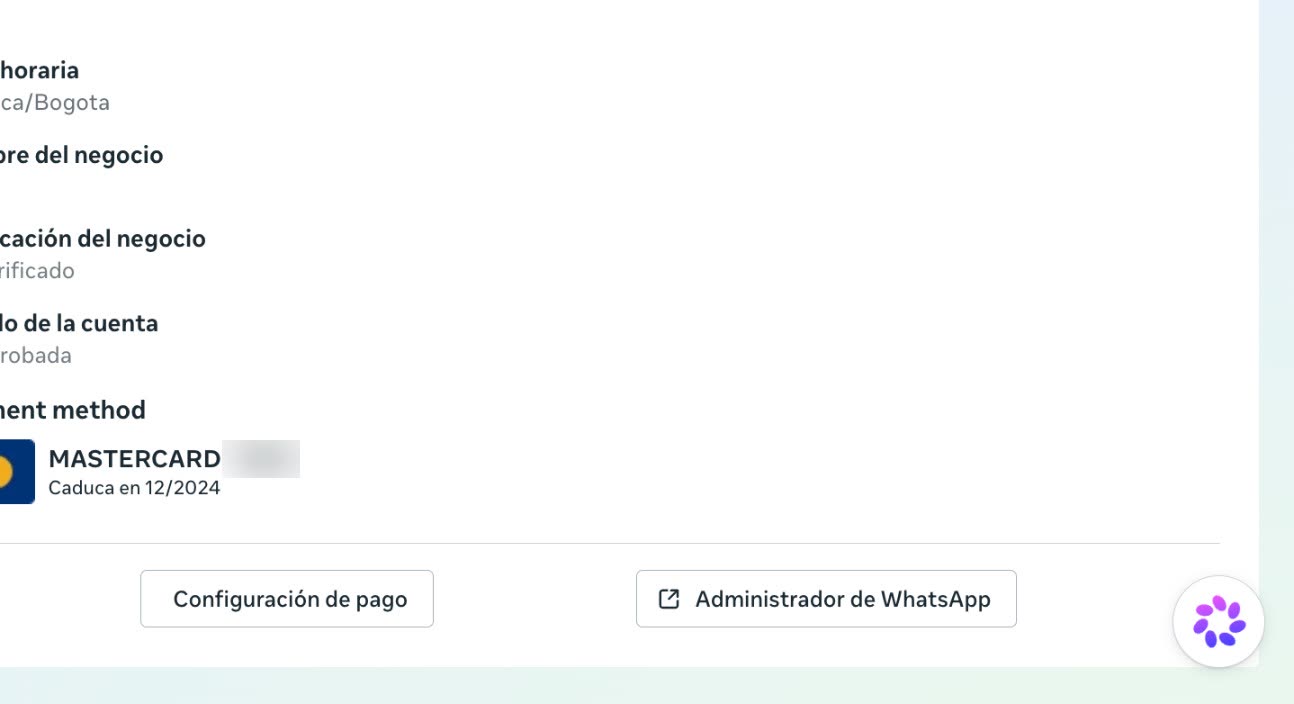
3. Expired card. There is a card, but "Expires on" shows a date that has already passed, for example 12/2024. For Meta it's the same as having none: change it.
How to add or change the card
Under "Payment method" there are two buttons: Payment settings and WhatsApp Manager. The card is added in Payment settings.
Tap Payment settings. Before letting you in, Meta asks you to confirm it's you, with your passkey or a code.
Tap Add payment method. It's on the Payment settings page, inside Billing and payments.
Follow Meta's instructions. Enter the card details and save. Then complete your business information, which may include your tax details, and save again.
Check that it went through. Go back to your line's settings page and make sure that under "Payment method" the card shows an expiration date that hasn't passed yet.
To do this you need permission to manage the WhatsApp account. If you're the account owner, you already have it. If the card is new, you also need full control of the portfolio or the finance role.
The trap: your ads card isn't your line's card
For many owners, when they log in, the Ads Manager opens. If you look for the card from there, you end up in Ad account settings, in the Business payments section. That card pays for your ads, not for your line's messages. Just because your ads are charged correctly doesn't mean your WhatsApp has a payment method.
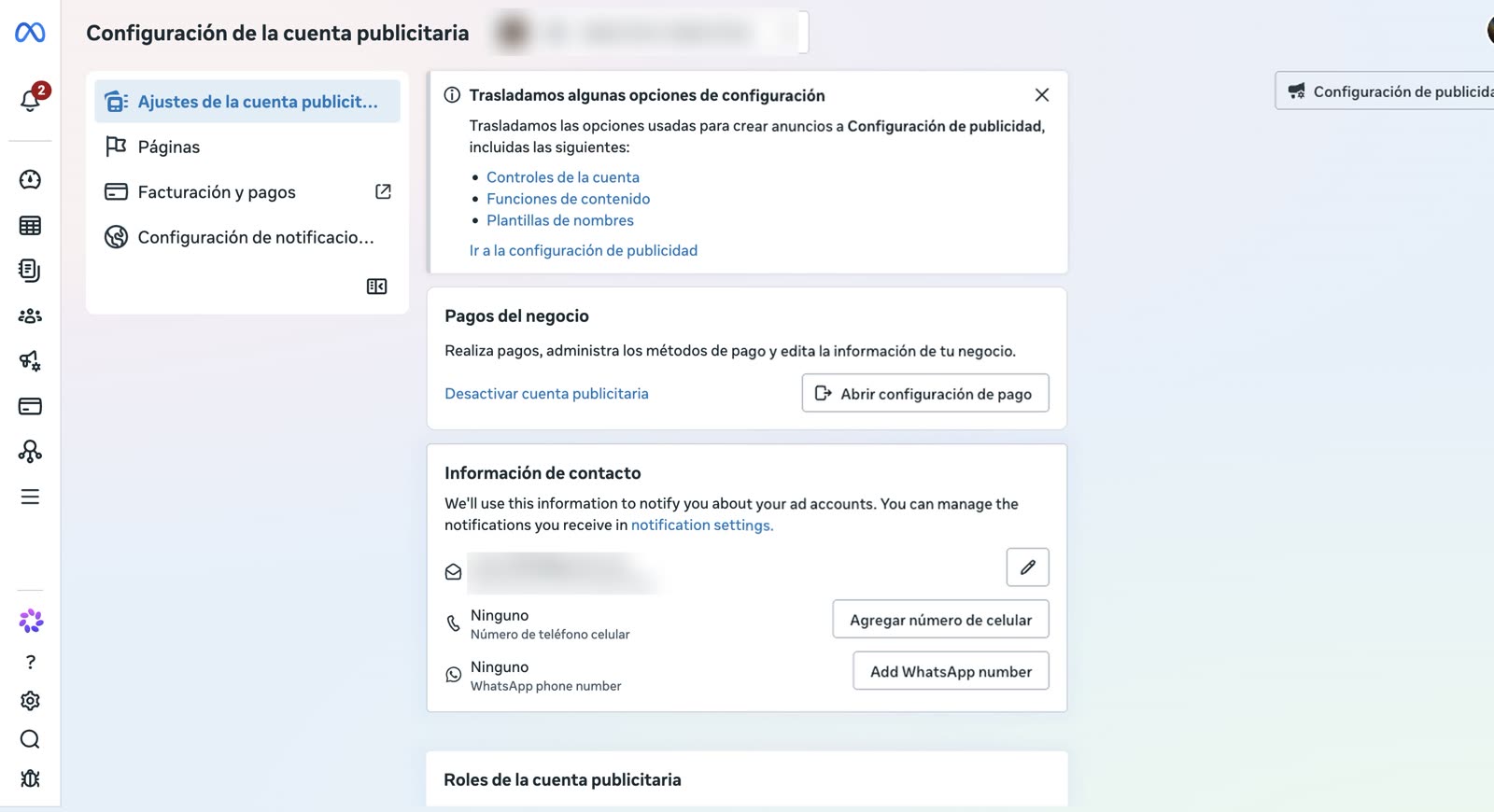
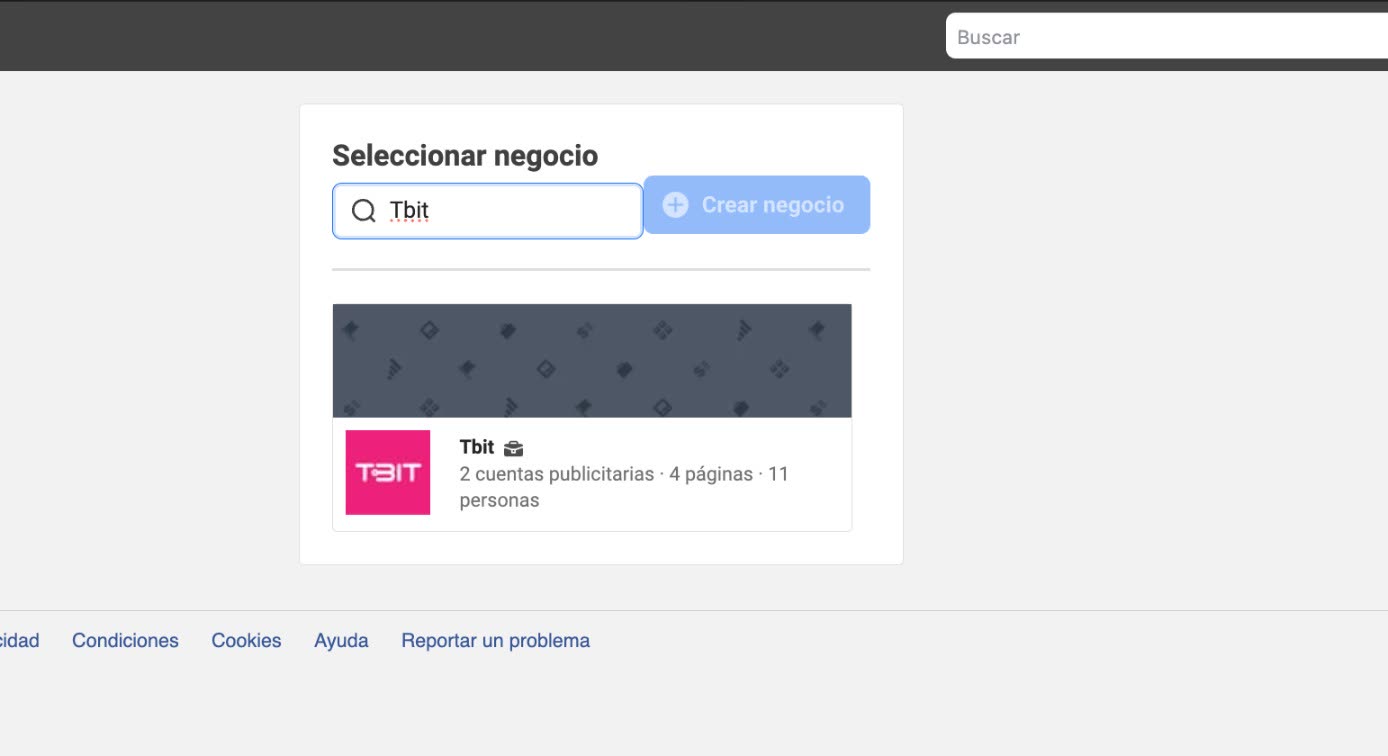
The way out is short: type business.facebook.com/settings in your browser's address bar. If Meta asks you to Select business, choose yours. From there you follow the same steps: WhatsApp accounts, your line and "Payment method".
How much it costs
Each number comes with 1,000 free service messages per month. After that, Meta charges for each delivered message depending on your customer's country: in Colombia it's US$0.0008 per message, less than a cent. Meta charges that to your line's card, separately from your TBit plan.
Check it today
Settings, WhatsApp accounts, your line, "Payment method". One minute. Your TBit replies; with the card up to date, it also reaches your customer.
If something doesn't add up, write to TBit support and we'll look at it with you. What we can't do is add the card for you: that step belongs to the account owner.