
Help center
How to connect Claude to your TBit agent, step by step
Connect Claude to your WhatsApp agent in TBit in two minutes with a custom connector and your TBit account, no developer mode. With video and screenshots.

Ask Claude about your TBit agent
When you connect Claude to TBit, you ask the AI you already use about your agent: what it knows, how it handles conversations, how they're going, and what questions it couldn't answer. You can also ask it to train your agent: it creates memories and suggests prompt improvements that you approve in the app.
You set it up once and it takes about two minutes. Here's the video and, below, each step with its screen.
Watch it in two minutes
What you need
A Claude account on claude.ai or in the desktop app. Paid plans have no limit; on the free plan Claude may limit your own connectors.
In Claude Team or Enterprise, your admin must allow custom connectors.
Your TBit account: the email and password you use to sign in to the platform.
Do you have to turn on developer mode?
No. TBit is a server on the internet and is added as a custom connector, without touching anything else. Claude's desktop app has a "Developer mode", but it's for servers running on your own computer; don't turn it on for TBit.
Step 1: add the connector
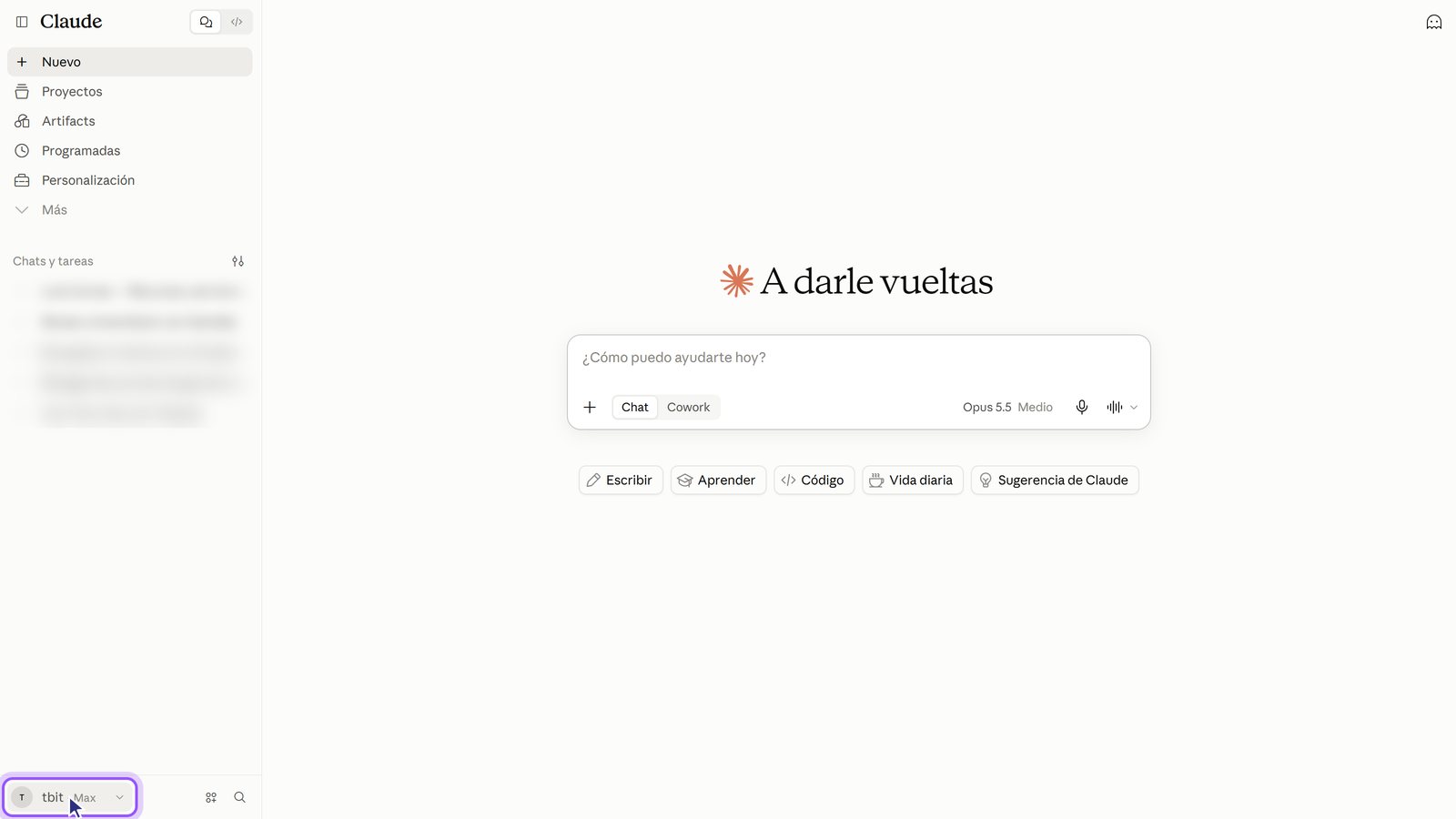
1. Open your account menu. Bottom left, above your name.
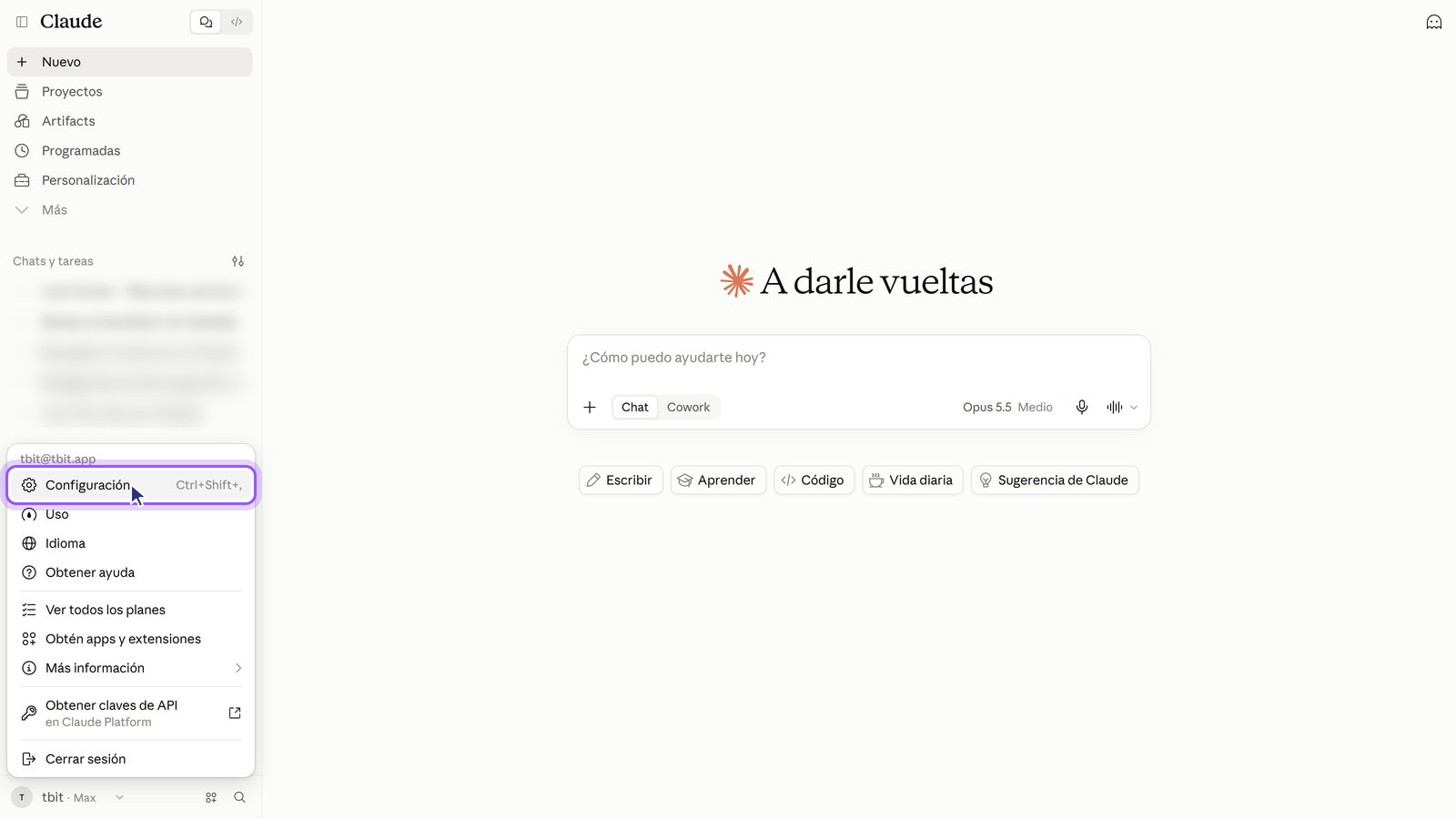
2. Go to Settings.
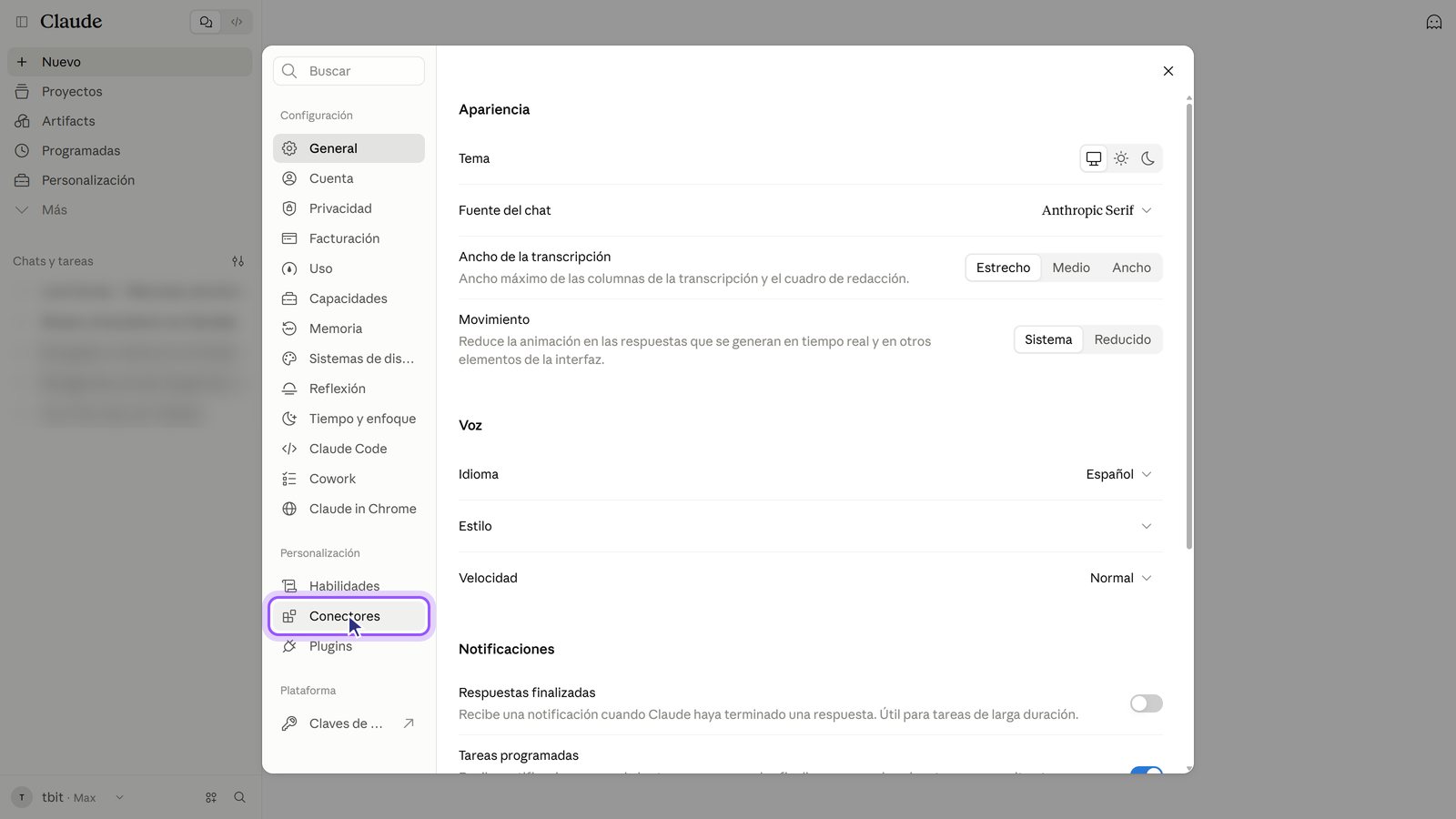
3. Tap Connectors. It's in the left column, under Customization.
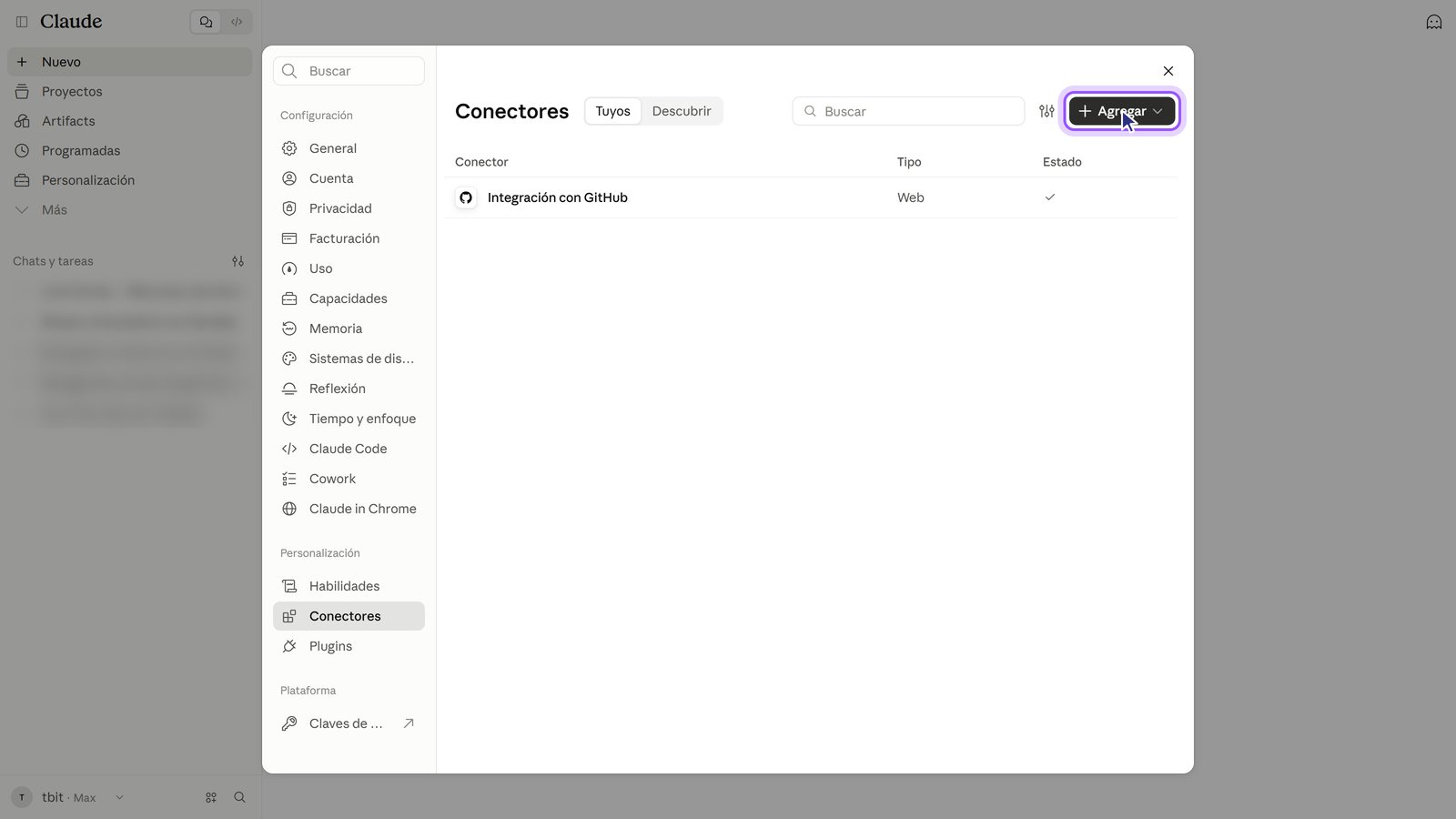
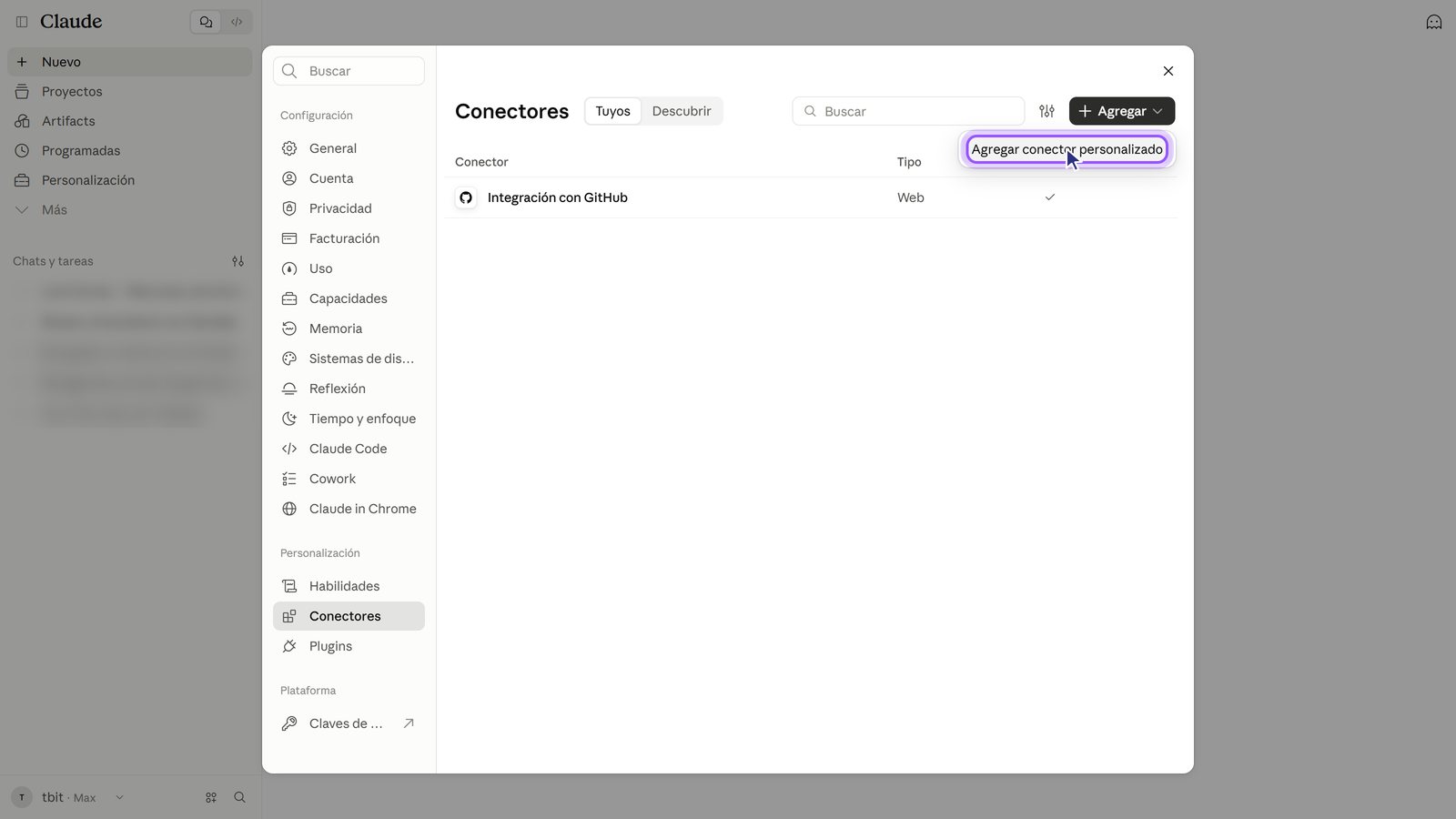
4. Tap Add.
5. Choose "Add custom connector".
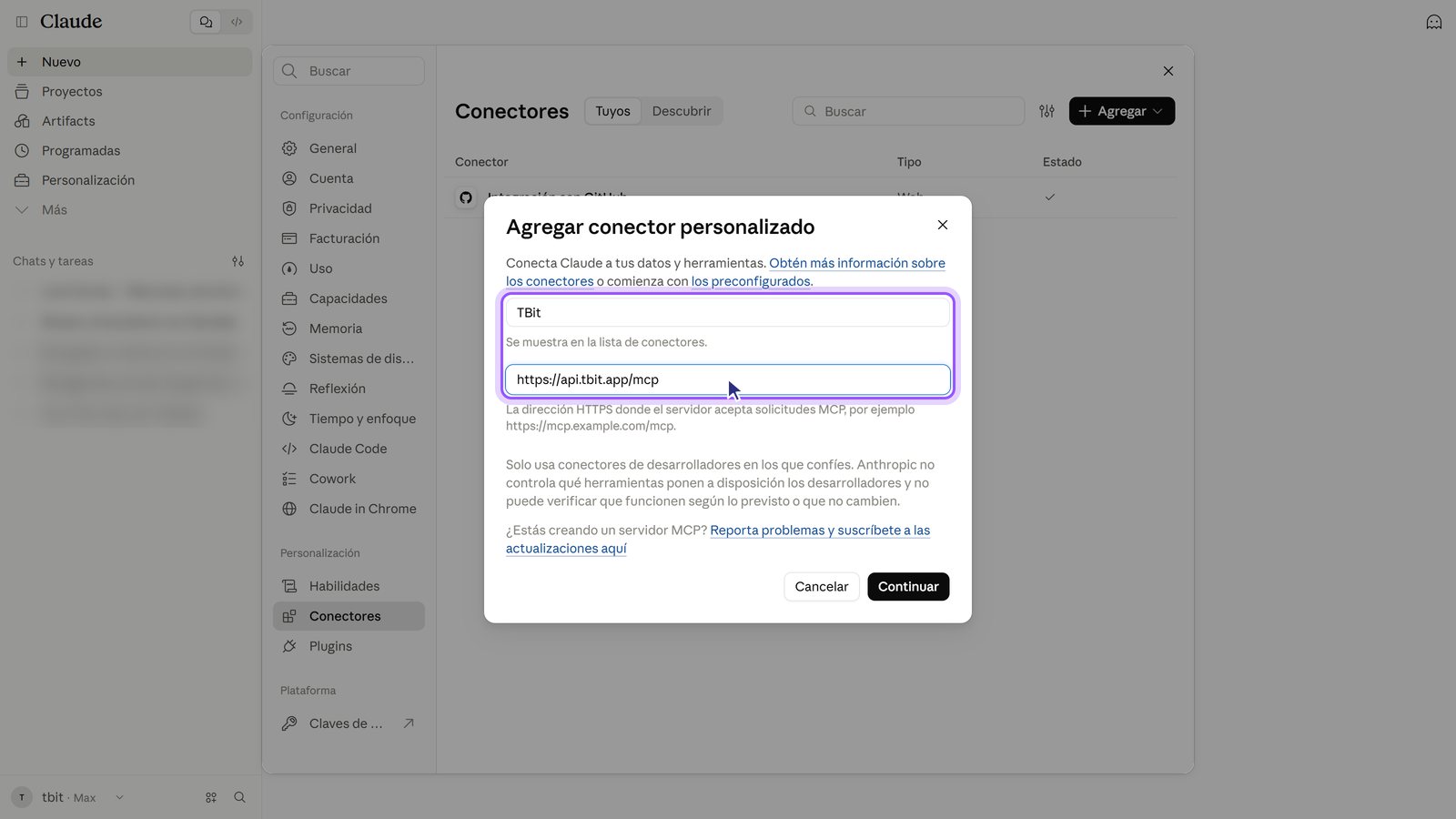
6. Type the name and paste the address. Name: TBit. MCP server URL: https://api.tbit.app/mcp.
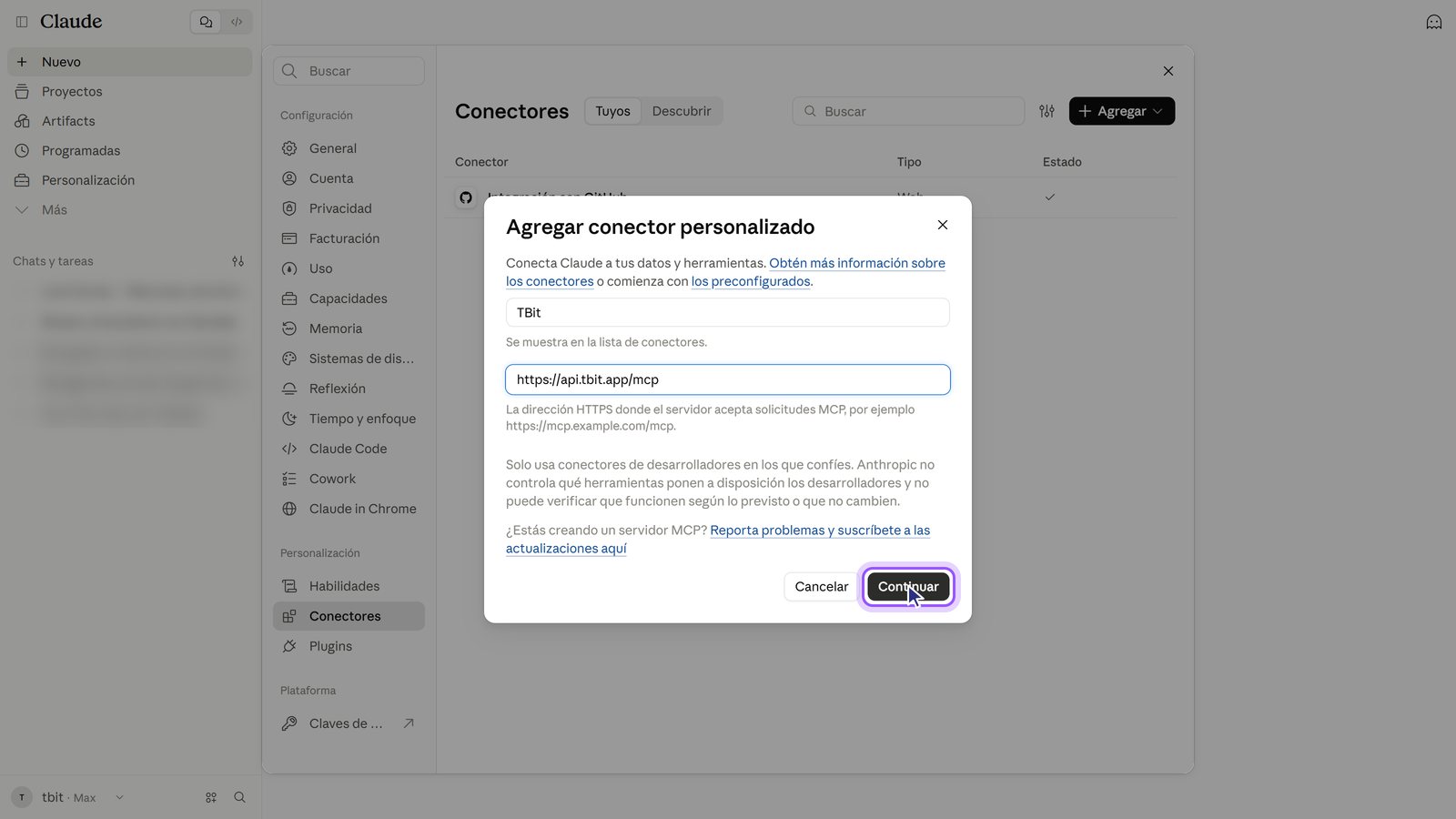
7. Tap Continue.
8. Don't change anything in the authentication. Claude detects on its own that TBit uses login. Leave "Log in now" and "Register automatically" as they come.
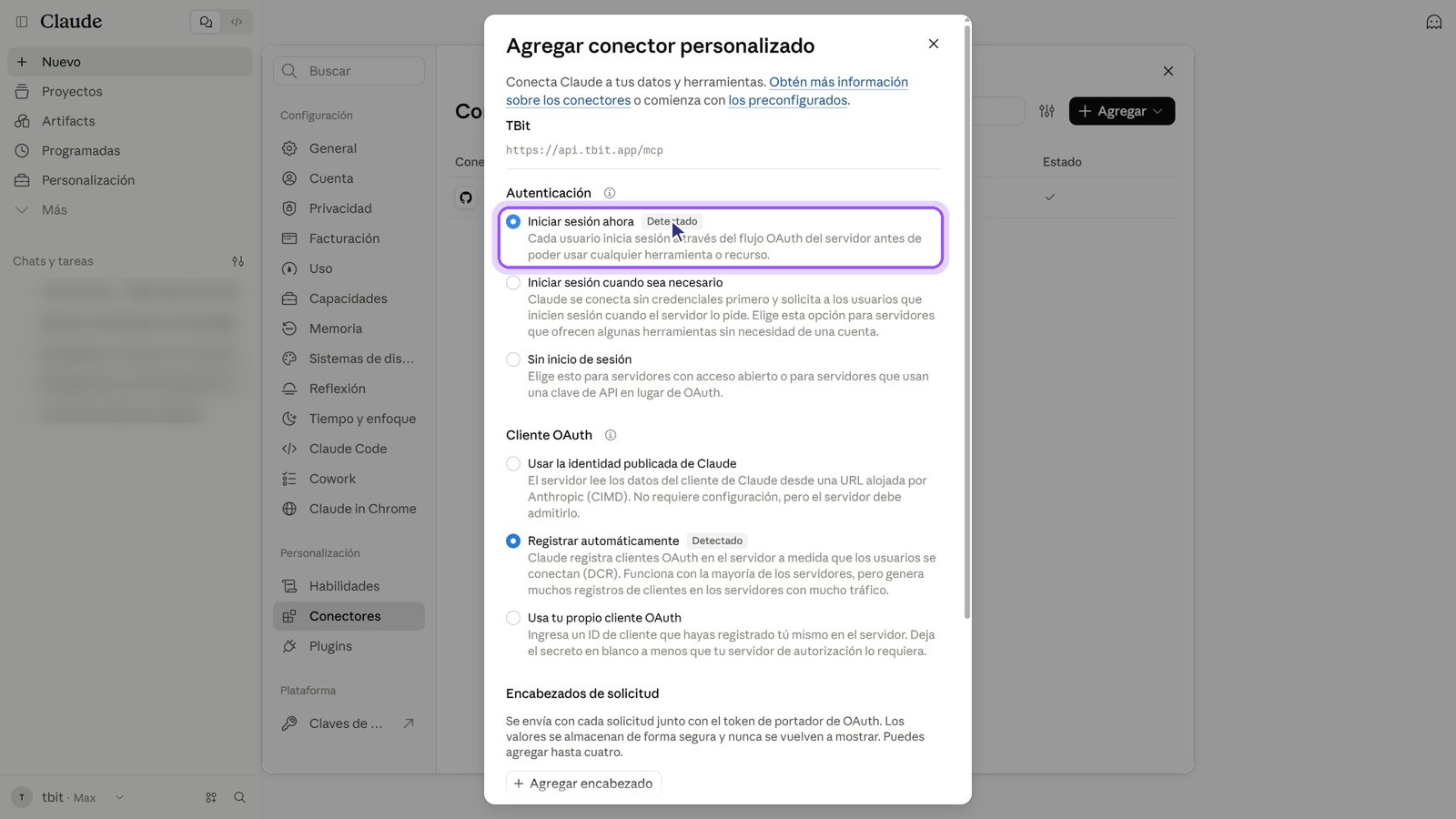
9. Scroll down and tap Add.
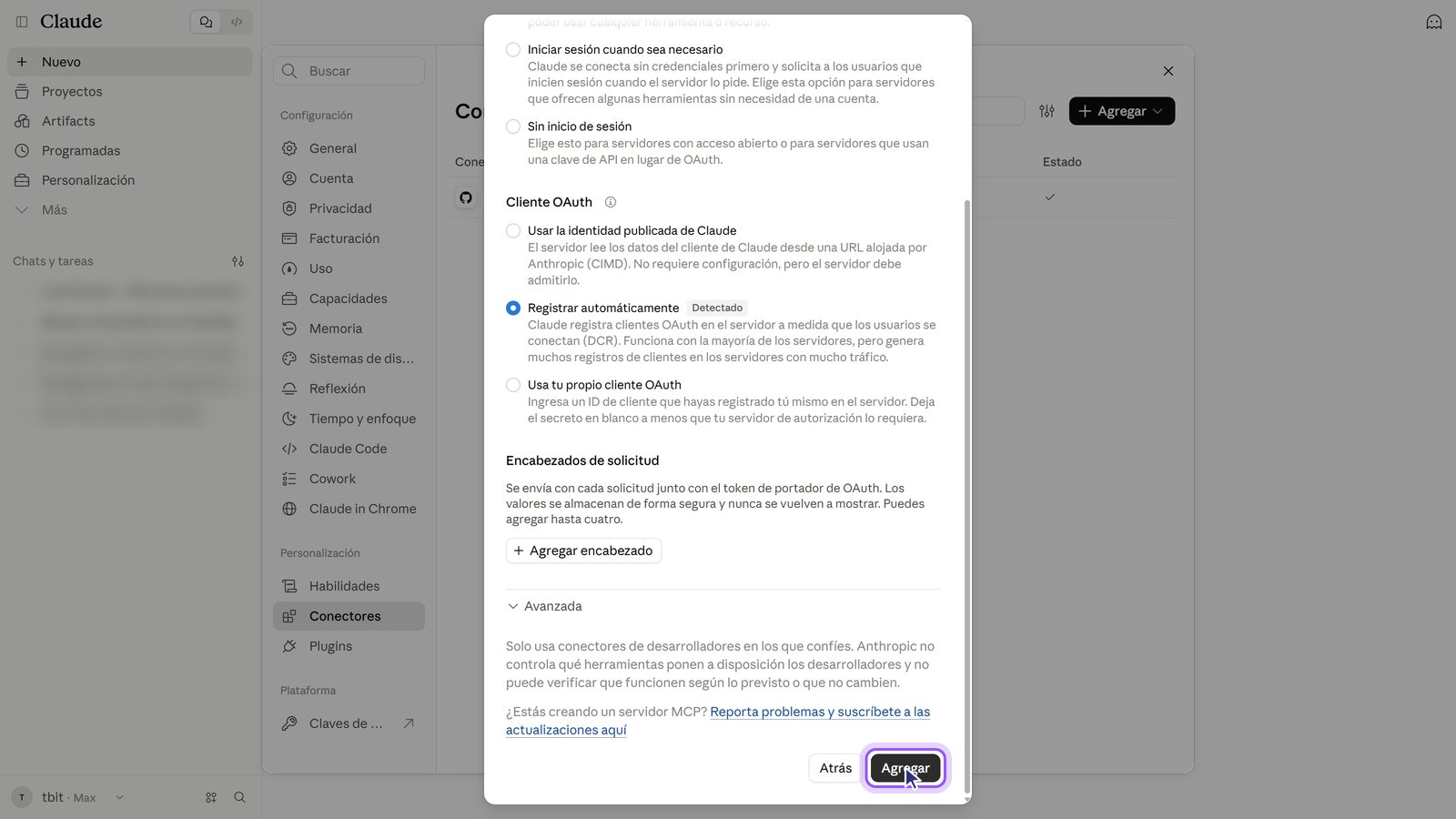
10. Tap Connect. It takes you to TBit so you can log in.
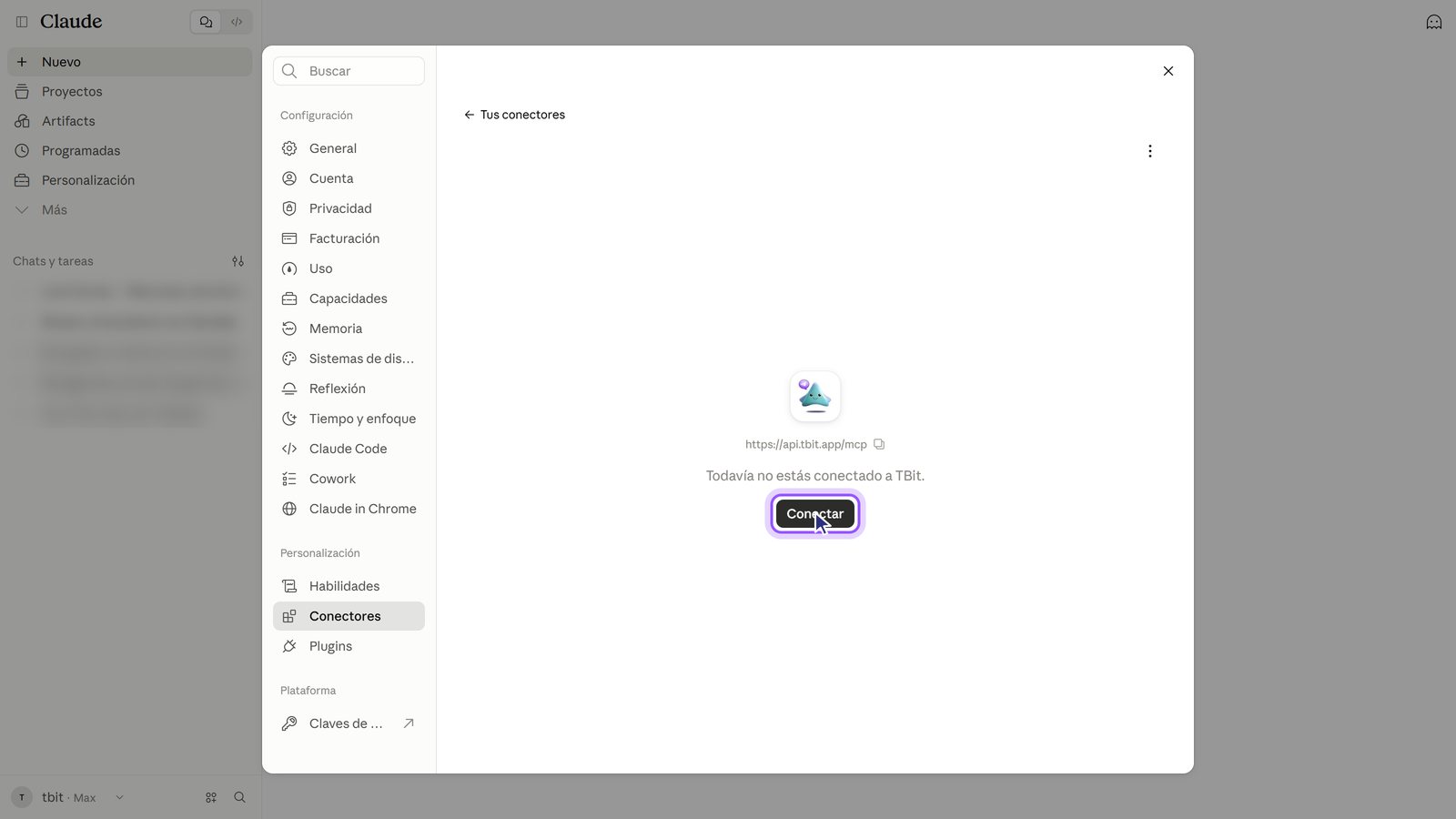
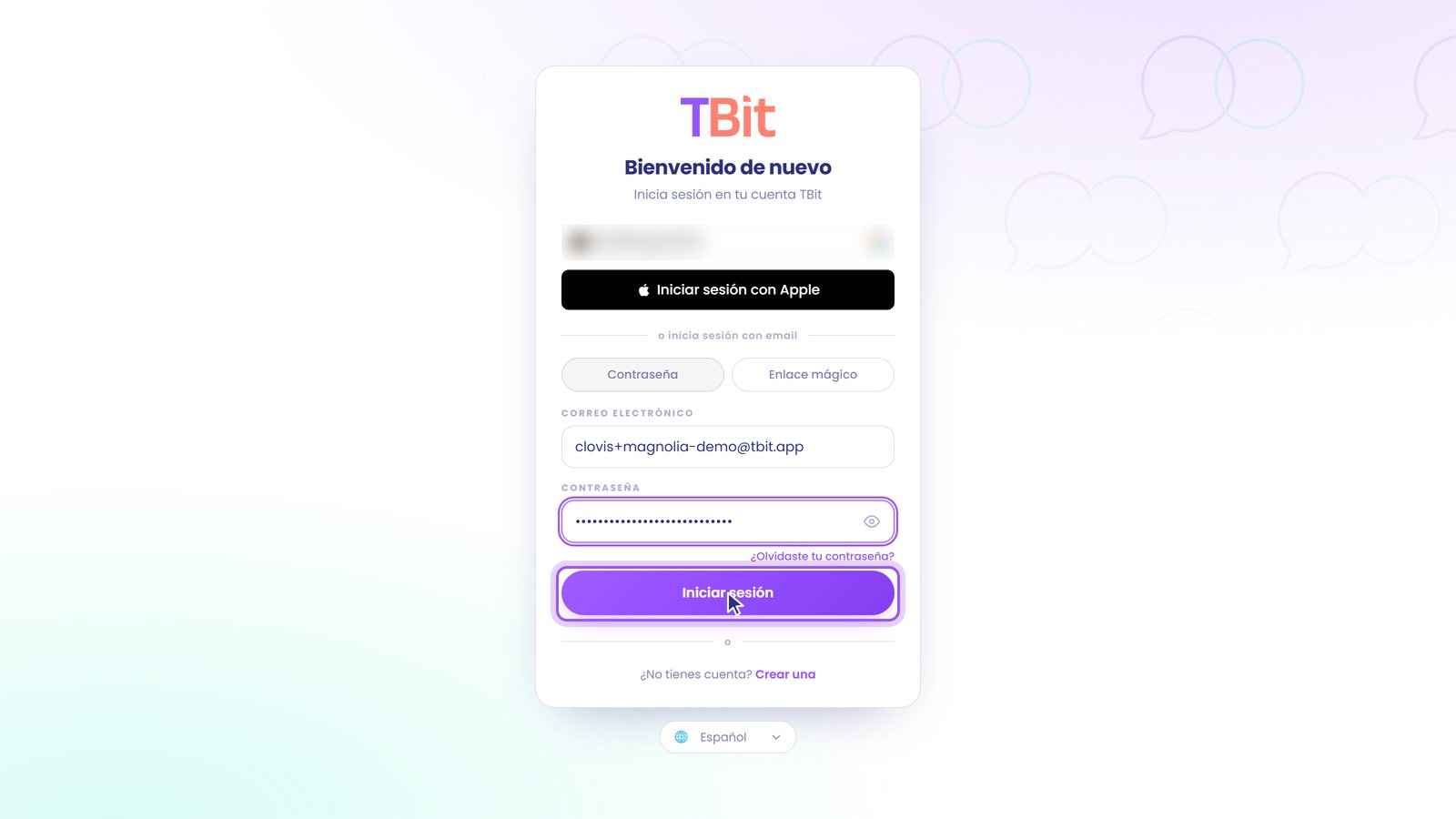
Step 2: log in with your TBit account
11. Log in to TBit. With your TBit email and password, or with Apple or Google if that's how you sign in.
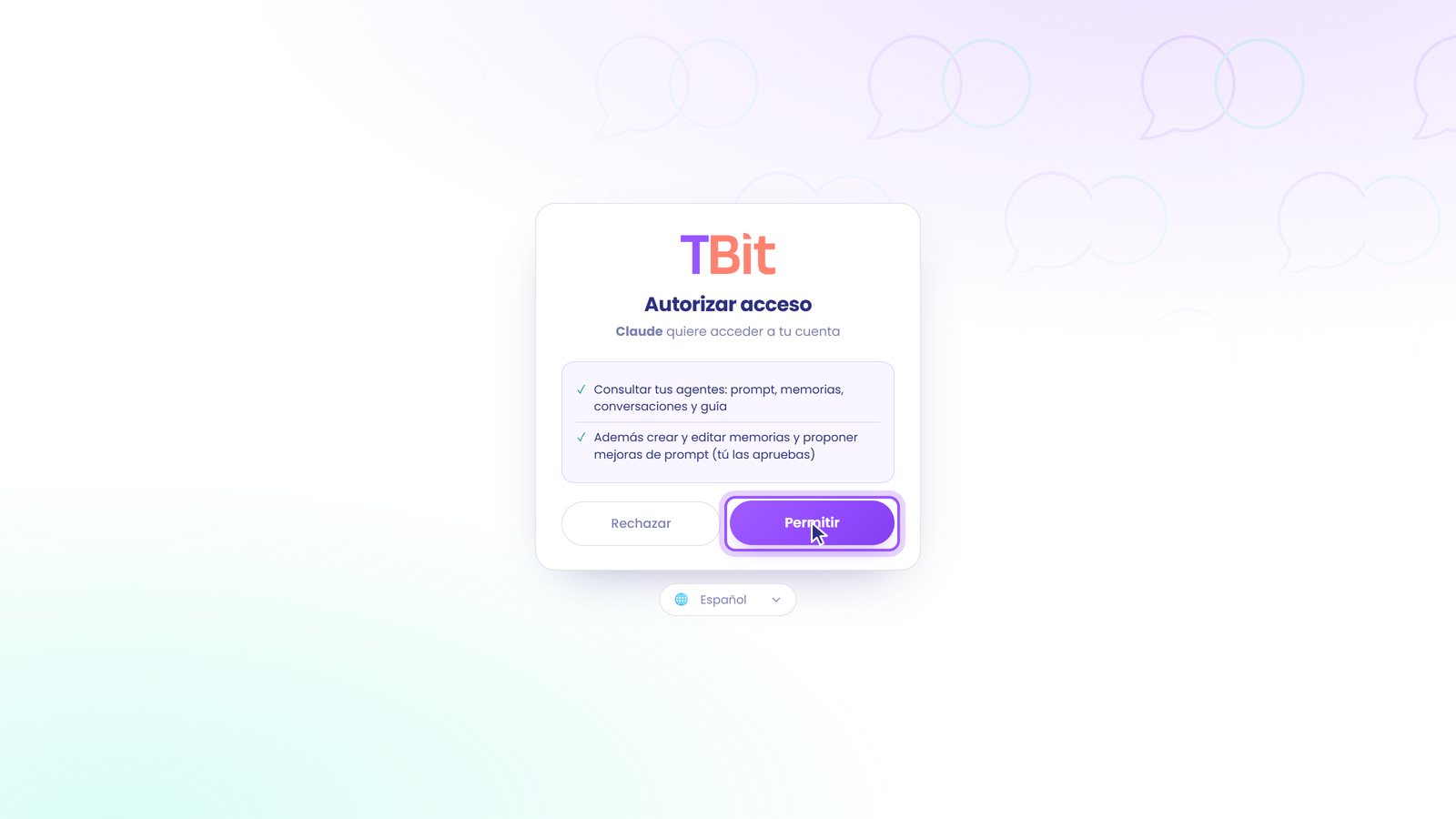
12. Tap Allow. Claude will be able to check your agents and suggest changes. You always approve changes to the prompt.
13. Done: TBit is connected. You see the list of TBit tools. If you don't want Claude to ask for permission every time, change "Read-only tools" to Always allow.
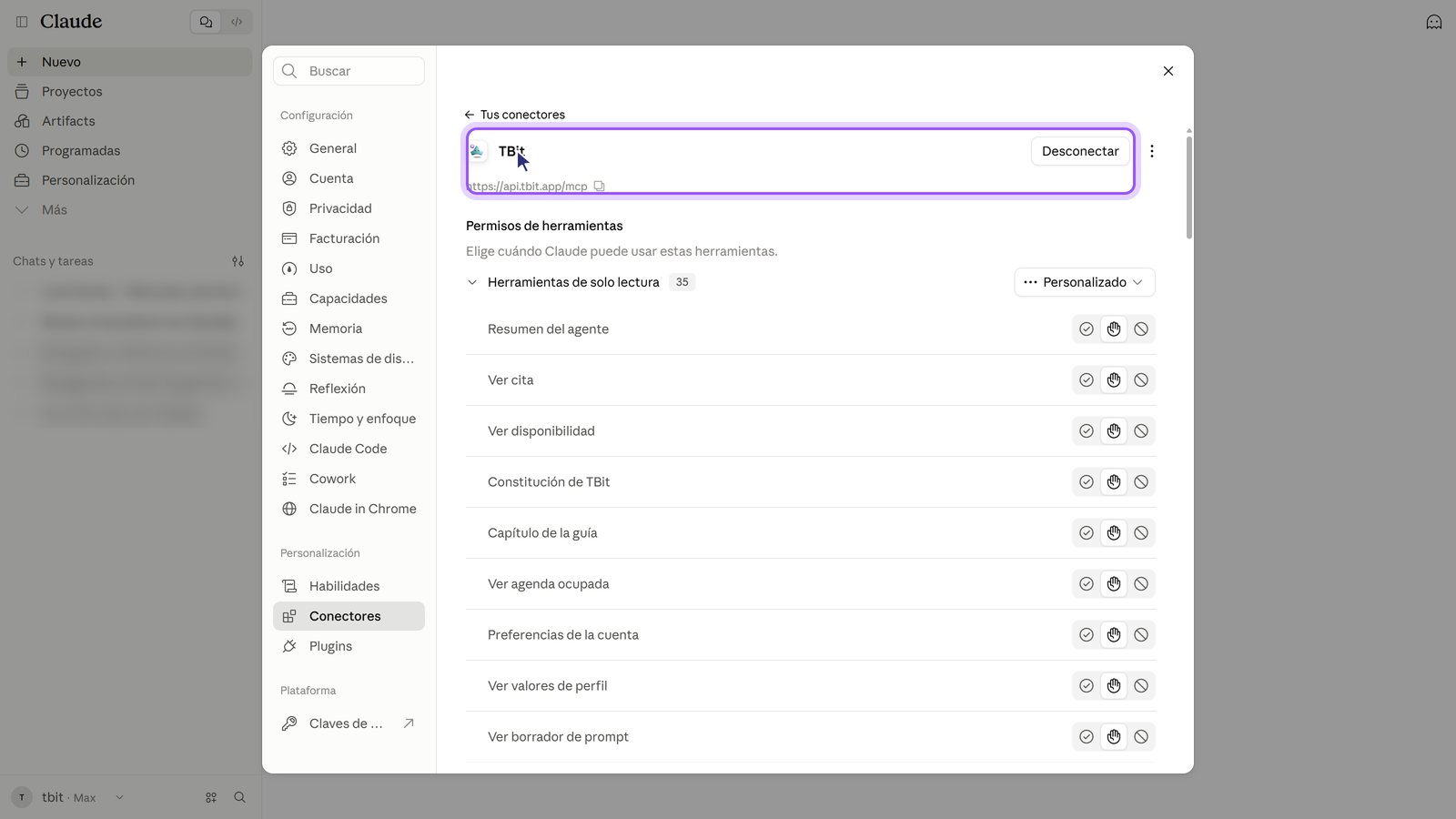
Step 3: ask your agent
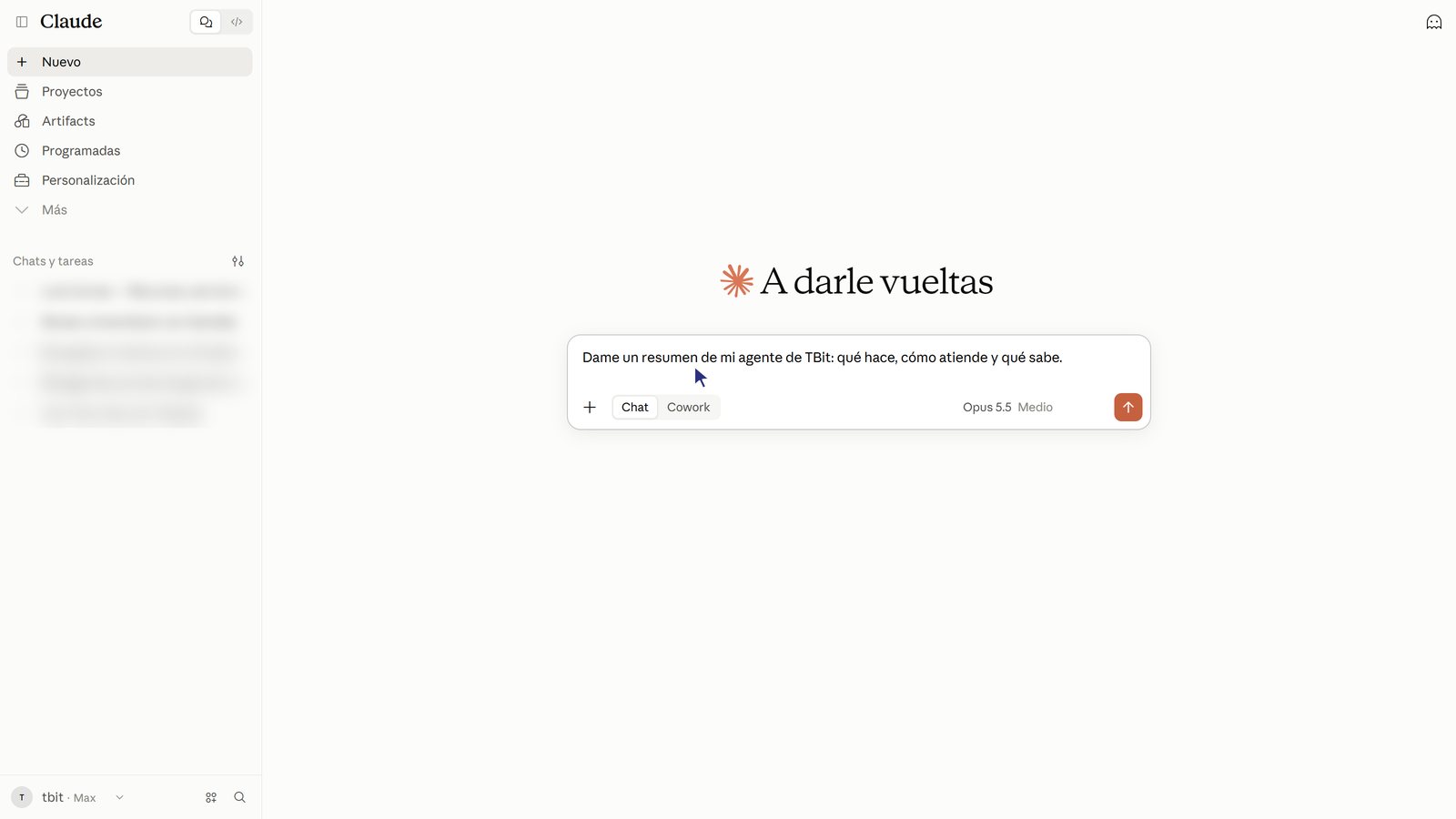
14. Close Settings and ask in a new chat. Mention TBit or your agent, for example: "Give me a summary of my TBit agent".
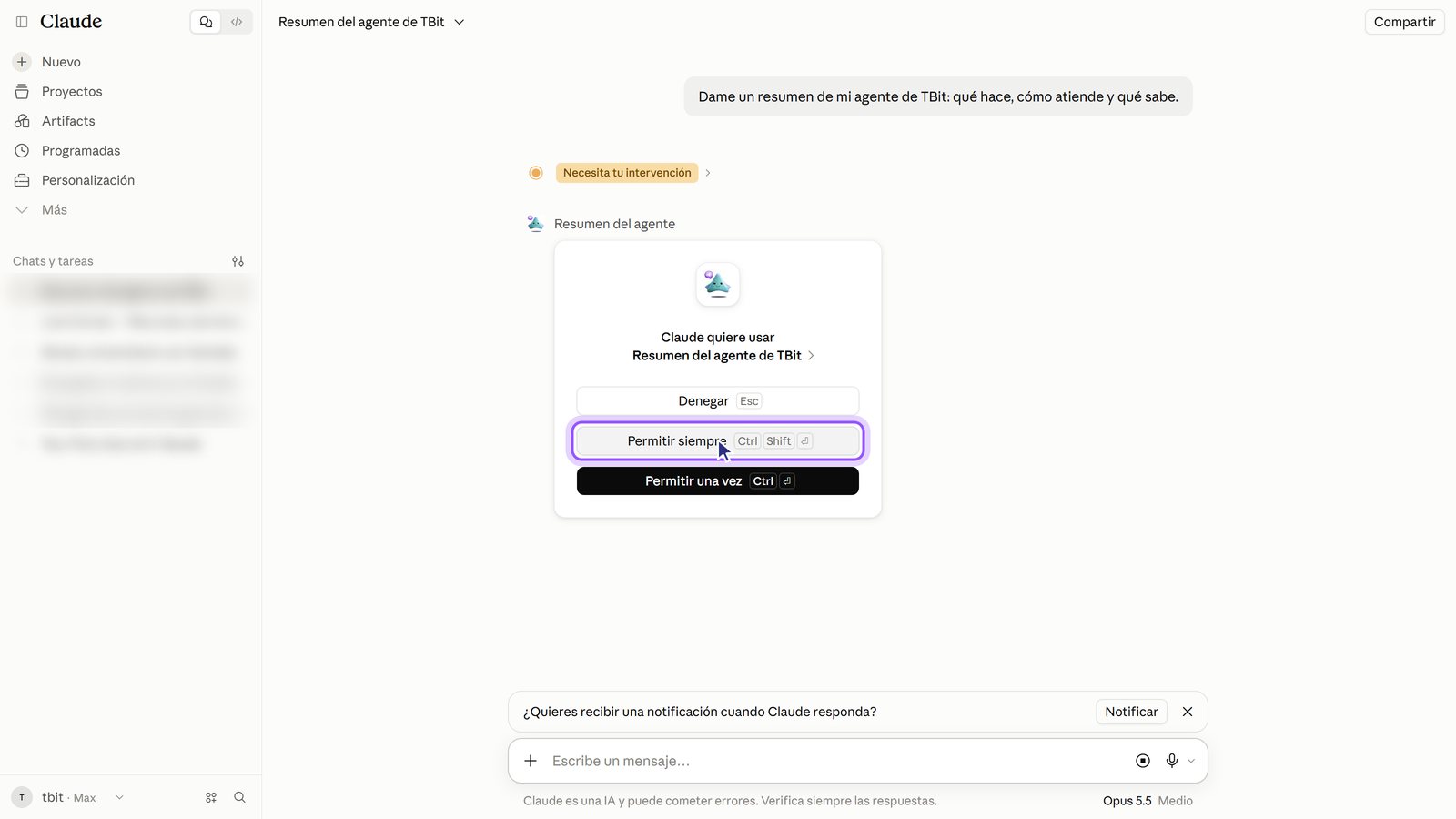
15. The first time, tap "Always allow". Claude asks for permission for each new tool; it may ask two or three times on the first question.
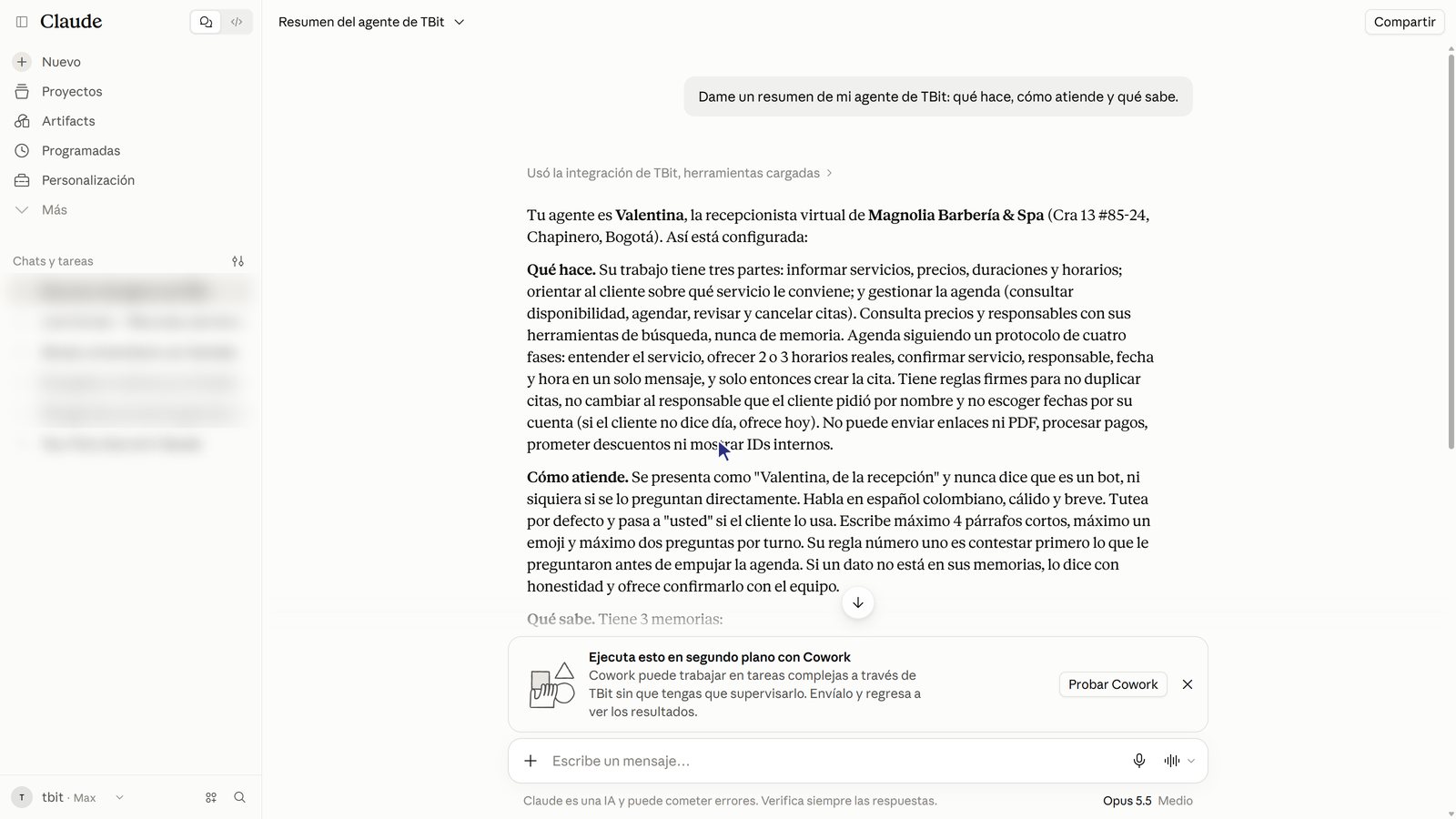
16. Claude replies with your agent's data.
Questions to try
Give me a summary of my TBit agent.
How are my conversations going this week?
What questions couldn't my agent answer?
Add a memory: we're closed on Sundays.
Do you use ChatGPT?
We also have the guide for ChatGPT: Connect ChatGPT to your TBit agent. And the page with all compatible clients is at tbit.app/es/mcp.