
Help center
Tags and attributes in TBit
Classify conversations and customers with tags and attributes to segment campaigns and know who you're talking to.

Tags visually classify what stage each customer is in; attributes capture specific data about each person automatically.
Tags
In Settings → Tags. They're your traffic light system: they tell you what stage of the process each customer is in without reading the whole chat. When you create a tag, define:
Name: short and direct (e.g. Interested, Pending Payment, VIP Customer).
Description: when to apply it (e.g. "when the customer asks for transfer details").
Color: to identify the status at a glance on the chat board.
Locked for AI: turn it on if the tag is human use only; that way the AI doesn't add or remove it.
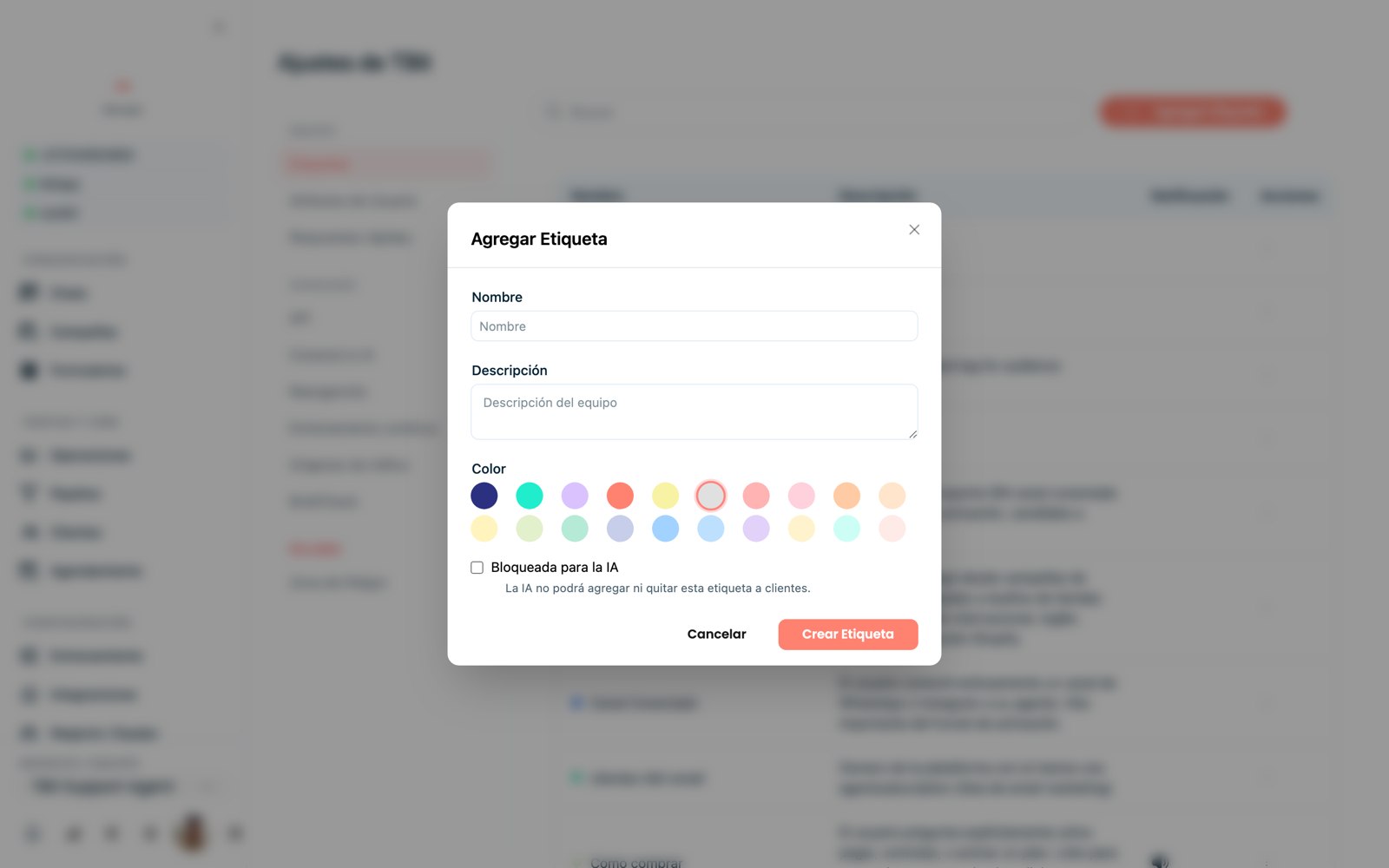
Creating a tag with color and rules.
Tags rotate
They're great for reflecting intent or status (interested, got a quote, upset), but remember that the AI adds and removes them as the conversation moves forward: what has a tag today may not have one tomorrow. For conditions that shouldn't change (model of interest, brand, budget), use a user attribute instead — below — because it doesn't fade away.
User attributes
They're data fields you want to collect from each customer. Your assistant saves them automatically during the conversation, with no awkward questionnaires. When you create an attribute, define:
Name of the variable (e.g. customer_email, delivery_city).
Data type: Text, Number, Date…
AI inference: if the customer says "I live in Bogotá", the system figures out and saves the value on its own.
Description of what information it stores.
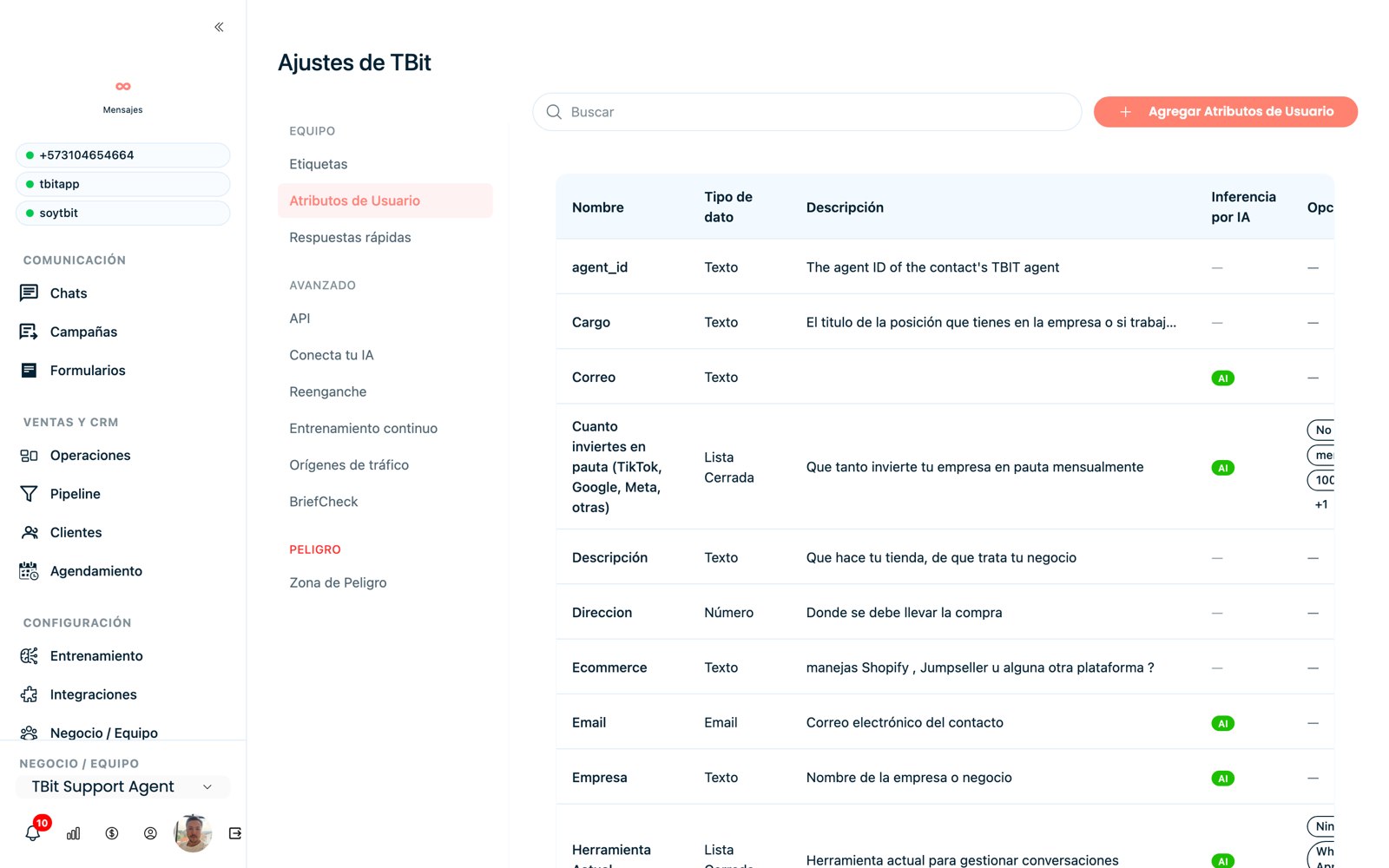
User attributes with automatic AI inference.