
Help center
How to pay in TBit: top up energy in a minute and keep selling
Top up energy in TBit from USD 10 to USD 500: with your saved card or with the secure Stripe link, with optional auto top-up. What happens if your plan expired and where your receipts are.
In TBit you pay with energy: each reply your TBit sends to a customer uses 1. When you run out, your TBit stops replying until you have more. This guide shows you how to top up in a minute, how to pay with a card or with the secure Stripe link, what happens if your plan expired and where your receipts are.
Where you pay
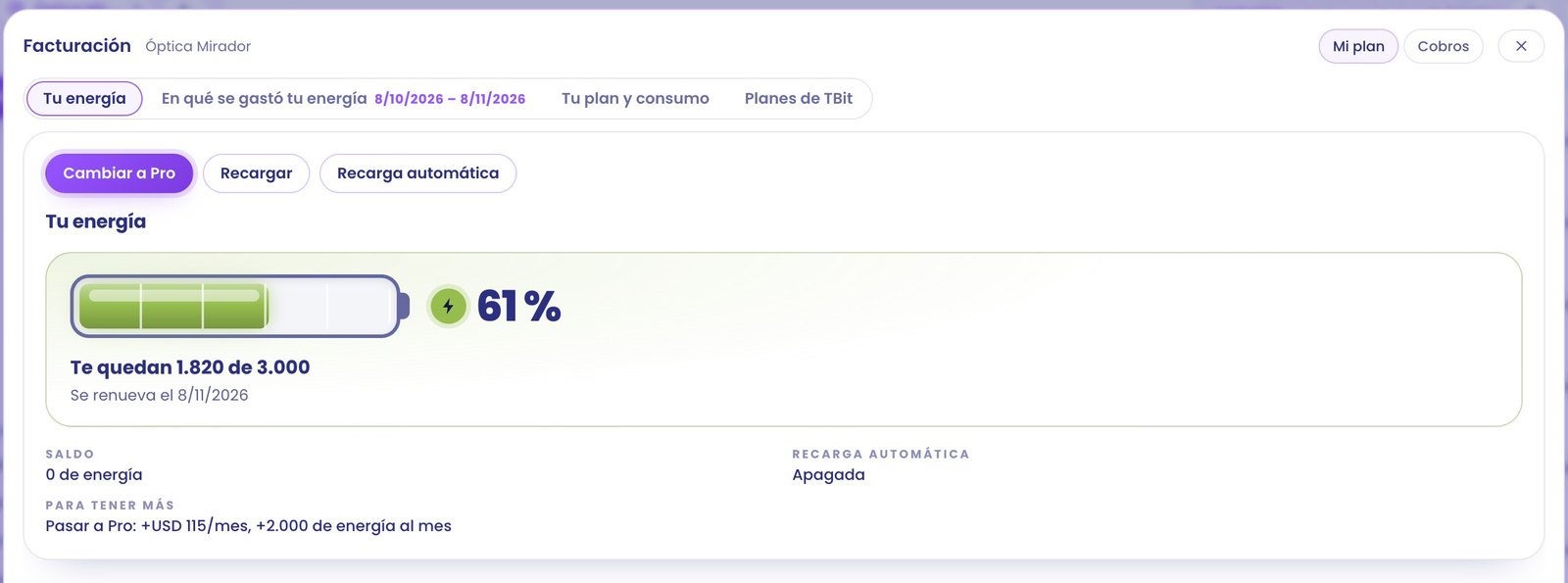
Everything is in Billing, inside platform.tbit.app. At the top you have two buttons: My plan and Charges. In My plan there are four tabs: Your energy, What your energy was spent on, Your plan and usage and TBit plans.
In Your energy you see how much you have left, your top-up balance and whether auto top-up is on. There's the Top up button.
Top up in a minute
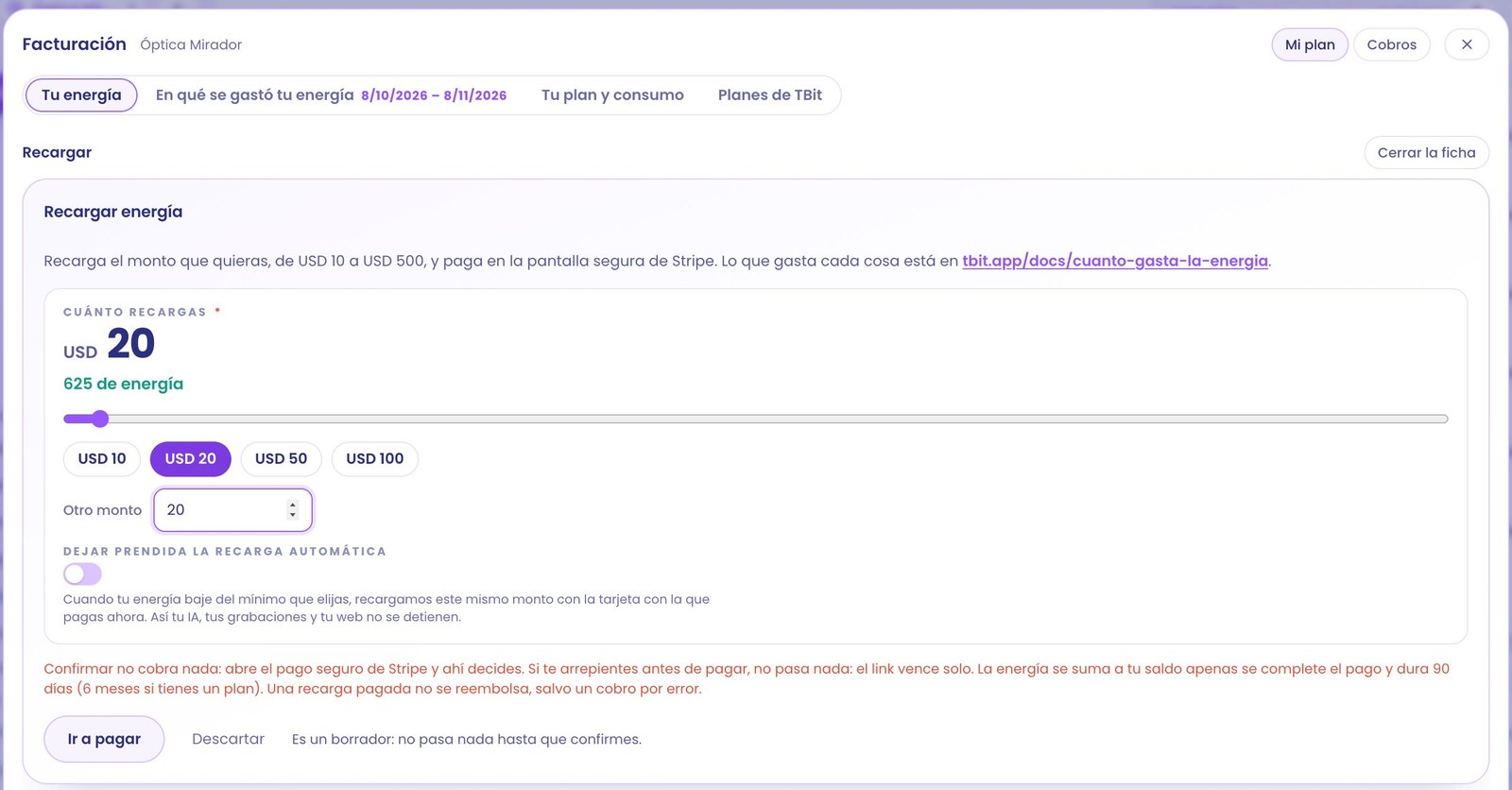
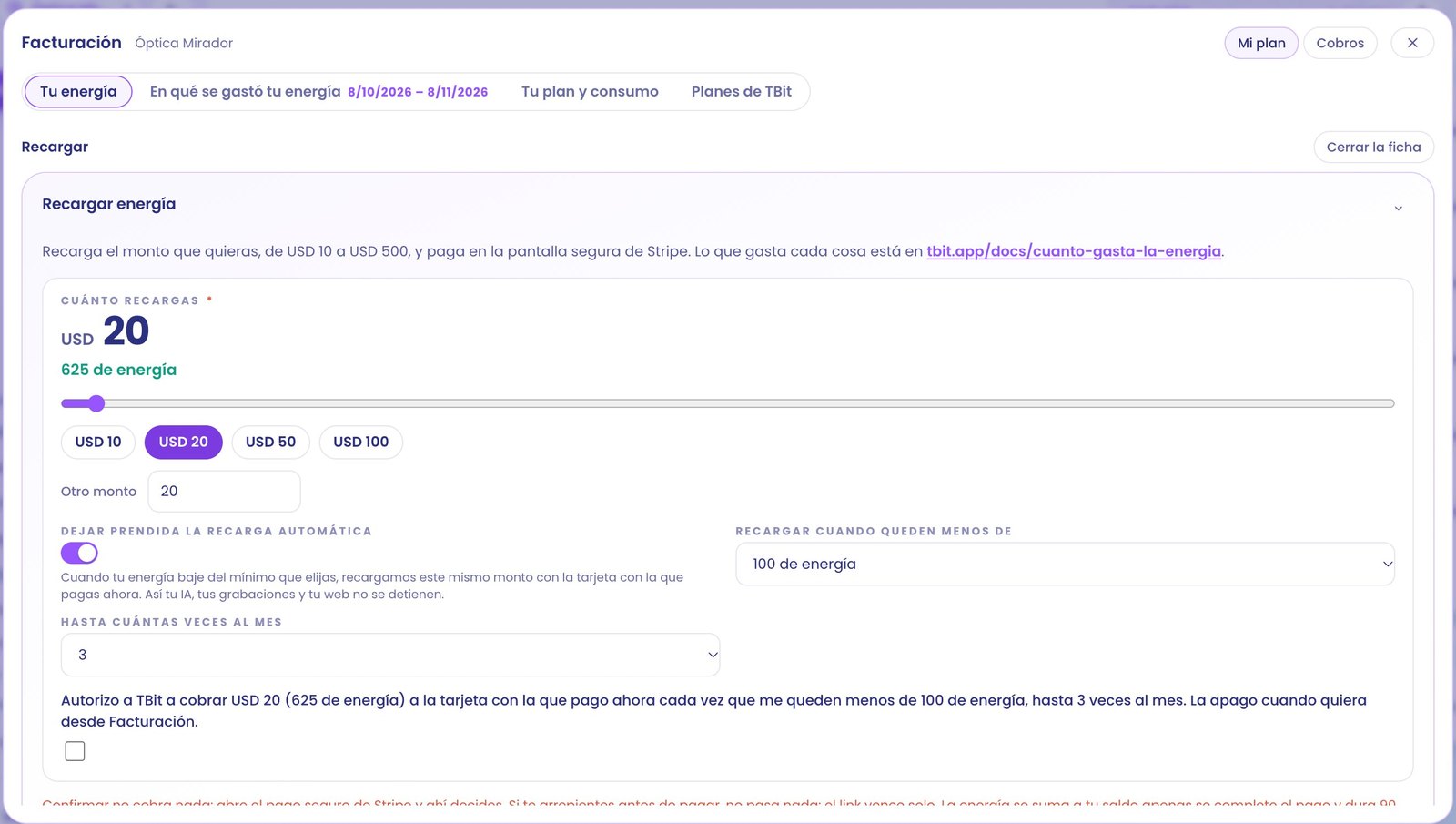
Go to Billing and, under Your energy, tap Top up. The Top up energy form opens.
Choose how much you top up, from USD 10 to USD 500 in whole dollars. You can tap a shortcut (USD 10, USD 20, USD 50 or USD 100), move the slider or type the amount in Other amount. Below the amount you see how much energy it gives you: USD 20 is 625, USD 50 is 1,562 and USD 100 is 3,125.
If you want to forget about it, turn on Keep auto top-up on. It's optional; below we tell you how it works.
Confirm. What happens next depends on whether you already have a card saved in TBit.
If you wonder how long each top-up lasts, in how much each thing spends in energy you'll find what each service spends.
If you don't have a saved card yet: you pay in Stripe
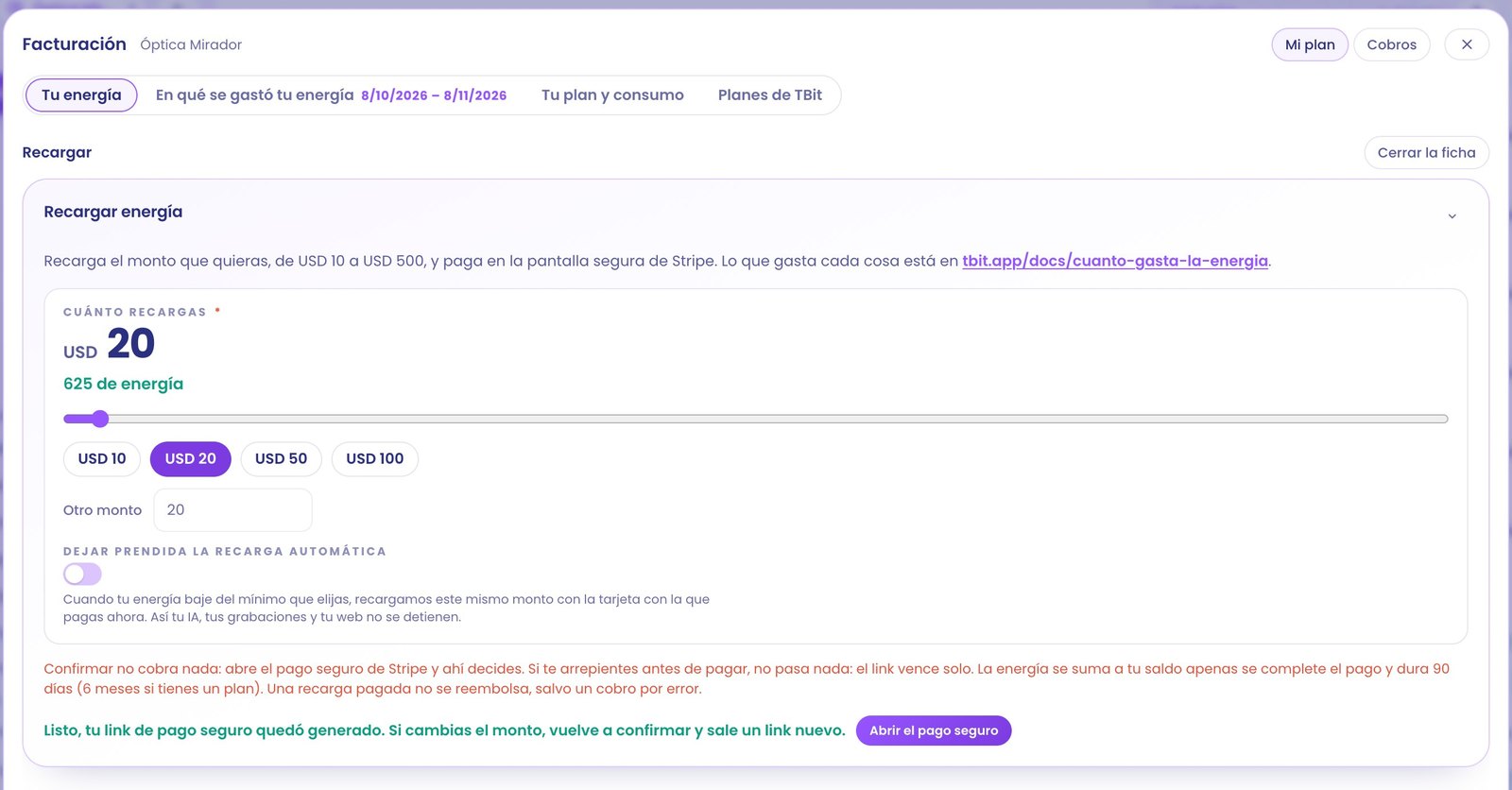
Tap Go to pay. Confirming doesn't charge anything: TBit generates a secure Stripe payment link and the Open secure payment button appears. You open it, enter your card on the Stripe screen and pay there. As soon as the payment is completed, the energy is added to your balance.
If you change the amount after generating the link, you confirm again and a new link comes out. The previous link stops working.
If you already have a saved card: you pay without leaving TBit
If you've already paid for a plan or a top-up, TBit has your card saved in Stripe and the form tells you: the amount is charged to your card •••• 1234 and the energy comes in instantly (with the last four digits of your card). The button is now Hold to pay: you hold it down until it fills, so no one pays with an accidental tap.
Want to use another card? Check Pay with another card and the secure Stripe payment opens, just like in the previous case. The same happens if on that purchase you turn on auto top-up: the payment is made in Stripe.
Auto top-up
With Keep auto top-up on you choose from what level to top up (when you have less than 100, 300, 500 or 1,000 energy left) and up to how many times a month, from 1 to 5. Every time your energy drops below that level, TBit charges the same amount to the card you pay with now. To turn it on you check the authorization box, which repeats the amount, the level and the maximum you chose. You turn it off whenever you want from Billing.
Nothing happens until you confirm
Everything you fill in Billing is a draft. You see it written below the button: It's a draft: nothing happens until you confirm. If you changed your mind, tap Discard and the draft is deleted.
What if you change your mind after generating the link? Nothing happens before you pay: you don't open the link and it expires on its own. A recharge that's already been paid isn't refunded, unless it's a charge made by mistake; in that case write to us and we'll look into it.
If your plan expired
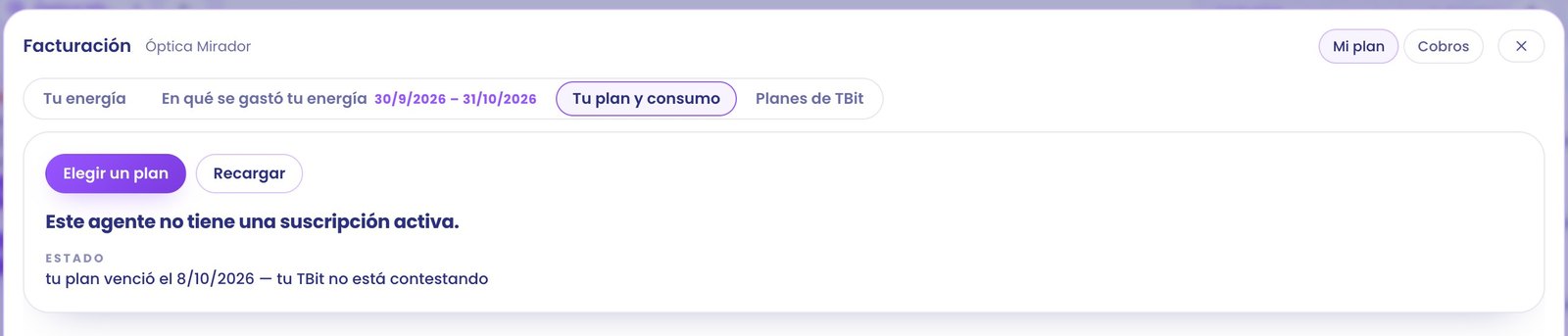
An expired plan doesn't leave you without options. In Your plan and usage you see the notice This agent doesn't have an active subscription with two buttons: Choose a plan and Recharge. If you recharge, your TBit starts replying again even if you don't have a plan. Whenever you want, you choose a plan: with a plan, each month's energy costs less.
The energy you recharge is used after your plan's energy and lasts 90 days from purchase, or 6 months if you have a plan. The oldest recharge is always used first.
Where your receipts are
At the top of Billing, tap Charges. In TBit invoices you'll find the invoices for your plans, including plans that have already expired, and each recharge appears as Energy recharge (625), with the energy you bought in parentheses. Tap View receipt to open it.