Help center
How to connect WhatsApp Business and Instagram to TBit | TBit
Step by step to connect your WhatsApp Business and your Instagram account to the TBit platform. Bring your messaging channels together in one place.
How to connect WhatsApp Business and Instagram to the TBit platform
Introduction
The Integrations section is one of the fundamental pillars of TBit, since it lets you connect your agent with the tools and channels you already use in your business.
Through this window you can link platforms like WhatsApp, Instagram, Mercado Pago, Shopify, Jumpseller and productivity tools like Google Calendar, making sure your agent not only replies to messages, but also interacts intelligently with your digital ecosystem.
Having your integrations correctly set up guarantees that:
Your agent can receive and send messages from the official channels
Information flows automatically between your tools
Replies are aligned with your real operation
Manual errors and management times are reduced
Important: Without an active integration, the agent won't be able to operate on the channels or run external actions. Check that all the necessary integrations are active and in "Connected" status.
Step by step: Connect WhatsApp Business
Path: Side menu → Settings → Integrations
Part 1: Go to Integrations
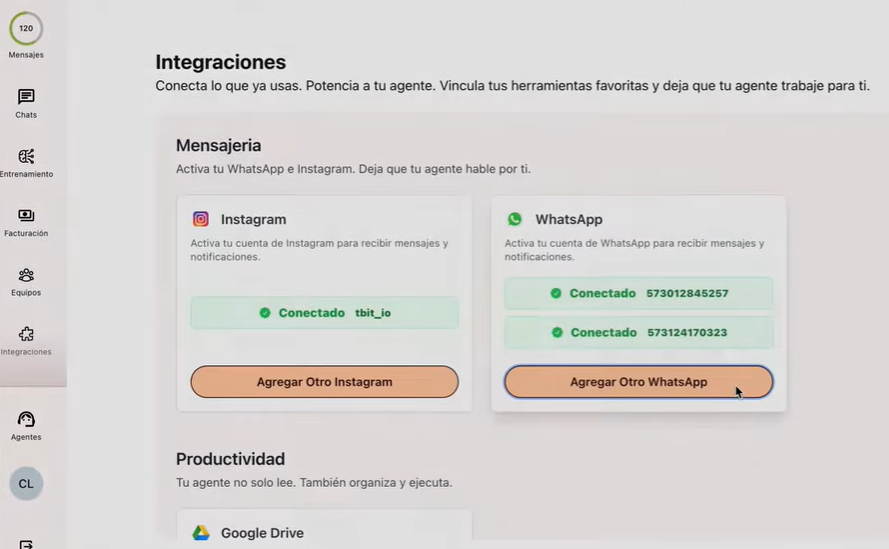
Go to the left side menu and click on Integrations, inside the Settings section.
In the Messaging section, find the WhatsApp block and click the "Connect WhatsApp" button.
Part 2: Log in with Facebook
A Facebook window will open. Enter your username and password.
Important: Don't use your personal account. You must log in with your company's Business Manager, since that's what lets you connect the WhatsApp Business number.
Part 3: Check the Business Manager
Make sure the Business Manager belongs to your company and is directly related to the WhatsApp Business line you want to connect. That's the only way WhatsApp will work correctly inside the platform.
Part 4: Enter the WhatsApp number
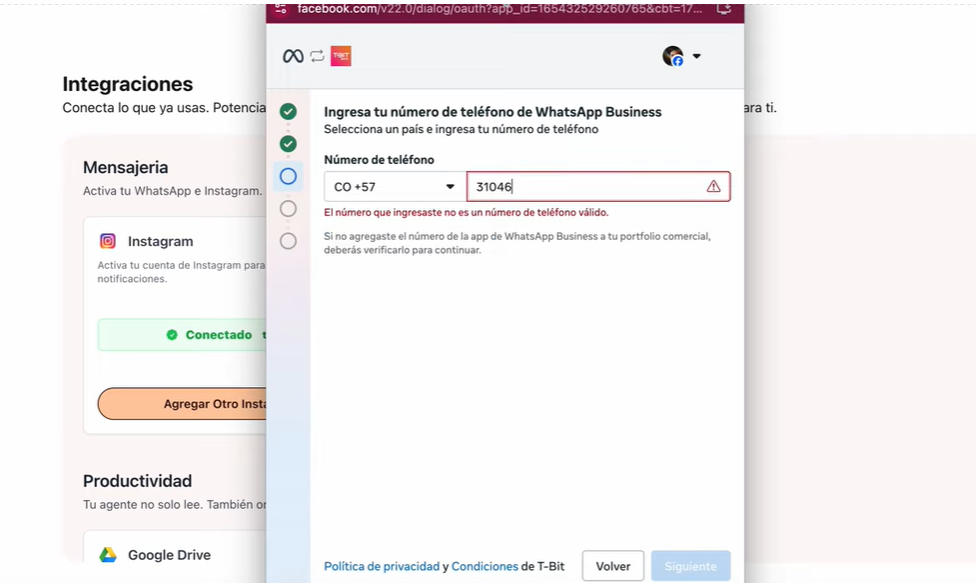
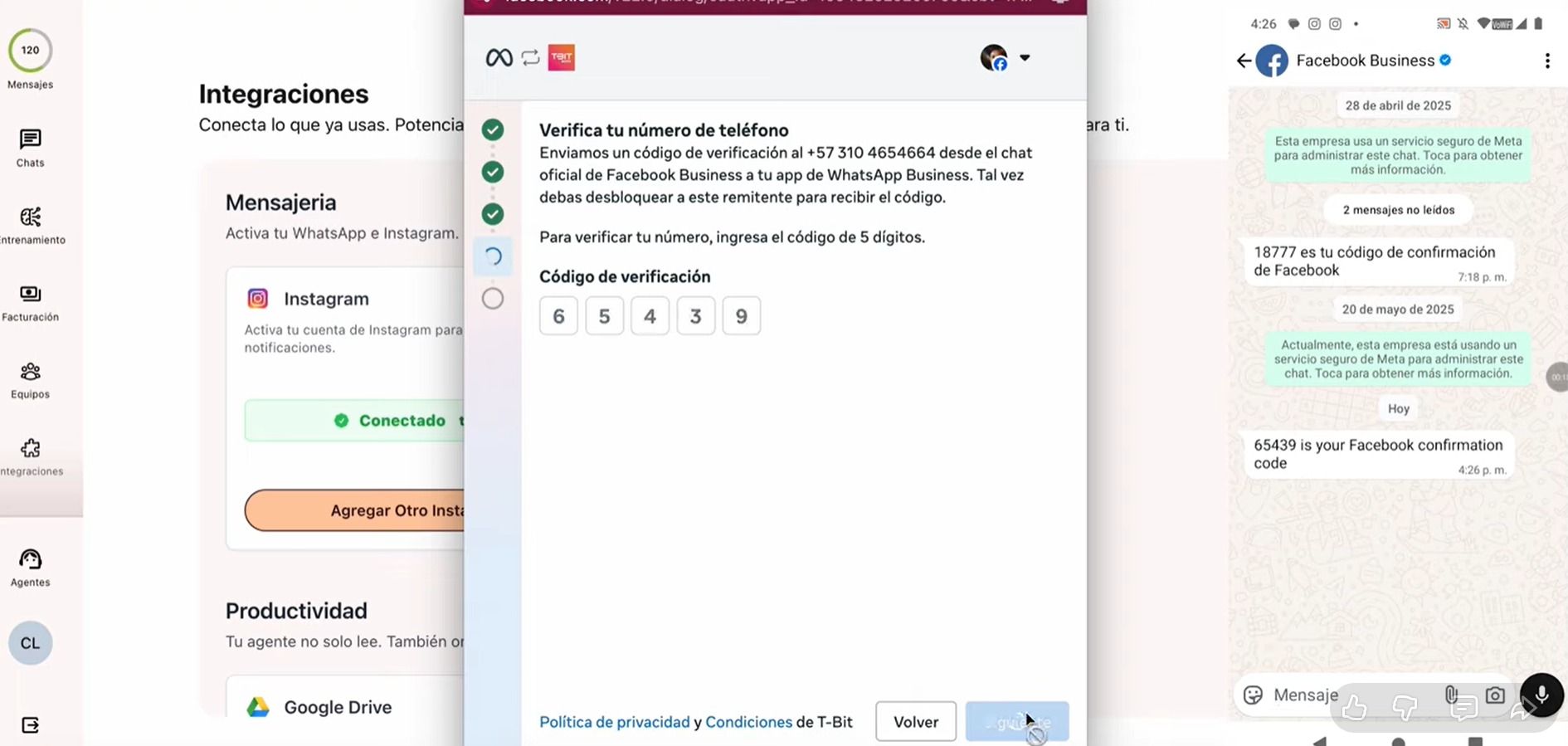
Step 1: Type your WhatsApp Business number.
Step 2: You'll receive a verification code.
Step 3: Enter the code in the corresponding fields.
Part 5: Authorize permissions
A screen will appear with the permissions you grant to TBit. Confirm the permissions and wait a few seconds while the information syncs.
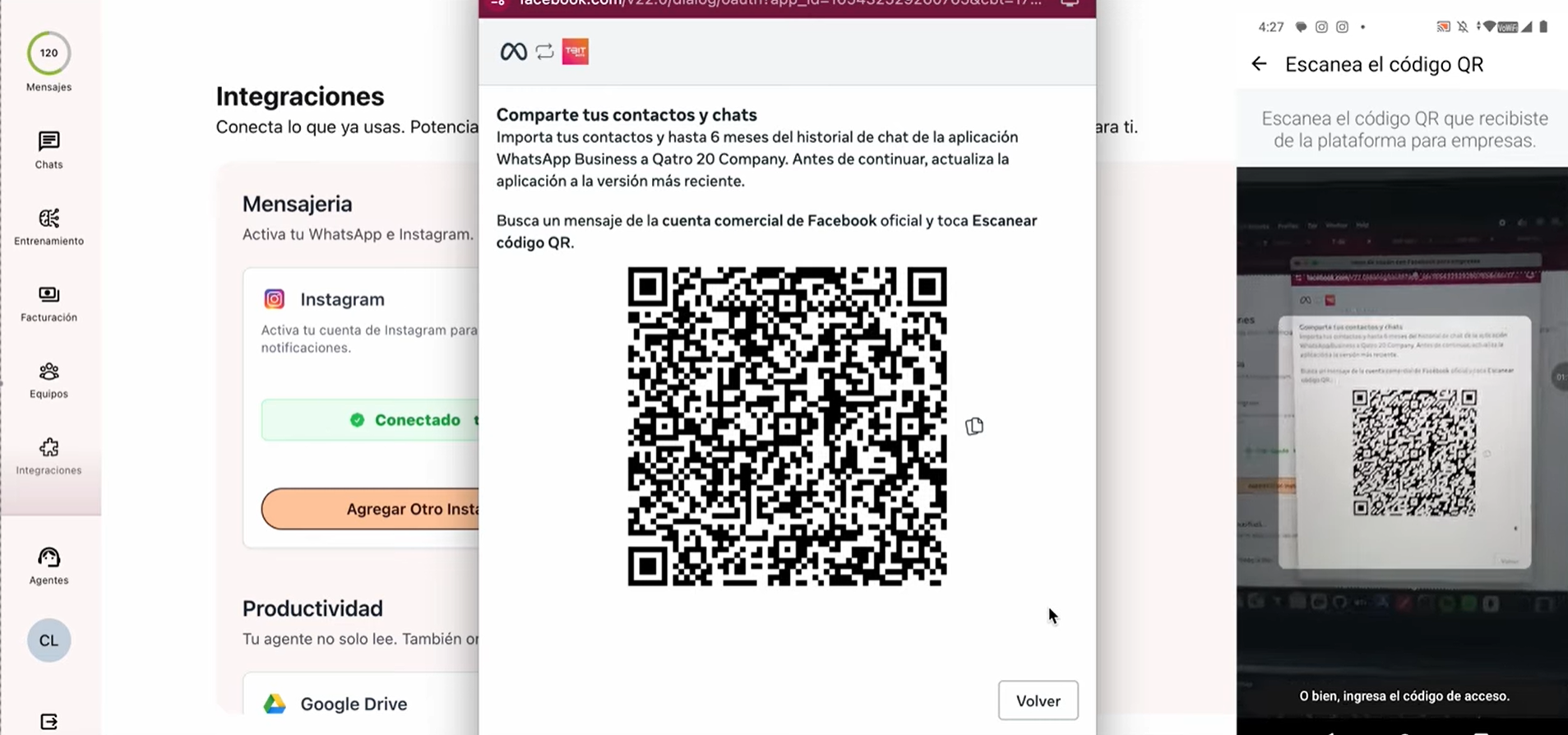
A QR code will appear that must be scanned by the WhatsApp Business you entered. This process finishes linking the information and takes a couple of seconds. Don't close the window until "Finish" appears.
Part 6: Finish the connection
When the final screen appears, click "Finish".
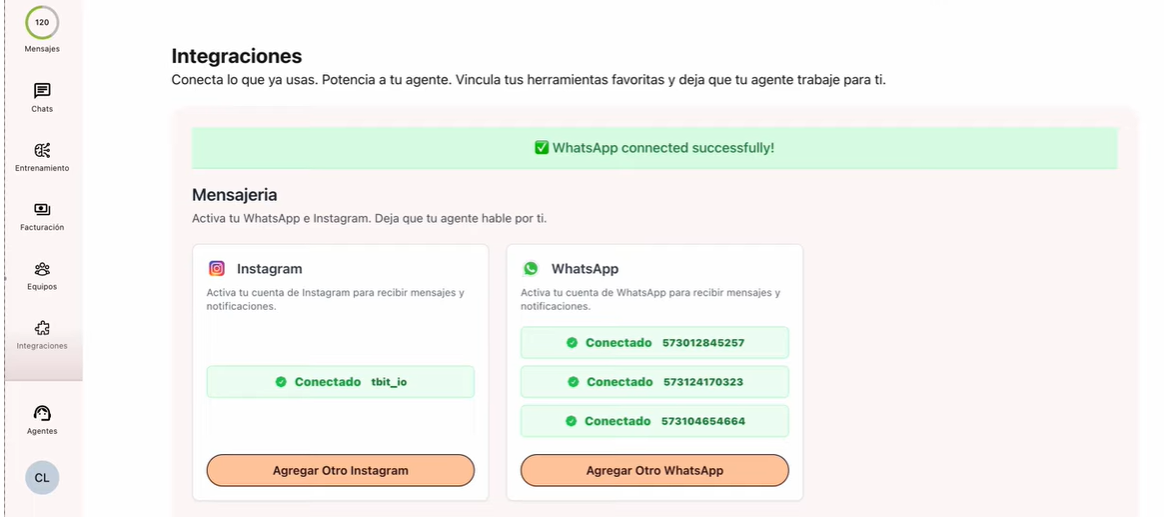
Important: Don't leave the page until you see the confirmation message indicating that your account was connected successfully.
How to link Instagram
Part 7: Go to Integrations
Go to the left sidebar menu and click Integrations, inside the Settings section.
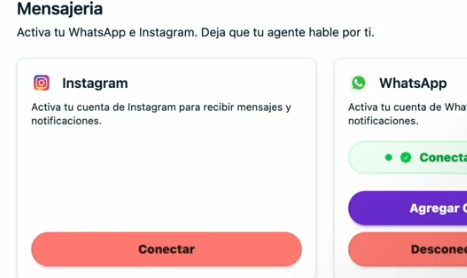
In the Messaging section, find the Instagram block and select the "Connect Instagram" option.
Part 8: Log in to Instagram
Enter your Instagram username and password and click "Log in".
Part 9: Authorize permissions
Authorize the permissions the platform requests and wait a few seconds while the information loads.
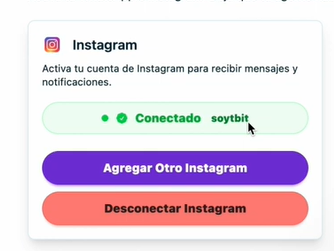
Step 10: Confirmation
You'll see a message confirming that your Instagram account has been connected successfully.