
Help center
How to connect WhatsApp with Meta in TBit: the 7 paths | TBit
A practical guide to connecting your WhatsApp number with Meta in TBit: the 7 real connection scenarios, how to recognize each error, its traps, and step-by-step screenshots. Download the PDF.
For your TBit agent to reply on WhatsApp, your number must be linked to Meta's ecosystem (the "business manager" or Business Manager) and from there connected to TBit. That intermediate Meta step is where almost all the stumbling blocks happen, and they're almost never your fault or TBit's: they're internal Meta states you have to unblock. This guide covers the 7 real connection scenarios, with the signal to recognize each one, what to do, and the pitfalls.
Checklist before your connection session
- Computer (never a tablet) and the main phone for the line at hand.
- Live access: Facebook and Instagram passwords for the business, and the recovery email accessible.
- Know which business manager(s) your number lives in today (or at least which Instagram has used it).
- If you're coming from another provider: canceled and disconnected (phone → Settings → Account → Business platform).
- No custom broadcast lists in WhatsApp Business (Tools → Lists).
- If you're going to pure API: back up your chats first.
- No active ad campaigns on the line that's going to move.
Which case is yours? Find your path
Before connecting, figure out which of these scenarios you're in. Each one has a characteristic signal; go straight to your path.
| Level | Path | Signs to recognize it |
|---|---|---|
| 1 | Happy | No error appears: the flow asks for your number, the QR or code, and ends in "Connected". Your number has never been linked to Instagram, other providers, or old portfolios. |
| 2 | Phone unlock | The QR doesn't complete the link or the flow keeps spinning without an error message. It's usually due to something on the phone itself: active broadcast lists, another provider stuck on "Business Platform", or you're using a linked phone (companion) instead of the main one. |
| 3 | Pure API | You want the line without the app (for mass campaigns) and when you create it you get "This number is already registered with a WhatsApp account": Meta hasn't released the number yet after deleting the account in the app (it takes 3 minutes to a day). |
| 4 | Implicit Instagram admin | You get "The number you entered is not associated with the business you selected... you must unlink this number". At some point you added that number to an Instagram and Meta created a hidden business portfolio that holds it; you can only see it by logging into Business Manager with the Instagram, not with Facebook. |
| 5 | Multi-admin | You get "The account has already been added to another Facebook business account", or the flow checks your number but freezes on "share access" without showing an error. You have several business admins and the number lives in a different one than the one you're using. |
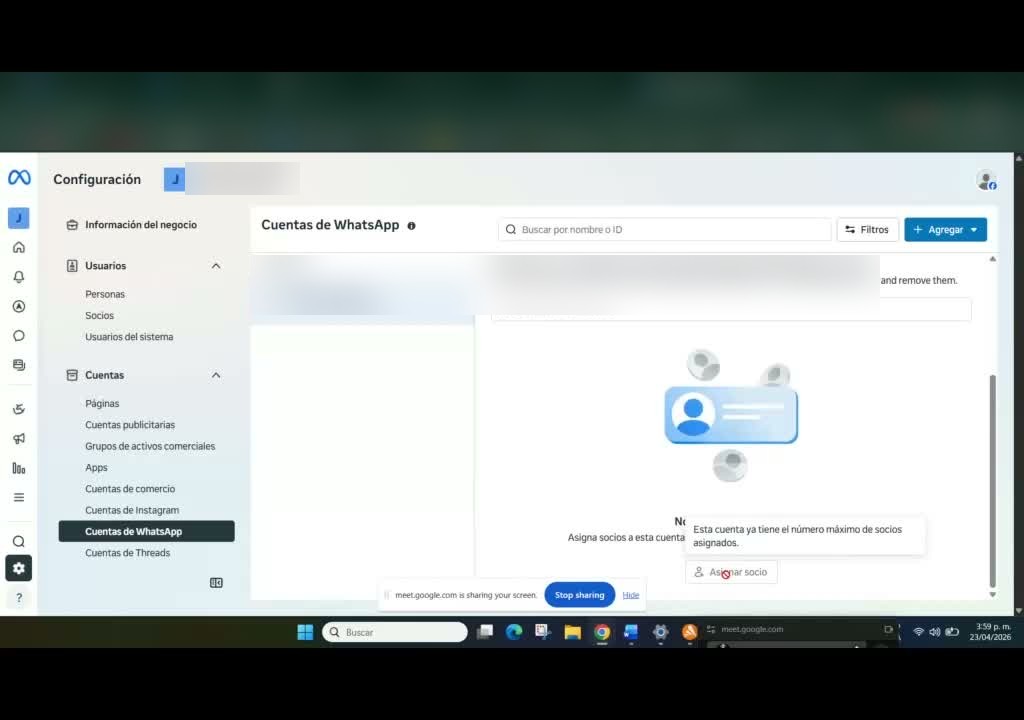
| 6 | Nuclear solution (ghost partner) | You come from another provider and even though you "canceled", you get "the account is in the process of canceling registration", "the business already shares this account with a partner" or "maximum number of partners", with the partner list empty. The ghost partner is hidden at the global Business Manager level. |
| 7 | Closed / third-party account | Verification codes don't arrive (neither SMS nor WhatsApp), Meta closed your account or has it under appeal ("no one can see your account"), it rejects all portfolio names for no reason, or the Instagram/email holding the number was created by an agency and no one has the access. |
Golden rule: coexistence vs. API
The first fork in the whole flow is deciding whether you keep your WhatsApp Business app or move the line to the pure API. Mnemonic rule: coexistence = connect existing app + QR; API = create new account + SMS. In coexistence the app and TBit live side by side; in pure API you lose the phone app and WhatsApp Web (back up your chats first), and the view of your conversations stays in TBit.
Path 1 · The happy path
Virgin number (new SIM)Existing business portfolio~5 minutes
Problem: no problem. This is the ideal scenario and the goal of all the others: a line that Meta hasn't tied to anything strange. Everything is done from TBit, without leaving the platform.
Step by step in TBit:
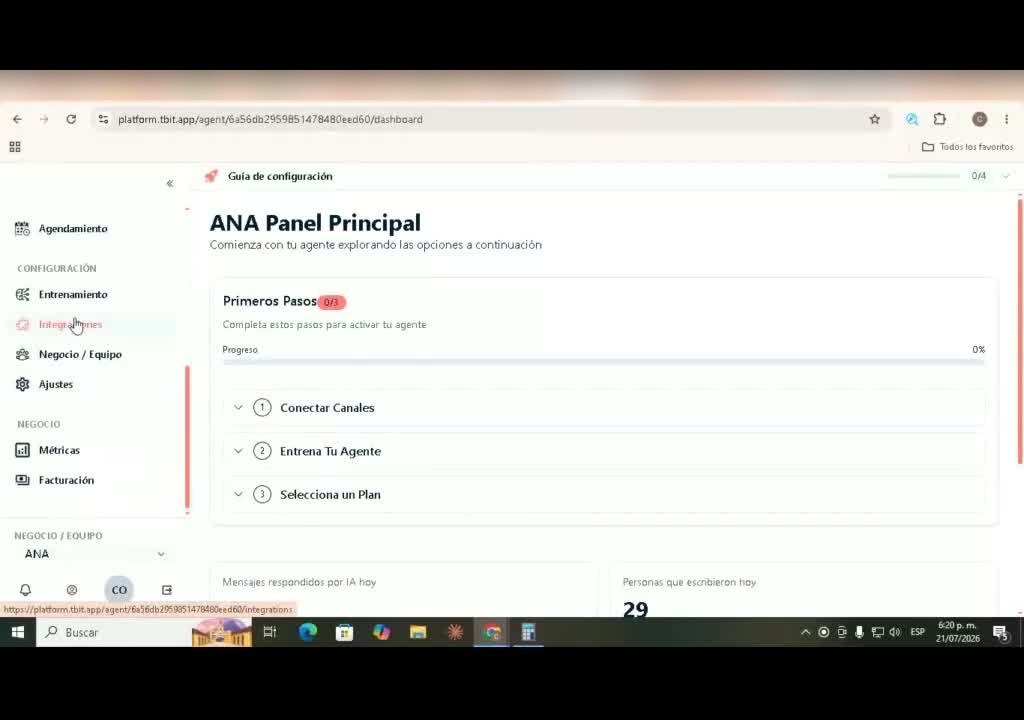
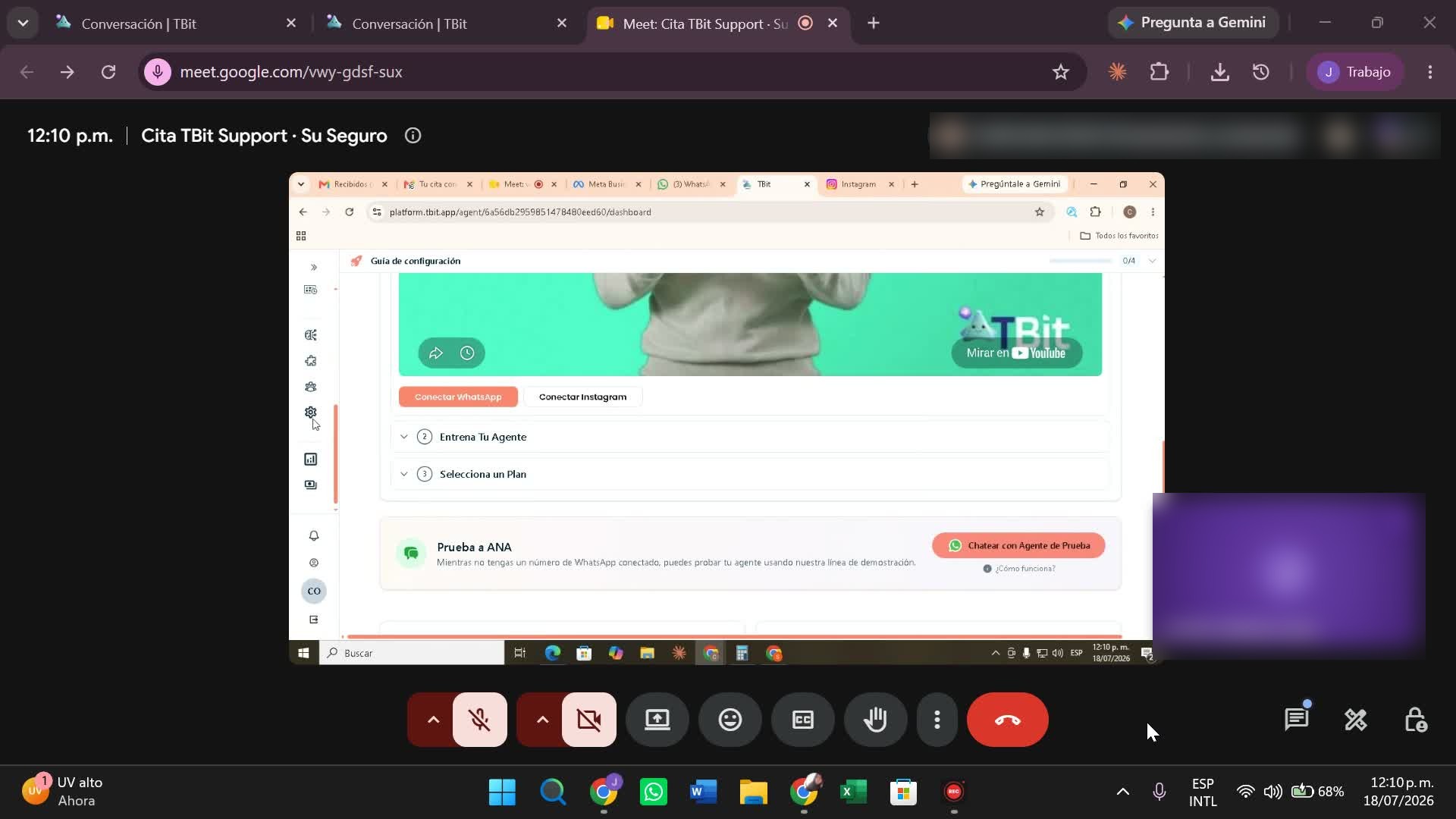
- Connect channels. In your TBit panel: Setup guide → step 1 "Connect Channels" → Connect WhatsApp button (or from Integrations → WhatsApp → Connect). Meta's secure flow opens.
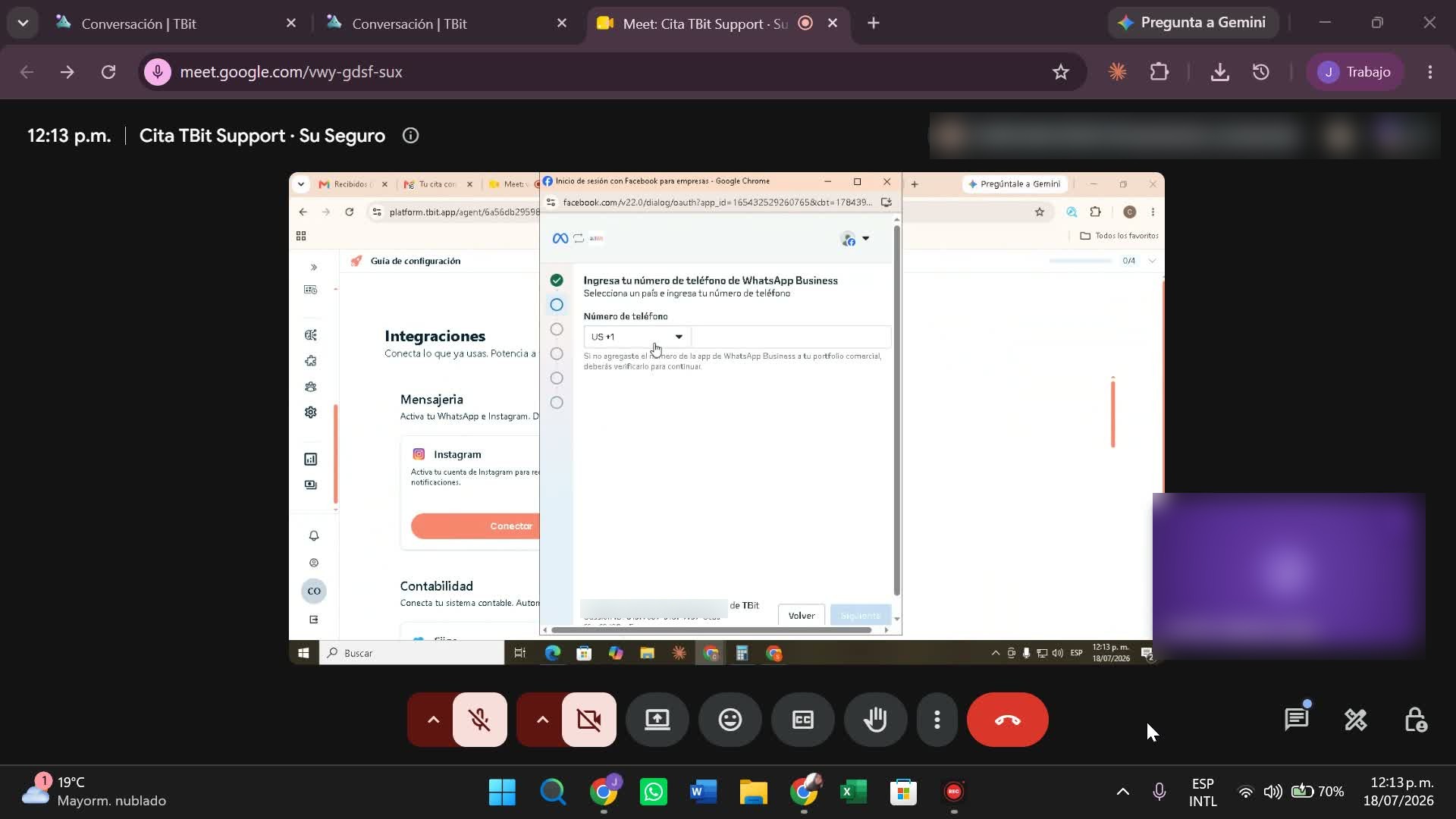
- Enter your number. Select the country (CO +57) and type your WhatsApp Business number.
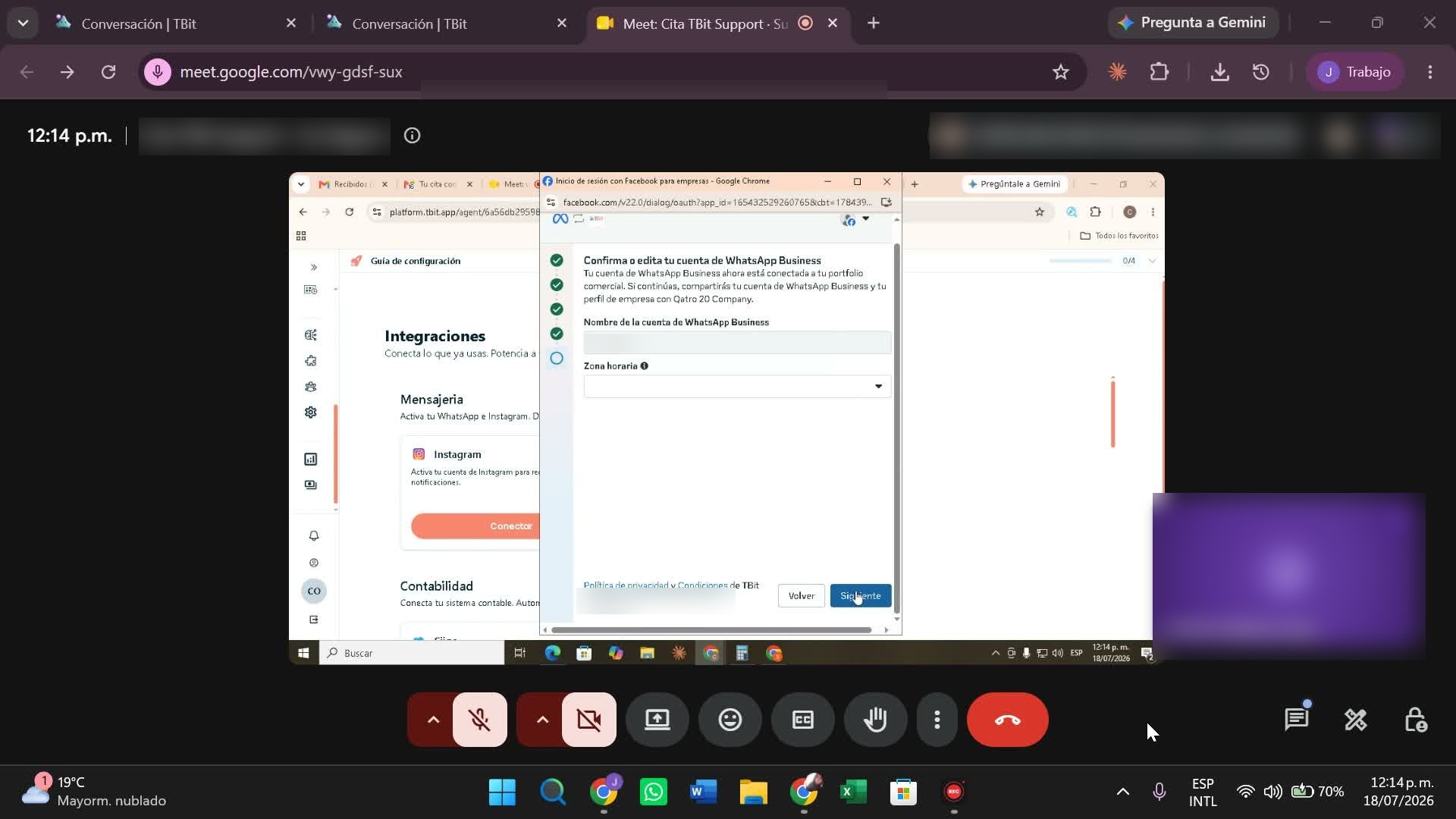
- Confirm your account. The flow shows the account name and asks for your time zone (Bogotá) → Next.
- Link your phone. Scan the QR code with the WhatsApp Business app (or confirm the message you receive). This imports contacts and the last 6 months of history.
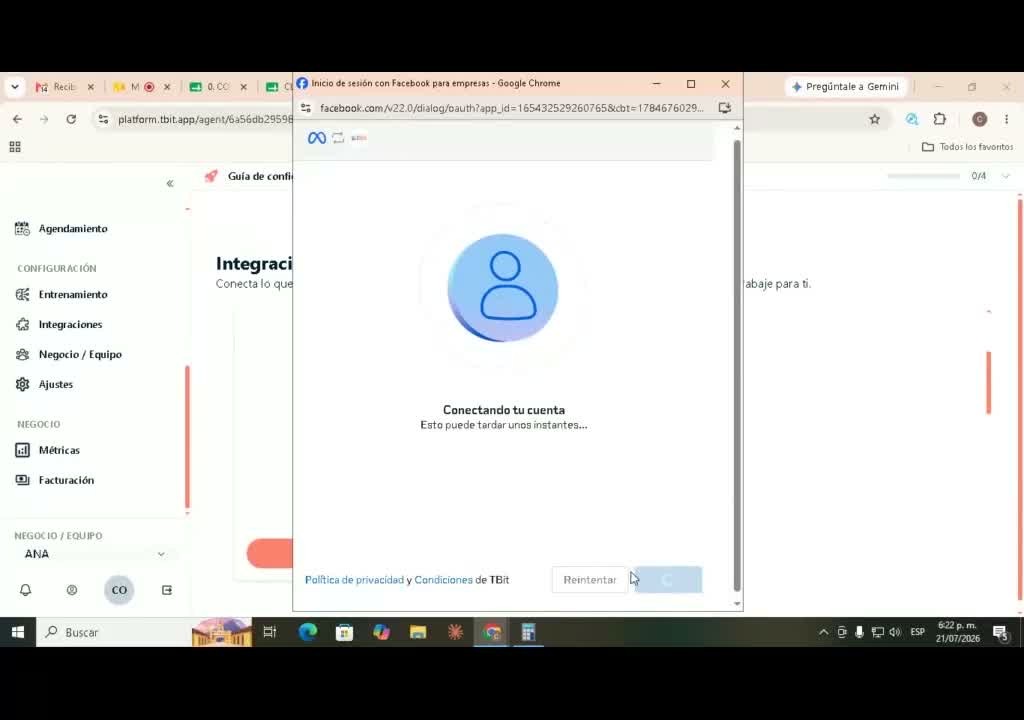
- Wait for the connection. "Connecting your account…" and then "Accounts are set up!" → Finish.
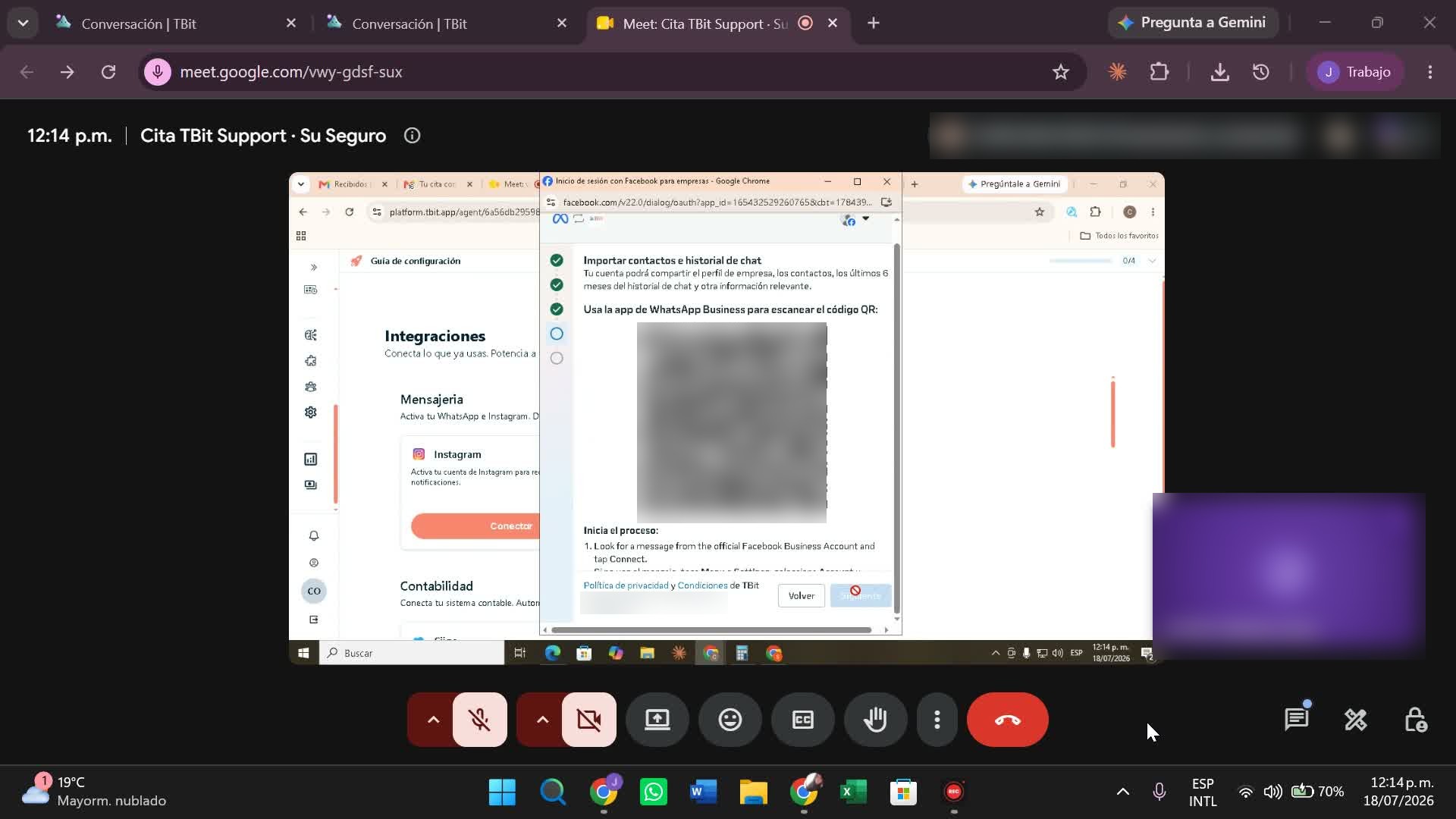
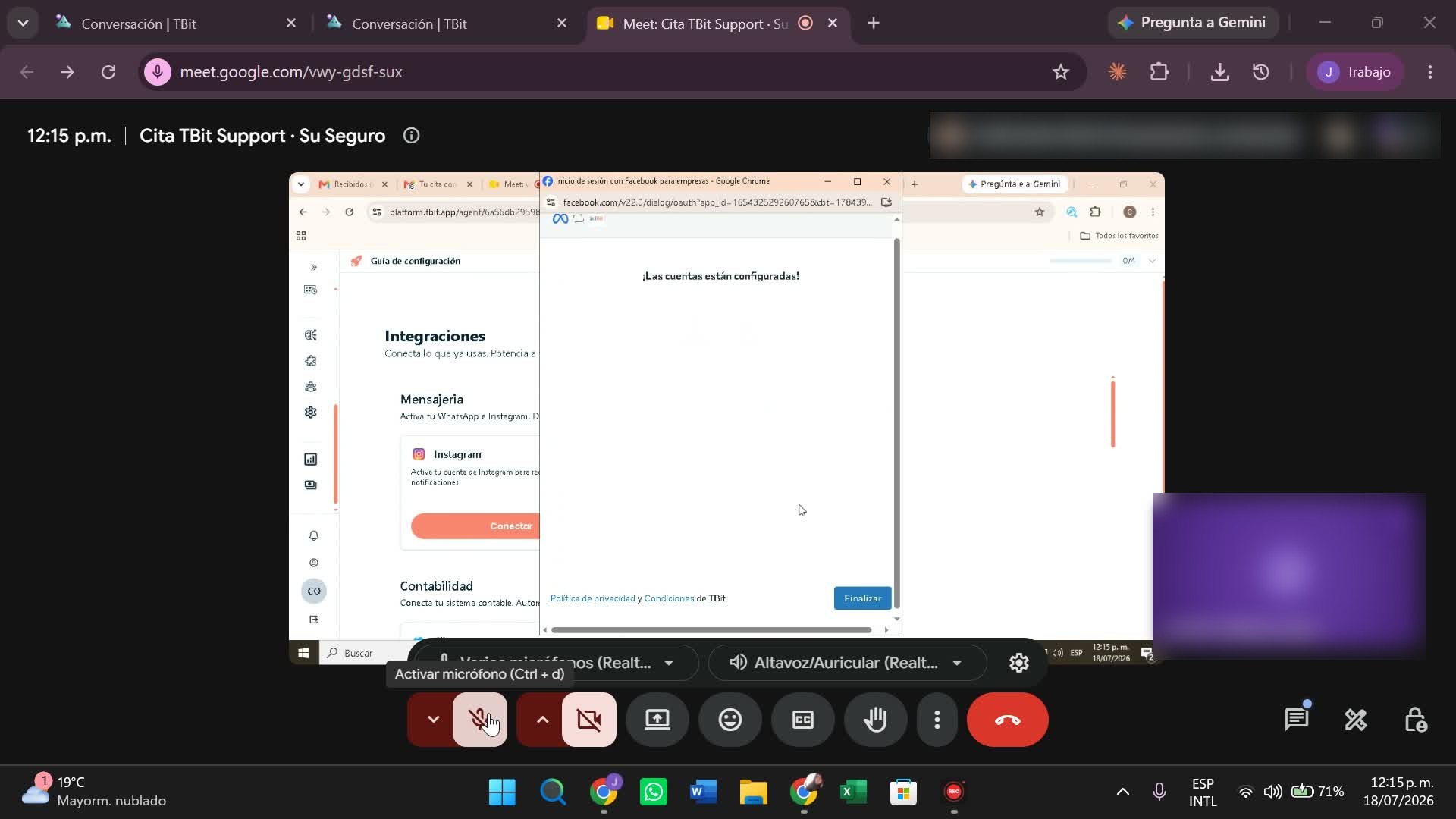
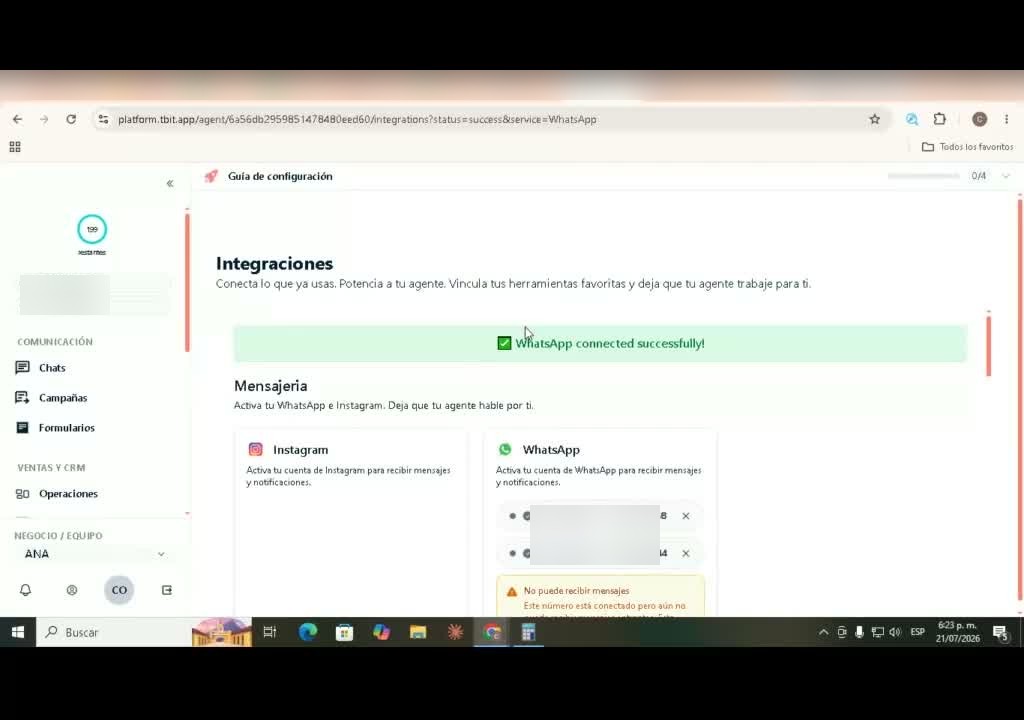
Solution: when you finish, TBit takes you back to Integrations with the green confirmation banner and the line shows as «Connected». One last detail: turn on the «channel enabled» switch and hit Save (if you don't save, the change won't stick).
Path 2 · Unlocks on your phone
CoexistenceThe line already runs on WhatsApp Businesssame day
Problem: the line already works in the WhatsApp Business app and you want to keep it (coexistence). But linking by QR fails or doesn't move forward, without explaining why. There's almost always something on the phone itself that Meta requires you to «let go» first.
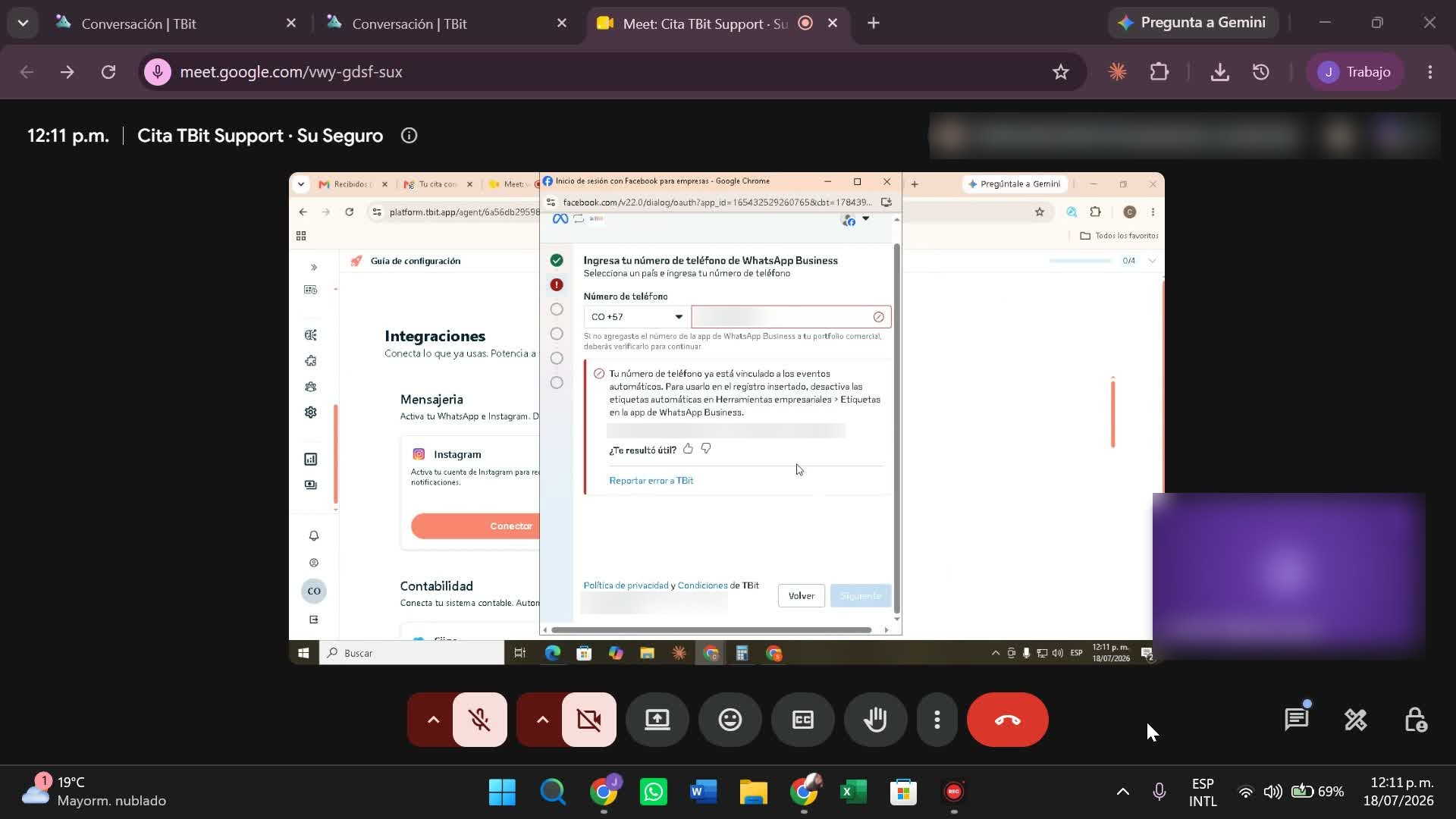
What to do:
- Use the main device. A companion phone doesn't show the account options you need; if the main one is somewhere else, you'll have to wait until you have it.
- Remove the automatic labels/lists: WhatsApp Business → Business tools → Labels/Lists → open each custom label or list → menu (⋮) → Delete.
- Check "Business Platform": Settings → Account → Business Platform. If another provider shows up as connected, tap to disconnect (and wait ~30 min).
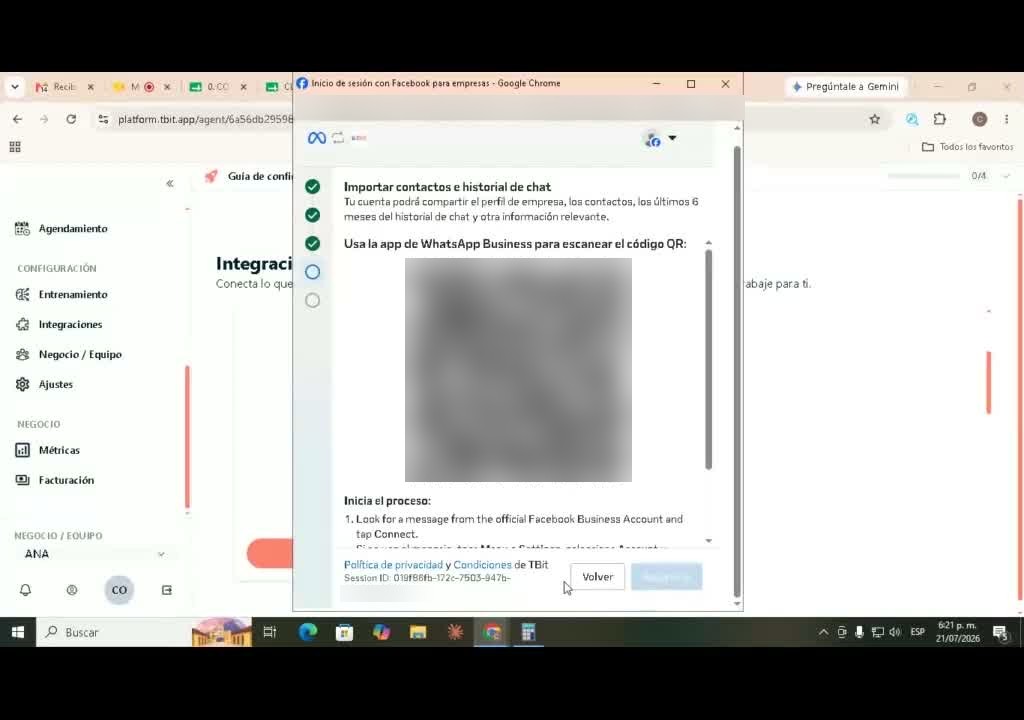
- Try the TBit flow again: choose the portfolio → "Connect an existing app" → number → confirm the message that arrives on WhatsApp ("Connect to the Business Platform") → scan the QR.
Solution: with a "clean" phone (no custom lists and no other provider attached), the QR completes the linking on the first or second try and the line stays in coexistence: the app keeps working and TBit replies in parallel.
Path 3 · Pure API
Mass campaignsThe line stops living in the appwith a wait (minutes to 1 day)
Problem: you want to send campaigns to your database without risking blocks: that calls for a direct API line, without the app. The classic snag: the number is still "anchored" to the previous WhatsApp Business account and Meta doesn't release it right away.
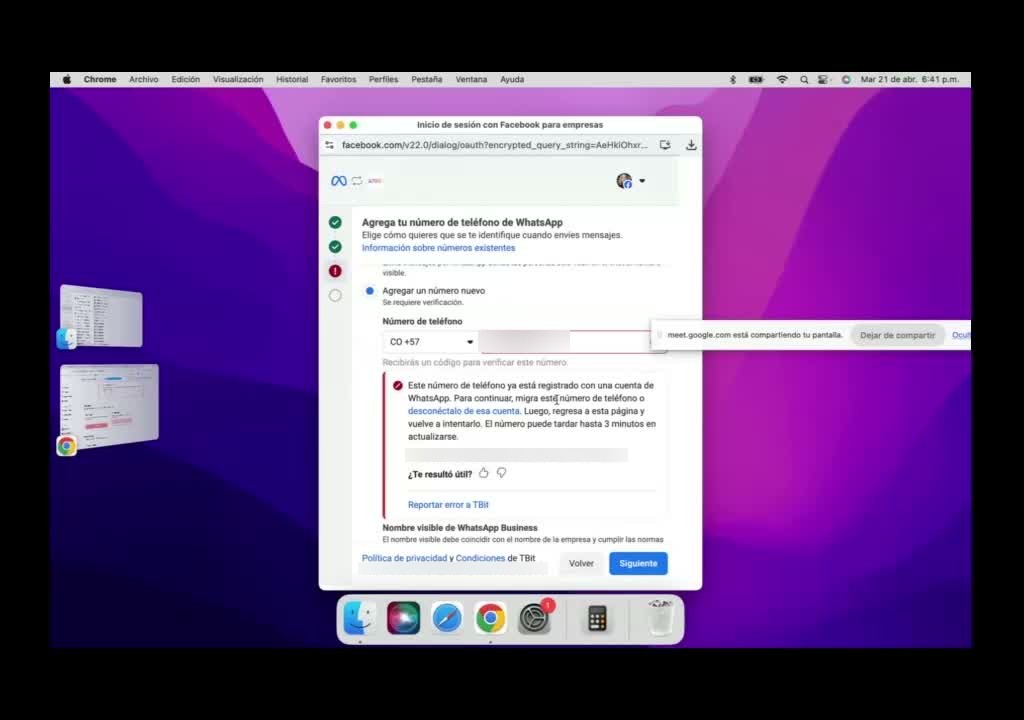
What you do:
- Backup of the chats in the app (they're lost when you switch to API).
- Unlink the number: WhatsApp Business → Settings → Account → Delete account. If you see "still connected to the business platform," first Disconnect and then delete.
- In TBit → Integrations → connect WhatsApp → choose "Create a WhatsApp Business account" (not "connect existing app," that's coexistence).
- Display name that matches the business manager (if it doesn't match, Meta won't let you continue) → "Add a new number" → SMS verification.
- If you get the "already registered" error: wait 3 to 5 minutes and try again (sometimes Meta takes until the next day to release the number).
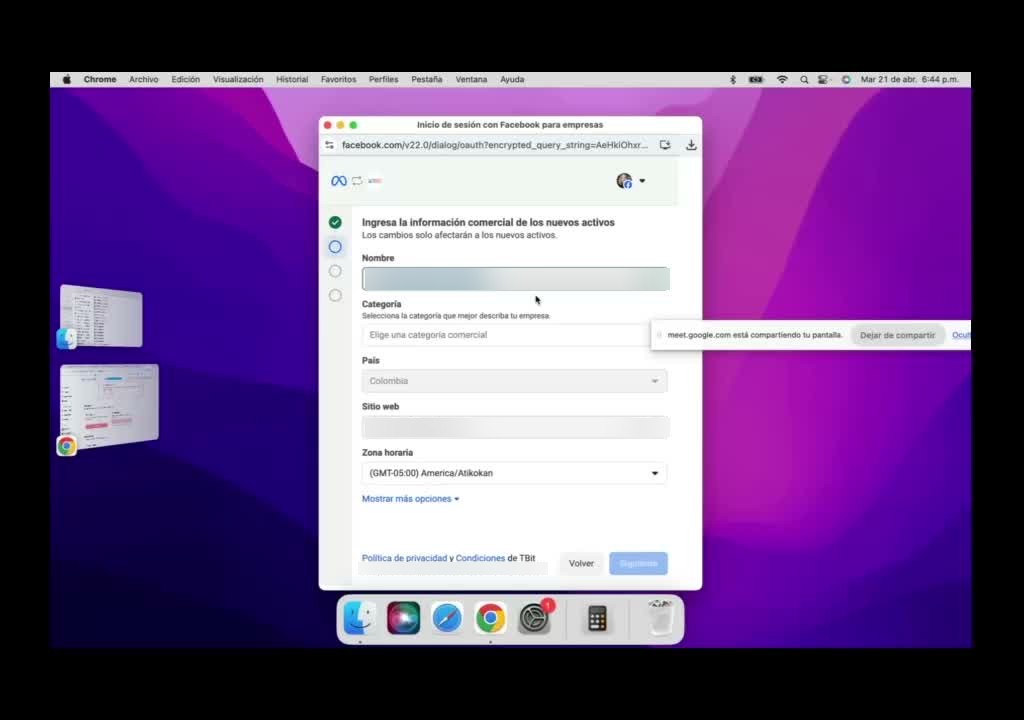
Solution: the line runs 100% through the API; the "visual" of your conversations becomes TBit (web and mobile app). There's no WhatsApp app or WhatsApp Web for that line anymore, and yes, you can go back to the app in the future (by disconnecting from TBit and reinstalling).
Path 4 · The implicit Instagram admin
The most common"Invisible" portfolio1 to 2 sessions
Problem: at some point you added your WhatsApp number to an Instagram profile. What nobody told you: by doing so, Meta created a hidden business manager "underneath" and tied your number to it. Years later, when trying to connect with TBit, that ghost portfolio blocks everything, even if you "deleted" that Instagram several times.
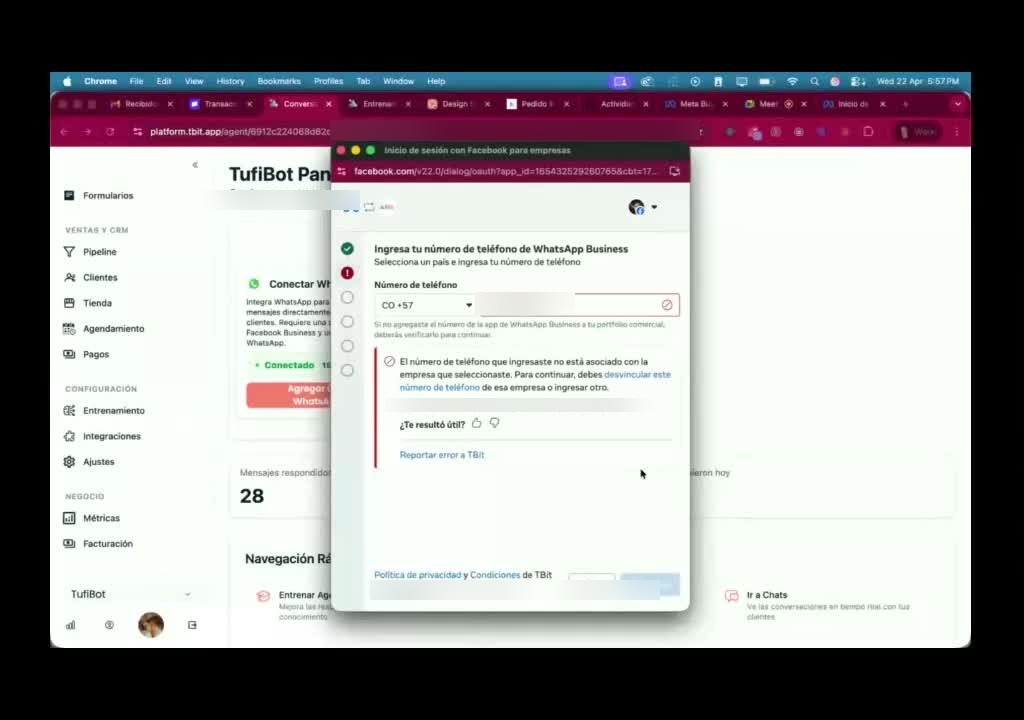
What to do (the consistent fix):
- Identify which Instagram holds the number. Trick: search your number on Google (with and without the 57 in front) and check the Instagram results; the profile that appears associated is the one that has it tied up.
- Go to business.facebook.com logging in with Instagram (not with Facebook); only then does the implicit portfolio appear, in Settings → WhatsApp Accounts → Phone Numbers tab.
- Recover access to that old Instagram ("Forgot my password"; from your phone it's usually faster).
- In that old portfolio: locate the number → menu (⋯) → Delete. Refresh and wait a few minutes for Meta to release it.
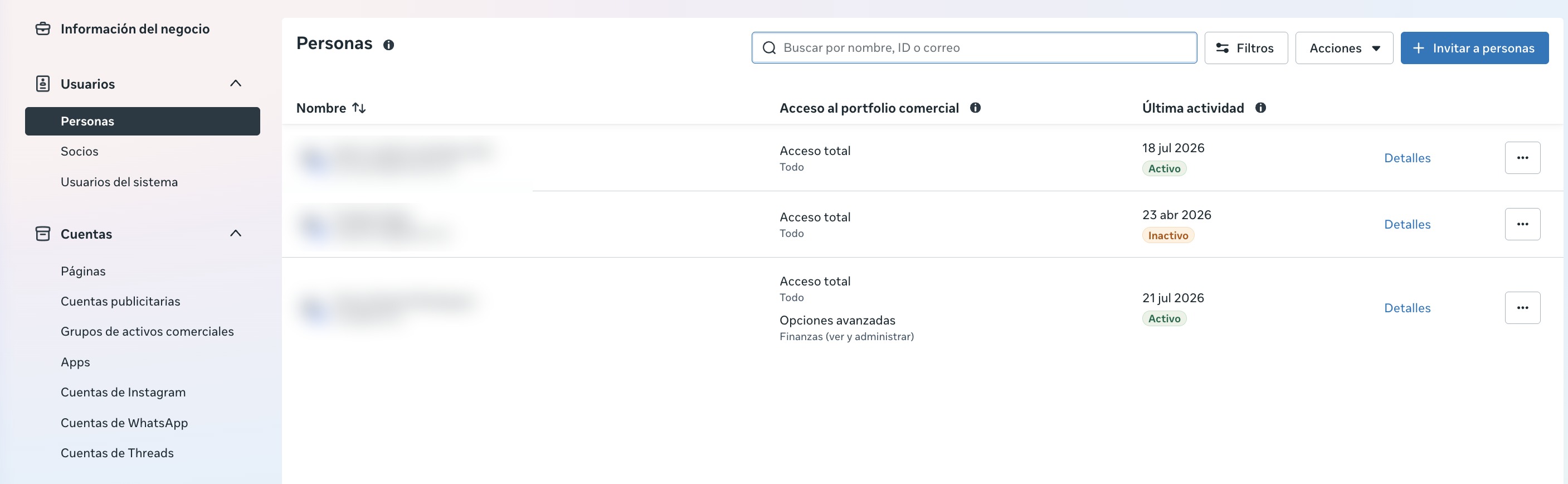
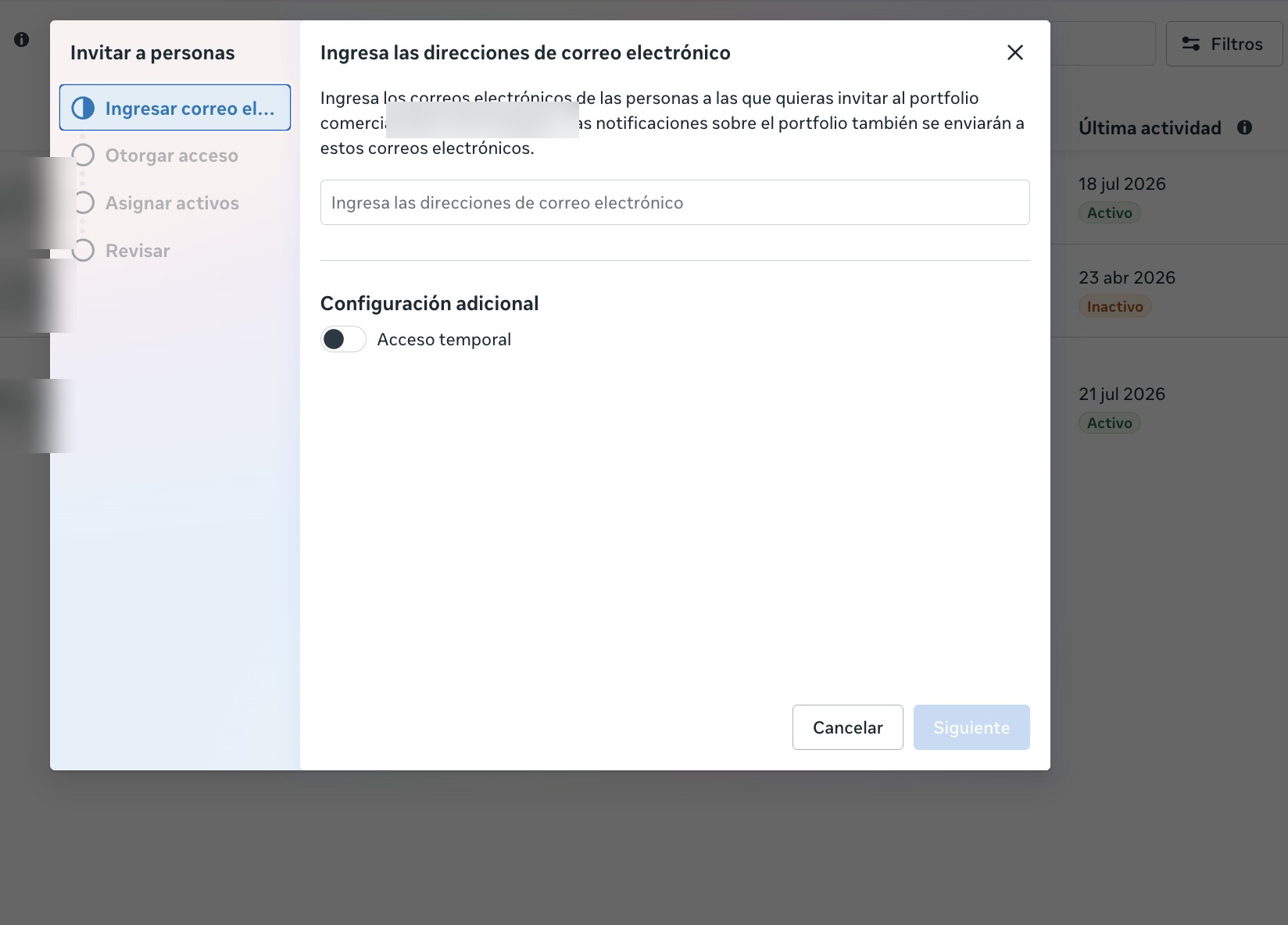
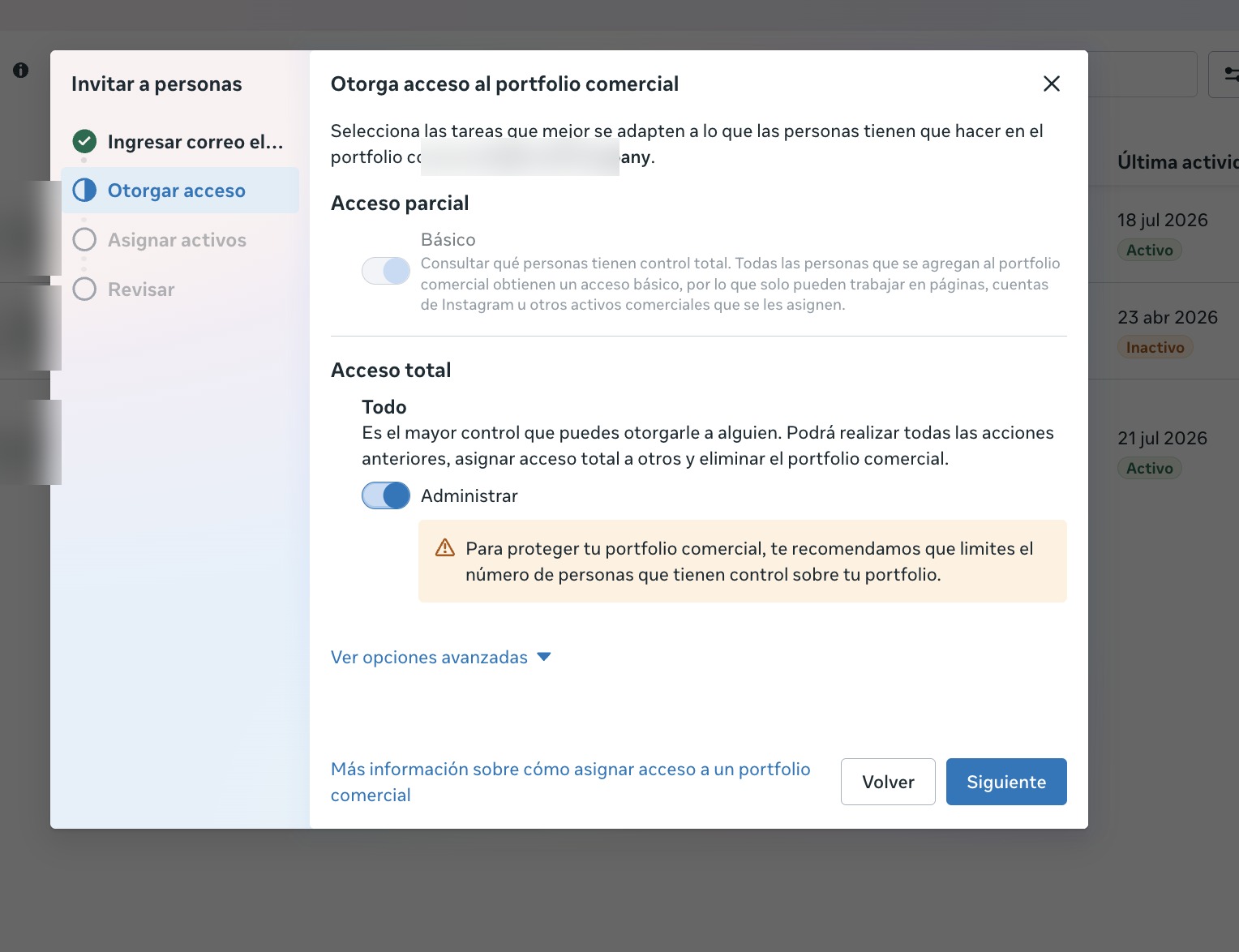
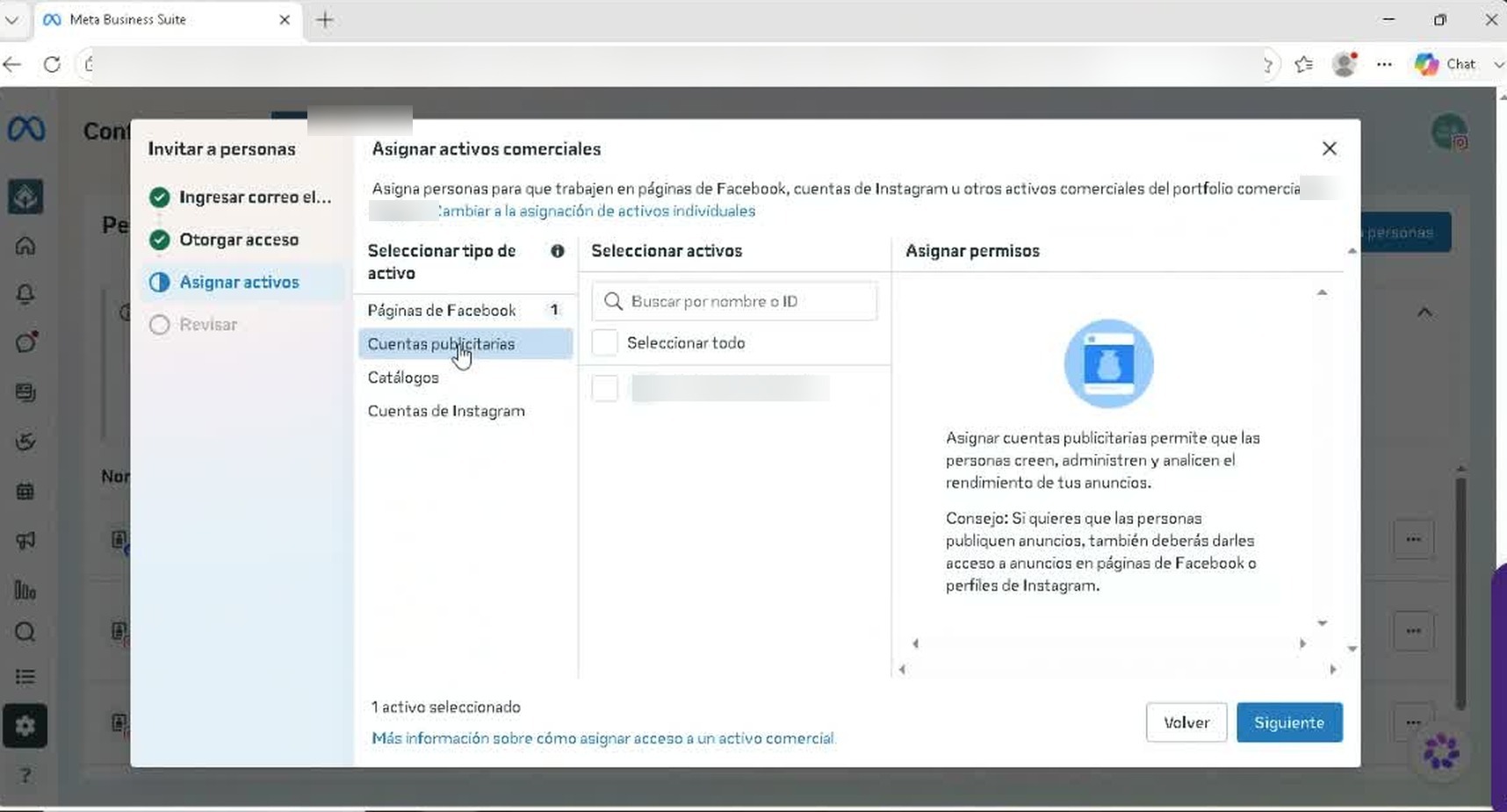
- In the good portfolio: People → Invite the correct email with full access, assigning all assets (WhatsApp, ad accounts, catalog, Instagram). That email must have a Facebook account. If the invitation doesn't arrive, you can invite a TBit team email as a bridge.
- Add the number to the good portfolio (SMS verification) and connect with TBit.
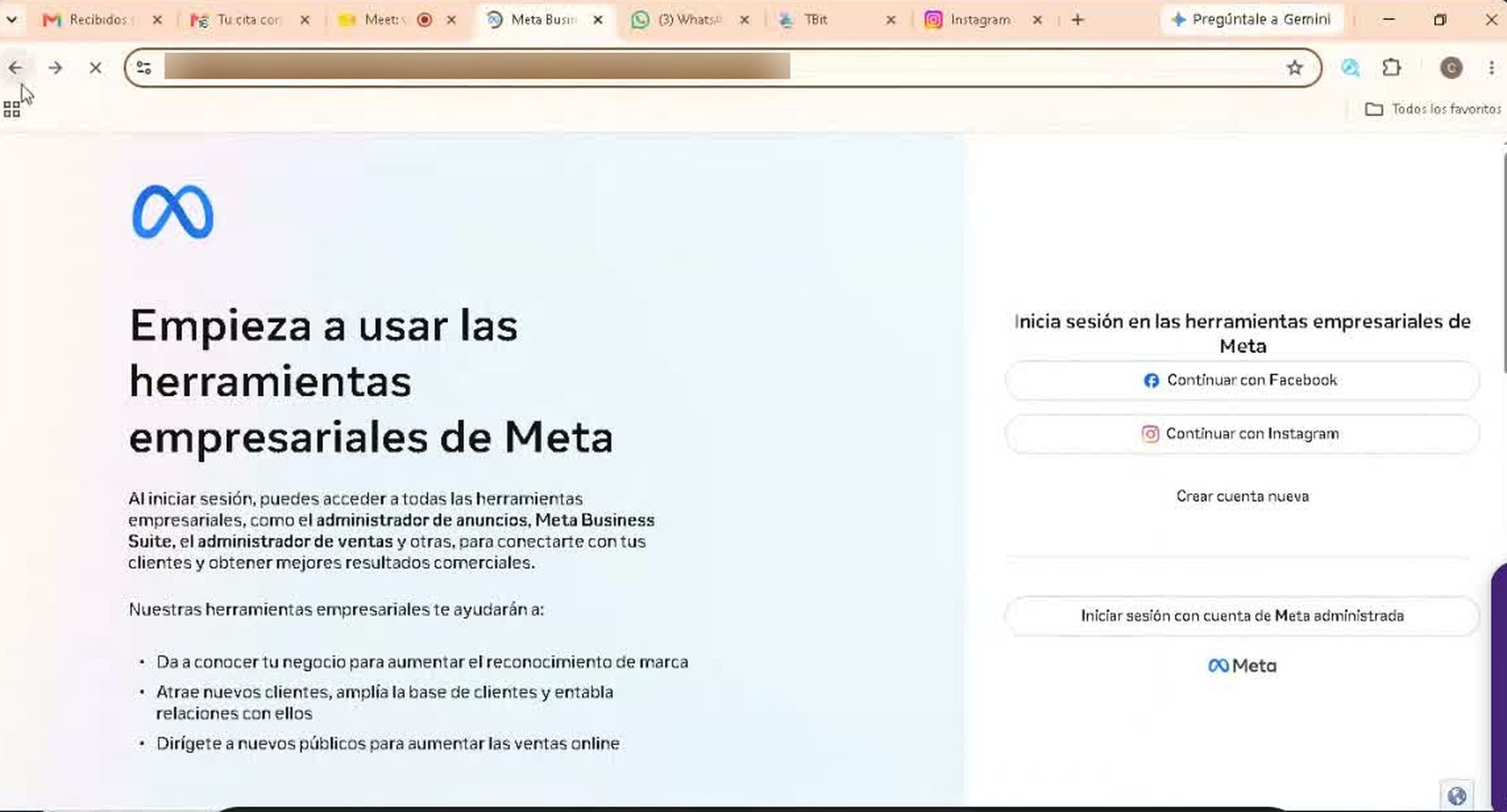
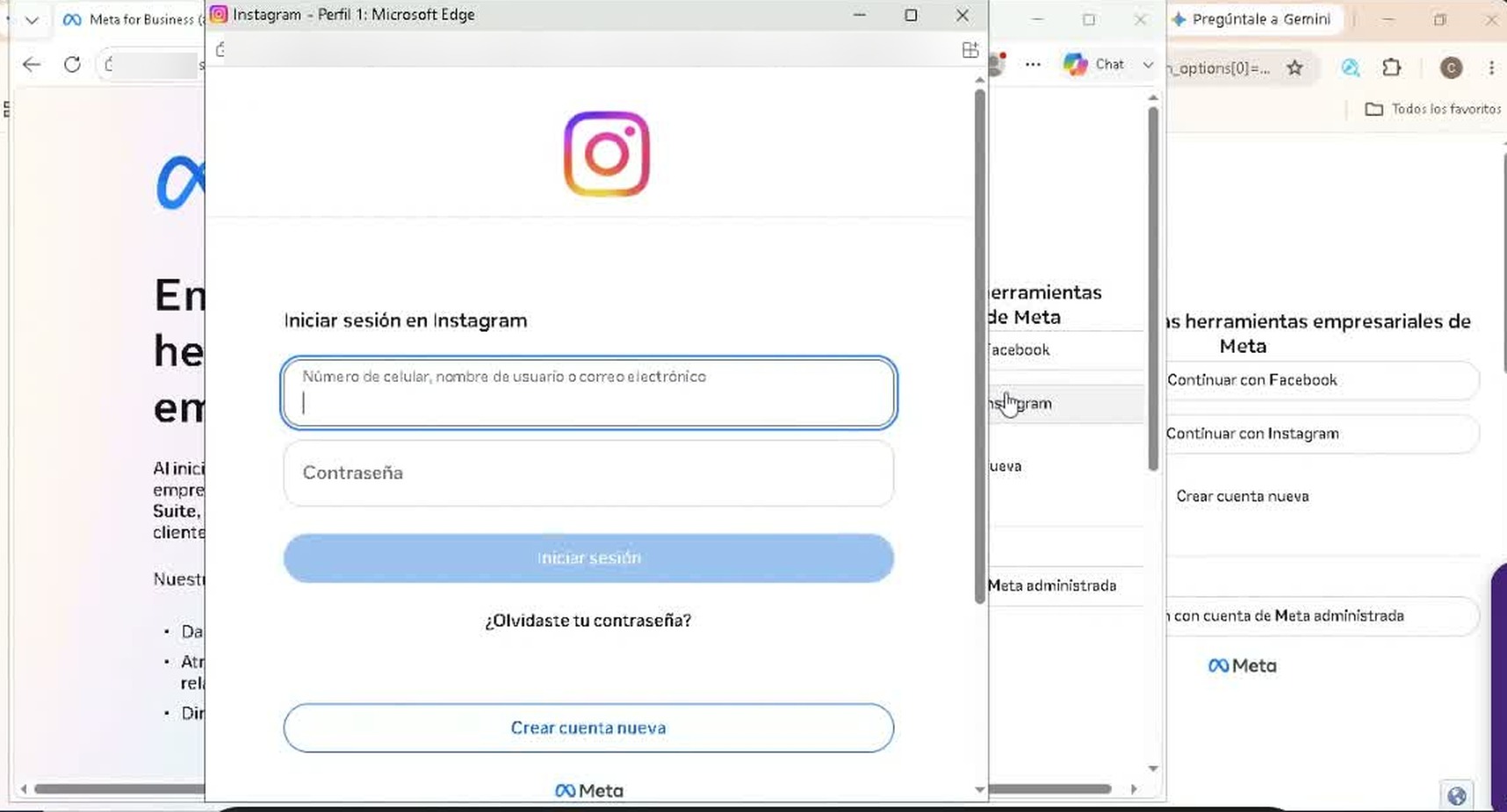
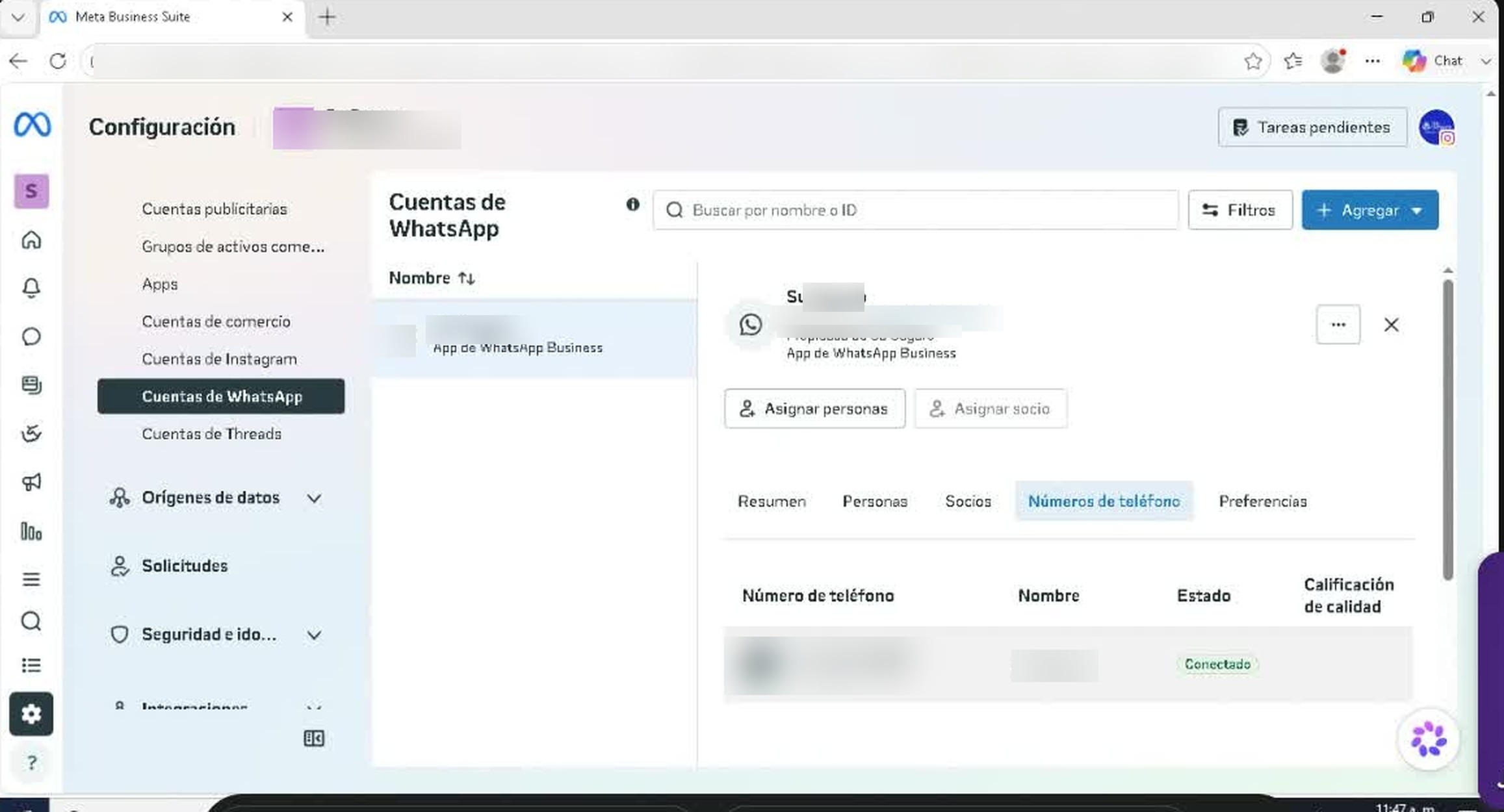
Path 5 · Multi-admin
Several portfolios / several businessesMay require admin access
Problem: you have more than one business admin (two businesses, two tax IDs, personal and business accounts tangled together…) and the number lives in a different Business Manager than the one you're using to connect.
What to do:
- Take inventory of all portfolios for the client and find which one the number lives in (Settings → WhatsApp Accounts → Phone numbers, portfolio by portfolio).
- Connect from the correct portfolio, or move the number to the portfolio you want (remove it from one, link it in the other with an SMS code).
- When the interface doesn't show the error: the client invites the TBit team to the Business Manager (People → invite with full control over the WhatsApp account) to see the real error from inside. Note: giving "full asset control" doesn't include managing the portfolio, that permission is edited separately.
- Check that there are no active ad campaigns before removing or moving assets.
Path 5.2 · "The account has already been added to another Facebook business account"
Problem: you try to link the WhatsApp account to your portfolio (even with the code in hand) and Meta stops you: "The account has already been added to another Facebook business account. You can only add this WhatsApp Business account to one Meta business account. To add it to this business, first remove it from the other portfolio."
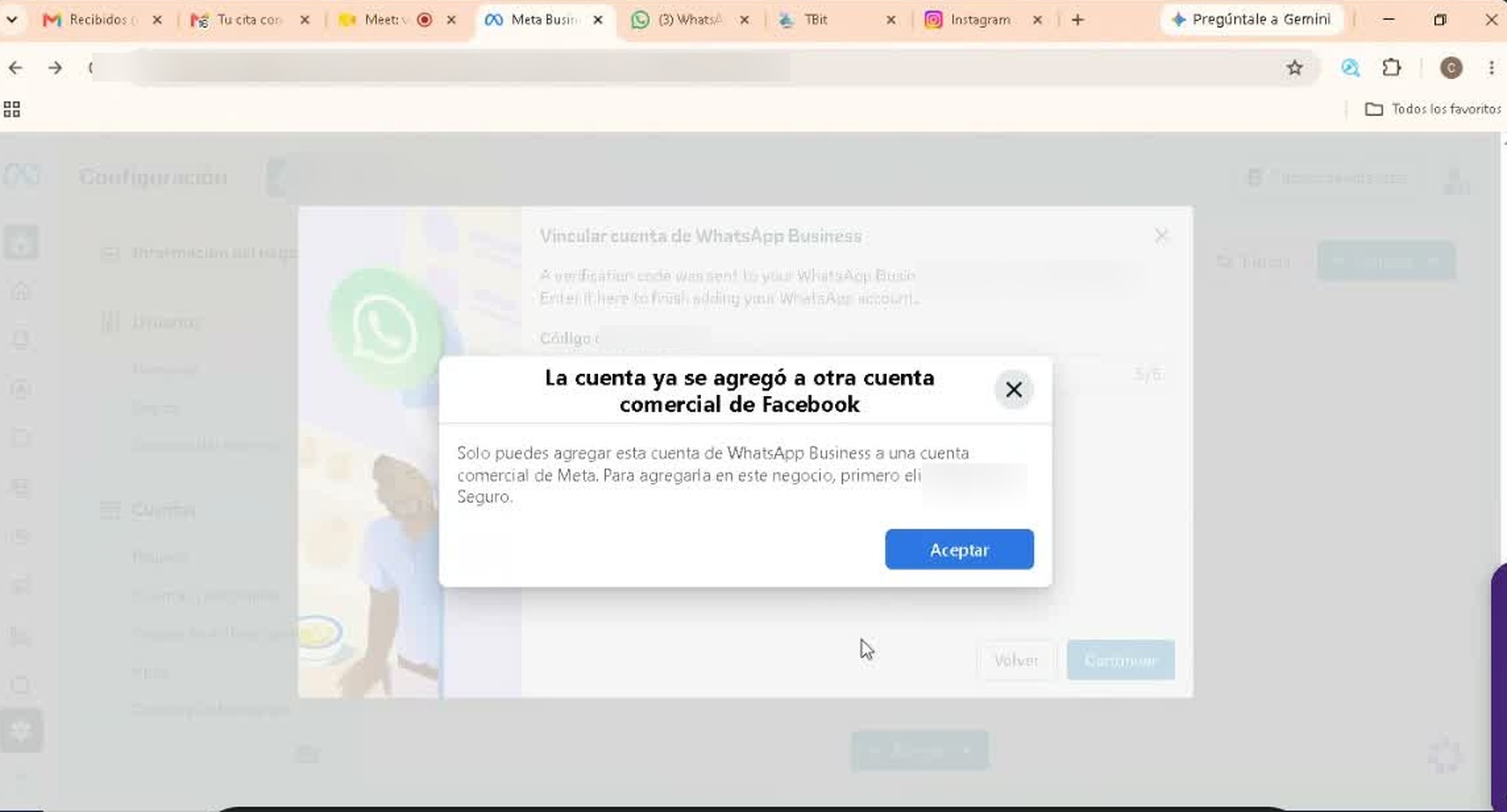
Solution: a WhatsApp account can only belong to one business portfolio at a time. The way out is Path 4: go into the portfolio that's holding it (if it was Instagram, log in with Instagram), find the number under WhatsApp Accounts → Phone Numbers, delete it from that portfolio, wait a few minutes for Meta to release it, and then link it again.
Path 6 · Nuclear solution (the ghost partner)
Migration from another providerMeta's «frozen» statessometimes only time heals it
Problem: your line was connected to another provider (a BSP like ManyChat or another one). You canceled the subscription and «disconnected»… but Meta still sees a partner with rights over your account, even though the lists look empty.
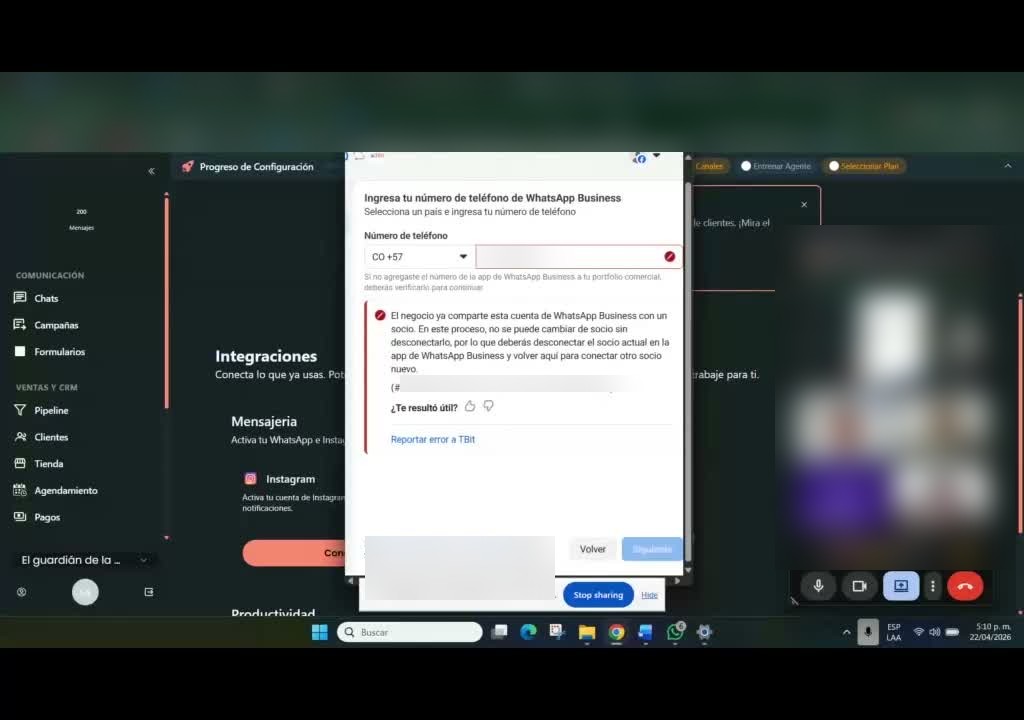
What to do:
- On the main phone: Settings → Account → Business platform → disconnect whatever is there, and wait ~30 minutes.
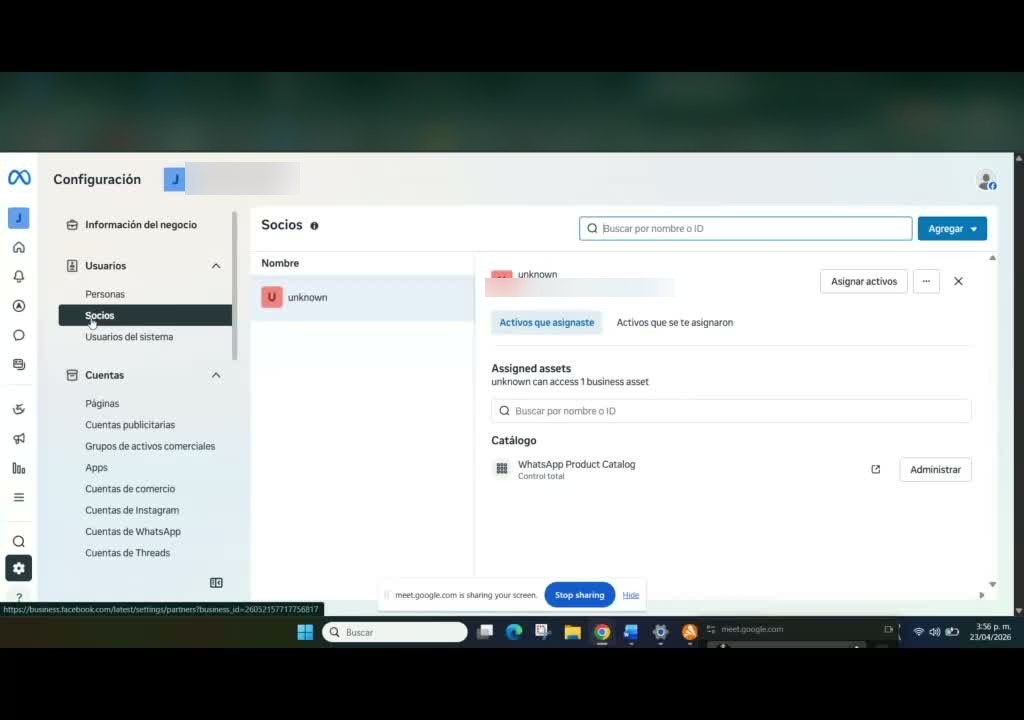
- Look for the partner at the global Business Manager level (Business settings → Partners), not just inside the WhatsApp account: that's usually where the "unknown partner" hides. Remove it along with its access.
- "Nuclear solution": delete the WhatsApp account from the portfolio and link it again (with an SMS code). Sometimes it unblocks, sometimes it doesn't.
- Compare against a healthy line (where the legitimate partner does appear) to spot what's extra or missing.
- If nothing works: it's time for Meta. Plan B: open a new line for marketing traffic (path 1) and retry the old one in days or weeks.
Path 7 · Account closed or in third-party hands
The worst-case scenarioOften you have to rebuild
Problem: Meta closed your account or business manager (for example, by flagging it as "duplicate/plagiarism"), the account is under appeal, or the Instagram/email that holds your number was created by a third party (an agency that set up a campaign for you) and nobody has the logins.
What to do:
- Test whether the line is free through several routes. Diagnostic trick: try linking it in a test Business Manager; if it asks for a verification code, the line is free; if it says "associated with another business", it's still tied up.
- If the asset is unrecoverable (a third party's email/IG, a stalled appeal): create a new business Instagram and/or a new Business Manager and rebuild from scratch, with your own logins.
- Don't rename an old Business Manager so it "matches" the brand: Meta then flags errors during verification. Better to use a new, clean BM.
- Remember that existing ad campaigns are not redirected to the new line: you have to create new campaigns pointing to the new channel.
The 10 cross-cutting traps
What you learn "the hard way" across hundreds of connections; it applies to any path:
- Meta almost never says what the error is: retrying is part of the protocol.
- Main device + computer, always; never companion or tablet.
- Numbers take time to "free up" (minutes to a day): be patient before re-diagnosing.
- Stuck dialog → new tab or browser; it helps to log into Facebook separately first.
- The portfolio name must be the legal name; a down website hurts (use your Instagram URL).
- Don't create new Facebook accounts "from scratch" for this: Meta distrusts accounts with no history.
- Meta invitation not arriving? You can invite a TBit team email as a bridge.
- Invisible error? Temporary admin invitation to the Business Manager to read it from the inside.
- Never delete or move assets with active campaigns.
- At the end of every path: turn on the channel in TBit and hit Save.
Appendix A · Confirm your number is in your portfolio
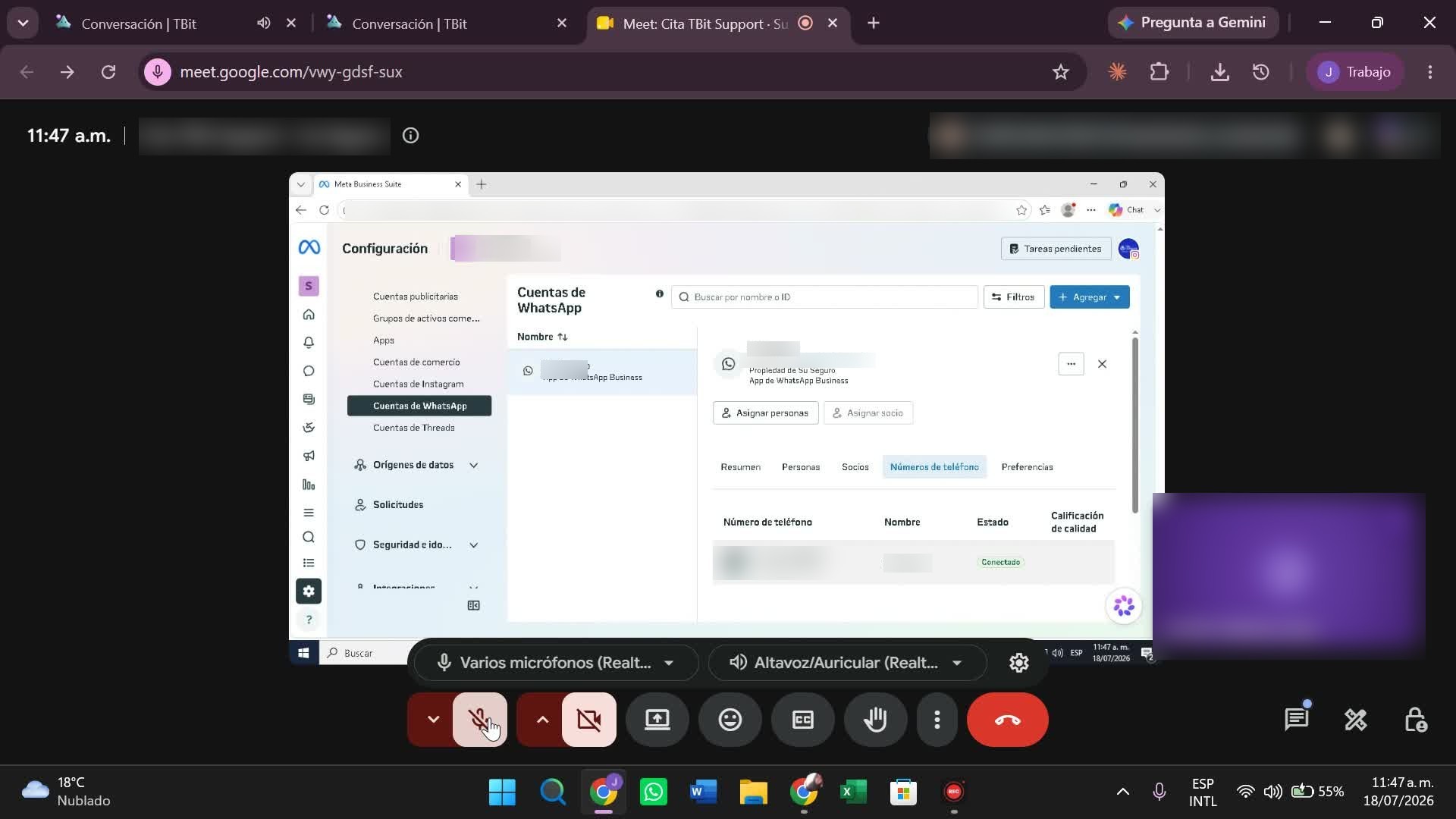
It's optional (the "Connected" status in TBit already confirms it), but if you want to see it on Meta's side:
- Open business.facebook.com/latest/settings/whatsapp_account (or Meta Business Suite → Business Settings → Accounts → WhatsApp Accounts).
- Select your business portfolio if you have more than one.
- Go to the Phone Numbers tab: your number should appear with the status "Connected" and green quality.
Appendix B · How to add a number to the business portfolio
Useful when you've already freed up a number (paths 4 to 6) or want to add a new line directly in Meta:
- Open business.facebook.com/latest/settings/whatsapp_account and choose your business portfolio.
- Click + Add → "Link a WhatsApp Business account" (if the line already exists in the app) or "Create a WhatsApp account" (new line).
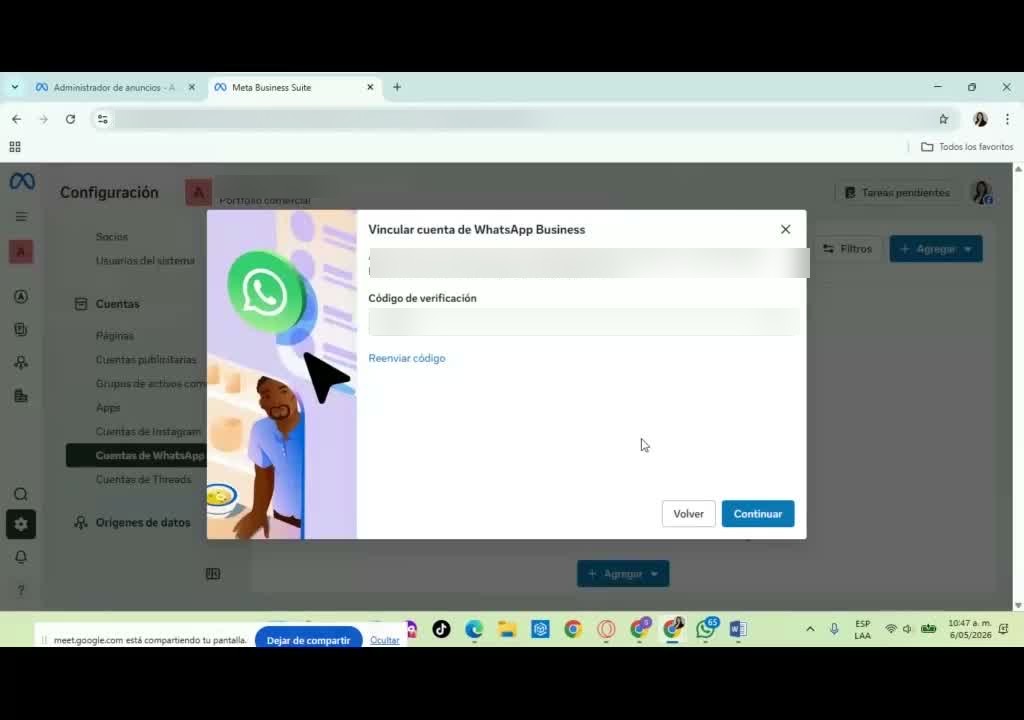
- Enter the country and the number. Meta sends a verification code by WhatsApp or SMS to that line.
- Enter the code → Continue. If it doesn't arrive, click "Resend code" and be patient.
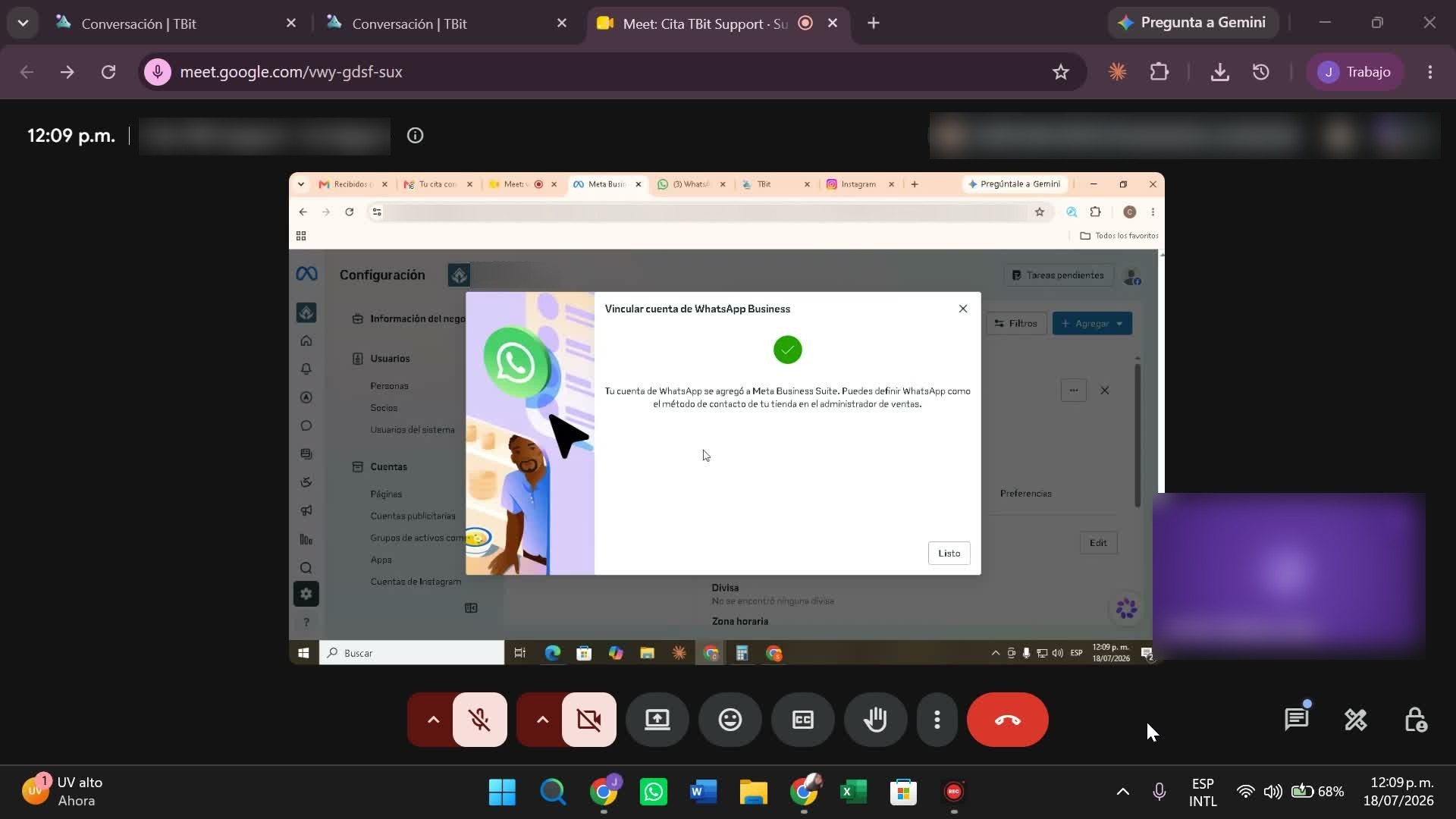
- Final confirmation: "Your WhatsApp account was added to Meta Business Suite". The number appears in the Phone numbers tab.
With the number now in your portfolio, finish the connection in TBit by following Path 1 (the happy path).