
Help center
How to create your TBit (AI agent) from the website | TBit
Step-by-step guide to create your TBit artificial intelligence agent from the website. Sign up with Gmail, setup and first test on WhatsApp.

How to create your TBit (AI agent) from the website
Part 1: Access the platform
Visit the TBit website and find the "Create account" button in the top right corner.

Part 2: Sign up
Click the "Create account" button. You don't need to create a password or fill out long forms: just log in with your Gmail account and you're ready to start.
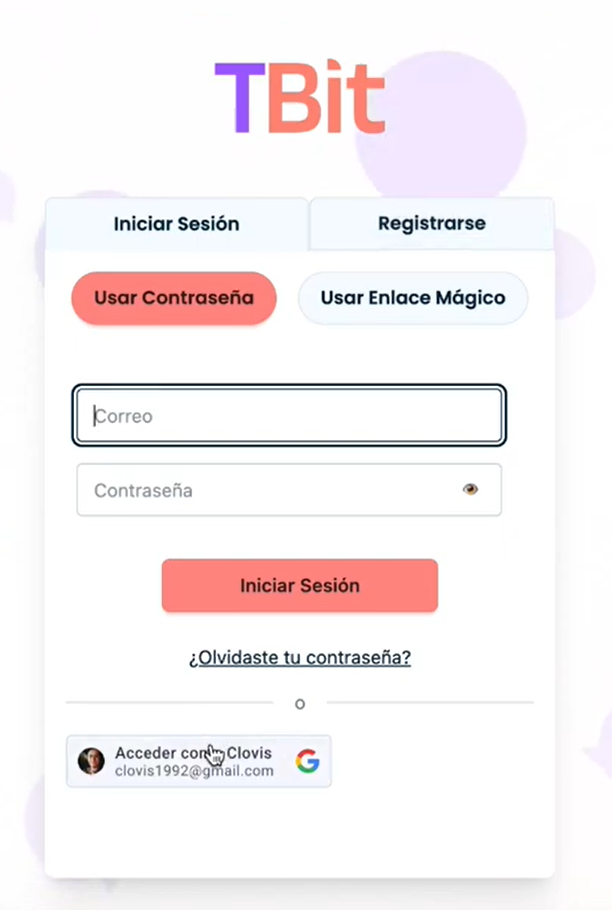
Part 3: Review the initial information
Once you've logged in, you'll see the initial setup screen. Read the introductory information to get familiar with the platform.
Part 4: Choose your TBit's specialty
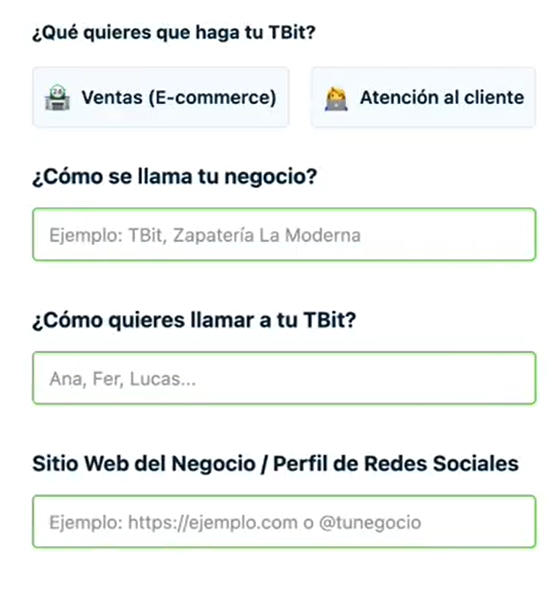
Select the main function of your AI assistant:
Sales agent: Answers questions and helps close sales
Customer service: Resolves questions and provides support
Note: You can change this function later if you need to.
Part 5: Set up the basic information
Enter the following details:
Business name: Your company's name
TBit name: Choose a name for your assistant (for example, "Lucas") — that's how it will introduce itself to customers
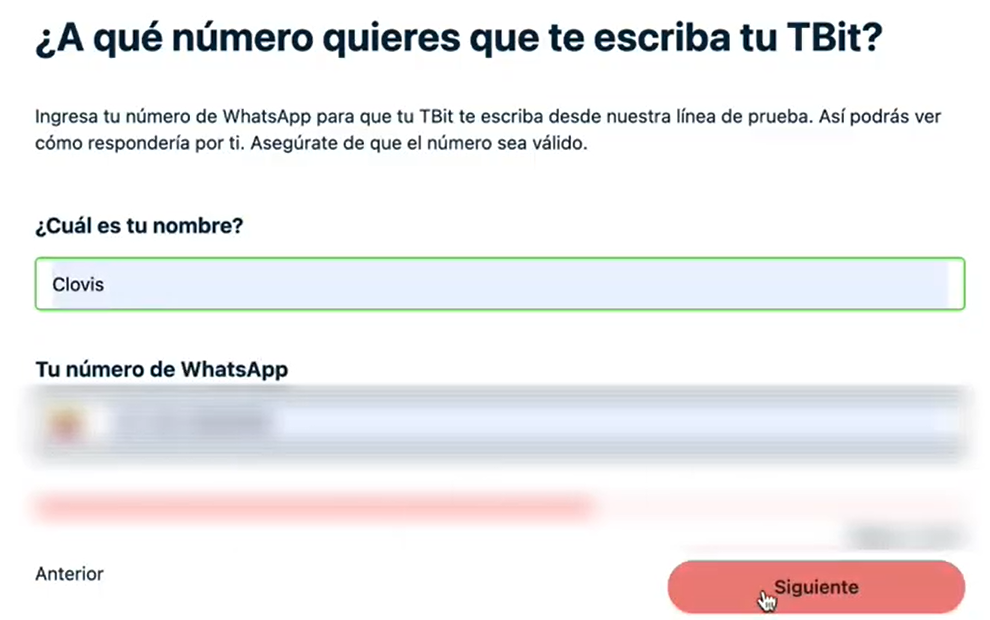
Your name: Your personal name
Your WhatsApp number: Your personal number (not the business number) for testing purposes
Part 6: Customize the service approach
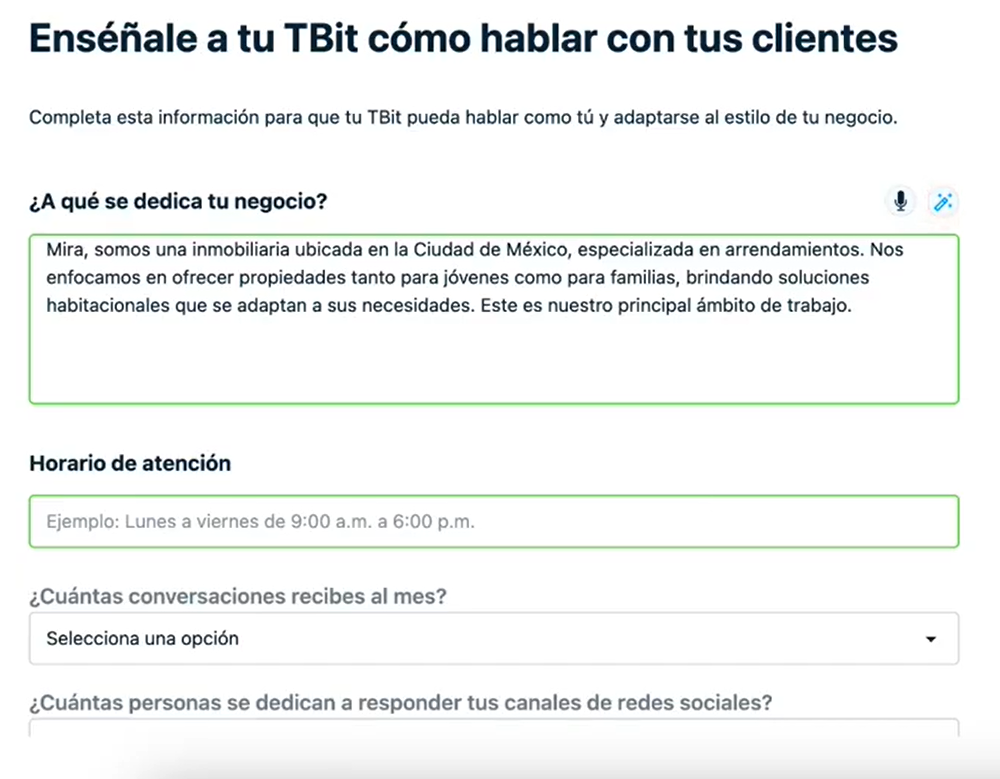
Provide detailed information about:
What products or services you sell
Your business hours
Your customers' buying process
How you want your TBit to greet customers
Pro Tips:
Use the microphone button to record voice notes instead of typing (remember to speak clearly)
Use the magic wand button to make the most of AI and improve your text descriptions
Part 7: Define your ideal customer
Describe your target customer including: age range, interests, location and any other relevant characteristic.
Part 8: Define your company values
Specify your company's most important values. Remember: the more information you provide, the more precise and efficient your TBit will be.
Part 9: Train your TBit
Click "Send and Train". Wait for the system to process all the information you provided.
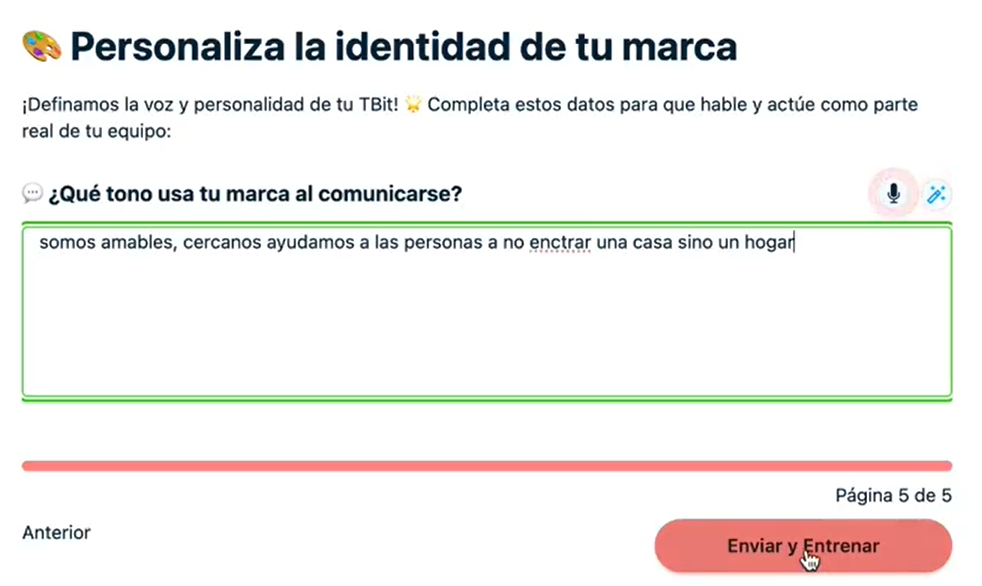
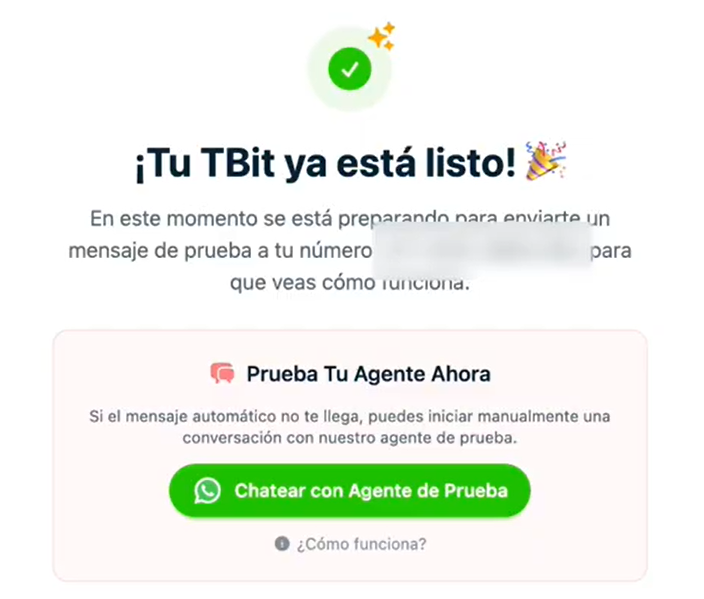
Part 10: Activation confirmation
You'll see a confirmation message indicating that your TBit is now active. You'll also receive a notification on the WhatsApp number you registered.
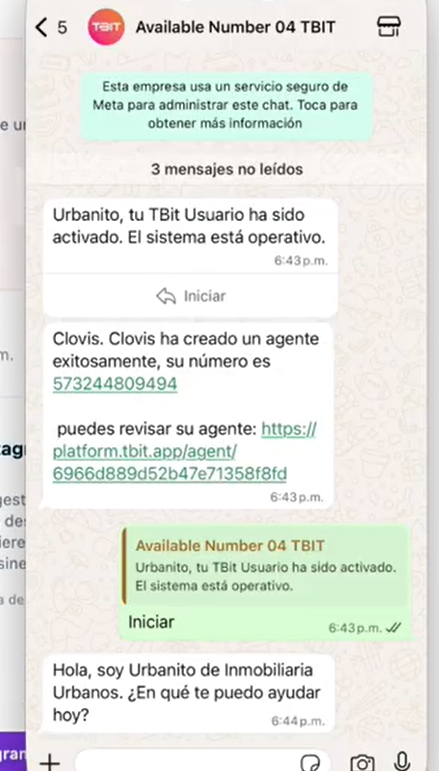
Part 11: Test your TBit
Open WhatsApp and send a message to your TBit as if you were a customer. You'll see how it replies using all the information you provided.
Next steps
Explore additional tutorials to learn how to:
Train your TBit even more
Connect your WhatsApp Business and your Instagram account
Upload products to your store
Your TBit AI assistant is now ready to help your business deliver exceptional customer service 24/7.