
Help center
How to upload products to TBit: Step-by-step guide | TBit
Learn how to create a digital catalog in TBit by uploading products manually with photos, prices, inventory and variants.

How to upload products to TBit: Step-by-step guide
With TBit, besides automating your chats, you can also create a digital catalog for your products or services. This will let your current and potential customers easily find everything you offer, while TBit shares it automatically in conversations when someone asks about your offering.

Part 1: Upload products manually
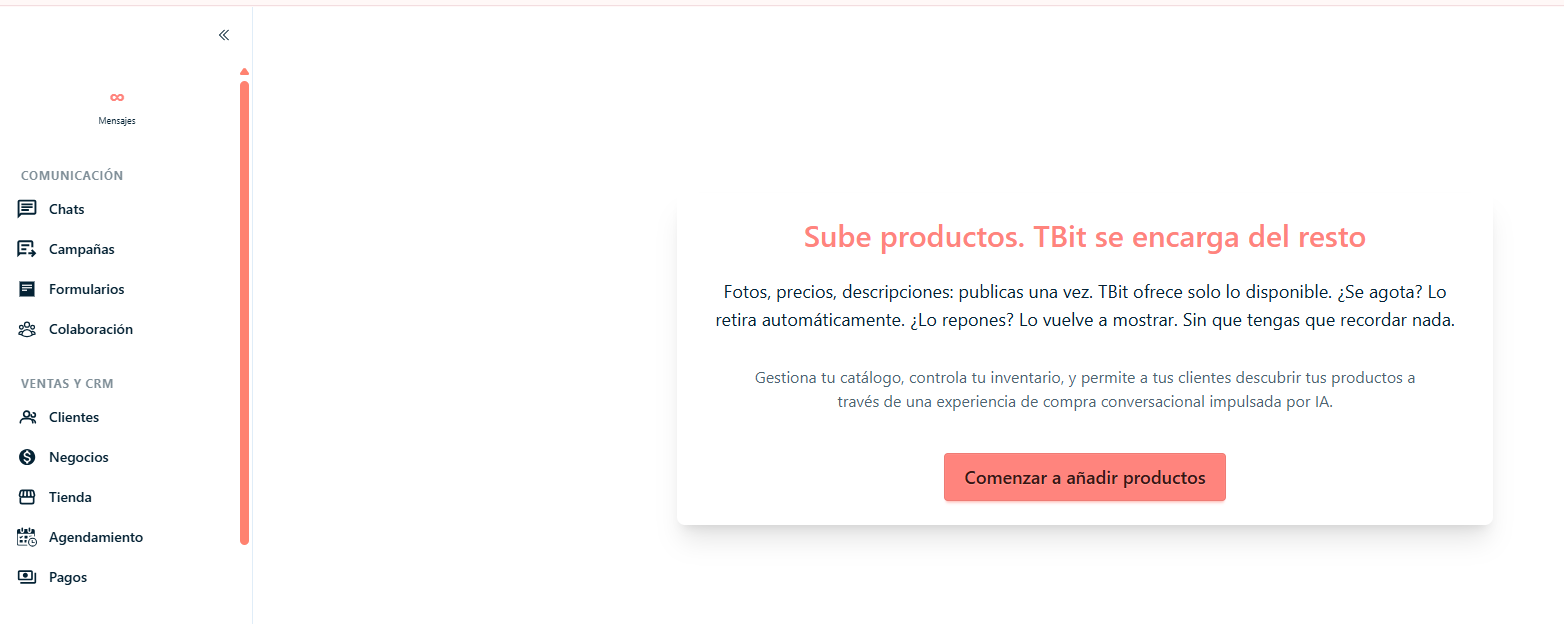
Step 1: Go to the Store section in the left menu.
Step 2: Click on "Start" or "Add products".
Part 2: Enter the product information
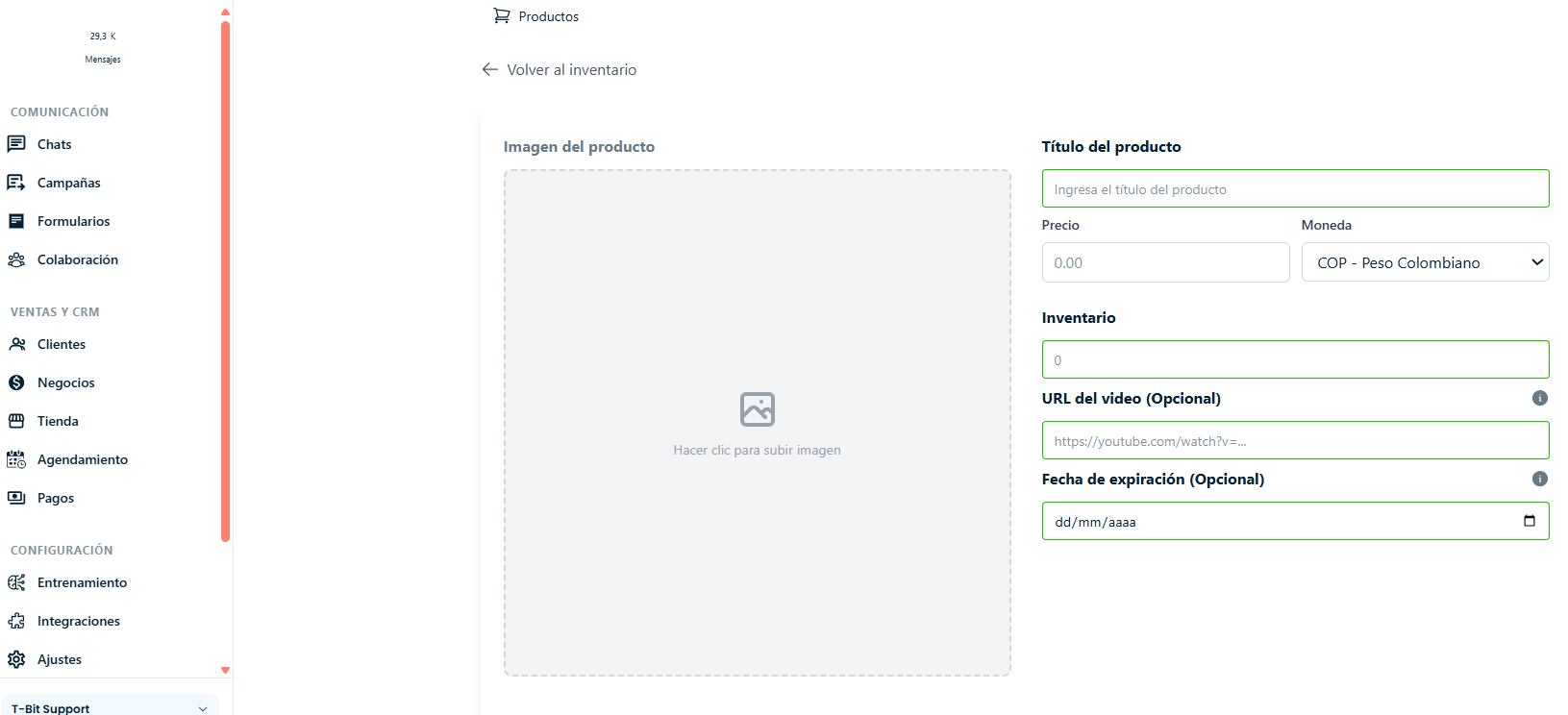
Photo: Upload an image of the product
Name: Describe the product name
Price: Enter the price
Currency: Select the corresponding currency
Inventory: Add the available quantity in stock
Part 3: Additional information
External link: If you have a link with more product details, paste it here
Expiration date: Indicate the date if applicable (optional)
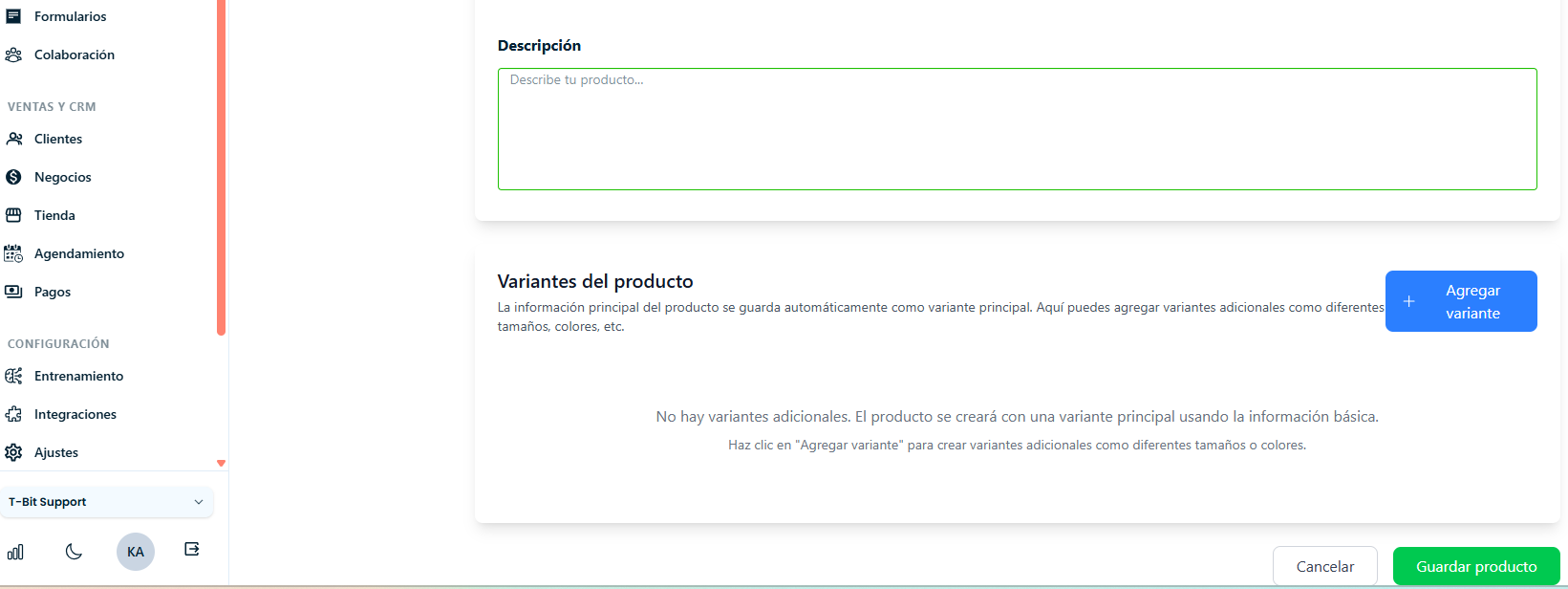
Description: Write a brief but catchy description
Part 4: Add variants (optional)
If your product has variants like sizes, colors or specific features, add them with their respective information. For example, for t-shirts include each available size and color.
Part 5: Save the product
Click on "Save product". Your product is now uploaded to the TBit store.